
Have you ever found yourself captivated by a WordPress theme and wished you could replicate its exact look and feel on your own site? Copying a WordPress theme might seem like a daunting task, but it doesn’t have to be.
Imagine being able to effortlessly duplicate a theme you love, giving your website a fresh and appealing design that captivates your audience. In this guide, you’ll discover simple, step-by-step instructions to help you do just that. By the end of the article, you’ll have the tools and confidence to make your WordPress site look exactly the way you’ve always envisioned.
Dive in, and let’s unlock the secrets to transforming your website!
Choosing The Right Theme
Picking the right theme is important. A theme decides how your site looks. It affects how users interact with it. Consider a theme that suits your needs. Think about the style you want. Is it simple or colorful? Make sure it fits your brand. A good theme is also responsive. This means it looks good on phones and tablets. Check if the theme is easy to use. A simple design can be best for beginners. Look for themes with good reviews. Reading user feedback helps. Always try the demo before you decide. This shows how the theme works.
Credit: www.greengeeks.com
Preparing Your WordPress Site
Copying a theme in WordPress involves accessing the theme folder through your hosting provider’s file manager. Duplicate the theme’s folder and rename it to differentiate from the original. This allows customization without affecting the existing theme.
Backing Up Your Site
Backing up your site is very important. It keeps your data safe. Use plugins like UpdraftPlus or BackupBuddy. These tools save your files. You can restore them easily. Always keep a copy of your backup. Save it on your computer or cloud. Regular backups help if something goes wrong. Set a schedule for backups. Weekly is a good choice. This makes sure your site is safe.
Creating A Child Theme
Child themes are great for making changes. They keep the main theme safe. Start by creating a new folder. Name it after your theme. Inside, create a style.css file. Add basic code to this file. Link the child theme with the main theme. Use the functions.php file for this. Child themes let you make changes easily. Your main theme stays untouched. This helps when updates come. Your changes won’t get lost.
Copying The Theme Files
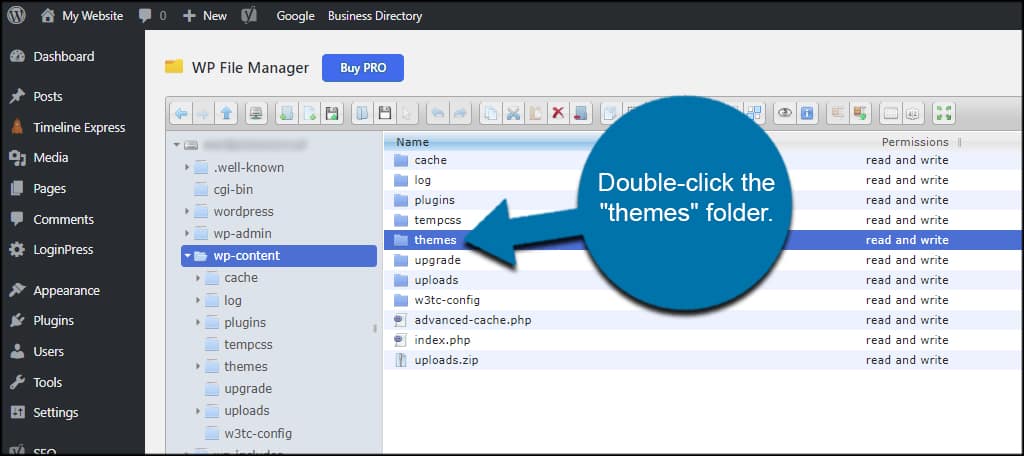
Copying theme files in WordPress involves accessing your website’s file manager or using an FTP client. First, locate the ‘wp-content/themes’ directory, then copy the desired theme folder to your computer. This ensures a backup and allows for easy modifications.
Using File Manager
Open the File Manager in your hosting account. Navigate to the wp-content/themes folder. Right-click on the theme folder you want to copy. Select Download to save it to your computer. Ensure the download completes without errors. This method is simple for beginners. Always double-check the files to ensure they are correct.
Utilizing Ftp Client
Connect to your site using an FTP client like FileZilla. Locate the wp-content/themes directory. Select the theme folder you wish to copy. Click to download it to your local machine. Make sure the download finishes properly. This method offers more control over files. Use it if you are comfortable with FTP. Always keep backup copies to avoid data loss.
Customizing Your Theme
CSS controls how your site looks. Make small changes to test. Use the WordPress Customizer to add your CSS. This tool is easy and safe. Remember to save your work. Refresh the page to see changes. Simple tweaks can make a big difference. Choose colors and fonts wisely. Keep text readable. Ensure the design is user-friendly.
PHP makes your site function. Be careful with changes. Backup files before editing. Use a text editor like Notepad++ or Sublime Text. Open the file you need to change. Look for the code you want to edit. Make small changes and test them. Errors can break your site. Always check your site after changes. Fix any mistakes quickly.
Testing Your Copied Theme
Your theme must be responsive. Test it on different screen sizes. Use a phone, tablet, and computer. Check if everything looks good. The menu should be easy to use. Text should not be too small. Pictures must fit the screen well. A good theme adapts to all devices. It keeps your site looking neat.
Every browser shows things differently. Test your theme on Chrome, Firefox, and Safari. Make sure it works well on each. Links should open correctly. Styles should look the same. If something breaks, it needs fixing. A theme must be compatible with all browsers. This ensures everyone sees your site properly.

Credit: wpfactory.com
Activating And Finalizing
To switch themes, go to your WordPress dashboard. Find the Appearance tab. Click on Themes. There, you will see your new theme. Click Activate. Your site now uses the new theme. Check to see if everything looks good. Sometimes, small things change. Make sure your site works well.
Sometimes, things might not work right. Your site might look different. Some parts may break. Check your widgets and menus. These might move. Fix them in the dashboard. If problems continue, the theme might have a bug. Check the theme’s support page. Look for solutions. If stuck, ask for help. Many people face these issues. They often have solutions.

Credit: wpfactory.com
Frequently Asked Questions
How Do I Duplicate A WordPress Theme?
To duplicate a WordPress theme, use the file manager to copy its folder. Rename the copied folder to avoid conflicts. Then, edit the `style. css` file to update theme details. Finally, activate the duplicated theme through the WordPress dashboard.
Can I Copy A Theme Without Coding Skills?
Yes, you can copy a theme without coding skills. Use a file manager or FTP client to duplicate the theme folder. Ensure you rename the copied folder and update the theme information in `style. css` for easy identification.
Is It Legal To Copy A WordPress Theme?
Copying a WordPress theme is legal if you own it or have permission. Be cautious of themes with proprietary licenses. Always check the theme’s licensing agreement before duplication to avoid copyright infringement.
What Tools Help In Copying Themes?
Tools like FileZilla, Cyberduck, and cPanel file manager help in copying themes. They allow easy access to your server files. Use these tools to duplicate the theme folder and edit theme details without much hassle.
Conclusion
Copying a theme in WordPress can be simple. Follow the steps carefully. Always back up your site before changes. This prevents data loss. Choose a theme that fits your needs. Customize it to suit your style. Remember to check for updates regularly.
This keeps your site secure and smooth. Take your time to explore options. Themes impact your site’s look and feel. Practice makes perfect. Try different settings and features. Soon, you’ll feel more confident. Enjoy creating a unique site that stands out.
Happy designing!


