
Are you stuck with a WordPress theme that doesn’t quite fit your vision? You’re not alone.
Many find themselves wishing for a cleaner, more responsive design. That’s where Bootstrap comes in. Imagine having the power to convert your WordPress theme into a sleek, mobile-friendly site with a framework trusted by millions. This guide will show you how to make that transformation easily.
We’ll break down the steps you need to take, using language that’s straightforward and approachable. You’ll discover the secrets to enhancing your website’s look and feel without starting from scratch. Plus, we’ll share tips that can save you time and effort, making the whole process smoother than you ever thought possible. Ready to unlock the true potential of your WordPress site? Let’s get started.
Basics Of WordPress Themes
WordPress themes have a special structure. They help make sites look good. Each theme has many parts. Some parts are for looks. Other parts help with functions. Themes work with WordPress to show content. This content can be text, pictures, or videos. Themes can be changed and styled. This makes each website special.
Themes have important files. These files are like puzzle pieces. Each file has a job. The style.css file is for design. The index.php file shows content. The functions.php file adds features. These files work together. They help build the website. Using them makes designing easy.

Credit: m.youtube.com
Introduction To Bootstrap
Bootstrap is a popular tool for web design. It helps make websites look nice. Many people use it because it’s easy to understand. One cool part of Bootstrap is the grid system. This system helps arrange things on the page. It makes the site look organized.
Bootstrap Grid System
The grid system uses rows and columns. These rows and columns help arrange content. It’s like a puzzle. You can fit pieces together neatly. The grid is flexible. You can change it to fit different screens. This makes websites look good on phones and computers.
Core Components Of Bootstrap
Bootstrap has many helpful parts. These parts include buttons, forms, and cards. They make building websites easier. You can use these parts to create a nice website. They also save time. You don’t need to write lots of code. Just use Bootstrap’s ready-made parts.
Pre-conversion Checklist
Always create a backup of your WordPress site. It keeps your data safe. Use plugins like UpdraftPlus or BackWPup. These tools are easy to use. Store the backup in a secure location. This could be a cloud service or an external drive. Backups save time and protect your hard work.
Check if your theme can work with Bootstrap. Bootstrap is a framework for building websites. Some themes are not compatible. Look for themes that are flexible and responsive. Make a list of theme features. Compare them to Bootstrap features. This helps in understanding what you need to change.
Setting Up The Development Environment
Start by installing a code editor. Many developers use Visual Studio Code. It is free and easy to use. You also need Node.js. It helps in building web applications. Download it from the official site. Install npm too. This is a package manager. It comes with Node.js.
Create a local server to test your changes. Use XAMPP for this. It is simple and works well. Download the installer from their site. Follow the steps to install it. Once installed, open the XAMPP Control Panel. Start the Apache and MySQL modules. You now have a local server. Place your WordPress files in the htdocs folder.
Extracting WordPress Theme Files
Convert your WordPress theme to Bootstrap by extracting theme files effectively. Start with identifying core theme elements and structure. Use Bootstrap’s grid system to recreate layout, ensuring responsive design and simplicity.
Downloading Theme Files
First, log in to the WordPress dashboard. Navigate to the Appearance section. Click on Themes. Find the theme you wish to convert. Click Download to save it to your computer. Save it in a new folder on your desktop. This will make it easy to find later.
Organizing Files For Conversion
Open the folder with your theme files. You will see many files here. You need to focus on HTML, CSS, and JavaScript files. Create subfolders for each type. This helps in keeping them organized. Move HTML files to one folder. Move CSS files to another. Place JavaScript files in their own folder. This organization aids in the conversion process. It makes the next steps easier to manage.
Integrating Bootstrap Framework
First, get the Bootstrap CSS and JS files. You can download them or use a CDN. Add the links in your WordPress theme’s header.php file. Place the CSS link in the section. Add the JS links just before the tag. This will ensure that Bootstrap loads correctly.
WordPress themes have their own styles. To use Bootstrap, remove these styles. Open the theme’s style.css file. Carefully comment out or delete the existing styles. Replace them with Bootstrap classes. For example, use btn for buttons. Use container for layout structure. This will help your theme look neat and modern.
Converting Layouts To Bootstrap
The Bootstrap Grid System helps arrange your page. It divides the page into 12 equal columns. Each column can be used to place content. Start by identifying sections in your theme. Use div tags to create rows and columns. Assign classes like .col-md-6 to these columns. This makes the layout responsive. Content adjusts based on screen size. You can combine columns to make wider sections. Use .container or .container-fluid for layout width. Experiment with column sizes to fit your needs.
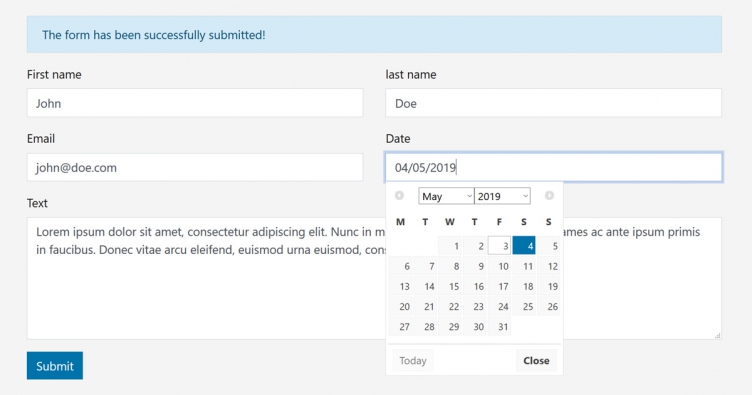
Bootstrap offers many pre-styled components. Buttons, forms, and modals are easy to use. Replace existing theme styles with Bootstrap classes. It ensures a consistent look. For example, use btn btn-primary for buttons. Add form-control to input fields. This makes them look neat. Check Bootstrap documentation for more components. Some custom CSS may be needed. Tweak styles if needed for a perfect fit. Bootstrap is very flexible. It helps create modern and clean designs.
Credit: www.acf-extended.com
Updating Navigation And Menus
Navigation bars help users find their way. Convert them to Bootstrap for a fresh look. Use Bootstrap classes like .navbar and .navbar-default. This gives a clean and modern style. Add links using nav-item and nav-link. These classes keep things neat. Make sure each link is clear and easy to click. Try to keep it simple. Too many links confuse users. Use dropdowns for extra options. Dropdowns hide less important links. Users see only main options first.
Menus must work on all devices. Responsive menus change size to fit screens. Use Bootstrap’s grid system. It helps menus adjust automatically. Add .navbar-collapse for collapsible menus. This makes menus hide on small screens. Use a toggle button for easy access. Users tap to see more options. Keep text and icons big and clear. Tiny text is hard to read. Test menus on phones and tablets. Make sure they look good everywhere. Responsive menus make sure everyone has a good experience.
Styling And Customization
Transforming a WordPress theme into Bootstrap enhances website styling and customization. Integrating Bootstrap simplifies layout adjustments, making it responsive across devices. This conversion allows for easy modification of design elements, ensuring a unique and tailored user experience.
Adjusting Colors And Fonts
Start by choosing a color palette. Bootstrap makes this easy. Use simple color codes. Pick colors that match your brand. Then, update your CSS file. Change the font style next. Select fonts that are easy to read. Use Google Fonts for more options. Add the font link in your HTML file. Update your CSS to use the new fonts. Make sure your text is clear and readable. Always check your changes on different devices.
Utilizing Bootstrap Utilities
Bootstrap offers many helpful utilities. Use them to save time. For spacing, try the margin and padding classes. Adjust your layout without writing extra CSS. For text, use Bootstrap’s text utilities. These help with alignment and color. Text utilities make styling faster. Remember to use the grid system. It helps in organizing your content. Use columns and rows for a clean look. Explore other utilities for more features.
Credit: www.swantechnologies.ca
Testing And Debugging
Cross-browser Compatibility is very important. Websites must work on all browsers. Test your site on Chrome, Firefox, and Safari. Each browser may show your site differently. Fix any problems you find. Use tools like BrowserStack for testing. This helps find issues fast. Make sure all features work. Users should have a smooth experience.
Responsive Design Testing ensures your site looks good on all screens. Check how it looks on phones, tablets, and computers. Use the inspect tool in your browser. Adjust the screen size to see changes. Make sure text and images fit well. Buttons should be easy to click. Test forms for easy use. Good design makes users happy.
Deploying The Converted Theme
Log in to your WordPress dashboard. Go to the Appearance section. Click on Themes. Look for the Upload Theme button. Click it. Now, choose your converted theme file. It should be a .zip file. Click on Install Now. Wait for the upload to finish. It may take a few minutes. Once done, you will see a success message. Your theme is now uploaded.
After uploading, find your new theme in the list. Click on the Activate button. This will make your new theme live. Check your website to see the changes. Make sure everything looks good. If you see any issues, you may need to fix them. This might involve some tweaks in the settings. Enjoy your new look.
Frequently Asked Questions
What Is The First Step To Convert A Theme?
The first step is to analyze the WordPress theme structure. Understand its HTML, CSS, and JavaScript components. This will help you identify which parts to replicate in Bootstrap. Familiarize yourself with the theme’s layout and design elements to ensure a smooth conversion process.
Why Use Bootstrap For WordPress Themes?
Bootstrap provides a responsive and mobile-friendly framework. It simplifies the design process with pre-designed components. It also ensures compatibility across various devices and browsers. Using Bootstrap enhances the theme’s performance and visual appeal, making it a popular choice for developers.
Can I Convert Any WordPress Theme To Bootstrap?
Yes, you can convert most WordPress themes to Bootstrap. However, complex themes with unique functionalities may require more effort. It’s essential to have a good understanding of both WordPress and Bootstrap frameworks. This ensures a successful conversion that maintains the theme’s original features and design.
How Long Does The Conversion Process Take?
The conversion process duration varies based on the theme’s complexity. A simple theme might take a few hours, while more complex ones could take days. Your familiarity with WordPress and Bootstrap also affects the time required. Planning and understanding the theme structure can speed up the process.
Conclusion
Converting a WordPress theme to Bootstrap is a simple process. It enhances your website’s responsiveness and adaptability. First, grasp the basics of both WordPress and Bootstrap. Then, plan your design and structure carefully. Use Bootstrap’s grid system for a mobile-friendly layout.
Keep your code clean and organized. Test your website on different devices to ensure it works well. Patience and practice make the process smoother. Your efforts will pay off with a modern, flexible website. Enjoy the benefits of a more dynamic and engaging user experience.


