
Are you thinking of giving your WordPress website a fresh, new look? Switching to a new theme can be a thrilling way to enhance your site’s appearance and functionality.
But if you’re worried about losing your hard work or breaking things along the way, you’re not alone. Many website owners hesitate because they fear the unknown. The good news? You don’t have to feel overwhelmed. In this guide, you’ll discover simple, step-by-step instructions to smoothly transition to a new WordPress theme without a hitch.
Get ready to transform your site with confidence and unlock its full potential. Keep reading, and you’ll learn how to make your site stand out effortlessly!
Choosing The Right Theme
Start by knowing what you want. Think about your site’s purpose. Is it for a blog, a shop, or a gallery? Each need is different. Note down the features you require. Do you need a photo slider? Or maybe a contact form? Knowing these helps a lot. It narrows down your choices.
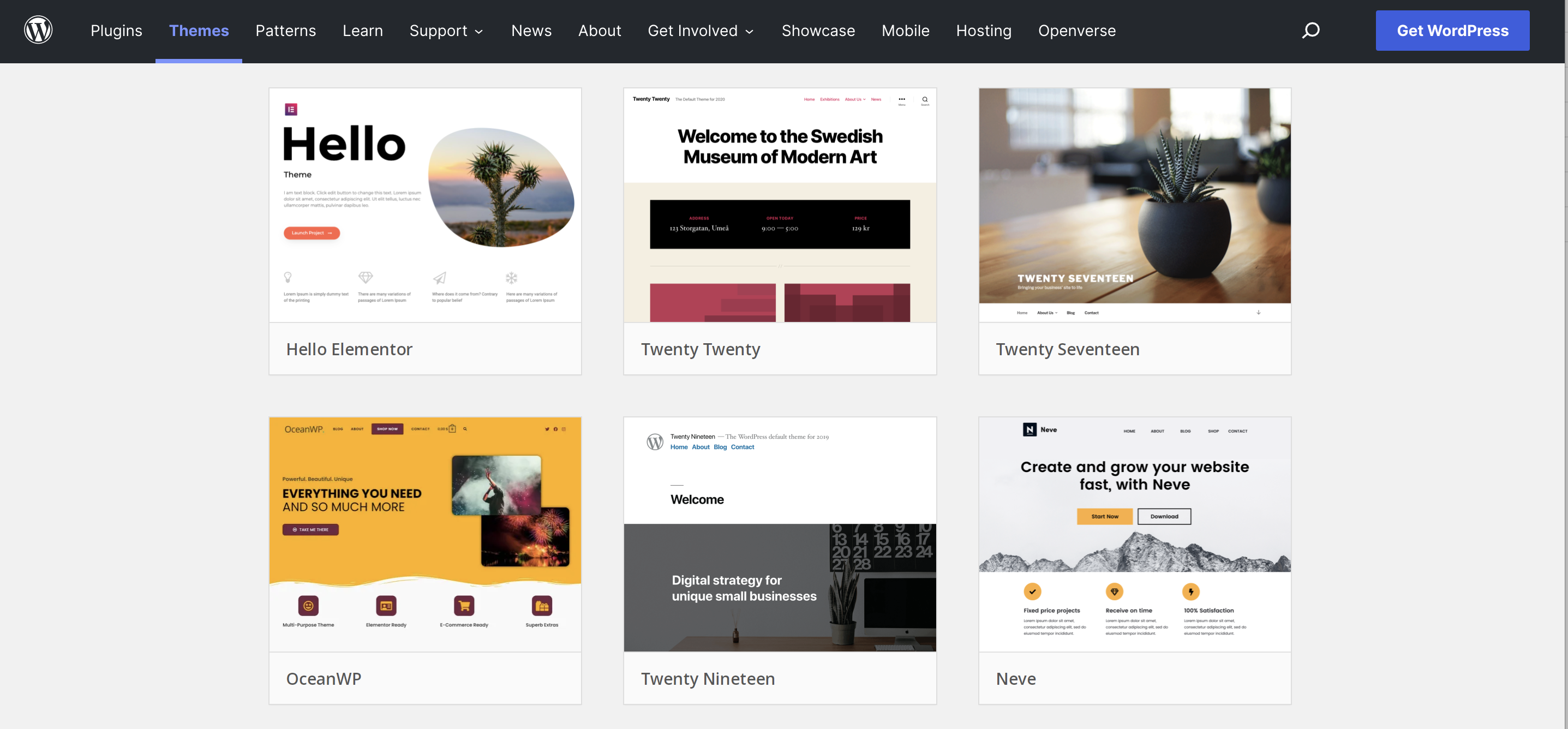
Browse through themes. Look for ones that match your list. Read reviews to see what others think. Check if the theme is popular. Popular themes are often better. They have more updates and support. Try demos if available. This lets you see the theme in action.
Make sure the theme works with your plugins. Some themes do not work well with certain plugins. Check the theme’s requirements. Is it compatible with your WordPress version? Compatibility is key for a smooth site. It avoids errors and problems. Always double-check before installing.
Backing Up Your Website
Switching to a new WordPress theme? Ensure a smooth transition by backing up your website first. This simple step keeps your data safe during changes.
Using Plugins For Backup
Plugins make backing up easy. They save your data safely. Install a backup plugin. Choose one with good reviews. Start the backup process. Set a schedule. Daily backups are best. Keep your files on cloud storage. This protects them. Test the backup regularly. Ensure it’s working well. Some popular plugins are BackupBuddy and UpdraftPlus. They are user-friendly.
Manual Backup Methods
Manual backup is another option. It needs extra care. First, access your site’s files. Use FTP to download them. Don’t forget the database. Export it from the hosting panel. Store everything securely. Use an external hard drive. Label the files clearly. Check the backup once a month. Make sure it’s complete. This method is more hands-on.
Testing The New Theme
Switching to a new WordPress theme involves careful steps. Backup your site first to prevent data loss. Explore theme options, then preview and customize to fit your style. Ensure compatibility with plugins and widgets to maintain site functionality.
Setting Up A Staging Site
Create a staging site before changing your theme. This is a safe area to test changes. Your main site stays safe. Use plugins to make a staging site easily. This helps to avoid errors on the live site. Test everything here first.
Checking Theme Functionality
Check all theme functions on the staging site. Click every button and link. Make sure they work well. Test on different devices and browsers. Ensure the theme looks good everywhere. This prevents bad surprises later.
Reviewing Design Elements
Look at the design of your new theme. Check the fonts and colors. Ensure they fit your brand. Make sure images display correctly. Adjust any design problems now. Your site should look neat and professional.
Credit: jetpack.com
Installing The New Theme
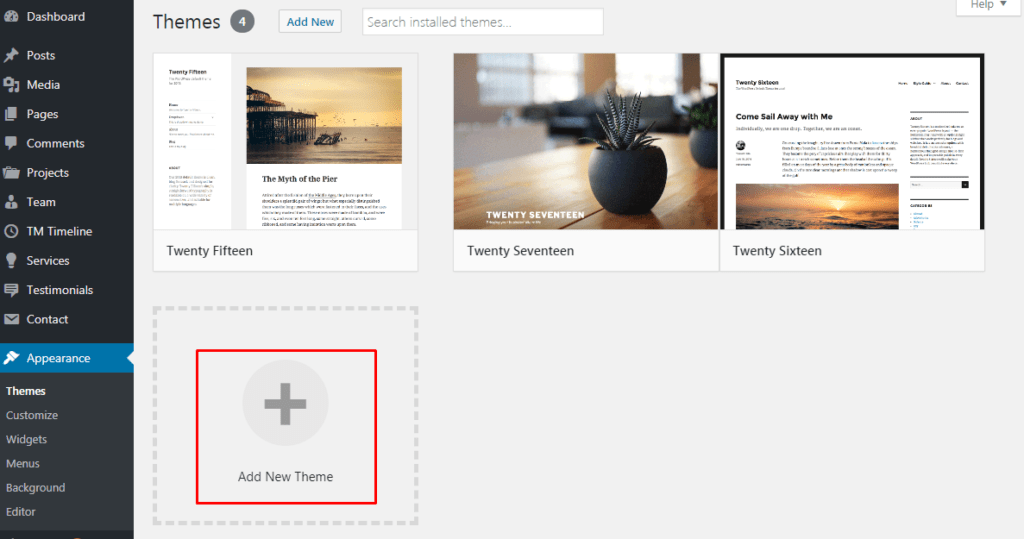
First, go to your WordPress dashboard. Click on “Appearance” in the sidebar. Then, select “Themes”. Look for the “Add New” button at the top. Click it. Now, press the “Upload Theme” button. Choose your theme file from the computer. Make sure it is in .zip format. Click “Install Now” to upload the theme.
After upload, you see a success message. Find the “Activate” button next. Click on it. Your new theme becomes active. Now, check your site. Ensure everything looks good. If not, you can switch back. Go to “Themes” again. Choose your old theme to activate it.
Customizing The Theme
Choose a layout that fits your content. Make sure it looks clean. Use colors that match your brand. Test how it looks on different devices. A good design helps people read easily. Don’t use too many colors. Stick to two or three.
Add widgets to show important info. Use menus for easy navigation. Keep menus simple and clear. Place widgets where they can be seen. Don’t clutter the page with too many widgets. A clean menu guides readers better.
Choose plugins that add useful features. Make sure they are updated. Check if they work well with your theme. Too many plugins can slow down the site. Only use what you need. This keeps your site running fast.
Credit: www.templatemonster.com
Optimizing For Performance
Fast websites make users happy. Use optimized images to help pages load quickly. Compress your images before uploading them. Choose a reliable hosting provider with good speed. Use caching plugins to store data. This reduces load times.
Many users browse on phones and tablets. Ensure your theme adjusts to different screen sizes. Use a responsive design that looks good on all devices. Test your site on different gadgets. Fix any display issues you find.
Good SEO helps people find your site. Use SEO-friendly themes that are easy to read for search engines. Add alt text to images for better SEO. Use proper heading tags for content structure. This boosts your search rankings.
Final Checks Before Launch
Ensure compatibility of plugins and widgets with the new WordPress theme. Backup your site before making changes. Review design and functionality to maintain a consistent user experience.
Cross-browser Testing
Ensure your new theme works on all browsers. Test on Chrome, Firefox, Safari, and Edge. Each browser can display websites differently. Small design changes may be needed. Check all pages and functions. This ensures everyone sees your site correctly.
Reviewing Content And Links
Check every page for correct content. Ensure all text is clear and updated. Verify every link works and goes to the right place. Broken links can confuse visitors. Double-check images and videos are loading well. These steps help keep your site neat and tidy.
Monitoring For Issues
Keep an eye out for any problems after launch. Errors can pop up unexpectedly. Use tools to monitor your site’s health. Regular checks ensure everything runs smoothly. Fix issues quickly to keep visitors happy. A well-maintained site attracts more people.

Credit: www.youtube.com
Launching The New Theme
Switching to a new WordPress theme can enhance your website’s look and functionality. Begin by backing up your site to secure your data. Then, activate the new theme and customize it to fit your brand.
Going Live
Switching to a new WordPress theme is exciting. Users want a fresh look. Make sure the transition is smooth. Backup your site first. Test everything before going live. Ensure all links work. Check if images display correctly. Review fonts and colors. These details matter.
After testing, it’s time to go live. Choose a quiet time. Fewer visitors mean less disruption. Activate the new theme. Monitor your site closely. Watch for any errors. Fix them quickly.
Notifying Users
Let your users know about the change. A simple message works best. Use email to notify them. Share on social media too. Explain why the theme changed. Highlight key improvements. Users appreciate transparency. Encourage feedback. Their opinions matter.
Frequently Asked Questions
What Steps To Switch WordPress Theme?
To switch your WordPress theme, first back up your site. Then, go to Appearance > Themes in your dashboard. Click ‘Add New’ to upload or select a theme. Preview it to ensure compatibility, then activate it. Check your site for errors and adjust settings as needed.
Will My Content Change With A New Theme?
No, changing your WordPress theme won’t affect your content. Themes alter the site’s appearance and layout. Your posts, pages, and media remain intact. However, some widgets or customizations may need adjustments. Always preview the theme before activation to ensure everything displays correctly.
How To Test A WordPress Theme Safely?
To test a WordPress theme safely, use the preview feature. Go to Appearance > Themes, and click ‘Live Preview’. You can see how your site looks with the new theme without activating it. Alternatively, use a staging site to test the theme without affecting your live site.
Are There Risks In Changing WordPress Themes?
Yes, changing WordPress themes can cause layout issues or lost customizations. Some widgets might not work with the new theme. Always back up your site before switching themes. Preview the theme to identify potential issues. Test on a staging site to ensure a smooth transition.
Conclusion
Switching to a new WordPress theme can be simple. Follow each step carefully. First, back up your site to prevent data loss. Choose a theme that fits your content. Install it and preview before making it live. Customize it to match your brand’s style.
Check for any issues and fix them promptly. Ensure mobile responsiveness for better user experience. Keep your plugins updated for optimal performance. Regularly test your site after changes. With patience, your site will look fresh and engaging. A new theme can enhance user experience and improve site functionality.
Enjoy your WordPress transformation journey.


