
Are you ready to transform your static HTML5 website into a dynamic WordPress theme? Imagine the possibilities: enhanced functionality, endless customization, and a user-friendly interface that makes managing your site a breeze.
If you’re finding yourself overwhelmed by the technicalities, you’re not alone. Many website owners and developers are eager to embrace the flexibility of WordPress but are unsure where to start. That’s where this guide comes in. You’ll discover simple, actionable steps to convert your HTML5 site into a WordPress theme, unlocking a world of potential for your online presence.
Get ready to dive in and empower your website with the robust capabilities of WordPress.

Credit: wpengine.com
Understanding Html5 And WordPress
HTML5 is the latest version of HTML. It is used to create web pages. It is simple and easy to learn. HTML5 has new features like video, audio, and graphics. It helps make websites more interactive. Many websites use HTML5 today. You can see HTML5 in action on many web pages. It helps make the web better for everyone.
WordPress is a tool for building websites. It is popular and free to use. Many people use it to make blogs and business sites. You do not need to code to use WordPress. It has themes and plugins to help you. These features make it easy to design your site. You can choose from many themes. Plugins add special features to your site. WordPress is easy for beginners.
Preparing Your Html5 Files
Start by creating a neat file structure. Put HTML files in one folder. Save images in another folder. Name folders clearly. A clean setup helps later. It makes theme conversion easier. Use simple names for files. Avoid long names. Keep everything organized and tidy.
Check your CSS files. Make sure styles are neat. Group similar styles together. Check for unused styles. Remove them. Clean CSS helps your theme work well. Next, review your JavaScript. Ensure scripts are working fine. Group similar scripts. Remove any unused code. This keeps your site fast.
Setting Up A WordPress Environment
Converting HTML5 to a WordPress theme involves setting up a WordPress environment. This process includes organizing HTML files and integrating WordPress PHP functions. Simplifying the structure helps in better theme development.
Installing WordPress Locally
First, download WordPress from the official site. Use tools like XAMPP or MAMP to create a local server. These tools help run WordPress on your computer. Next, unzip the downloaded WordPress file. Move it to the server’s htdocs folder. Open your browser and type localhost/wordpress. Follow the steps to set up WordPress. Create a database using phpMyAdmin. Link it with WordPress during setup. Now, WordPress is ready locally.
Configuring WordPress Settings
Log into your WordPress dashboard. Go to Settings on the sidebar. Set your site’s title and tagline. Choose the correct timezone for your location. Ensure the URL is correct. Decide if people can register on your site. Choose the default user role for new users. Save changes before leaving the page.
Creating The Basic Theme Files
To make a WordPress theme, you need some basic files. These include index.php, style.css, functions.php, and header.php. Each file has a different role. The index.php file controls the main layout. The style.css file gives your site style and color. The functions.php file adds special features. The header.php file is for the top part of the page.
The style.css file is very important. It tells WordPress about your theme. At the top, add special comments. These comments include the theme name and description. Style rules follow these comments. These rules change how your website looks. Use simple styles at first. Add more styles as you learn. Keep your styles organized and clear.
Converting Html5 Structure
The header is the top part of your site. Place your logo here. Add navigation links too. Use header.php for this. This file is special in WordPress. It helps to keep things tidy. Make sure the links work well. Check them before moving on.
The footer is found at the bottom. It often has contact info. Sometimes, it has copyright details. Use footer.php to create it. This keeps the layout neat. Footers may also have social media links. Test all links to ensure they work.
Sidebars are on the side of pages. They can hold widgets. Widgets are small tools. Use sidebar.php for this part. It helps manage widgets well. Always check the widget settings. Ensure they display correctly.
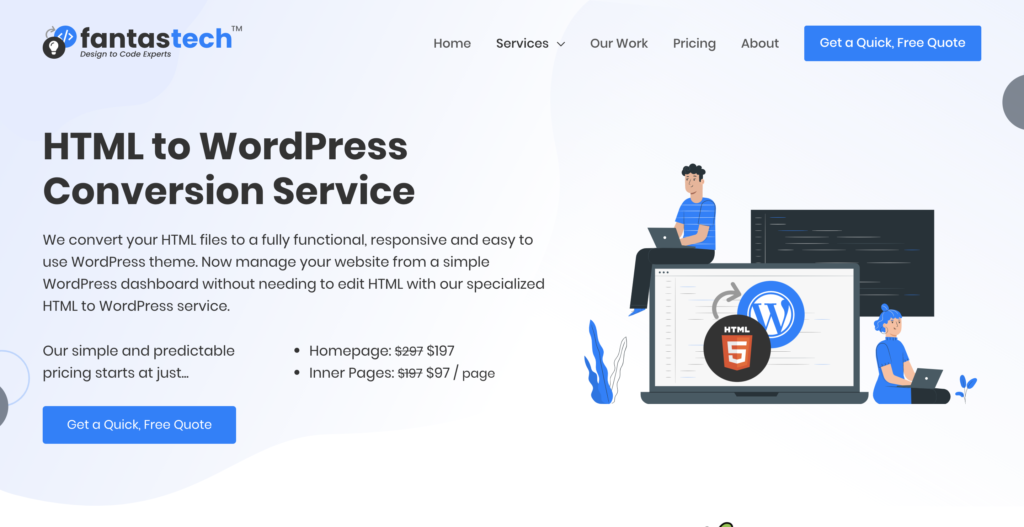
Credit: wpengine.com
Dynamic Content With WordPress
WordPress Loop is a powerful tool. It helps display dynamic content like posts and pages. This loop checks for posts. Then, it pulls them from the database. It shows the posts on your site. It repeats for each post.
Using loops is easy. Start with a simple code snippet. This snippet is written in PHP. It helps in showing the posts. You can customize the loop. Choose which posts to show. Maybe only the latest posts. Or, show posts from a certain category.
Handling Posts And Pages
Posts and pages are different. Posts are for blogs. Pages are for static content. Both can be handled using WordPress. Use the loop for posts. For pages, use a template. Templates help in displaying pages. Customize them as needed.
WordPress makes it simple. It uses templates and loops. These tools help in making sites dynamic. They are easy to use. Even beginners can learn them quickly.
Customizing Theme Functions
Adding theme support is easy. Use add_theme_support() function. It helps WordPress understand your theme. Add support for features like post thumbnails. Also, include automatic feed links and title tags. These features are important. They enhance your theme’s capabilities.
Another feature is HTML5 support. Use add_theme_support('html5'). It helps with better markup. Your theme will be modern. Users will like it.
Implementing Menus And Widgets
Menus help users navigate. Use register_nav_menus() to add menus. Define locations for menus. For instance, ‘header’ and ‘footer’. Users can customize these menus.
Widgets add functionality. Use register_sidebar() for widgets. Define widget areas. For example, ‘sidebar’ or ‘footer’. Widgets improve user experience. They make your theme dynamic.
Testing And Debugging
Converting HTML5 to a WordPress theme can be tricky. Common errors include broken links and missing styles. Check your code for any typos or missing files. Fixing these can solve many problems. Use browser developer tools to spot issues. Inspect your site to find CSS and JavaScript bugs. A good tool can show error messages. Read them carefully to understand what’s wrong. Debugging might take some time. Patience is key. Ask for help if needed.
Common Errors And Fixes
CSS might not load properly. Check your file paths. JavaScript errors can break the site. Look for missing semicolons. PHP errors may appear too. Ensure your code is correct. Use error logs to find issues. Fixing these can make your site work better.
Ensuring Cross-browser Compatibility
Browsers display sites differently. Test your theme on all major browsers. Include Chrome, Firefox, Safari, and Edge. See how your site looks on each one. Adjust your CSS if needed. Some features might not work in old browsers. Use polyfills to add support. Check your site on mobile browsers too. Make sure it looks good everywhere. Cross-browser testing ensures everyone can see your site.
Deploying Your WordPress Theme
First, prepare your theme files. Make sure they are in a zip format. You will need a web host. Choose a reliable one. Log in to your hosting account. Find the File Manager or use an FTP client. Upload the zip file to the wp-content/themes folder. Extract the files there. Double-check if all files are in place. Your theme is now on the server.
Go to your WordPress dashboard. Click on Appearance, then Themes. You will see your new theme listed. Click Activate to use it. Your website will now have a new look. Check if everything works fine. Look for any missing elements. Fix them if needed. Your theme is now ready for visitors.

Credit: www.youtube.com
Enhancing Theme Features
Plugins add new features to your theme. They are like tools. Use plugins to make your site better. They can add forms, galleries, or sliders. Plugins are easy to use. Install them in minutes. Many plugins are free. Some have extra paid features.
Optimizing For Seo
SEO helps your site get seen. Use keywords in your content. Keywords help search engines find your site. Make sure your site is fast. Fast sites rank better. Use good titles for each page. Titles tell search engines about your page. Don’t forget to add meta descriptions. They are short summaries of your pages. Meta descriptions help people find your site.
Frequently Asked Questions
How To Start Converting Html5 To WordPress?
Begin by analyzing your HTML5 structure. Identify reusable components and plan how to implement them in WordPress. Use WordPress functions to replace static elements. Prepare to create custom post types and widgets for dynamic content. This sets the foundation for a seamless conversion process.
What Tools Are Needed For Conversion?
You’ll need a code editor, FTP client, and WordPress installation. Code editors like Visual Studio Code or Sublime Text help with coding efficiency. FTP clients like FileZilla ensure smooth file transfers. A fresh WordPress installation offers a clean slate for theme integration.
Can Html5 Templates Be Reused?
Yes, HTML5 templates can be adapted for WordPress. Convert static HTML elements into dynamic WordPress components. Use PHP and WordPress functions to manage content. This ensures the theme is functional and scalable. Maintaining the original design is possible with careful adaptation.
How To Ensure Seo In Conversion?
Ensure SEO by using proper HTML tags and optimizing images. Utilize WordPress SEO plugins for better control. Customize meta tags and URLs. Make sure the theme is mobile-responsive. Keeping the conversion SEO-friendly enhances visibility and user engagement.
Conclusion
Converting HTML5 to a WordPress theme is simpler than it seems. Follow the steps carefully for a smooth transition. Start by analyzing your HTML5 structure. Then, break it into WordPress template files. Import your CSS and JavaScript to maintain styles and functionality.
Use WordPress functions to enhance features and ensure responsiveness. Test your theme thoroughly to catch any errors. Remember, practice improves your skills over time. So, don’t rush the process. Take each step methodically. Soon, you’ll have a functional WordPress theme ready for use.
Stay patient and keep learning. Your efforts will be worth it.


