
If you’re looking to switch your website platform from Weebly to WordPress, you’re in the right place. Making this move can seem daunting, but it doesn’t have to be.
Imagine having the power to transform your website with more flexibility, control, and endless customization options. Sounds exciting, right? WordPress offers all this and more, and it’s just a few steps away from your current Weebly theme. In this guide, you’ll learn how to seamlessly convert your Weebly theme to WordPress, unlocking a world of possibilities for your online presence.
Stay tuned, because what you’ll discover might just be the game-changer your website needs.
Understanding Weebly And WordPress
Weebly and WordPress are popular website builders. Weebly is easier for beginners. WordPress offers more control and flexibility. Weebly provides a drag-and-drop interface. WordPress requires some technical skills. Hosting is included in Weebly. WordPress needs separate hosting. Weebly is more limited in customization. WordPress has thousands of plugins and themes.
Weebly Pros: Simple to use, great for small websites. Hosting is included. Weebly Cons: Limited features, fewer customization options.
WordPress Pros: Highly customizable, large community support. Many themes and plugins available. WordPress Cons: Steeper learning curve, requires separate hosting.
Preparing For The Conversion
Save all your site’s content. This includes text and images. Use Weebly’s export tools for this. Ensure that every page is backed up. Check twice to avoid missing any files. Store backups in a safe place. Cloud storage is a good option. Local drives can also work well.
Select a hosting service that supports WordPress. Compare different hosting options. Check for reliability and speed. Pricing is important too. Some hosts offer special WordPress plans. These plans can make setup easier. Look for customer support options. Good support helps solve problems fast.
Exporting Weebly Content
Weebly has a simple export option. Visit the Weebly dashboard. Find the Settings section. Look for the Archive button. Click it to download your site. The file will be a ZIP. Open it to see the contents. You will find HTML files inside. These files contain your pages. Copy the text and images from these files. Paste them into your new WordPress site. This process can take time. Be patient and check each page.
Tools can help you export faster. CMS2CMS is one popular choice. It moves content from Weebly to WordPress. It saves time and reduces errors. First, sign up on their website. Choose Weebly as the source platform. Select WordPress as the target. Follow the instructions provided. The tool will move your content automatically. This makes the process easier. Always double-check the migrated content. Some tools may not move everything perfectly.
Setting Up A New WordPress Site
Start by choosing a reliable hosting provider. This is where your site will live. Popular choices are Bluehost or SiteGround. They offer simple installation tools. Use their one-click install feature. This sets up WordPress quickly and easily.
After installation, you need to log in. Use your username and password created during setup. You can now access the WordPress dashboard. This is where all the magic happens.
Begin by setting your site’s title and tagline. These are in the Settings menu. Make sure they describe your site well. Next, set your timezone. This helps with posting times. Choose the right language for your audience.
Adjust your permalink settings. This makes URLs look clean and simple. You find this option in the Permalinks section. Choose the “Post name” option. It’s best for SEO. Finally, ensure your site is visible to search engines. This option is in the Reading settings.
Choosing A WordPress Theme
Look for a theme that mirrors your old Weebly design. This makes the switch easier. Search with keywords related to colors and layouts. You can find themes on WordPress.org or other sites. Free themes are a good start. Paid ones offer more options. Check reviews before you decide. Some themes offer easy customization and updates. Choose one that fits your style.
Change the theme to match your old site. Start with colors and fonts. Use the WordPress customizer tool. Adjust menus and widgets for a better look. Some themes have built-in options. Others may need plugins for more features. Keep the design simple. Simple designs load faster and look clean. Ensure your theme is mobile-friendly. Mobile users are important.
Credit: www.isitwp.com
Importing Content To WordPress
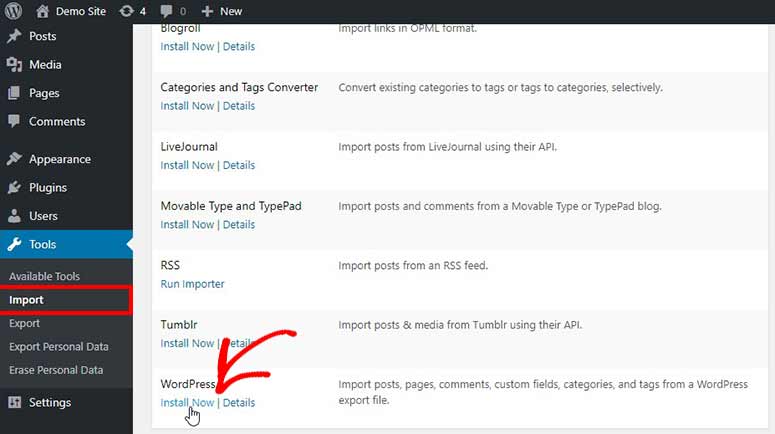
WordPress has a tool to help move your content. It is called the Import Tool. First, go to your WordPress dashboard. Then, find Tools in the menu. Click on Import. Here, you will see many options. Choose the one for Weebly files.
Now, upload your content file. This will bring your posts and pages. The process is fast. Soon, your content will appear on WordPress. Always check if everything looks right. Sometimes, small changes are needed.
Media files need special care. They include images and videos. WordPress has a Media Library. Use it to upload these files. Make sure all pictures and videos are in the right place. This ensures your site looks good.
Sometimes, image links break. Check each one after uploading. Fix broken links as soon as you see them. This way, your site will stay nice and neat.
Recreating Weebly Features
Weebly themes have special features. These features can be added to WordPress using widgets. Plugins offer more functions for your site. Find plugins that match Weebly features. Install them on WordPress. Customize each widget to fit your style. Keep your site simple and clean. Too many plugins can slow down your website. Choose wisely for the best performance. Widgets help display content. Plugins add extra functions like contact forms. Your site can look and work the same as Weebly. Explore WordPress options for more features.
Create a menu for easy navigation. WordPress has simple tools for this. Click on the menu section in the dashboard. Add pages to your menu. Arrange them in order. This helps users find what they need. Use short names for menu items. This makes it easy to read. Add links to important pages. Users will enjoy visiting your site more. Keep the menu tidy. Too many links can confuse visitors. Good menus guide users on their journey. Your site will be more organized.

Credit: www.fiverr.com
Testing And Troubleshooting
Broken links can confuse visitors. Use online tools to find them. Fix each broken link quickly. Double-check all internal and external links. Ensure links direct to the right page. This improves user experience and SEO.
Many people use phones to browse. Check your theme on different devices. Ensure text and images fit small screens. Adjust settings to improve mobile view. A responsive site keeps users happy. Test your site often for mobile issues.
Launching Your WordPress Site
Check if all links work. Fix any broken links. Ensure images display properly. Review the text for spelling mistakes. Test the site on different devices. Ensure it looks good on a phone. Make sure forms are working. Users should get a thank you message. Check if your contact info is correct. Make sure your social media links work.
After checks, your site is ready. Announce your new site to friends. Share the link on social media. Tell your email subscribers. Encourage them to visit. Ask for feedback. Use their suggestions to improve. Keep the site updated. Add new content regularly. This keeps visitors coming back.

Credit: www.bluehost.com
Maintaining Your WordPress Site
Keeping your WordPress site updated is very important. Updates fix bugs and make your site safer. Plugins and themes also need updates. Always check for updates weekly. Before updating, back up your site. This helps if something goes wrong. Updates improve speed too. Faster sites make visitors happy. Don’t ignore updates. They keep your site healthy.
Security protects your WordPress site from hackers. Strong passwords are a must. Use different passwords for each account. Two-factor authentication adds extra safety. Only use trusted plugins. Unknown plugins may have risks. Regularly scan for malware. Remove any suspicious files. Backup your site often. Backups help recover lost data. Stay alert. Security is key to a safe site.
Frequently Asked Questions
How Do I Start Converting A Weebly Theme?
To start converting a Weebly theme, first export your site’s content. Next, choose a similar WordPress theme. Import the content into WordPress using plugins. Customize the new theme to match your original design. Finally, ensure everything functions correctly.
Can I Manually Transfer Weebly Content?
Yes, you can manually transfer Weebly content. Copy content from Weebly and paste it into WordPress pages or posts. This method may be time-consuming but ensures accuracy. Remember to upload images and adjust formatting as needed.
What Tools Help In Theme Conversion?
Plugins like All-in-One WP Migration or CMS2CMS can help with theme conversion. These tools simplify the process by automating content transfer. They ensure data integrity and save time. Always back up your site before using any tool.
Is Coding Knowledge Necessary For Conversion?
Basic coding knowledge is helpful but not necessary. Many WordPress themes offer built-in customization options. These options allow for easy adjustments without coding. However, understanding HTML and CSS can enhance customization and troubleshooting.
Conclusion
Switching from Weebly to WordPress can enhance your website’s flexibility. WordPress offers a wide range of themes and plugins. These resources help personalize and optimize your site. The conversion process may seem daunting at first. Take it step by step.
Utilize guides and tools to ease the transition. Remember to back up your Weebly site before starting. This ensures your data stays safe. Patience is key. With time, your WordPress site will shine. Enjoy the benefits of a more customizable platform.
Your online presence will flourish. Embrace the change and explore new possibilities.


