
Are you ready to take your online presence to the next level? Connecting your web hosting to your domain name is a crucial step in making your website accessible to the world.
Imagine your domain as your website’s address and your web hosting as the house where all your site data lives. Without linking the two, your visitors might never find you. But don’t worry, this process is simpler than you might think, and we’re here to guide you every step of the way.
You’ll discover how to seamlessly connect your web hosting to your domain name, ensuring that your website is up and running smoothly. Get ready to unlock the full potential of your online space and captivate your audience with just a few clicks. Let’s dive in!
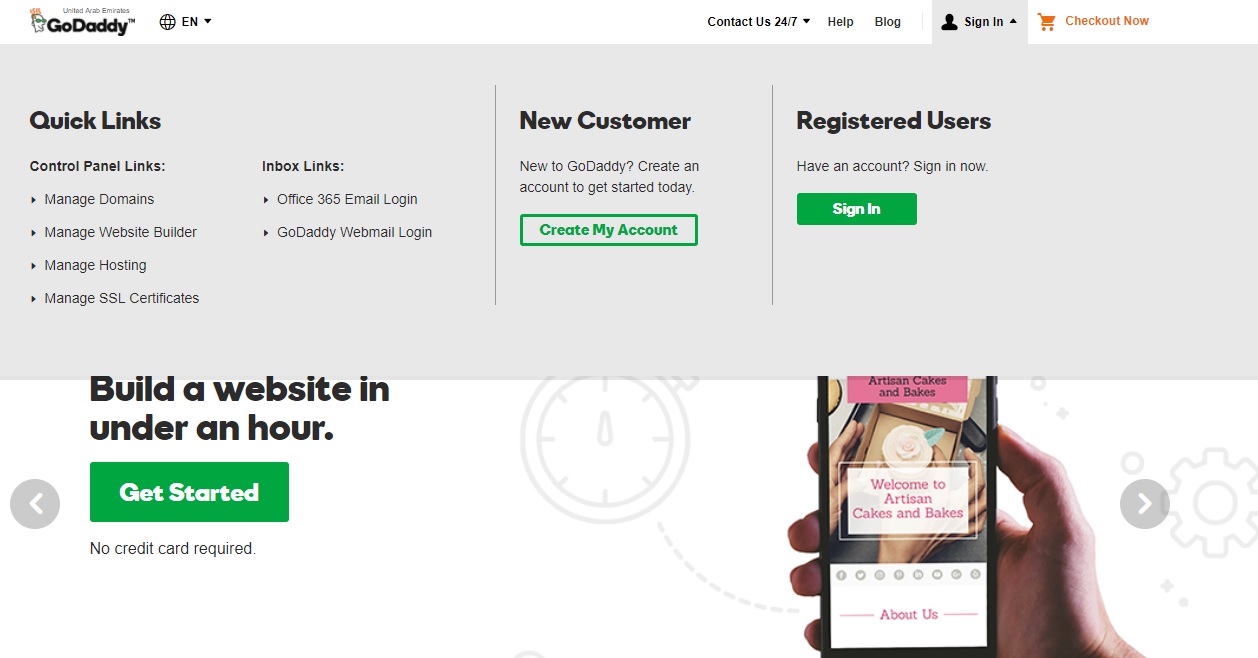
Credit: www.godaddy.com
Choosing The Right Web Hosting Provider
Picking a good web hosting provider is important. First, check the reliability of the service. Your website should be up most of the time. Next, look at the speed. A fast website keeps visitors happy. Also, consider the customer support. Help should be available when needed. Check if they offer backup services. Your data must stay safe. Finally, think about the price. It should fit your budget.
| Hosting Provider | Features |
|---|---|
| Bluehost | Good for beginners, 24/7 support |
| HostGator | Unlimited storage, easy to use |
| SiteGround | Fast servers, great security |
Registering Your Domain Name
First, choose a unique domain name that fits your website. Make sure it is easy to spell. Next, check if the domain is available. You can use domain registrars for this. Then, select a registrar to buy the domain. Follow the steps on their website. Enter your personal details and make the payment. Once done, the domain is yours!
Keep your domain name short and simple. It should be easy to remember. Avoid using numbers and hyphens. They can be confusing. Use keywords if possible. This helps people find your site. Make sure it reflects your brand or business. Lastly, check for trademarks to avoid legal issues.
Accessing Your Hosting Control Panel
The control panel is like a toolbox for your website. It helps you manage your hosting easily. Use it to create email accounts, manage files, and set up databases. Many hosts use popular panels like cPanel or Plesk. These panels have icons and labels. They make tasks simple and fast. Explore each section to see what you can do. With practice, you will know the panel well.
Look for the file manager. It helps you upload and organize files. The database section is where you create and manage databases. The email section lets you set up new accounts. Use the domains area to add or remove domains. Each feature has a help section. Read this if you get stuck. Learning these features is important for managing your website.
Credit: www.namecheap.com
Updating Dns Settings
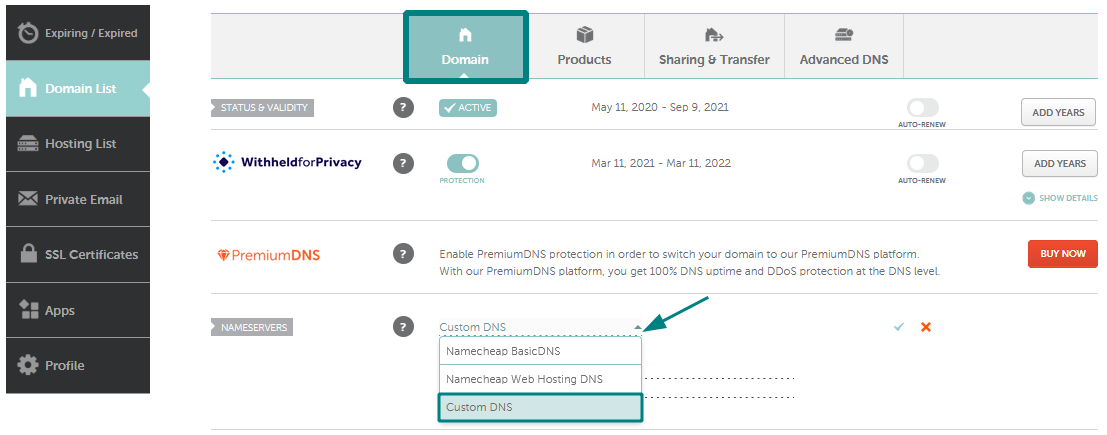
DNS settings are found in your domain panel. First, log in to your domain account. Then, look for the DNS or Domain settings. These settings help connect your domain to your hosting.
Locating Dns Settings
Find the DNS section in your domain dashboard. Usually, it is under settings or management. Here, you will see different DNS records. These records include A, CNAME, and MX.
Configuring Dns Records
Edit the A record to point to your hosting IP. This helps direct your domain to your hosting. Change the CNAME if needed. CNAME is useful for subdomains. Lastly, check MX records for email setup. These records are important for emails.
Linking Domain To Web Hosting
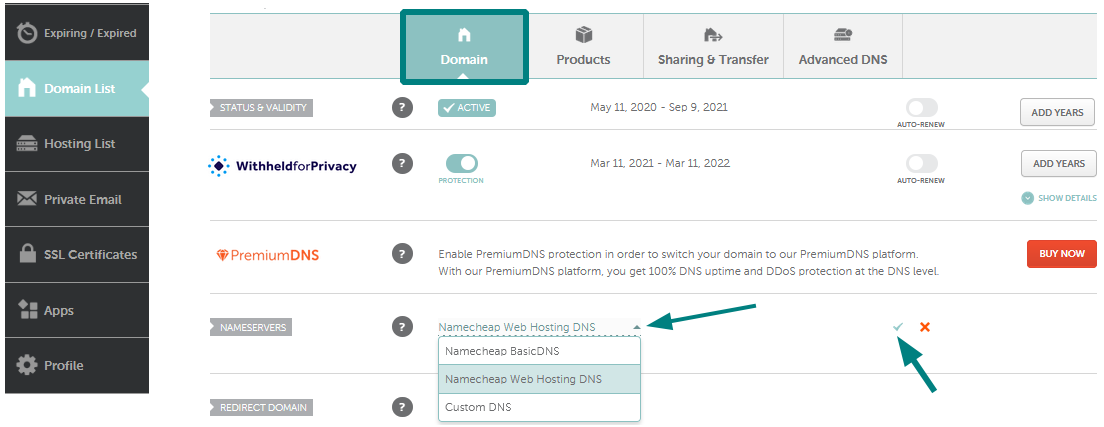
First, find your domain’s DNS settings. These settings control your domain’s links. Look for the Nameserver section. You will see some server names here. Copy the nameservers from your web host. Replace the old nameservers with these new ones. Save changes when done. It may take a few hours. Be patient during this time.
Check if your domain points to the right server. Use a simple tool like DNS Checker. Enter your domain name in the tool. The tool will show server locations. Look for your web host’s server in the list. If it matches, your setup is correct. If not, check DNS settings again.
Credit: www.namecheap.com
Troubleshooting Common Issues
Connecting a domain name to web hosting can often face challenges. Check DNS settings to ensure correct server addresses. Verify that domain registration is active and nameservers are updated.
Dns Propagation Delays
DNS changes can take time to update. This is called DNS propagation delay. It may take up to 48 hours. Your website might not be visible immediately. This delay is normal and expected. Patience is key during this period. You can check DNS status using online tools. These tools show if DNS is updated. They help track the propagation process. Always remember, DNS updates are slow but steady.
Incorrect Dns Configuration
Setting up DNS can be tricky. Incorrect settings cause issues. Your site might not load. Common mistakes include wrong IP addresses. Double-check every entry. Ensure all DNS records are correct. Use guides from hosting providers. They offer step-by-step instructions. Configurations should match your hosting details. Errors can lead to downtime. Careful setup prevents problems.
Maintaining Your Domain Connection
Ensure your domain stays connected to your hosting. Check it often. Problems can arise unnoticed. A quick check can prevent big issues. Look for unexpected changes. Fix any errors fast. Regular checks keep things smooth. It’s vital to keep your site running well.
Domains need renewal. Don’t forget to renew them on time. Updates are important too. Keep all settings updated. This keeps your site safe and working. Use reminders for renewals. This helps avoid interruptions. Updates protect from threats. They keep your site secure.
Frequently Asked Questions
How To Connect A Domain To Web Hosting?
To connect a domain to web hosting, update DNS settings at your domain registrar. Enter the hosting provider’s nameservers. Confirm propagation by checking DNS status. Ensure website files are uploaded to the hosting server. Test the connection by visiting the domain in a browser.
How To Join Host To Domain?
To join a host to a domain, access the system settings. Navigate to “System Properties” and select “Change Settings. ” Enter the domain name, credentials, and restart the computer. This connects your host to the domain efficiently. Ensure network connectivity and correct permissions for a smooth process.
How Do I Point My Domain To Another Hosting Provider?
Change your domain’s DNS settings. Update the nameservers to those provided by your new hosting provider. Allow up to 48 hours for DNS propagation. Verify the domain points correctly by checking the website’s functionality. Contact your hosting provider for assistance if needed.
How Do You Host A Website On A Domain?
To host a website on a domain, purchase a domain name. Choose a reliable web hosting provider. Connect your domain to the hosting server. Upload website files using a file manager or FTP client. Ensure your website is live by checking the domain in a web browser.
Conclusion
Connecting web hosting to a domain is simple. Follow the steps carefully. Start by choosing the right web host. Check compatibility with your domain name. Update nameservers at your domain registrar. Verify connection through your web hosting dashboard. Troubleshoot any issues promptly.
Stay patient while changes take effect. Success depends on these steps. Enjoy a seamless website experience. Your site will be accessible worldwide. Manage your site through your hosting account. Keep learning about website management. Make updates as needed. Confidently manage your online presence.
Encourage visitors to explore your site. Happy hosting and domain connecting!


