
Are you looking to manage your ESXi 6.5 host with ease? Discovering how to connect using the web client could change the way you handle your virtual environments.
Imagine having the power to access and control your host with just a few clicks—right from your browser. This guide is designed for you, ensuring you can effortlessly navigate the web client and unlock its full potential. By the end of this article, you’ll feel confident and empowered, ready to streamline your virtualization tasks.
Stay with us as we walk you through every step, making complex processes simple and approachable.
Prerequisites For Connection
To connect, you need a computer with a modern browser. Chrome, Firefox, or Safari work well. Ensure your system has minimum RAM of 4GB. Processor should be fast enough. 2GHz or higher is ideal.
Your network must be stable. A wired connection is preferred for reliability. Ensure the IP address is correctly set. DNS settings should be accurate. Check firewall settings to allow traffic.
Ensure you have the right permissions. You need admin access. User roles must be set correctly. Verify your credentials are up-to-date. Password should be strong and secure.
Accessing The Web Client
Use a compatible web browser to access the web client. Popular browsers like Chrome and Firefox work well. Older versions might not support all features. Ensure your browser is up-to-date for the best performance. This helps avoid compatibility issues.
Open your browser and type the ESXi host URL. The URL looks like this: https://[ESXi-host-IP]. Make sure to replace [ESXi-host-IP] with your host’s IP. Press Enter to load the page. You should see the login screen. Enter your credentials to access the web client.
Logging Into The Esxi Host
Open your browser and type the ESXi host’s IP address. The login page will show up. You need to enter your username and password. These are your credentials. Make sure they are correct. Click the Login button to proceed. You will now see the ESXi dashboard.
A warning may appear about a security certificate. This is normal for many users. The browser checks if the site is safe. Click on Advanced to see more options. Then click Proceed to continue. You are now connected to the ESXi host. Everything is set to use the web client.
Credit: community.spiceworks.com
Exploring The Web Client Interface
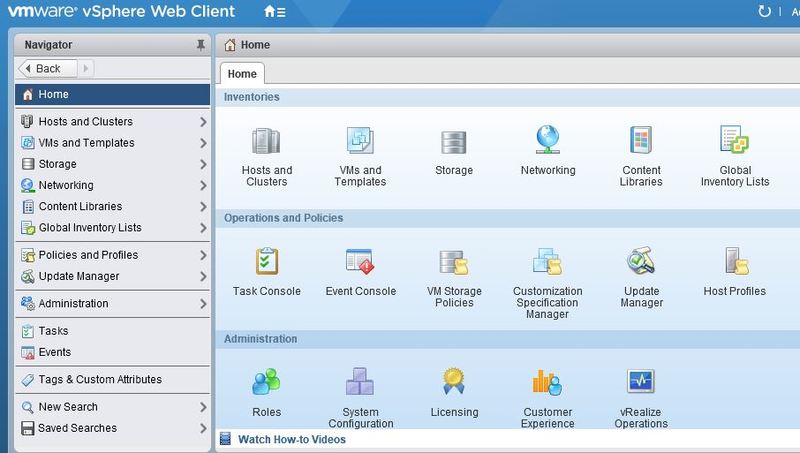
The dashboard is the main screen. It shows important information. You can see the status of your host. It also displays the performance metrics. Look for alerts and warnings here. They help keep your system healthy. Each section has its own purpose. It helps in managing the host better.
The menu is on the left side. It helps you move around. You can find many options here. Click on them to see more details. Each option opens a new screen. This helps you find what you need quickly. The menu makes it easy to manage tasks. No need to remember everything. The search bar is also useful. It helps in finding specific items fast.
Managing Virtual Machines
Click on the “Create New VM” button. Choose the operating system you need. Select the hardware for your machine. This includes CPU, memory, and storage. Follow the wizard steps. Make sure all settings are correct. Click finish to create the VM.
Select your VM. Click on “Edit Settings”. You can change CPU or memory size. Adjust the network settings if needed. You can also change storage options. Save your changes. Check if everything is working fine.
Click on your VM. Press “Start” to run it. Wait for it to boot up. To stop, click “Stop”. Always save your work before stopping. Make sure no critical tasks are running. Stopping is easy and quick.
Monitoring Host Performance
Use the web client to see resource usage on your Esxi 6.5 host. Click on the “Host” tab to get started. Check the CPU, memory, and storage usage. This helps you understand how your host is working. Graphs and charts show usage in real-time. These tools help in spotting problems easily. Keep an eye on these details for smooth operation.
Performance alerts are useful to catch issues early. You can set alerts for CPU, memory, and disk usage. Go to the “Alerts” section in your web client. Choose the type of alert you need. Enter the threshold values for each alert. When usage goes beyond these values, you get notified. This helps in maintaining a healthy system. Regularly review these alerts for better host performance.
Troubleshooting Connection Issues
Connecting to an ESXi 6.5 host can show errors. “Connection Failed” is a common error. It means the web client can’t reach the host. “Invalid Credentials” is another error. Check your username and password. “Host Not Found” might show up. The host address could be wrong. Double-check the IP address or hostname.
Sometimes, the network can cause issues. Check if the network cable is plugged in. Make sure the router is working. Restarting the router might help. Firewall settings can block connections. Make sure the firewall allows ESXi connections. Troubleshooting helps find the problem. Follow these steps to fix network issues.

Credit: www.dell.com

Credit: masteringvmware.com
Frequently Asked Questions
How To Access Esxi Host Through Web Client?
Open a web browser. Enter the ESXi host’s IP address or hostname in the address bar. Log in using your credentials to access the ESXi web client interface. Ensure your browser supports HTML5 for a seamless experience.
How Do I Connect Directly To Esxi Host?
To connect to an ESXi host, use the VMware vSphere Client. Enter the host’s IP address, username, and password. Ensure network connectivity and proper permissions for access. This direct connection allows for efficient management and configuration of the ESXi host.
How Do I Access Esxi Shell From Web Browser?
Access the ESXi shell via a web browser by enabling SSH through the vSphere Client. Navigate to Host, Manage, Services, and start SSH. Use the browser’s SSH client to connect by entering the host’s IP address. Ensure your network settings allow SSH access for security.
How Do I Access Esxi Host Remotely?
Access an ESXi host remotely using VMware vSphere Client. Enter the host’s IP address, username, and password. You can also use SSH by enabling it in the host’s security settings. Use an SSH client like PuTTY to connect. Ensure network configurations allow remote access.
Conclusion
Connecting to an ESXi 6. 5 host using the Web Client is simple. Follow the steps, and you’ll access your host with ease. Remember to check your network settings first. This ensures a smooth connection. Use the right credentials to log in.
Keep your software updated for security. A stable internet connection helps prevent issues. Practice these steps to become more comfortable. Troubleshooting becomes easier with experience. Enjoy managing your virtual machines efficiently.


