
You’ve just snagged a shiny new domain from Namecheap, and you’re ready to launch your dream online store on Shopify. But there’s one tiny hitch—getting your domain and Shopify to play nicely together.
No worries, you’re not alone! Many entrepreneurs like you have faced this hurdle, and the good news is, connecting your Namecheap domain to Shopify is easier than you might think. Imagine the thrill of seeing your unique domain name leading customers straight to your store! In this guide, we’ll walk you through each step clearly and simply.
By the end, you’ll have your domain seamlessly linked, ready to welcome visitors to your corner of the internet. Let’s dive in and get your online store one step closer to success!
Credit: keycommerce.com
Benefits Of Connecting Namecheap Domain To Shopify
Connecting your Namecheap domain to Shopify offers several advantages. It enhances your brand’s professionalism and online presence. With a custom domain, customers easily recognize and remember your store. The integration process is straightforward, making it accessible for all users. Here are some key benefits of linking your Namecheap domain with Shopify.
1. Improved Brand RecognitionA custom domain strengthens your brand identity. It differentiates your store from competitors. Customers find your store easier to recall. This leads to increased direct traffic.
2. Enhanced CredibilityProfessional domains boost trust among visitors. People perceive custom domains as more reliable. This can improve conversion rates and sales. Customers feel secure when browsing your site.
3. Better SEO OpportunitiesCustom domains can help with search rankings. Search engines favor unique domain names. This can increase your store’s visibility online. More visibility attracts potential customers.
4. Seamless IntegrationConnecting Namecheap to Shopify is simple. The process requires minimal technical skills. Shopify guides you through each step. This ensures a hassle-free setup experience.
5. Cost-Effective SolutionNamecheap offers affordable domain prices. You get value for your money. Pairing it with Shopify provides excellent functionality. This is perfect for small and growing businesses.
6. Custom Email OptionsUsing your domain, set up custom email addresses. This adds professionalism to communications. Customers see your store as well-established. Custom emails enhance brand cohesion.

Credit: help.shopify.com
Pre-connection Checklist
Connecting a Namecheap domain to Shopify is an essential step for online store owners. Before diving into the process, it’s important to have a checklist ready. This ensures a smooth connection and avoids technical hiccups. The pre-connection checklist includes confirming domain registration and verifying Shopify account settings. Let’s break down these elements for a seamless setup.
Domain Registration Confirmation
Ensure your domain is registered with Namecheap. Check your Namecheap account for registration details. Confirm the domain name is active and ready for use. Verify the expiration date is far enough in the future. This prevents disruptions in the connection process.
Verify Shopify Account Settings
Log into your Shopify account. Navigate to account settings. Confirm your email address is verified. Check the primary domain settings in Shopify. Ensure it’s set to accept a custom domain connection. This step is crucial for integrating your Namecheap domain smoothly.
Accessing Namecheap Control Panel
Easily connect your Namecheap domain to Shopify through the Namecheap Control Panel. Log in, navigate to the DNS settings, and update records as needed. This process ensures your domain links seamlessly to your Shopify store.
Accessing the Namecheap Control Panel is the first crucial step in connecting your domain to Shopify. If you’ve ever felt overwhelmed by the technical jargon of domain management, you’re not alone. But with a straightforward approach, you’ll find it surprisingly easy to get started. Imagine the control panel as your command center, where you make essential adjustments to your domain settings.Login Procedures
To begin, you’ll need to log in to your Namecheap account. It’s as simple as entering your username and password. If you can’t recall your credentials, don’t panic; Namecheap has a user-friendly password recovery option. Once logged in, the dashboard becomes your guide. Consider it like stepping into a well-organized library. Everything you need is just a few clicks away. Double-check your login details to ensure seamless access.Navigating To Domain List
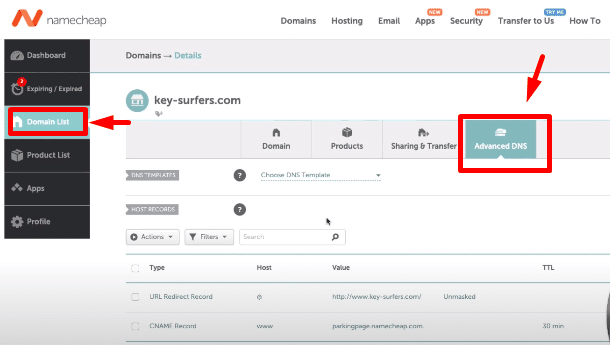
Once you’re in, your next task is to locate the Domain List. This area is akin to flipping through a menu of all the domains you own. You’ll find it on the left-hand side of the dashboard. Clicking on Domain List is like opening a digital filing cabinet. Here, each domain is neatly categorized, making it easy to select the one you want to connect to Shopify. If you have multiple domains, the search bar can be your best friend. Are you ready to take control of your domain settings? The journey is easier than you might think. You’ve already taken the first step by accessing the control panel, a place where you can manage and optimize your domain connections effortlessly.Updating Dns Settings On Namecheap
Connecting a Namecheap domain to Shopify involves updating DNS settings. Access Namecheap’s dashboard, and navigate to DNS settings. Add Shopify’s DNS details to link your domain seamlessly.
Connecting your Namecheap domain to Shopify is a crucial step in establishing your online presence. This process involves updating DNS settings on Namecheap. You might be wondering why DNS settings matter. Simply put, they direct your domain traffic to your Shopify store. Imagine DNS settings as the GPS that guides visitors to your online shop. If the settings aren’t correct, your customers might end up lost in cyberspace, unable to find your store.Understanding Dns Records
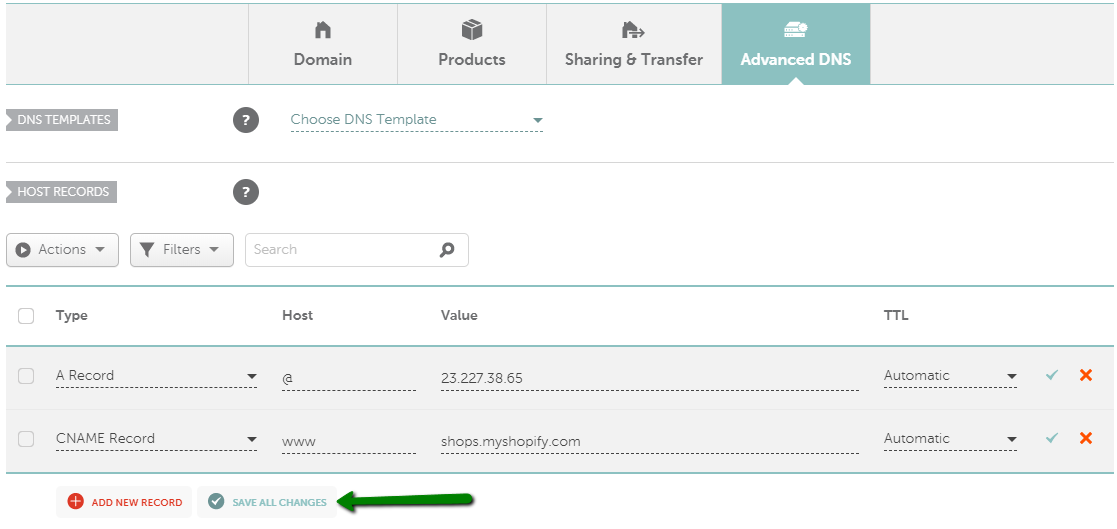
To start, let’s grasp what DNS records are. These records are like digital signposts that tell the internet where to send your domain’s traffic. They include several types, but for Shopify, the A and CNAME records are crucial. Think of them as the key components that connect your domain to your Shopify store effectively.Configuring A Record
Now, let’s get practical with configuring the A Record. This record points your domain to Shopify’s IP address. Log into your Namecheap account, go to your domain list, and click ‘Manage’ next to the domain you wish to connect. In the DNS settings, find the A Record section and enter Shopify’s IP address. It’s like entering a street address into a GPS to reach your destination. Remember, a small mistake here can lead to a big detour for your customers.Setting Up Cname Record
The next step is setting up the CNAME record. This record ensures that your store’s subdomain (like www.yourstore.com) directs visitors to the correct Shopify server. In your DNS settings, locate the CNAME section and enter ‘shops.myshopify.com’ as the value. Imagine this as adding a shortcut to your favorite café on your GPS. It’s essential for a seamless customer journey. Are you wondering how long these changes take to reflect? DNS updates can take anywhere from a few minutes to 48 hours. So, patience is key. Have you faced any challenges with DNS settings before? Share your experiences or questions in the comments below.Configuring Domain Settings On Shopify
Configuring domain settings on Shopify is crucial for your online store’s presence. It ensures your Shopify store is accessible through your chosen domain. This process involves linking your Namecheap domain to Shopify, allowing customers to find your site effortlessly.
Follow these steps to configure your domain settings effectively on Shopify. Each step is simple, ensuring you can complete the process without technical difficulties. Let’s dive into the specifics.
Access Domain Settings
First, log into your Shopify admin panel. Navigate to “Online Store” on the left sidebar. Click on “Domains” to access the domain settings page. This is where you’ll manage your store’s domain.
On the domain settings page, you can see your current domain setup. You’ll need to add your custom domain here. Ensure your Namecheap domain is ready for integration.
Add Custom Domain
Click “Connect existing domain” on the domains page. Enter your Namecheap domain in the provided field. Shopify will guide you through verifying the domain.
Next, update your DNS settings on Namecheap. Set the CNAME record to point to Shopify’s servers. This ensures your domain is linked correctly. Follow Shopify’s instructions for DNS setup.
Once DNS settings are updated, return to Shopify. Verify your domain connection by clicking “Verify connection”. Wait a few minutes for changes to take effect.
Your domain should now be successfully connected. Make sure to test your site’s accessibility. This guarantees a smooth experience for your visitors.
Credit: www.namecheap.com
Verifying Domain Connection
Connecting your Namecheap domain to Shopify is an important step. After the setup, verifying the connection is crucial. This ensures your domain links correctly to your Shopify store. A successful connection enhances your online presence. It improves your store’s accessibility and credibility.
Testing Domain Setup
Begin by checking the domain status in Shopify. Go to your Shopify admin panel. Click on “Online Store” and then “Domains”. Look for a green dot next to your domain. This indicates a successful connection. If you see a red or yellow dot, the connection may have issues.
Use external tools to confirm the setup. Websites like “Who.is” can be helpful. Enter your domain name and check the DNS settings. Ensure the records point to Shopify’s servers. This external verification provides additional assurance.
Troubleshooting Common Issues
If the domain connection fails, don’t worry. Common issues are often simple to fix. Check your DNS settings first. Ensure the A record points to Shopify’s IP address. The CNAME record should point to “shops.myshopify.com”.
Next, clear your browser cache and cookies. Sometimes, old data may cause display issues. Also, check the domain’s propagation status. DNS changes may take up to 48 hours to fully propagate. If issues persist, contact Namecheap support for assistance. They can provide specific guidance based on your account.
Tips For Seamless Domain Integration
Connecting your Namecheap domain to Shopify involves a few straightforward steps. Start by logging into both accounts. Next, update the DNS settings on Namecheap to point to Shopify’s servers. Completing these adjustments ensures your domain directs traffic seamlessly to your Shopify store, enhancing user experience.
If you’re looking to connect your Namecheap domain to Shopify, ensuring a smooth integration can make a big difference in your store’s performance. It’s not just about following steps but also optimizing your domain for the best results. Let’s dive into some practical tips that can help make your domain connection seamless and efficient.Optimizing Domain Performance
When you connect your domain, speed and reliability are crucial. You want your customers to have a flawless experience. Start by ensuring your DNS settings are correct. Namecheap provides a straightforward way to edit these settings in your account dashboard. Additionally, consider enabling SSL certificates. This not only boosts security but can also improve your SEO ranking. A secure site is more likely to be trusted by visitors, making them more likely to make a purchase.Regular Monitoring And Updates
Once your domain is connected, the work doesn’t stop. Regular monitoring is key to ensure everything runs smoothly. Set reminders to check your domain settings monthly. This proactive approach can help you catch issues before they affect your site. Keep an eye on any updates from Shopify or Namecheap. They may release new features or changes that could impact your domain connection. Staying informed means you’re always ahead of potential problems. Have you ever faced unexpected downtime due to a domain issue? Regular checks can prevent such surprises. By staying vigilant, you ensure your online store is always ready to serve customers.Frequently Asked Questions
How To Connect Shopify With Namecheap Domain?
Connect your Namecheap domain to Shopify by updating DNS settings. Log into Namecheap, navigate to Domain List, and select Manage. In Advanced DNS, add Shopify’s IP address as an A record. Verify your domain in Shopify under Online Store settings.
Ensure DNS propagation for seamless connection.
How Do I Connect My Domain To My Shopify Website?
To connect your domain to Shopify, log into your Shopify admin, go to “Domains,” then click “Connect existing domain. ” Follow the instructions to update your domain’s DNS settings. Ensure your domain is set as the primary domain for your store.
Save changes, and your domain will be connected successfully.
How Do I Verify Domain Ownership On Shopify Namecheap?
Verify domain ownership by adding the TXT record provided by Shopify to Namecheap’s DNS settings. Access Namecheap’s DNS management, enter the TXT record, and save changes. Confirm the update in Shopify’s domain settings to complete verification.
How Do I Transfer My Domain To Shopify?
Log into your Shopify admin. Go to “Online Store” > “Domains. ” Click “Transfer domain” and follow the instructions. Ensure your domain is unlocked and obtain the authorization code from your current registrar. Confirm the transfer via email.
Conclusion
Connecting your Namecheap domain to Shopify is straightforward. Follow each step carefully. Ensure domain settings match Shopify’s requirements. Adjust DNS records as needed. Double-check settings for accuracy. Your online store will benefit from a custom domain. It enhances branding and professionalism.
Customers find your store easily with a memorable domain name. Keep your domain information updated. This maintains smooth operations. Troubleshoot any issues promptly. Support is available if needed. Your store’s success depends on these details. Enjoy seamless integration and grow your business online.
Happy selling!


