
Are you ready to bring your online store to life with Shopify? One of the crucial steps in setting up your e-commerce business is connecting your Namecheap domain to your Shopify store.
It might seem like a daunting task, but don’t worry—you’re in the right place. In this guide, we’ll walk you through the process with simple, clear instructions. Imagine the satisfaction of seeing your unique domain linked to your store, providing a seamless shopping experience for your customers.
Whether you’re a tech-savvy entrepreneur or a complete beginner, this step-by-step tutorial will empower you to take control of your online presence. Let’s dive in and get your domain connected today!
Preparing Your Domain For Connection
Connecting your Namecheap domain to Shopify is a crucial step. It ensures your online store runs smoothly. Proper domain preparation is essential for a seamless connection. This guide helps you prepare your domain effectively.
Checking Domain Availability
Ensure your domain is available for connection. Log into your Namecheap account. Check if the domain is active and registered. Confirm that your domain name is spelled correctly. An incorrect domain name leads to connection issues.
Updating Domain Settings
Adjust your domain settings for Shopify compatibility. Access the domain management section in Namecheap. Locate the DNS settings panel. Update the DNS records as required by Shopify. This step is crucial for linking your domain. Save changes once the DNS settings are updated.
Accessing Namecheap Account
Connecting your Namecheap domain to Shopify starts with accessing your Namecheap account. This process is straightforward, but you need to follow each step carefully. Ensure you have your login details ready for a smooth experience.
Logging Into Namecheap
First, visit the Namecheap website. Look for the ‘Sign In’ button at the top right corner. Enter your username and password. Click on ‘Sign In’ to access your account. If you forgot your password, use the ‘Forgot Password’ link. Follow the instructions to reset it.
Navigating To Domain List
Once logged in, find the ‘Dashboard’ on the left side. Click on it to view your account overview. Then, locate the ‘Domain List’ option. This is usually under the ‘Dashboard’ menu. Click on ‘Domain List’ to see all your registered domains.
Identify the domain you want to connect to Shopify. Make sure it’s active and correctly spelled. You’ll need to access its settings in the next steps. The ‘Domain List’ is your starting point for managing domain settings.
Configuring Dns Settings
Configuring DNS settings is crucial to connect your Namecheap domain to Shopify. This process ensures that your domain directs visitors to your Shopify store. It’s like setting the correct address for your online shop. Let’s explore the steps to configure DNS settings effectively.
Understanding Dns Records
DNS records are like phone directories for the internet. They help browsers find the right website. Each type of DNS record serves a different purpose. To connect your domain to Shopify, you’ll focus on the A record and CNAME record. These records tell the internet where to find your store.
Adding A Record
The A record links your domain to a specific IP address. Start by logging into your Namecheap account. Go to the domain list and select the domain you want to connect. Find the DNS settings section. Look for the option to add a new record. Choose the A record type. Enter the IP address provided by Shopify. Save the changes to update the record.
Setting Up Cname Record
The CNAME record is essential for subdomains. It points your domain to Shopify’s servers. In the DNS settings, add a new record. Select the CNAME record type. Enter the subdomain you want to connect. For example, “www” for your main site. Input the Shopify URL as the target. Save the changes to complete the setup.

Credit: m.youtube.com
Connecting Domain In Shopify
Connecting your Namecheap domain to Shopify is a straightforward process that can enhance your online store’s professionalism and credibility. Shopify offers easy-to-follow steps to ensure your domain is properly linked, giving your store a unique and memorable web address. Whether you’re a seasoned entrepreneur or a newbie in the e-commerce world, connecting your domain is a crucial step in establishing your brand’s digital identity.
Accessing Shopify Admin
First things first, you need to access your Shopify admin panel. This is where all the magic happens. Log in to your Shopify account using your credentials. Once logged in, you’ll see your dashboard, the central hub for managing your store.
Think of your Shopify admin panel as the control room for your online store. It’s where you can tweak settings, manage products, and of course, connect your domain. Are you ready to make your store shine online?
Adding Domain To Shopify
Now, let’s add your Namecheap domain to Shopify. Navigate to the “Domains” section in your Shopify admin panel. Here, you’ll find the option to connect an existing domain.
Enter your Namecheap domain name in the provided field. Shopify will guide you through the necessary steps, including verifying your domain ownership and updating DNS settings. Don’t worry, Shopify’s instructions are clear and easy to follow.
Once you’ve added your domain, Shopify will automatically configure your settings. This means your customers will be able to find your store using your custom domain. How cool is that?
Connecting your domain is not just a technical step; it’s about branding and visibility. A custom domain makes your store more memorable and helps build trust with your audience. Imagine the confidence it instills when customers see a professional domain name linked to your store. Are you ready to boost your brand’s credibility with a custom domain?
Verifying Domain Connection
Once you’ve connected your Namecheap domain to Shopify, it’s crucial to verify the connection. This ensures that your customers can access your Shopify store using your custom domain. Verifying the domain connection is a straightforward process that confirms everything is set up correctly. Let’s dive into how you can check the status and troubleshoot if needed.
Checking Domain Status
Start by visiting your Shopify admin dashboard. Navigate to the “Domains” section. Here, you’ll see a list of connected domains. Look for your Namecheap domain. Next to it, there should be a status indicator. If the domain is properly connected, you’ll see a “Connected” status. If not, it might display “Not Connected” or “Error”. This signals that there might be issues with your DNS settings.
Troubleshooting Common Issues
If your domain status isn’t “Connected”, don’t worry. Start by reviewing your DNS settings in Namecheap. Ensure that the A record points to Shopify’s IP address: 23.227.38.65. Also, check that your CNAME record points to your Shopify store’s URL. Incorrect records are a common cause of connection issues.
Another potential issue is propagation time. DNS changes can take up to 48 hours to propagate. If you’ve recently updated records, give it some time. Use online tools like DNS checker websites to verify if changes have propagated globally. If problems persist, consider reaching out to Namecheap or Shopify support for assistance.
Credit: www.youtube.com
Enhancing Domain Security
Connect your Namecheap domain to Shopify easily to boost security. Begin by logging into your Namecheap account. Next, update DNS settings to point to Shopify. This ensures a secure connection for your online store.
When connecting your Namecheap domain to Shopify, enhancing domain security is paramount. A secure domain not only protects your business but also builds trust with your customers. As you embark on this journey, consider how boosting domain security can safeguard your online store and enhance customer confidence. ###Enabling Ssl Certificates
An SSL certificate is essential for encrypting data between your website and its visitors. This encryption is crucial for protecting sensitive information like customer data and payment details. Shopify automatically provides a free SSL certificate when you connect your domain, ensuring that your site is secure from the get-go. To activate this feature, navigate to your Shopify admin panel. Here, you’ll find an option to enable SSL under your domain settings. Once activated, your website will display a padlock icon in the browser, signaling to customers that their connection is safe. ###Setting Up Domain Protection
Domain protection is another layer of security that prevents unauthorized changes to your domain settings. This can be critical in preventing cyber threats and domain hijacking. Namecheap offers domain protection services that you can enable to safeguard your domain. Consider adding WhoisGuard, a service provided by Namecheap, to keep your personal information private. By masking your contact details, you reduce the risk of identity theft and spam. This extra step not only protects you but also ensures your customers feel secure engaging with your brand. Have you ever thought about the impact a breach could have on your business? Strengthening your domain security with these steps can help you avoid such risks. By taking proactive measures, you demonstrate to your customers that their safety is your priority.Maintaining Your Domain Connection
Easily link your Namecheap domain to Shopify by accessing the domain settings. Update DNS records to point to Shopify’s servers. Verify the connection in Shopify to ensure a seamless online store experience.
Maintaining your domain connection is crucial once you have connected your Namecheap domain to Shopify. You might think the hard part is over after the initial setup, but ensuring that your domain remains correctly linked is an ongoing task. A seamless connection can help avoid potential disruptions to your online store, ensuring your customers can always find you.Regular Monitoring
Regularly check your domain’s status to ensure it remains properly connected to Shopify. This proactive step can prevent potential downtime for your store. Use tools like UptimeRobot to get alerts if your domain becomes unreachable. A personal experience taught me this when I missed out on sales because I overlooked my domain connection. A simple check could have saved my day. Don’t let this happen to you.Updating Dns Records
DNS records need occasional updates, especially when Shopify changes its IP addresses. You don’t want to wait until your site goes down to make these updates. Log into your Namecheap account and head to the domain management section. Check if the DNS settings match those recommended by Shopify. If you see any discrepancies, update them immediately to maintain a stable connection. How often do you update your phone’s software to keep it running smoothly? Treat your domain connection the same way. It’s not just a set-and-forget task; it requires your attention to keep things running efficiently. By regularly monitoring and updating your DNS records, you’re taking proactive steps to ensure your online store remains accessible to your customers.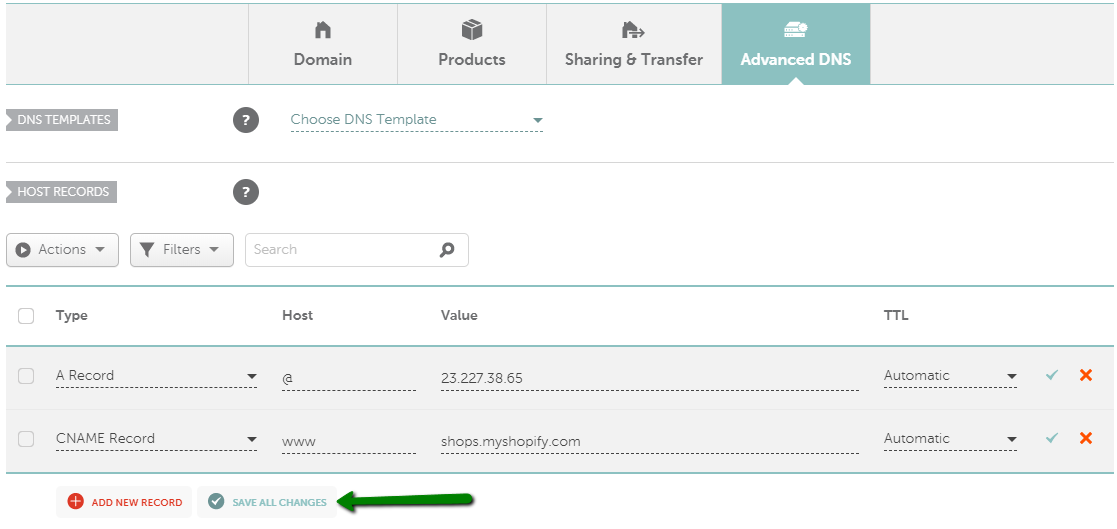
Credit: www.namecheap.com
Frequently Asked Questions
How Do I Link My Domain To My Shopify Store?
To link your domain to your Shopify store, go to “Online Store” > “Domains” in Shopify admin. Click “Connect existing domain” and follow the instructions to update your domain’s DNS settings. Ensure the domain points to Shopify’s IP address and verify the connection.
Your domain will be successfully linked.
How Do I Verify Domain Ownership On Shopify Namecheap?
To verify domain ownership on Shopify via Namecheap, add the provided TXT record in your Namecheap DNS settings. Access your Namecheap account, navigate to “Domain List,” select your domain, and click “Manage. ” In “Advanced DNS,” add the TXT record and save changes.
Verification may take up to 48 hours.
How Do I Transfer My Domain To Shopify?
To transfer your domain to Shopify, unlock the domain and obtain the authorization code from your current registrar. Enter the code in Shopify’s domain settings. Confirm the transfer via email from Shopify. Ensure the domain is active, not expired, and meets Shopify’s requirements for transfer.
Should I Connect My Domain To Shopify?
Connecting your domain to Shopify enhances brand credibility and trust. It helps improve SEO and provides a seamless shopping experience. Your store will appear more professional, attracting more customers. It’s a simple process that can significantly boost your online presence and sales.
Conclusion
Connecting your Namecheap domain to Shopify is straightforward. Follow the steps outlined. Ensure your DNS settings are correct. This helps your store go live smoothly. Regularly check for any updates or changes. Keep an eye on your domain settings. This prevents potential issues.
A correctly linked domain boosts your online presence. It helps attract more visitors. A seamless connection also enhances user experience. Your online store will be ready for business. Enjoy the benefits of a well-connected domain. Happy selling on Shopify!


