

If you want your WordPress site to load faster and run smoother, configuring LiteSpeed Cache (LSCache) is one of the smartest moves you can make. But maybe you’re wondering how to set it up without getting lost in complicated settings.
Don’t worry—this guide will walk you through each step clearly and simply. By the end, you’ll know exactly how to optimize your site’s speed and performance with LSCache, keeping your visitors happy and improving your search rankings. Ready to unlock your site’s full potential?
Let’s dive in!
Credit: docs.litespeedtech.com
Install Litespeed Cache Plugin
Installing the LiteSpeed Cache plugin is the first step to boost your WordPress site’s speed. This plugin improves loading times by caching pages and optimizing resources. Follow simple steps to download and activate it.
Download From WordPress Directory
Go to your WordPress dashboard. Find the “Plugins” menu and click “Add New.” Type “LiteSpeed Cache” in the search box. Look for the official LiteSpeed Cache plugin by LiteSpeed Technologies. Click the “Install Now” button to download the plugin files to your site.
Activate The Plugin
After installation completes, click the “Activate” button. This will enable the plugin on your WordPress site. Once activated, you can access LiteSpeed Cache settings from the dashboard menu. This allows you to configure caching and other performance options easily.
Enable Cache Settings
Enabling cache settings in LiteSpeed Cache for WordPress improves your site speed. It reduces server load and boosts user experience. Proper configuration helps store frequently accessed data. This means faster page loads for your visitors. Follow these simple steps to enable key cache features.
Turn On Page Cache
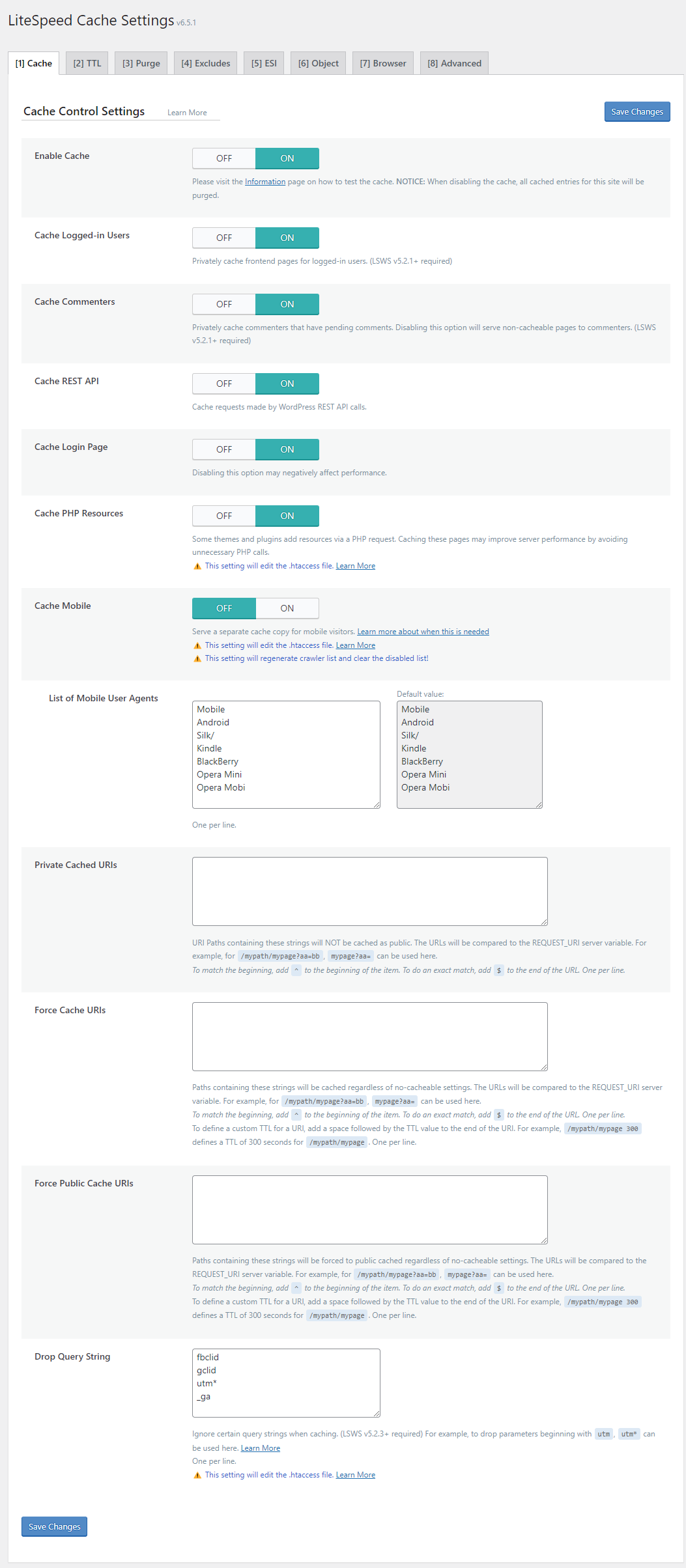
Page Cache stores full HTML pages on the server. This saves time by serving cached pages instead of generating them each time. To enable it, go to LiteSpeed Cache > Cache > Cache. Switch the Enable Cache option to ON. Save changes to activate page caching immediately.
Configure Browser Cache
Browser Cache tells visitors’ browsers to save site resources. This lowers the number of requests to your server. Go to LiteSpeed Cache > Cache > Browser Cache. Enable options like Cache Control and Expires Header. Set reasonable expiration times for CSS, JS, and images.
Set Up Object Cache
Object Cache stores database query results to speed up dynamic content. It is useful for sites with heavy database use. Navigate to LiteSpeed Cache > Cache > Object Cache. Turn on Object Cache and select your preferred method like Memcached. Save changes and test your site’s performance.
Optimize Cache Options
Optimizing cache options in LiteSpeed Cache for WordPress improves site speed and user experience. Proper settings help serve content faster and reduce server load. Focus on fine-tuning purge rules and cache exclusions. These settings control what stays cached and when the cache clears. Setting them right ensures fresh content without slowing down your site.
Purge Rules Configuration
Purge rules decide when cached content should be deleted. Clear cache after updates to show the latest content. Purge rules can be set for posts, pages, categories, and tags. Enable automatic purging for post edits and new comments. Avoid manual purging to save time and prevent errors. Use purge settings to keep your site fast and content current.
Cache Exclusion Settings
Exclude specific pages or content from caching. Use cache exclusion for dynamic pages like carts or user profiles. Excluding these pages prevents showing outdated or incorrect information. Add URLs or cookies to the exclusion list in the settings. Exclusion helps maintain correct functionality without losing cache benefits elsewhere. Customize exclusions based on your site’s needs.
Credit: docs.litespeedtech.com
Optimize Images
Optimizing images is essential for faster website loading and better user experience. Large images slow down your site and affect SEO rankings. Using LSCache for WordPress, you can easily optimize images to improve speed without losing quality. This section guides you through enabling image optimization and setting lazy load options.
Enable Image Optimization
First, log into your WordPress dashboard. Go to LiteSpeed Cache > Image Optimization. Find the option to enable image optimization and switch it on. This feature compresses your images automatically. It reduces file size while keeping them clear. You can also optimize images in bulk or on upload. This saves space and speeds up page load times.
Set Lazy Load Options
Lazy load delays image loading until needed. This reduces initial page load time. Go to LiteSpeed Cache > Image Optimization > Lazy Load. Enable lazy load for images, iframes, and videos. You can also exclude certain images from lazy loading. Customize settings to fit your site’s design. Lazy loading improves performance, especially on pages with many images.
Optimize Css And Javascript
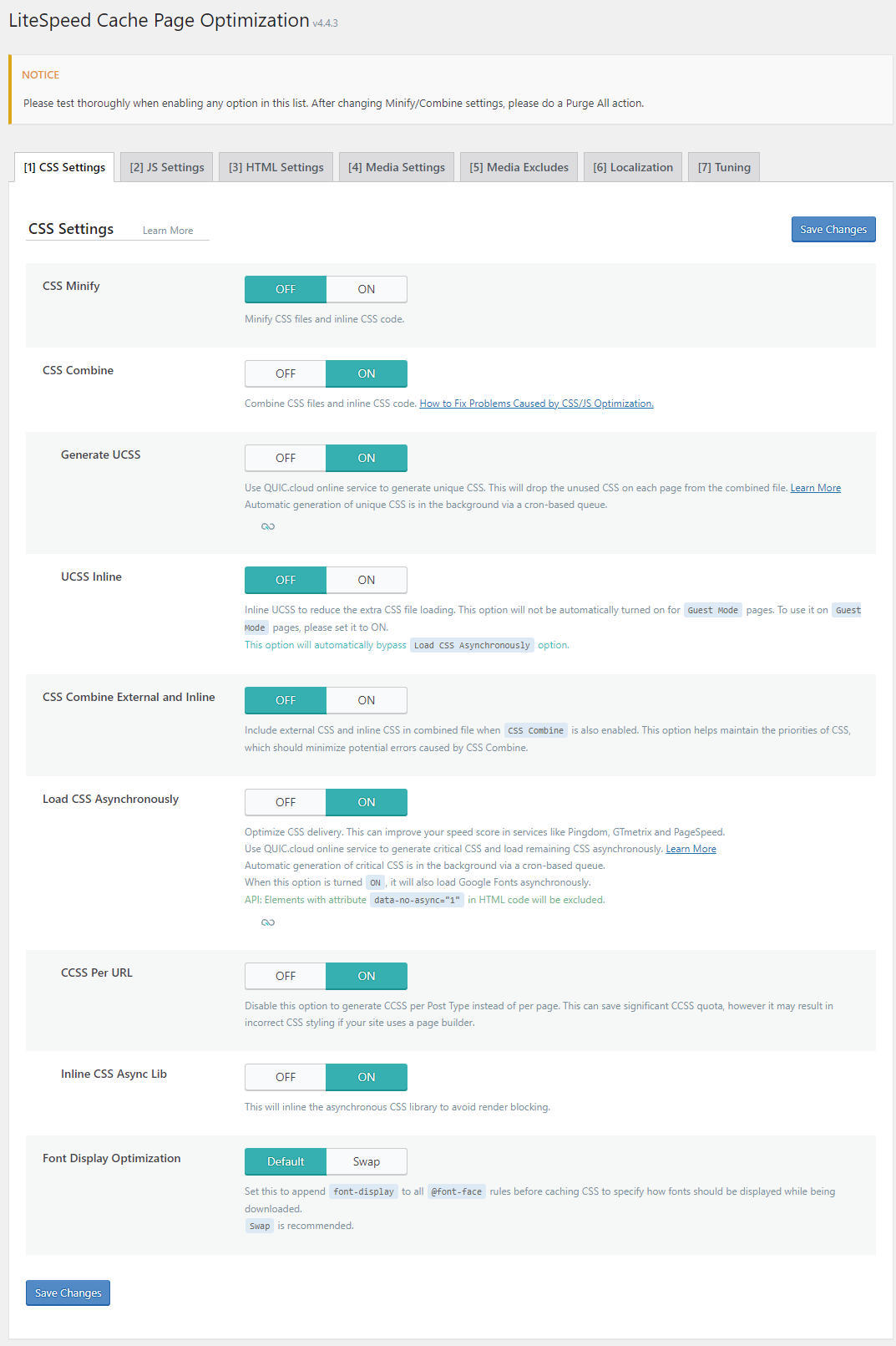
Optimizing CSS and JavaScript improves your WordPress site’s speed and user experience. These files control the style and interactive parts of your site. If they load slowly, visitors may leave early. LiteSpeed Cache helps by reducing file size and managing loading order. This makes pages load faster and smoother.
Minify And Combine Files
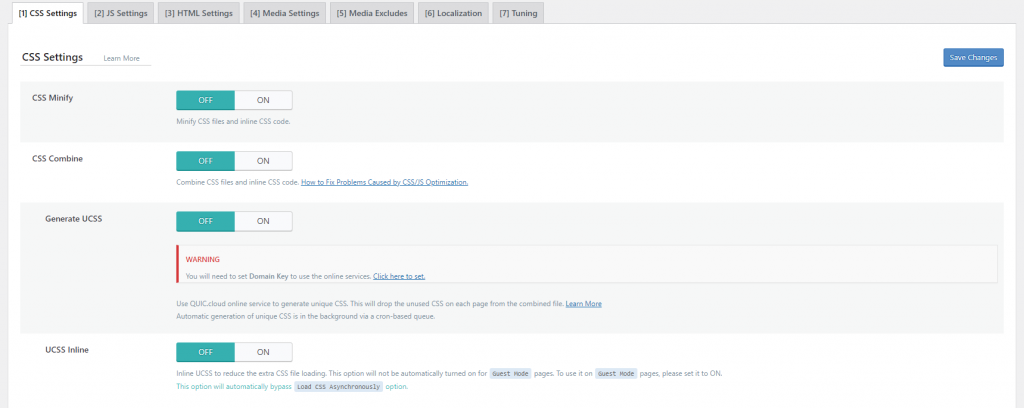
Minifying CSS and JavaScript removes extra spaces and comments from files. This lowers file size and speeds up loading. Combining files means merging many small files into one. This reduces the number of requests to the server. LiteSpeed Cache has options to minify and combine CSS and JavaScript automatically. Enabling these features makes your site faster without manual work.
Defer Javascript Loading
Deferring JavaScript delays its loading until after the main content appears. This avoids blocking the page from showing quickly. LiteSpeed Cache lets you defer JavaScript easily in the plugin settings. It improves the user experience by showing content sooner. Use this setting for scripts that are not needed right away on page load.
Configure Cdn Integration
Configuring CDN integration with LiteSpeed Cache enhances your website speed globally. It delivers your static content closer to visitors. This reduces loading time and improves user experience. Follow simple steps to set up and enable CDN in LiteSpeed Cache.
Set Up Cdn Url
Start by logging into your WordPress dashboard. Go to LiteSpeed Cache settings and find the CDN section. Enter your CDN provider’s URL here. This URL points to where your static files will load from. Make sure the URL uses HTTPS for security. Save the settings to apply the changes.
Enable Cdn For Static Files
Next, enable CDN support for static files like images, CSS, and JavaScript. In the CDN settings, turn on the option to rewrite URLs for these files. This tells LiteSpeed Cache to serve static files through your CDN. Clear your cache after enabling this feature. Check your site to confirm the static files load from the CDN URL.
Advanced Tweaks
Advanced tweaks help you get the most from LSCache on WordPress. These settings improve speed and efficiency beyond the basics. Use them carefully to enhance your site’s performance.
Enable Http/2 Push
HTTP/2 Push sends resources to browsers before they ask. It reduces load time by preloading scripts and styles. In LSCache, enable this feature in the plugin settings under Cache > HTTP/2 Push. Add critical CSS and JavaScript files you want to push. Test your site after enabling to ensure no conflicts.
Database Optimization
Database cleanup keeps your WordPress fast and responsive. LSCache offers tools to remove old revisions, drafts, and spam comments. Navigate to LSCache > Database and choose items to clean. Schedule regular optimization to prevent database bloat. This reduces query time and boosts overall speed.
Credit: www.hostinger.com
Test And Monitor Performance
Testing and monitoring your LSCache setup ensures your WordPress site runs smoothly. It helps spot issues early and keeps performance high. You can check if caching speeds up your pages as expected. Monitoring also shows if cache settings need adjustment. Regular checks maintain fast load times and better user experience.
Use Speed Testing Tools
Speed testing tools measure your website’s load time. Tools like Google PageSpeed Insights, GTmetrix, or Pingdom give detailed reports. These reports highlight how caching affects your site speed. Run tests before and after enabling LSCache. Compare results to see improvements. Test different pages for a full picture. Repeat tests regularly to track changes over time.
Monitor Cache Hit Ratio
Cache hit ratio shows how often cached content is served to visitors. A high hit ratio means LSCache works well. Lower ratios suggest caching issues or settings to improve. You can check this ratio in your hosting or LSCache plugin dashboard. Watch this metric to ensure your cache serves pages correctly. Improving hit ratio cuts server load and speeds up delivery.
Frequently Asked Questions
What Is Lscache In WordPress?
LScache is a powerful caching plugin for WordPress. It improves website speed by storing static content. This reduces server load and enhances user experience.
How Do I Install Lscache Plugin?
To install LScache, go to WordPress dashboard. Navigate to Plugins > Add New. Search for “LiteSpeed Cache,” then click Install and Activate.
How To Enable Caching In Lscache?
Go to LiteSpeed Cache settings in your dashboard. Under Cache tab, set Enable Cache to ON. Save changes to activate caching on your site.
Can Lscache Improve WordPress Seo?
Yes, faster loading times with LScache boost SEO. Search engines favor websites with better speed and performance, improving rankings and traffic.
Conclusion
Configuring LiteSpeed Cache on WordPress boosts your website speed effectively. It reduces load times and improves user experience. Start by installing the plugin and enabling caching options. Adjust settings based on your site’s needs for best results. Regularly clear cache to keep your site fresh and fast.
A well-configured cache helps your site rank better in search engines. Take small steps, test changes, and watch your site perform smoothly. Efficient caching is key to a faster, more reliable WordPress site.


