
Are you ready to take control of your online presence? Configuring your Google Domain with web hosting is a crucial step in establishing your website.
Whether you’re launching a personal blog, an e-commerce site, or a portfolio, linking your domain to your hosting service can seem daunting. But don’t worry; this guide is here to simplify the process for you. Imagine the excitement of seeing your website live, fully functional, and accessible to the world.
It’s a powerful feeling, and achieving it is easier than you might think. By following some straightforward steps, you can seamlessly connect your Google Domain to your web hosting, ensuring your site runs smoothly and efficiently. You’ll discover a simple, step-by-step approach to configuring your domain. No technical jargon, no confusion—just clear instructions that will empower you to make the most of your online presence. Dive in, and unlock the potential of your website today!
Credit: www.lrswebsolutions.com
Choosing The Right Web Hosting Provider
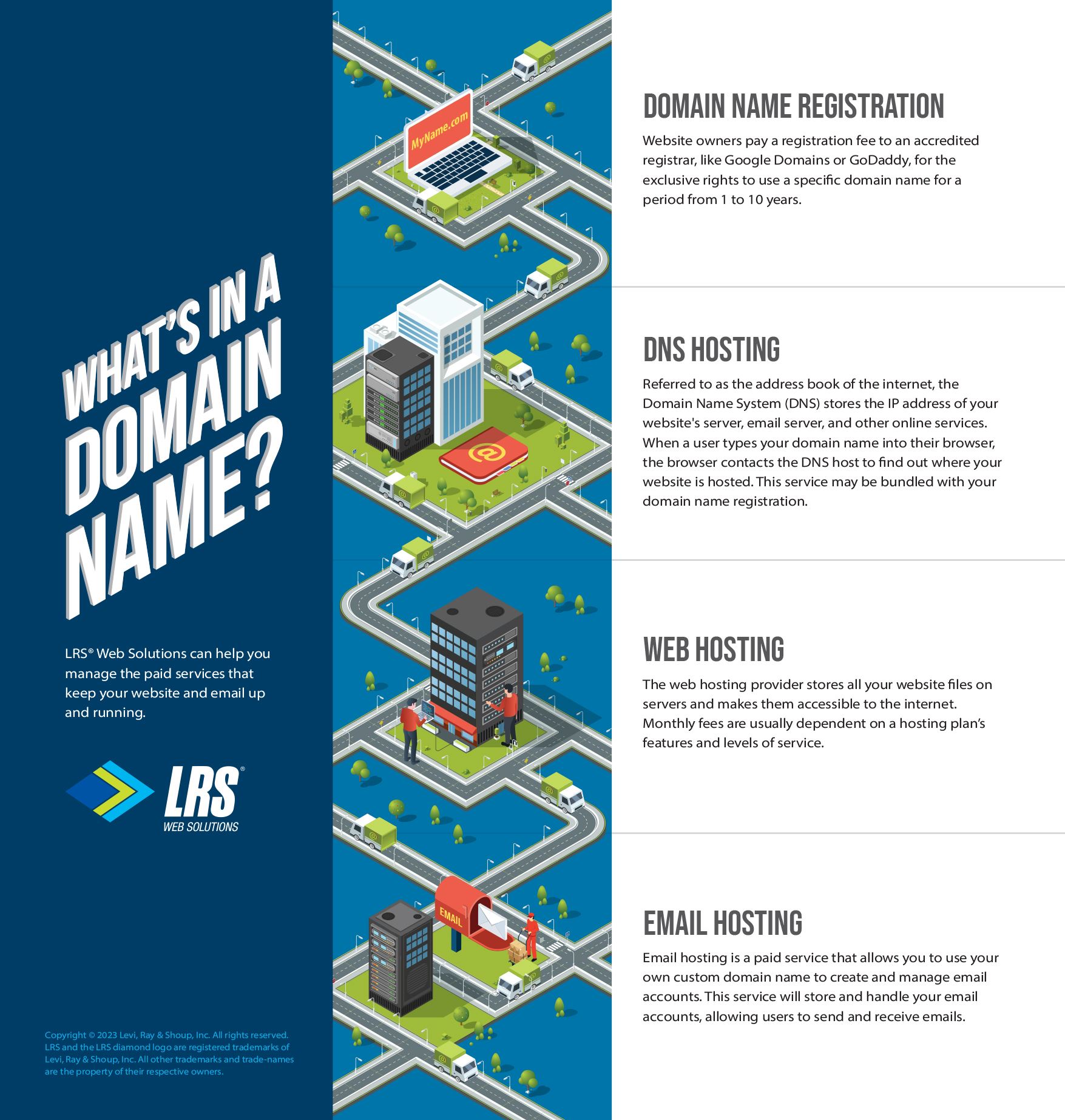
Web hosting comes in many types. Shared hosting is common. Cheap and good for small sites. VPS hosting is a bit costly. More control and resources. Dedicated hosting is expensive. Full control and best for large sites. Cloud hosting is flexible. You pay for what you use. Choose the type that fits your needs.
Storage space is important. More space means more room for files. Bandwidth decides site speed. High bandwidth keeps sites fast. Security features matter. Protect your site from threats. Customer support helps solve issues. Good support is always there when needed. Price is key. Find a host that fits your budget. Compare features to make a smart choice.
Registering A Google Domain
Searching for Domain Availability is the first step. Open the Google Domains website. Type your desired domain name in the search box. Click the search icon. The site will show if the domain is available. If not, it suggests similar names. Choose the one you like. Make sure it is easy to remember. A good domain name is important for your website.
Completing the Registration Process is simple. Click on your chosen domain. Add it to your cart. Check the details carefully. You will need to pay a fee. Use a credit card or other payment methods. Follow the steps to complete the purchase. Once done, the domain is yours. You can now connect it to your web hosting.
Accessing Dns Settings
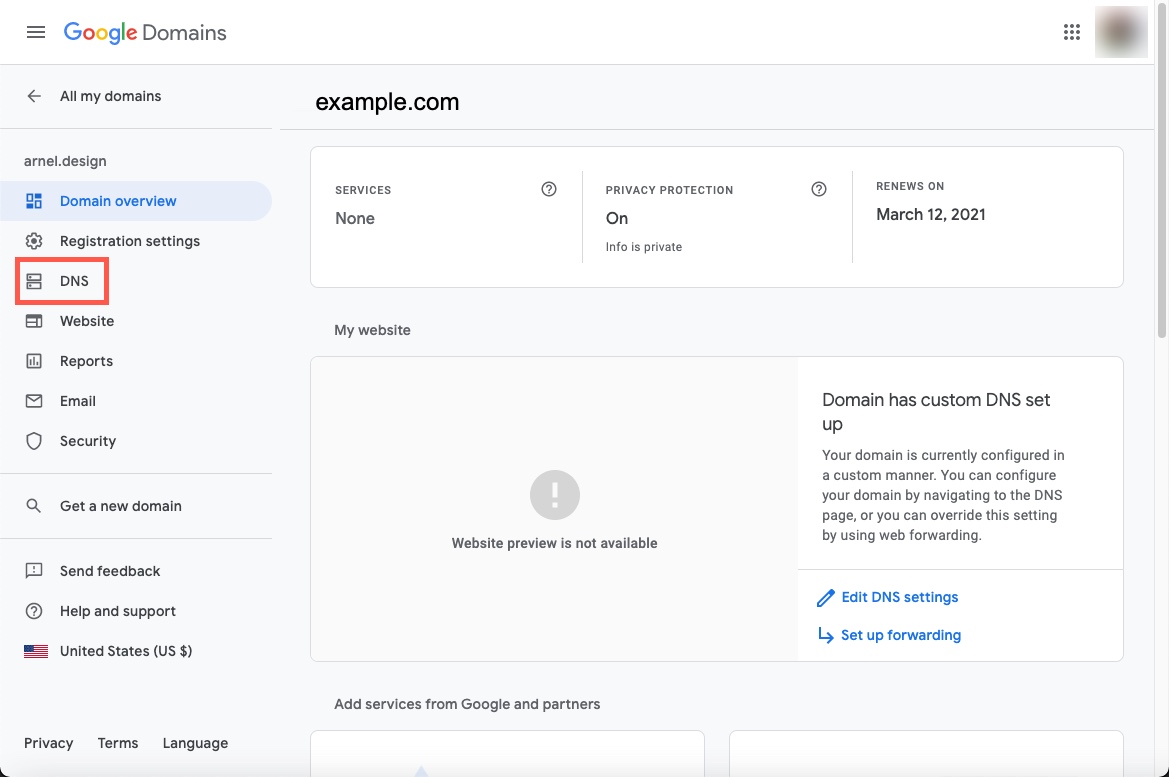
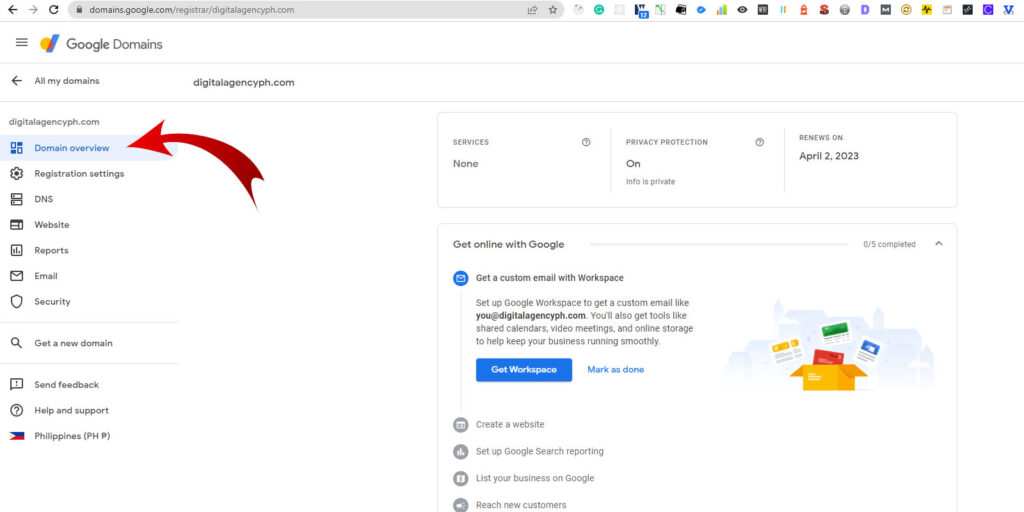
Navigating Google Domains Dashboard is simple. First, log in to your Google Domains account. Find your domain name. It’s on the main screen. Click on it. A new page will open. Look for the DNS settings tab. Click on it. Now, you can see the DNS records.
Understanding DNS Records is important. DNS records tell the internet where your website lives. The most common DNS records are A, CNAME, and MX. The A record points your domain to an IP address. The CNAME record is used for subdomains. The MX record handles email. Make sure to enter the correct details. This ensures your domain works well with your hosting.
Credit: www.inmotionhosting.com
Linking Domain To Web Host
Name servers help direct your domain to your web host. First, log into your Google Domain account. Find the section that says DNS settings. You will see a space for name servers. Your web host gives you these name servers. Copy them carefully. Paste them into the name server space. Double-check your entries. Click save to update the settings. It may take some time to see changes. Wait patiently for the updates to complete.
DNS records are like instructions for your domain. They guide internet users to your website. In your Google Domain account, go to the DNS records section. Find the button that says add DNS record. You need to add the type of record your host provides. Common types are A records and CNAME records. Enter the details given by your host. Make sure everything matches. Click save when done. DNS changes may take time. Be patient and check again later.
Testing Domain Configuration
Online tools can help check your domain setup. These tools are easy to use. Enter your domain name to start. The tool will show if everything is correct. It checks for common issues like wrong DNS settings. Some tools are free. They offer quick results and are available online. Popular ones include DNS checker and Pingdom. They give detailed reports. Use these reports to fix any problems. Online tools save time and effort.
Sometimes the domain setup may have problems. These can be due to wrong DNS entries. Ensure all entries are correct. Another issue can be with propagation time. This means changes take time to update. Wait for a few hours to see changes. Also, check for spelling mistakes. They can cause the site not to load. Fixing these issues can make your site work better.
Setting Up Email With Domain
Choosing email hosting is a key step. Begin by selecting a provider. Options like Google Workspace or Zoho Mail are popular. These services offer user-friendly interfaces. They help manage emails with ease. Make sure to compare features and prices. Choose a plan that fits your needs and budget.
Next, it’s time for configuring MX records. MX records direct emails to your domain. You can find them in your DNS settings. Log into your domain registrar account. Locate the DNS management page. Add or edit the MX records there. The email provider gives these records. They tell you what to enter. Ensure each entry is correct. Incorrect entries can cause email issues. Save your changes and wait. Propagation may take a few hours.
Ensuring Domain Security
Keeping your domain safe is important. Enable domain privacy to protect your information. It hides your details like name and address. This stops strangers from seeing them. Privacy helps keep your data safe from hackers. Always check if your hosting offers this service. It’s easy to turn on. Just a few clicks and you’re secure.
SSL certificates keep your website data safe. They make sure your site uses HTTPS. This stops bad people from seeing your data. It also helps users trust your site. Browsers show a lock icon for SSL-secured sites. Most hosting companies provide SSL for free. You can ask them to help you set it up. Your data stays protected and users feel safe.
Credit: www.aljunmajo.com
Frequently Asked Questions
How To Host A Website On A Google Domain?
Buy a Google domain and access Google Domains. Connect it to a web hosting provider. Update DNS settings to point to your host. Publish your website through the hosting platform. Ensure all settings are configured correctly for smooth website operation.
Does Google Domain Come With Hosting?
Google Domains does not provide web hosting services. It only offers domain registration. You need separate web hosting. Consider using platforms like Google Cloud or third-party hosting providers for your website.
How Do I Host A Website With A Custom Domain On Google Drive?
Hosting a website on Google Drive with a custom domain is not directly supported. Consider using Google Sites or other hosting services. Upload your site files to Google Drive and share publicly if needed. Use domain settings to redirect to Google Drive URL.
Does Google Provide Web Hosting?
Google does not directly provide traditional web hosting. Instead, it offers cloud services through Google Cloud Platform. These services include scalable hosting solutions like Google App Engine and Compute Engine for businesses and developers. Consider these options if you’re looking for advanced, customizable hosting solutions.
Conclusion
Configuring your Google Domain with web hosting is simple. Follow the steps carefully. Ensure your domain settings match your hosting provider’s requirements. Don’t rush. Double-check all entries for accuracy. Mistakes can cause issues. Once configured, your website will be live.
Visitors can access it easily. It’s satisfying to see your efforts pay off. Remember, patience and attention to detail are key. If needed, refer to guides or support. They offer valuable help. Soon, your website will be up and running smoothly.
Enjoy the journey and happy hosting!


