
Are you tired of your current WordPress theme and ready for a fresh start? Maybe you’ve noticed your site isn’t performing as well as it used to, or you’re simply craving a new look.
Whatever the reason, knowing how to completely remove your existing WordPress theme and install a new one can feel like a daunting task. But don’t worry—you’re not alone, and it doesn’t have to be complicated. In this guide, we’ll walk you through every step, ensuring you feel confident and in control of your website’s transformation.
With the right approach, you can refresh your site’s appearance and functionality in no time. Ready to give your WordPress site a makeover? Let’s dive in and make it happen!
Backup Your Website
First, go to your website’s dashboard. Find the tools section. Click on Export. Choose the database option. Save the file to your computer. This is your website’s important data. Make sure it is safe.
You need an FTP client like FileZilla. Open the FTP client. Connect to your website. Use the login details from your hosting account. Find the public_html folder. Download all files to your computer. This will save your website’s files. Keep them in a safe place. Now, you are ready to change the theme.
Credit: www.elegantthemes.com
Deactivate Current Theme
Switching is simple. First, go to the WordPress dashboard. Then, click on “Appearance“. Next, choose “Themes“. Find the default theme. Click “Activate“. Your site now uses the default theme. This step ensures safe theme removal.
Deactivating theme plugins is important. Start by clicking “Plugins” in the dashboard. Locate the plugins related to your current theme. Click “Deactivate” for each. This prevents issues during theme removal. Always check if plugins are deactivated. Now, you’re ready to remove the old theme.
Delete Existing Theme
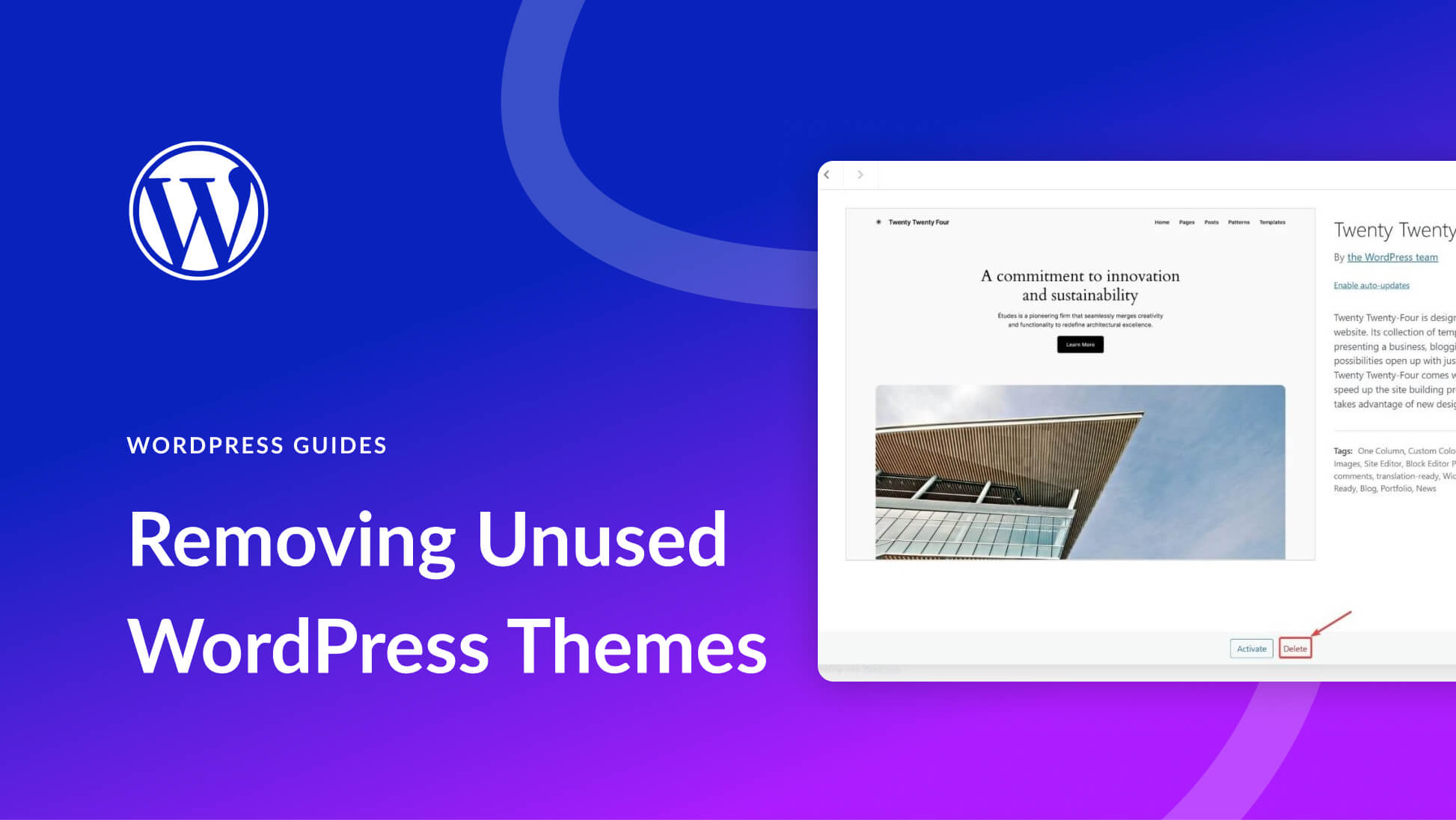
Go to your WordPress dashboard. Find the Appearance menu. Click on Themes. You will see all your themes. Choose the one you want to remove. Click on Theme Details. Now, you will see a Delete button. Click it. This will remove the theme files. Make sure to back up if needed.
Sometimes, old files stay in your browser. These are called cache files. They can cause problems with new themes. Go to your browser settings. Find the option to clear the cache. Choose the time range to clear. Select Clear Data. This makes sure no old files remain. Now your new theme will work smoothly.

Credit: wpmarmite.com
Choose A New Theme
Think about what your website needs. Is it a blog or a store? Functionality is key. A simple theme might work for a blog. But a store might need more. Look at the design too. Does it fit your style? Some themes are bright. Others are dark. Choose a theme that matches your brand. The design should be easy to read. Users should find it simple to use.
Not all themes work with every plugin. Compatibility is important. Check if the theme works with your plugins. Some plugins need special features. A theme might look nice but not work well. Always test the theme first. See how it works with your site. This saves time and problems later.
Install New Theme
Start by opening your WordPress dashboard. Find the Appearance menu on the left. Click on Themes. Once there, look for the Add New button at the top. Click it. You’ll see options for new themes. Use the Upload Theme button. Choose the theme file from your computer. Make sure the file is in .zip format. Click Install Now. Wait for the upload to finish. Activate the theme once installed.
First, open your FTP client. Connect it to your website server. Navigate to the wp-content/themes directory. On your computer, find the theme folder. Make sure it is not zipped. Drag and drop the folder into the FTP window. Wait for the transfer to complete. Check your WordPress dashboard. Go to Appearance and then Themes. Find the new theme there. Click Activate to use it.
Credit: www.malcare.com
Activate New Theme
First, go to the WordPress dashboard. Click on Appearance, then Themes. You will see a list of themes. Find the theme you want to use. Click on Activate to make it live. Now, your new theme is active.
Next, make the theme look good. Go to Appearance, then Customize. You can change colors, fonts, and layout. Make sure to press Save after changes. This keeps your settings safe.
After making changes, check your site. Make sure everything works fine. Look for broken links or missing images. Use a tool to help find errors. Fix any problems you see. This makes your site run smoothly. A good site makes visitors happy.
Restore Backup
To get started, locate your database backup file. This file is usually in SQL format. Open your hosting control panel. Find the database section. Click on Import. Select the backup file from your computer. Make sure the file uploads successfully. Wait until the process finishes.
Use an FTP client to connect to your server. Navigate to the WordPress directory. Locate the folder named ‘wp-content’. Remove the old theme files. Upload the new theme files. Make sure all files upload correctly. Check file permissions. Adjust if needed.
Test New Theme
After changing the theme, always check site functionality. Click all links. Ensure they work. Test buttons too. Do forms submit correctly? Look for broken images. Fix them if needed. Ensure everything displays properly. A well-functioning site is crucial.
Ensure mobile responsiveness is a must. Many visitors use phones. Check how the site looks on a phone. Does it adjust to the screen size? Make sure text is readable. Buttons should be easy to tap. A good mobile experience keeps visitors happy.
Frequently Asked Questions
How Do I Uninstall A WordPress Theme Completely?
To uninstall a WordPress theme, access your dashboard. Navigate to ‘Appearance’, then ‘Themes’. Hover over the active theme and select ‘Delete’. Ensure you back up your data first. This process removes the theme files but not associated settings.
Can I Install A New WordPress Theme Easily?
Yes, installing a new WordPress theme is simple. Go to ‘Appearance’, then ‘Themes’, and click ‘Add New’. Choose a theme, click ‘Install’, then ‘Activate’. Ensure your site backups are completed before making changes.
Why Should I Remove Unused WordPress Themes?
Removing unused WordPress themes improves security and speeds up your site. Unused themes can become outdated and vulnerable. They also consume server resources. Regularly review and delete themes you no longer use for optimal performance.
What Precautions Before Changing A WordPress Theme?
Before changing themes, back up your site. Check compatibility with plugins and content. Review theme features and design. Ensure the new theme aligns with your brand and site objectives. Test changes in a staging environment first.
Conclusion
Removing and installing WordPress themes is straightforward. Follow the steps carefully. Start by backing up your site data. This protects your content. Next, access the admin panel. Navigate to ‘Themes’ and delete the current one. Install the new theme by clicking ‘Add New’.
Choose a theme that fits your site’s purpose. Customize it for a unique look. Check for compatibility with plugins. Test your site’s functionality after installation. Ensure everything works smoothly. A fresh theme can enhance your site’s appearance and performance. Enjoy the new design and improved features.


