
Are you tired of cluttered WordPress installations with themes you no longer use? Maybe you’ve tried to remove a theme, only to find remnants lurking in your database.
You’re not alone. Many WordPress users face this problem, which can slow down your site and create security risks. Imagine having a lean, efficient website with no unnecessary baggage. Sounds great, right? This guide will show you exactly how to completely remove a WordPress theme, leaving no trace behind.
You’ll feel empowered knowing your site is clean and optimized, ready to perform at its best. Let’s get started on decluttering your WordPress experience. Your website deserves it!
Backup Your WordPress Site
Backups are like safety nets for your site. They protect your data. Websites can crash or get hacked. This is why backups are crucial. Restoring from a backup saves you from losing everything. It brings peace of mind. You can fix problems quickly. Always have a recent backup. This is a smart choice.
There are many tools to help with backups. Plugins like UpdraftPlus or BackWPup are popular. They make the process easy. Jetpack is another option. Some tools offer cloud storage. This keeps your data safe. Choose a tool that suits your needs. Remember, regular backups are key to safety.
Deactivate The Theme
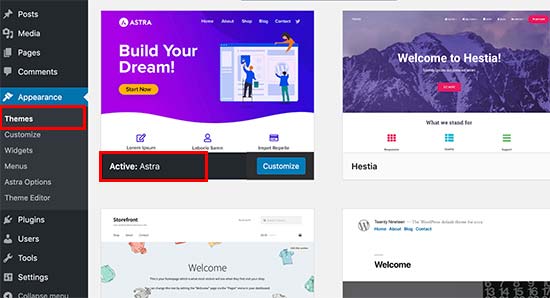
First, go to your WordPress dashboard. Find the Appearance section. Click on it. Look for Themes. You will see your active theme. You need to change it. Pick the default WordPress theme. It could be Twenty Twenty-One or another. Click Activate to switch.
Switch To Default Theme
Switching is simple. Choose the default theme. Click the Activate button. Your old theme will be deactivated. The default theme is now active. This is important for removing the old theme.
Verify Deactivation
Check your website. Make sure the new theme is active. The old theme should not show. Visit different pages to be sure. Everything should look different now. The new theme should be working well. If something is wrong, go back to the dashboard. Check the theme settings again.
Delete The Theme
Begin by logging into your WordPress Dashboard. This is where you make changes to your site. Look for the menu on the left side. Find the option labeled Appearance. Click on it to open the themes page. You will see a list of installed themes.
On the themes page, find the Active Theme. You can’t delete an active theme. First, choose a different theme to activate. Click on another theme and select Activate. Now, the previous theme is inactive and can be removed.
Hover over the theme you want to delete. Click on the Theme Details button. A window will pop up with details about the theme. Find the Delete button at the bottom right. Click it to remove the theme. A confirmation will appear. Click OK to confirm the deletion. Your theme is now completely removed.
Remove Theme Files Via Ftp
First, open an FTP client like FileZilla. Enter your server’s details. Click connect. Wait for the connection to establish. You will see your server files.
Find the folder called wp-content. Open it. Inside, you will see a themes folder. This is where all your themes are stored. Look for the theme you want to remove.
Right-click on the theme folder. Choose delete from the menu. Confirm the deletion. The theme files will be removed from your server. Make sure to check if all files are gone.
Clean Up The Database
Identify unused data in your WordPress database. Check for old theme files. They might be leftover from past installations. These can slow down your site. Removing them can improve speed.
Use database plugins to help with cleanup. Plugins can find and remove unnecessary data. They are easy to use. Some popular plugins are WP-Optimize and Advanced Database Cleaner.
Try manual database cleaning for more control. Access your database via phpMyAdmin. Look for tables related to themes. Delete these tables if no longer needed. Always backup your database before making changes.

Credit: wpmarmite.com
Clear The Cache
Cache stores old data for quick loading. Removing it helps see recent changes. This improves your website’s performance. Visitors get the latest version of your site. Cache clearing is important for a smooth experience.
Plugins make cache clearing easy. They save time and effort. Some popular plugins include W3 Total Cache, WP Super Cache, and LiteSpeed Cache. These plugins are simple to use. Install one and follow the steps. Your site will be up-to-date and fast.
Check For Residual Files
Many themes leave files behind. These files can slow your site. First, check the theme folder. Some files may hide in other folders. Plugins often create extra files. Review your uploads folder. There might be images or documents left.
Scan For Leftover Files
Use a file manager tool. This tool can find hidden files. Look in the wp-content folder. Many leftover files hide there. Some files may also be in wp-includes. These files can affect site speed. Remove them carefully.
Remove Unnecessary Files
Delete files that are not needed. This helps clean your site. Backup your site before removing anything. This ensures you can restore if needed. Removing files can free up space. It also makes your site faster.
Credit: themelooks.com
Verify Theme Removal
Visit your website. Ensure everything works well. Navigate through pages. Click links and buttons. Look for broken elements. Test forms and features. Everything should function smoothly.
Look at your site design. It should look normal. Check images and text. Make sure they appear correctly. Ensure colors and fonts are consistent. Look for layout shifts or missing parts. Your site should look the same as before.

Credit: jetpack.com
Frequently Asked Questions
How Can I Uninstall A WordPress Theme?
To uninstall a WordPress theme, access your WordPress admin panel. Navigate to Appearance > Themes. Click on the theme you want to remove. Then, click on the “Delete” button at the bottom right corner. Confirm the deletion, and your theme will be uninstalled from WordPress.
Does Removing A Theme Affect My Site?
Removing a theme doesn’t affect your site content. Your posts, pages, and settings remain intact. However, the appearance will revert to the default theme. Always ensure a backup before removing any theme to prevent unforeseen issues.
How To Delete Theme Files Via Ftp?
To delete theme files via FTP, connect to your server using an FTP client. Navigate to wp-content/themes in your WordPress directory. Locate the theme folder you want to delete. Right-click on the folder and select “Delete. ” This action will remove all theme files.
Can I Reinstall A Removed Theme?
Yes, you can reinstall a removed theme. Download the theme from WordPress. org or your theme provider. Go to Appearance > Themes in your admin panel. Click “Add New” and upload the theme file. Activate it to restore the theme to your site.
Conclusion
Removing a WordPress theme is simple with the right steps. Follow the guidelines above. Ensure backups are in place. Delete the theme safely from your dashboard. Check for leftover files and clean them up. This process helps keep your site organized.
You maintain control over your website’s appearance. It ensures a clutter-free environment for your site. Regularly update and review your themes. This keeps your site secure and efficient. A clean website improves user experience. Happy website managing!


