
Are you struggling to get your WordPress site looking just the way you want? Sometimes, starting fresh is the best option.
Reinstalling your WordPress theme can breathe new life into your website, resolving pesky issues and opening up a world of customization opportunities. But if the thought of diving into the technical side of things makes you uneasy, don’t worry. You’re not alone, and you’ve come to the right place.
In this guide, we’ll walk you through the entire process of completely reinstalling your WordPress theme, step by step. By the end, you’ll feel confident and ready to transform your site, making it as unique and engaging as your vision demands. So, let’s get started and unlock the full potential of your WordPress theme!

Credit: www.shoutmeloud.com
Backup Your Website
Exporting your database is very important. This keeps your data safe. Go to your hosting account. Find the database section. Click on the export option. Save the file on your computer. Now your database is safe.
Download your theme files to keep a copy. Go to your website’s file manager. Find the theme folder. It is usually in the wp-content folder. Download the entire theme folder. Keep it in a safe place.
Backing up your media files is also important. These include pictures and videos. Use a plugin like UpdraftPlus. This helps to save media files quickly. Store them on an external drive or cloud. Now all your files are safe.
Credit: www.elegantthemes.com
Deactivate Current Theme
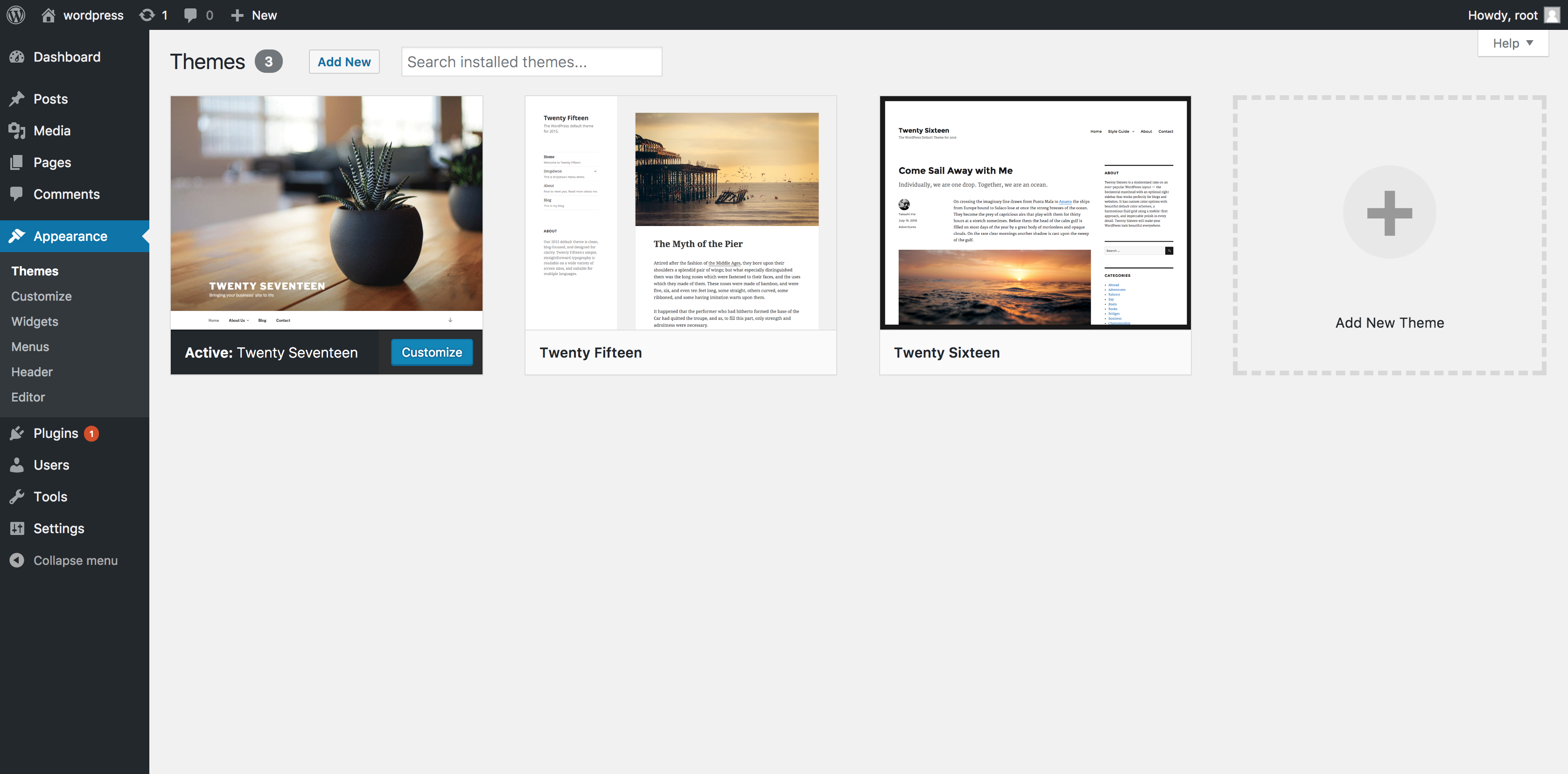
First, go to the WordPress dashboard. Find the Appearance tab and click on it. Choose Themes from the menu. Here, you will see all the installed themes. Select the default theme like Twenty Twenty-One. Click the Activate button. This will switch your site to the default theme. Switching is important before removing a theme.
Switch To Default Theme
Switching to the default theme ensures your site stays safe. It also helps in testing. You can check if everything works fine. Always switch before deleting the old theme.
Clear Caches
Clearing caches helps to remove old data. It updates the site with new changes. Go to your cache plugin settings. Find the clear cache option and click it. This step is crucial for a fresh start. Your site will now have the latest updates.
Delete Existing Theme
First, log in to your WordPress dashboard. Go to the left menu. Click on Appearance. You will see a list of themes. Find the theme you want to delete. Make sure it is not active. If it is active, switch to another theme. Now, click on the theme details.
On the theme details page, locate the delete button at the bottom right. Click it to remove the theme. Confirm the delete action. This will remove theme files from your site. Make sure the theme is not needed anymore. Deleting is permanent. You cannot undo this action easily. Check once more before you delete. Your theme is now removed completely.
Credit: www.namecheap.com
Download New Theme Version
You can find themes in the official WordPress repository. This place is safe and trusted. Search for the theme you like. Then, click the download button. Always check the latest version. This will have the best features.
Premium themes offer more options. Visit the theme provider’s website. You need to log in first. Find your theme in the list. Download the newest file. It’s important to keep your theme up-to-date. This helps keep your site secure.
Upload And Install New Theme
Access your WordPress dashboard by logging in. Click on “Appearance”, then select “Themes”. Use the “Add New” button at the top. Browse or search for the new theme you want. You can also upload a theme file. Click on “Upload Theme” and select your theme file. Once uploaded, click “Install”. Wait for the installation to complete. Activate the theme by clicking “Activate”. Your new theme is now live.
Open your FTP client and connect to your server. Navigate to “/wp-content/themes/” directory. Delete old theme folder first. Upload the new theme folder here. Ensure all files are correctly placed. Once uploaded, go to WordPress dashboard. Click on “Appearance” and then “Themes”. You will see your new theme listed. Click “Activate”. Your new theme is now active.
Activate New Theme
Always check the new theme settings. Look for options to customize. You might find cool features. Important settings can change your site look. Make sure you know how to adjust them. Some themes offer color choices. Others let you change fonts. Explore the settings page. You could find options for menus. Or maybe a header image. Understanding these helps make your site unique. Don’t skip this step. It ensures your site looks great.
Test your site after activating the new theme. Make sure links work. Check if images load correctly. Confirm buttons respond well. Test pages to see if they display right. Ensure forms are working fine. Review all site functions. If something is broken, you need to fix it. Testing helps find any issues early. It keeps your site user-friendly. A working site makes visitors happy. Happy visitors stay longer.
Restore Customizations
Custom code adds unique features to your site. Locate your custom code files saved before reinstalling. Copy the code snippets. Paste them in the new theme’s function file. Double-check for errors. Test the site to ensure everything works.
Widgets provide extra functionality. Access the Widgets section in WordPress admin. Drag and drop the saved widgets back to their original positions. Ensure each widget contains the right information. Preview your site to confirm the widgets display correctly.
Menus help users navigate your site. Go to the Menu settings in the dashboard. Recreate the menu structure as it was before. Add links to pages and categories. Save the menu and check if it appears correctly. Make adjustments if necessary.
Test Website Performance
Page load speed is very important for users. Faster sites keep visitors happy. Use tools like Google PageSpeed Insights. It helps check how fast your site loads. Slow sites can make users leave quickly. Make sure images are not too large. Keep scripts and styles small. This helps make pages load faster.
Many people use phones to browse the web. Websites must look good on mobile devices. Check if your site works well on phones and tablets. Test different screen sizes. Buttons should be easy to tap. Text must be readable without zooming. Use responsive design techniques. They ensure your site adapts to any device.
Troubleshoot Common Issues
Check all links on your site. Broken links make users confused. Use tools to find these links. Update or remove them quickly. Look for links in menus and pages. Fixing these helps with SEO. Visitors will stay longer on your site.
Deactivate all plugins first. Then, activate them one by one. Watch for problems as you do this. Plugin conflicts can stop your site from working. Check plugin settings if issues appear. Keep plugins updated always. This can prevent many problems.
Frequently Asked Questions
How To Backup WordPress Theme Before Reinstalling?
Before reinstalling, it’s crucial to backup your theme. Use a plugin like UpdraftPlus or manually download your theme files via FTP. This ensures you have a copy of your customizations and settings. Always backup your database to avoid losing content and configurations during the reinstallation process.
Can I Reinstall A WordPress Theme Without Losing Data?
Yes, you can reinstall without losing data. Ensure you backup your site first. Reinstalling the theme will not affect your posts, pages, or media files. However, any customizations made directly to theme files will be lost unless backed up separately.
Why Reinstall A WordPress Theme?
Reinstalling a theme can fix bugs, update designs, or remove unnecessary code. It’s helpful when troubleshooting persistent issues or after a failed update. Ensure you backup your site before reinstalling to prevent data loss.
How To Reinstall WordPress Theme Via Ftp?
To reinstall via FTP, first backup your theme files. Connect to your server using an FTP client like FileZilla. Navigate to the wp-content/themes directory, delete the existing theme folder, and upload the new theme files. Ensure permissions are set correctly.
Conclusion
Reinstalling a WordPress theme can seem daunting at first. With the right steps, you can do it easily. First, back up your site. Then, deactivate and delete the old theme. Install the new one. Customize it to fit your needs.
Regular updates keep your site secure. Remember, patience is key during the process. If issues arise, consult support forums or experts. Enjoy your refreshed website look! A new theme can bring fresh energy to your site. Explore and embrace the change.
Happy blogging!


