
Are you feeling overwhelmed by the clutter of unused themes and plugins in your WordPress dashboard? You’re not alone.
Many WordPress users find themselves drowning in a sea of unused elements that slow down their website and create potential security risks. It’s time to take control and streamline your site. Imagine having a sleek, fast, and efficient WordPress setup that not only boosts your site’s performance but also enhances your visitors’ experience.
You’ll discover step-by-step instructions on how to completely delete themes and plugins from WordPress. We’ll guide you through the process, ensuring you won’t leave any digital residue behind. By the end, your WordPress site will be as clean and organized as you envision. Ready to transform your site? Let’s dive in!
Backup Your Website
Backups are very important for your website. They keep your data safe. If something breaks, a backup can help fix it. Losing data can be sad. It can also be hard to get it back. With a backup, you can feel safe. Your content, pictures, and files will be secure. Always keep a backup copy. It protects your hard work.
Many tools can help with backups. UpdraftPlus is a popular choice. It saves your data easily. BackWPup is another good tool. It offers many features. You can use it for free. BackupBuddy is also useful. It has many options for users. These tools make backups simple. Choose one and start protecting your site.

Credit: wpmarmite.com
Deactivate The Theme
Log into your WordPress dashboard. Go to Appearance and click on Themes. Select a default WordPress theme like Twenty Twenty-One. Click Activate. This makes sure your old theme is no longer active. Always keep a backup before changing themes.
Check your site after switching. Go to your site’s front page. Ensure the default theme is showing. If the old theme shows, repeat the steps. Sometimes, caching issues might occur. Clear your browser cache and retry. This helps see the changes.
Delete The Theme Files
To delete a theme, first find the theme files. Open your WordPress dashboard. Go to the “Appearance” menu. Click on “Themes”. Here, you will see a list of your themes. Identify the theme you want to delete.
Select the unwanted theme. You will see a delete button. Click it. Confirm the deletion. This will remove the theme from your WordPress site. Ensure you have a backup if needed.
Use an FTP client like FileZilla. Connect to your website server. Navigate to “wp-content” and then “themes”. Locate the theme folder. Right-click and choose delete. This method is useful for large themes.
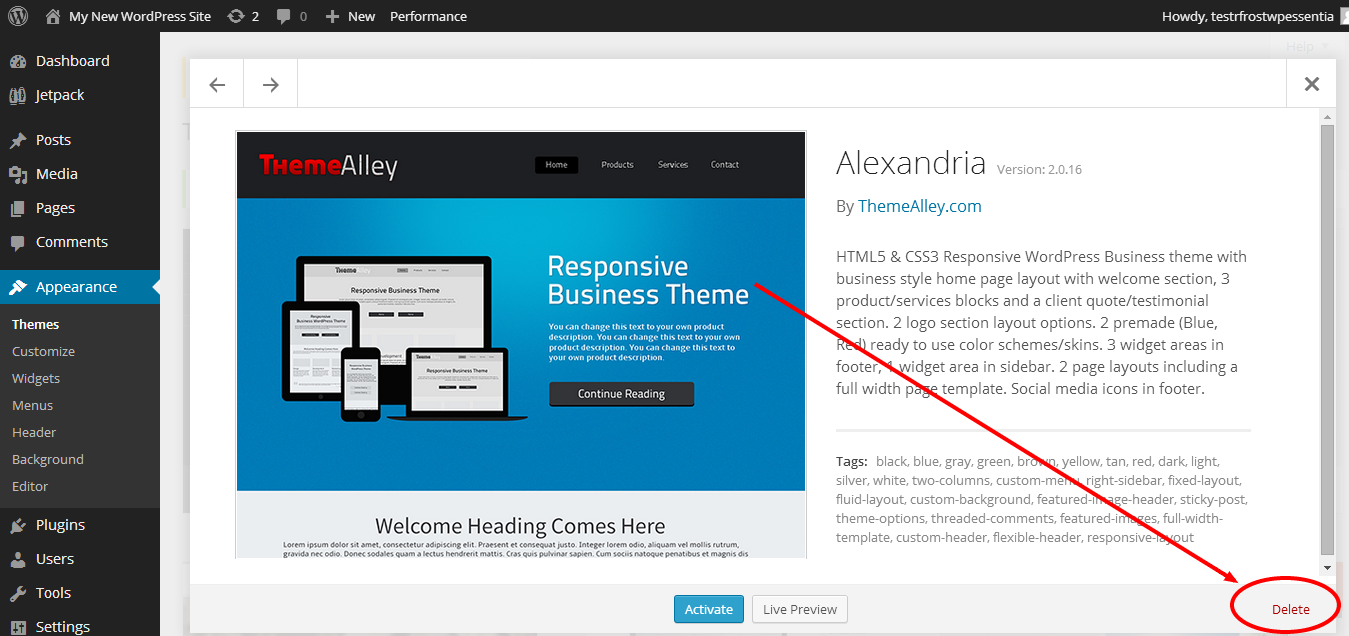
Credit: www.domain.com
Identify Installed Plugins
Start by checking your WordPress dashboard. Go to the plugins section. You will see a list of all installed plugins. Look for the active plugins. These are the ones currently in use. They might be connected to your theme. Check each plugin’s purpose carefully. Some plugins are essential for your site.
Listing Active Plugins
Make a list of all active plugins. Write them down on paper or a digital note. This helps in knowing which plugins to keep. It also shows which to remove. Active plugins are easy to find. They have an “active” tag next to them.
Plugins Related To The Theme
Identify plugins that work with your theme. These might include design or layout plugins. Check the plugin description. It often states if it’s theme-related. Removing these might change your site’s look. Ensure you really want to delete them.
Deactivate And Delete Plugins
Removing a theme along with its plugins on WordPress requires careful steps. First, deactivate the plugins linked to the theme. Then, delete the theme and plugins from the dashboard, ensuring a clean and complete removal.
Deactivating Plugins
First, log into your WordPress dashboard. Go to the Plugins menu. Find the plugin you want to deactivate. Click on the Deactivate button. Deactivating stops the plugin from working. It doesn’t delete it.
Removing Plugin Files
After deactivating, you need to delete the plugin files. Go to the Plugins menu again. Find the plugin you want to remove. Click on Delete. This removes the files from your site. Make sure to check your site after deleting. Ensure everything is still working fine. Backup your site before deleting. Safety first!
Clean Up Database Entries
Cleaning your WordPress database is important. It keeps your site running fast. Use database management tools to help. They find and remove orphaned entries. These are extra data bits left by old plugins or themes. This junk data can slow down your site.
Tools like phpMyAdmin are very helpful. They show you a list of all database entries. You can see which ones are not needed. Be careful not to delete important data. Always backup your database first. This is a safety step in case something goes wrong.
Orphaned entries are like lost pieces of data. They are not used by any theme or plugin. Finding these entries can be tricky. Use plugins like WP-Optimize. They help in identifying these entries. Once found, they can be safely deleted. This helps keep your site tidy and fast.
Check For Residual Files
Deleting themes and plugins from WordPress requires checking for residual files. These leftover files can clutter your site and affect performance. Use file manager tools to ensure a clean removal.
Scanning With File Manager
Use a file manager to find leftover files. Open the file manager in your hosting account. Navigate to the wp-content folder. Look for any files or folders related to the deleted theme. It’s common to find extra files. These may include old backups or settings. Delete these files to clean up space. This helps keep your website tidy.
Removing Leftover Files
Leftover files can slow your website. They may cause errors. After scanning, identify unnecessary files. Select and delete them carefully. Make sure not to delete important files. Always check twice before removing. This ensures your website works smoothly. Keeping files organized is key.
Verify Website Functionality
Testing site performance is very important. After removing a theme, visit your website. Check if it loads quickly. Slow sites can lose visitors. Use tools like Google PageSpeed Insights. These tools help you see performance issues. Fix them to keep your site fast and smooth.
Ensuring all features work is key. Browse through your website. Click on links and buttons. Ensure nothing is broken. If something is missing, fix it. Plugins might need updates or replacements. Always keep a backup before making changes. This helps restore the site if something goes wrong.
Maintain Security
Updating WordPress Core is vital. It keeps your site safe. Updates fix bugs. They block holes hackers use. Check updates regularly. Always update to the latest version. It protects your data and site.
Regular Security Audits help find weak spots. They show areas needing fixes. Use plugins for easy audits. They scan for threats. They warn you of risks. It’s like a health check for your site. Run audits often. They keep your site strong and safe.
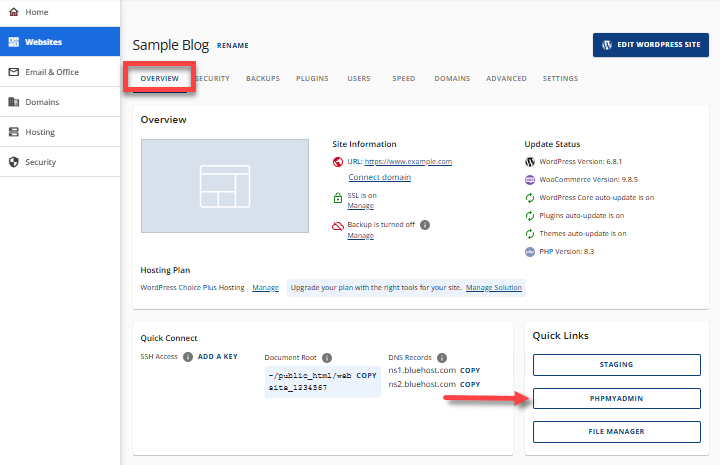
Credit: www.bluehost.com
Frequently Asked Questions
How Can I Uninstall A WordPress Theme Safely?
To uninstall a WordPress theme safely, first, ensure it’s not active. Navigate to Appearance > Themes, select the theme, and click “Delete. ” Ensure you have a backup before proceeding to prevent data loss. This method ensures your website remains functional while removing unwanted themes.
What Are The Steps To Remove Plugins?
To remove plugins, go to the WordPress dashboard. Click on Plugins > Installed Plugins. Deactivate the plugin first, then click “Delete” to remove it completely. Always verify that the plugin is no longer in use to avoid disrupting your site’s functionality.
Can I Delete Theme-related Plugins Simultaneously?
Yes, you can delete theme-related plugins simultaneously. First, deactivate them from the Plugins menu. Then, select multiple plugins using the checkboxes and choose “Delete” from the Bulk Actions dropdown. This ensures a streamlined removal process, keeping your site clean and organized.
Do I Need To Backup Before Deleting Themes?
Yes, backing up is crucial before deleting themes. It prevents data loss and ensures you can restore your site if issues arise. Use a reliable backup plugin or service to safeguard your content. This precaution helps maintain your site’s integrity during theme removal.
Conclusion
Deleting a theme with plugins in WordPress is simple. Follow the steps carefully. Your site stays clean and organized. No leftover files clutter your space. Remember, backup your site before making changes. It prevents data loss. Use reliable plugins for a smooth process.
They ensure safety and efficiency. Keep your WordPress updated regularly. It helps maintain performance and security. Manage themes and plugins effectively. It enhances your site’s functionality. Enjoy a streamlined WordPress experience. Always prioritize good practices for site management. Your website deserves the best care for optimal results.


