
Are you ready to transform your website into something extraordinary? Completing a WordPress theme can seem like a daunting task, but it doesn’t have to be.
Imagine having the power to customize your site exactly the way you envision it, without the stress and frustration. You may think it’s too technical, but with the right guidance, you’ll be surprised at how straightforward it can be. You’ll discover step-by-step instructions that will make the process feel intuitive and manageable.
Let’s dive into the world of WordPress themes and unlock the potential of your website. Get ready to engage, impress, and captivate your audience with a stunning, fully customized WordPress site.
Choosing The Right Theme
First, think about what your website will do. Is it for a blog, a shop, or a portfolio? Each type needs a different theme. Blogs need a clean look for easy reading. Shops need a theme that shows products well. Portfolios need to highlight images and artwork. Write down these needs. This list will help you choose the right theme.
Many places offer WordPress themes. ThemeForest and Elegant Themes are popular. They have many options. Some are free, others cost money. Free themes are good to start with. Paid themes offer more features. Check reviews and ratings. These help to find a trustworthy theme. Look for themes that are updated regularly. This ensures they are safe and work well with WordPress.
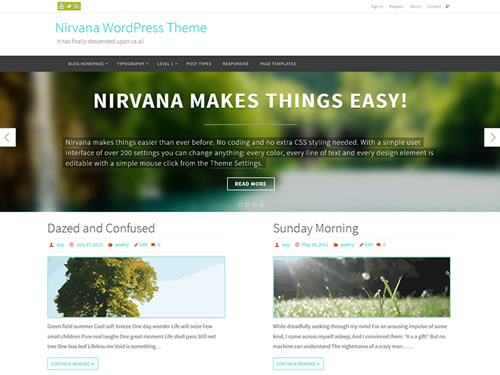
Credit: www.cryoutcreations.eu
Installation Process
First, log into your WordPress dashboard. Go to Appearance and then click on Themes. Find the button that says Add New. Click it. Search for your theme or upload a theme file. Click Install once you find the theme. After installing, click Activate. Your new theme is now live.
Begin by downloading the theme to your computer. Open your FTP client. Connect to your website server. Navigate to the wp-content/themes directory. Upload your theme folder here. Once done, log into your WordPress dashboard. Go to Appearance and then click Themes. Find your uploaded theme and click Activate. Your theme is now ready.
Customizing Your Theme
The WordPress Customizer is a great tool. It helps make changes easy. You can change colors, fonts, and layouts. See changes live as you work. This saves time and effort. Access the Customizer from the dashboard. Look for the “Customize” button. Explore different settings and options. Make your site look unique and personal. Try different styles. Adjust until you find what works.
Sometimes you need more control. Editing theme files can help. You can change specific parts of your site. Find these files in the theme editor. Be careful! A small mistake can cause problems. Always back up your theme first. Use a child theme for safe editing. This keeps your changes safe during updates. Learn basic HTML and CSS. These skills help you make custom changes.
Essential Plugins
Plugins make your site work better. They add new features. Use a contact form plugin. It helps visitors send messages easily. Add a social media plugin. Share your content on Facebook and Twitter. Choose a SEO plugin. It helps people find your site on Google.
Speed is key for a good site. Use a cache plugin. It makes pages load faster. Add an image optimization plugin. It reduces image size but keeps quality. Use a minification plugin. It cleans up your site’s code. This helps your site run smoothly.
Optimizing For Seo
Choose a theme with clean code and fast loading times. These are essential for SEO. Use themes that are responsive on all devices. This helps in better search rankings. Ensure your theme supports schema markup. It provides search engines with clear info about your site. An SEO-friendly theme should also have easy navigation. This keeps visitors on your site longer.
Plugins like Yoast SEO and All in One SEO can help. They guide you in optimizing content. These plugins suggest keywords and check readability. They also help in creating sitemaps. Sitemaps tell search engines about your pages. Always update your plugins for the best results. This ensures they work well with new WordPress updates.
Ensuring Mobile Responsiveness
Test your website on different devices. Use phones, tablets, and computers. This helps find issues on small screens. A site should look good on all screens. Check text, images, and buttons. They must be easy to see and click.
Use tools to make testing easy. Online tools can show how your site looks. Some popular tools are Google Chrome DevTools and Mozilla Firefox Responsive Design Mode. These tools help adjust the layout. This ensures a smooth user experience on all devices. Make sure your theme is flexible. This keeps users happy.
Enhancing Security
Security plugins keep your WordPress site safe. They block hackers and stop attacks. Some popular plugins are Wordfence and Sucuri. These plugins scan for malware. They also provide firewall protection. Installing them is easy. Just go to your plugin menu. Then, click “Add New.” Next, search for the plugin name. Finally, click “Install” and “Activate.” Keep your plugins updated. Updates fix bugs and improve security. Always choose plugins with many downloads. And good reviews.
Regular updates are very important. Update your WordPress theme often. Updates fix security holes. They keep your site safe. Backups are also important. They save your site if things go wrong. Use backup plugins like UpdraftPlus. Or BackupBuddy. Schedule backups weekly. Or more often if needed. Store backups in a safe place. Like cloud storage. Or an external drive. This keeps your website secure. And ready for anything.
Testing And Launch
Testing and launching a WordPress theme involves checking functionality, design, and responsiveness. Ensure all elements work smoothly. Finalize settings before making the theme live.
Pre-launch Checklist
Check all pages for errors. Ensure links work correctly. Review images for clarity. Verify all forms are working. Test the site speed. Check mobile responsiveness. Ensure SEO settings are correct. Confirm backup procedures are set.
Going Live With Your Site
Choose a reliable hosting provider. Connect your domain name. Upload your website files. Check for live errors. Test contact forms again. Review analytics setup. Monitor traffic and performance. Share your site with friends for feedback. Ensure security settings are strong. Announce your site launch.
Ongoing Maintenance
Regular updates are vital for keeping a WordPress theme functional. This includes plugin updates and security patches. Consistent checks ensure smooth operation and optimal performance.
Regular Updates
Themes need regular updates. Updates keep them safe from bugs. Updates bring new features too. Always back up before updating. This helps if something goes wrong. Updates make your site better and more secure. Check for updates often. Developers release them for a reason. Use automatic updates if possible. This saves time.
Monitoring Performance
Watch your site’s speed and performance. A slow site loses visitors. Use tools to check speed regularly. Tools like Google PageSpeed Insights are helpful. Check for errors and fix them quickly. Errors can make users leave your site. Keep your theme light and fast. Heavy themes slow down your site. Remove plugins that you do not use. Too many plugins can hurt performance.

Credit: oceanwp.org

Credit: www.fixrunner.com
Frequently Asked Questions
How Do I Install A WordPress Theme?
To install a WordPress theme, navigate to the Appearance section in your dashboard. Click on Themes, then Add New. Browse or upload your theme file and click Install. Activate it to apply the changes. Ensure compatibility with your WordPress version for a seamless experience.
Can I Customize My WordPress Theme?
Yes, you can customize your WordPress theme using the Customizer tool. Access it via Appearance in your dashboard. Modify colors, fonts, and layouts. For advanced changes, edit the theme files directly. Use child themes to preserve customizations during updates.
What Is A Child Theme In WordPress?
A child theme is a sub-theme that inherits styles from another theme, the parent theme. It allows you to modify and add features without altering the original theme files. This ensures your customizations remain intact during theme updates, offering flexibility and security.
How Do I Update A WordPress Theme?
To update a WordPress theme, go to your dashboard under Appearance. Check for available updates and click Update Now. Always back up your site before updating. This prevents data loss and ensures compatibility with plugins and WordPress versions.
Conclusion
Completing a WordPress theme is an exciting journey. You now have a unique website. Remember to test your theme thoroughly. Check its responsiveness on different devices. Ensure fast loading times. Keep your site updated regularly. Stay informed about new plugins and tools.
They help enhance functionality. Engage with your audience through your site. Fresh content attracts visitors. Maintain your site for long-term success. Enjoy the creative process. Your WordPress theme is ready to shine. Keep exploring new ideas. Your website is your digital home.
Make it welcoming and efficient.


