
Are you feeling overwhelmed by the idea of creating a complete website from scratch? You’re not alone.
Many people find themselves staring at a blank screen, unsure of where to begin. But here’s the good news: using a starter theme in WordPress can be your game-changer. It’s like having a blueprint for your dream site, simplifying the process and saving you time.
Imagine having a fully functional, visually appealing website without the usual headaches. By the time you finish this article, you’ll have a clear roadmap on how to transform a starter theme into a polished, professional site. Whether you’re a beginner or have some WordPress experience, this guide is tailored for you. Dive in, and let’s unravel the secrets to building a site that not only looks great but performs flawlessly. Your perfect website is just a few steps away!
Choosing A Starter Theme
Selecting the right starter theme in WordPress sets the foundation for a complete site. Customize layouts, adjust colors, and add functionalities to match your brand. Ensure mobile responsiveness and fast loading times for better user experience.
Popular Starter Themes
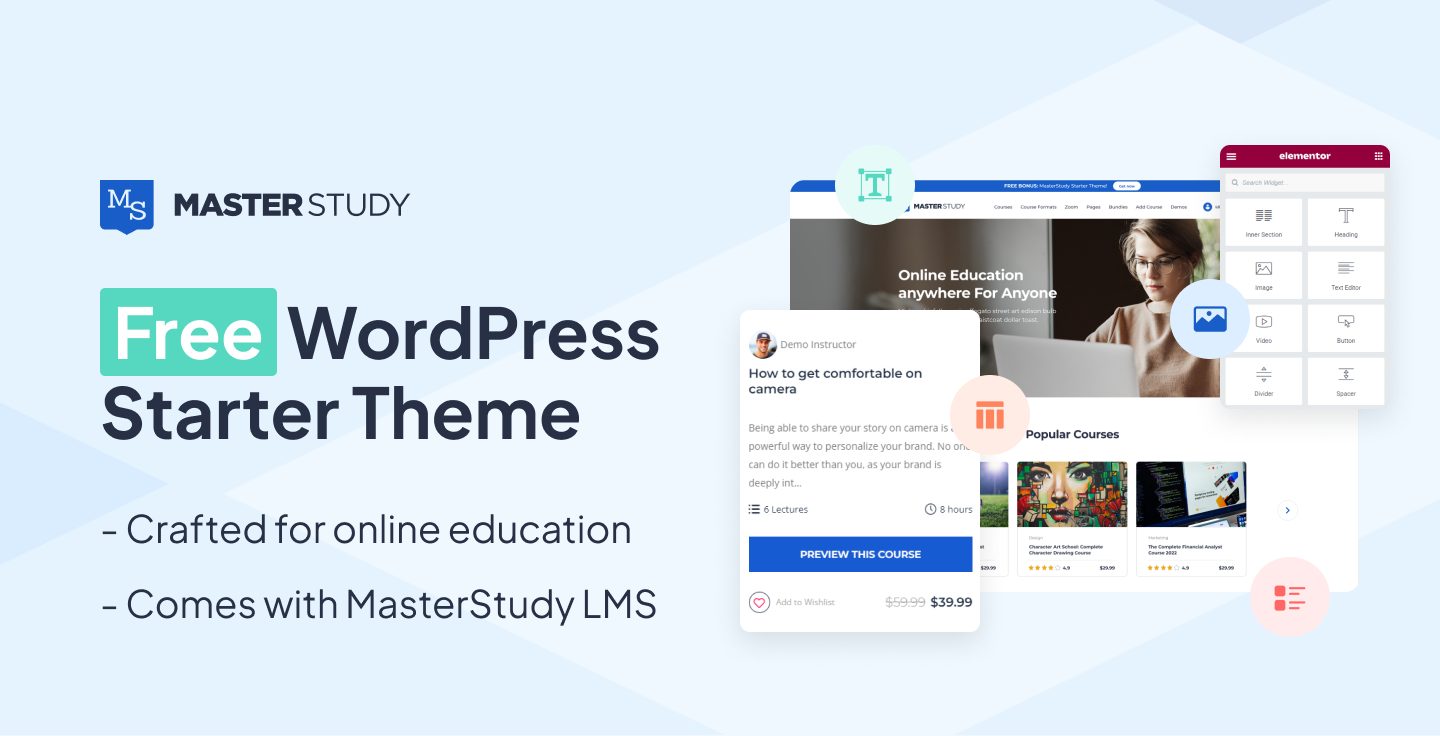
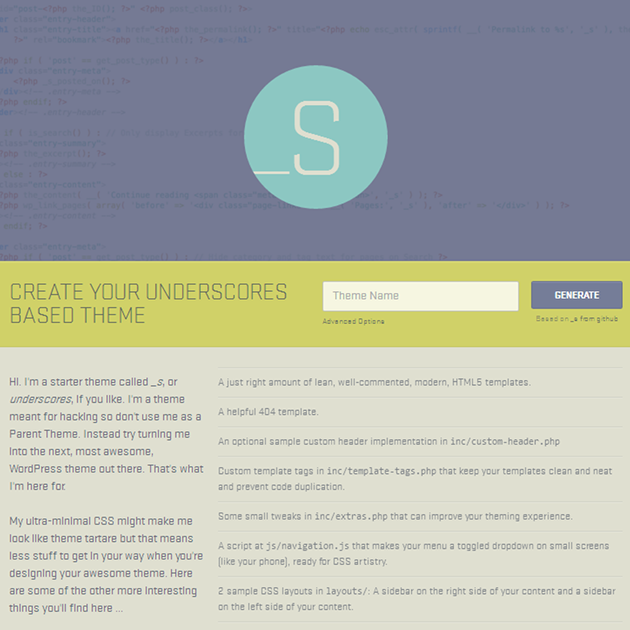
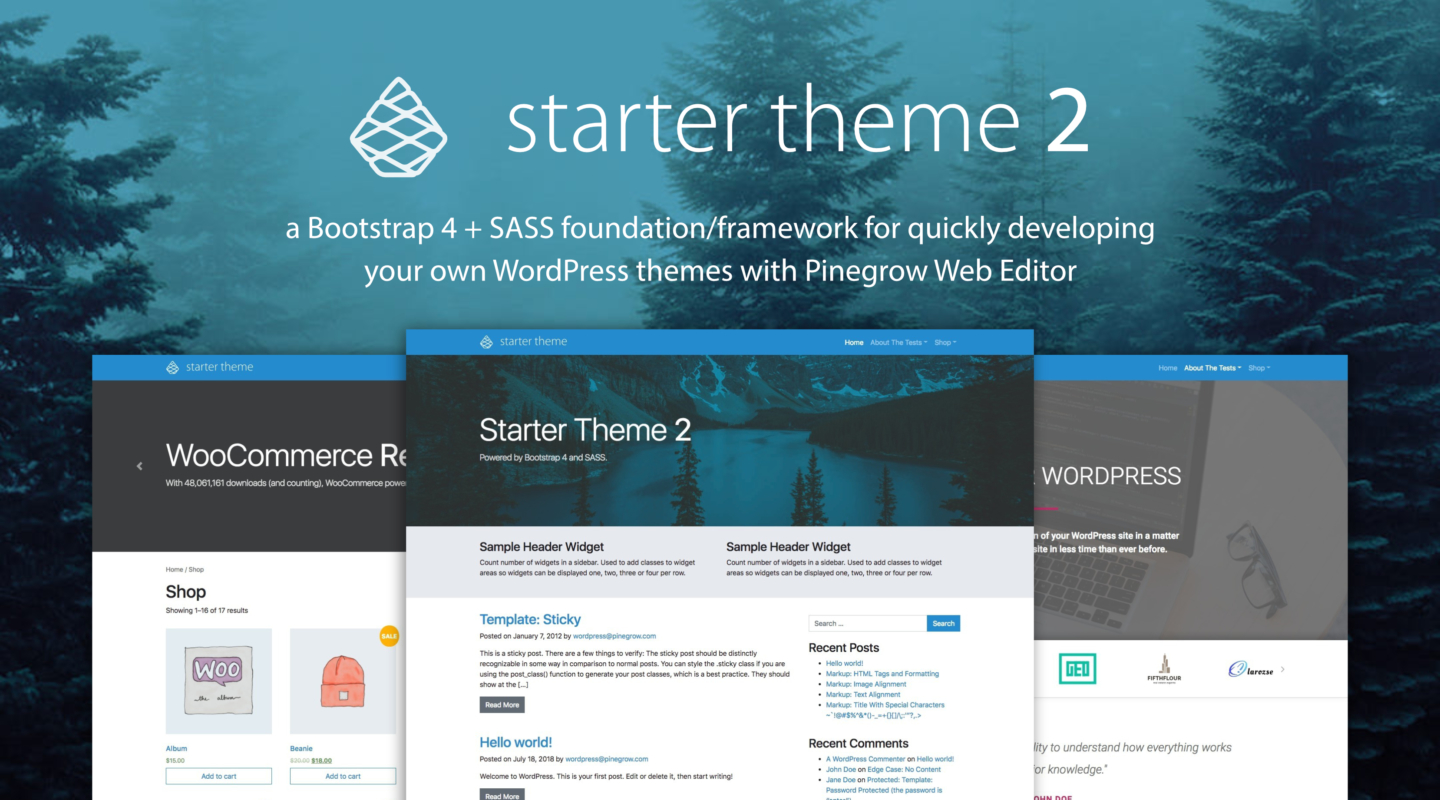
Starter themes are great for building websites. Some popular ones include Underscores, Bootstrap, and Foundation. These themes are easy to use. They have many features. They help you create a website quickly. Each theme has unique tools. Some are best for beginners. Others are for more advanced users. Explore them to find the right fit for you.
Factors To Consider
Choosing the right starter theme is important. Compatibility is key. Make sure the theme works with your plugins. Customization options are also essential. You want a theme you can easily change. Look for a theme with good support. This means help is available if you need it. Check for regular updates too. Updated themes have fewer bugs. They also have better security.
Setting Up Your Development Environment
Begin with installing XAMPP or MAMP. These tools create a local server on your computer. Next, download the WordPress package from the official site. Extract the files into the htdocs folder in XAMPP or the MAMP folder. Open the localhost in your browser. Follow the installation instructions. Create a new database through phpMyAdmin. Complete the setup using the database details. Your local WordPress site is now ready.
Use a code editor like Visual Studio Code or Atom. These editors help with editing theme files. Install Git for version control. Set up a repository for your project. Use Node.js for installing packages. npm helps in managing dependencies. Configure Sass for styling. These tools streamline your workflow. They improve efficiency. You gain control over your project. Ensure plugins are compatible with your tools.
Customizing The Theme
Modifying theme files helps make your site unique. Start by opening the WordPress theme editor. You can find it in your dashboard. Look for the Appearance tab. Then select Theme Editor.
Next, choose the file you want to edit. Common files include header.php and footer.php. Add your own code to these files. This adds personal touches to your site. Be careful when editing. Mistakes can break your site.
Adjusting styles and layouts can change the look of your site. Use CSS to modify styles. You can change colors, fonts, and more. Find the style.css file in your theme folder.
Try changing the background color. Use simple color names like “red” or “blue”. Save your changes and refresh your site to see updates. If you want bigger changes, consider using a child theme. This keeps your main theme safe.
Adding Essential Plugins
Plugins make your site better. Some plugins help with speed. Others help with security. Choose plugins that are popular. Also, check their ratings. This ensures they are safe. Popular plugins include Yoast SEO for search engines. Wordfence helps keep your site safe. WooCommerce is great for online stores. Contact Form 7 helps with forms. Pick plugins that match your needs. Too many plugins slow your site down.
Installing plugins is easy. Go to your WordPress dashboard. Find the Plugins section. Click on Add New. Type the plugin name in the search box. Once you find it, click Install Now. Wait a few seconds. Then click Activate. Your plugin is ready to use. Always check for plugin updates. This keeps your site safe and fast.
Designing The Homepage
Layout is like the map of a website. Start with a clear plan. Decide where to place pictures and text. Use columns to make things neat. Add buttons for easy clicks. Make sure everything fits well. Check if it looks good on phones too. Simple designs often work best. Keep things clean and tidy. A good layout helps visitors find what they need. Plan carefully. It saves time later.
Branding elements make your site unique. Use your logo at the top. Choose colors that match your brand. Pick fonts that are easy to read. Add your brand name to the homepage. Use images that tell your story. Make sure each piece fits the theme. Consistency is key. It helps people remember your site. Branding makes your site stand out. Keep it simple but effective.
Developing Key Pages
The About page is where you tell your story. Share your mission and values. Keep it simple and clear. Use friendly language. The Contact page helps users reach you. Include an email form. Add a phone number if needed. Make sure it is easy to find. Both pages need to be easy to read and navigate. They are important for building trust.
These pages show what you offer. Describe each product or service clearly. Use clear images. They should be of high quality. Add prices and features. Use bullet points for easy reading. Make sure the page loads quickly. This keeps users happy. Ensure it is easy for users to purchase or get more info.
Optimizing Site Performance
A fast website makes people happy. Slow websites make people leave. Focus on reducing the size of images. Use tools to compress them. This makes pages load faster. Browser caching helps too. It keeps files on the user’s device. So, the site loads quicker next time. Choose a good host. A reliable hosting service can speed up your site. Plugins can help with speed too. Pick ones that are lightweight. Too many plugins slow things down. Keep it simple. Less is more in web design.
SEO helps people find your site. Use keywords in your content. But, don’t overuse them. This is called “keyword stuffing.” It can hurt your site. Write clear and short titles. They should match the content. Use alt tags for images. This helps search engines understand them. Make sure your site is mobile-friendly. Many people use phones to browse. A responsive design helps with this. Regularly update your content. Fresh content keeps your site relevant.
Credit: stylemixthemes.com
Testing And Debugging
Building a website from a starter theme in WordPress involves thorough testing and debugging. Ensure all features work smoothly, and fix any errors to enhance user experience. Regular checks and adjustments help maintain a functional and attractive site.
Cross-browser Compatibility
Websites must work on all browsers. Test your site on Chrome, Firefox, Safari, and Edge. Check for any differences in design or functionality. Fix issues to ensure compatibility. Some features may not work on older browsers. Use tools like BrowserStack for testing. Ensure your site is smooth everywhere.
Mobile Responsiveness
Many people use phones for browsing. Your site must be responsive. Adjust images and text for smaller screens. Test your site on various devices. Ensure buttons are easy to click. Make sure text is clear and readable. Use responsive design techniques. Improve user experience on mobile. Everyone should enjoy your site, no matter the device.
Preparing For Launch
Check all links. Ensure they work. Fix broken links. Look at site speed. Make sure it is fast. Slow sites are bad. Test on phones. Test on tablets. Site must fit all screens. Check contact forms. Make sure they send messages. Review images. Are they clear? Are they loading fast? Look at text. Check spelling. Check grammar. Errors are bad. Make sure site is secure. Use good passwords. Protect user data.
Upload site files. Use FTP or hosting tools. Check server settings. They must be correct. Set up backups. Do this before going live. Backups are important. Test the live site. Look for any errors. Fix them quickly. Check analytics setup. Make sure it tracks visits. Look at SEO settings. Ensure they help search engines. Announce the site launch. Use email or social media. Invite users to explore.
Credit: wpmayor.com
Maintaining Your Site
Transform your starter theme in WordPress into a complete site by customizing layouts and adding essential plugins. Enhance user experience by optimizing navigation and integrating responsive design elements. Regular updates and backups ensure smooth operation and security.
Regular Updates
Keep your site fresh with regular updates. Updates fix bugs and improve security. They add new features and improve performance. Always check for theme updates. Plugins need updates too. Update WordPress core often. This helps your site run smoothly. Regular updates protect from hackers. They keep your site safe.
Monitoring Site Health
Check your site’s health often. A healthy site loads fast. Use tools to check loading speed. Slow sites lose visitors. Broken links make users unhappy. Fix them quickly. Monitor site uptime. Downtime can hurt your business. Use monitoring tools to alert you. Keep track of site errors. Fix them as soon as possible. Site health is key to success.
Credit: pinegrow.com
Frequently Asked Questions
What Is A Starter Theme In WordPress?
A starter theme is a minimal WordPress theme designed for developers. It provides a foundation to build custom themes. It includes basic files and structures, making customization easier and faster. Starter themes help developers focus on unique features without starting from scratch.
How Do I Install A Starter Theme?
To install a starter theme, download the theme files first. Navigate to WordPress Dashboard, click on Appearance, then Themes. Choose “Add New” and upload the downloaded theme files. Activate the theme to start customizing it for your site.
Can I Customize A Starter Theme?
Yes, you can customize a starter theme easily. Starter themes are designed for modification, offering flexibility. Use CSS, HTML, and PHP to tweak designs. Add plugins for extra functionality and adjust the theme to suit your site’s needs.
Why Use A Starter Theme For WordPress?
Starter themes provide a clean slate for development. They save time and simplify the theme creation process. Developers can focus on unique elements without dealing with unnecessary code. Starter themes ensure faster project completion and enhanced site performance.
Conclusion
Building a site with a starter theme in WordPress is simple. Follow each step carefully to create a professional-looking website. The starter theme provides a solid foundation to customize as needed. Experiment with layouts and features to match your vision.
Keep your design clean and user-friendly. Regular updates ensure your site stays functional and secure. Consider user feedback for improvements. Enjoy the process and watch your site come to life. Take pride in your creation. Your WordPress journey is just beginning.
Stay curious and keep learning. A well-crafted site awaits you.


