
Are you looking to replicate your beautifully designed WordPress theme onto another site? Whether you’re expanding your online presence or helping a friend launch their dream website, cloning a custom WordPress theme can seem like a daunting task.
But what if I told you it’s simpler than you think? By mastering this skill, you can save time, maintain brand consistency, and avoid the hassle of creating a new theme from scratch. In this guide, you’ll discover step-by-step techniques to effortlessly duplicate your theme, ensuring your new site mirrors the look and feel you love.
Dive in, and let’s get started on making your web design dreams a reality!

Credit: wpfactory.com
Preparing For Cloning
Always create a backup of your original site. This keeps your data safe. Use plugins or hosting services for this task. Store the backup in a secure place. You can use cloud storage for extra safety.
Ensure the theme works with the new site. Check the WordPress version. Some themes need specific versions. Look at theme requirements carefully. This avoids problems later.
Collect all the tools you need. You may need FTP software. A reliable one is FileZilla. It helps in moving files. You might also need a text editor. Sublime Text is a good option. These tools make the process easy.
Credit: www.wpzoom.com
Exporting The Theme
Copy the theme files from the original site. Use FTP or file manager to access them. Save these files on your computer. Then upload them to the new site’s directory. Make sure you place them in the wp-content/themes folder. This keeps the theme structure intact. Double-check file permissions. They should match the original site.
Export the database using phpMyAdmin. Choose the correct database from the list. Click on the “Export” tab. Select the format as SQL. Save the file on your computer. Import this file into the new site’s database. Use phpMyAdmin again. Choose the “Import” tab. Make sure to select the correct database. This will transfer all settings and content. Double-check the import success message.
Setting Up The New Site
Start by getting a hosting plan. Then, go to the control panel. Find the WordPress installer. Click to install. This sets up WordPress on your new site. The process is simple and quick. Follow the steps shown on the screen.
After installation, open your WordPress dashboard. Look for Settings in the menu. Begin with the General Settings. Set your site title and tagline. Adjust the timezone to your area. Don’t forget to save changes. Next, go to Permalinks. Choose a simple URL structure. This helps in search engines. Save your settings again. Check everything is correct.
Credit: www.seedprod.com
Importing The Theme
First, open the WordPress dashboard on the new site. Click on Appearance and then Themes. Choose the Upload Theme button at the top. Now, select the theme files from your computer. Press Install Now. Wait for the upload to finish. Then, activate the theme. Your theme is now ready.
Go to the old site and open the database. Export the database file to your computer. Now, go to the new site. Open the database again. Choose the Import option. Find the database file you saved. Click Upload. Wait for the process to complete. Your database is now imported.
Adjusting Theme Settings
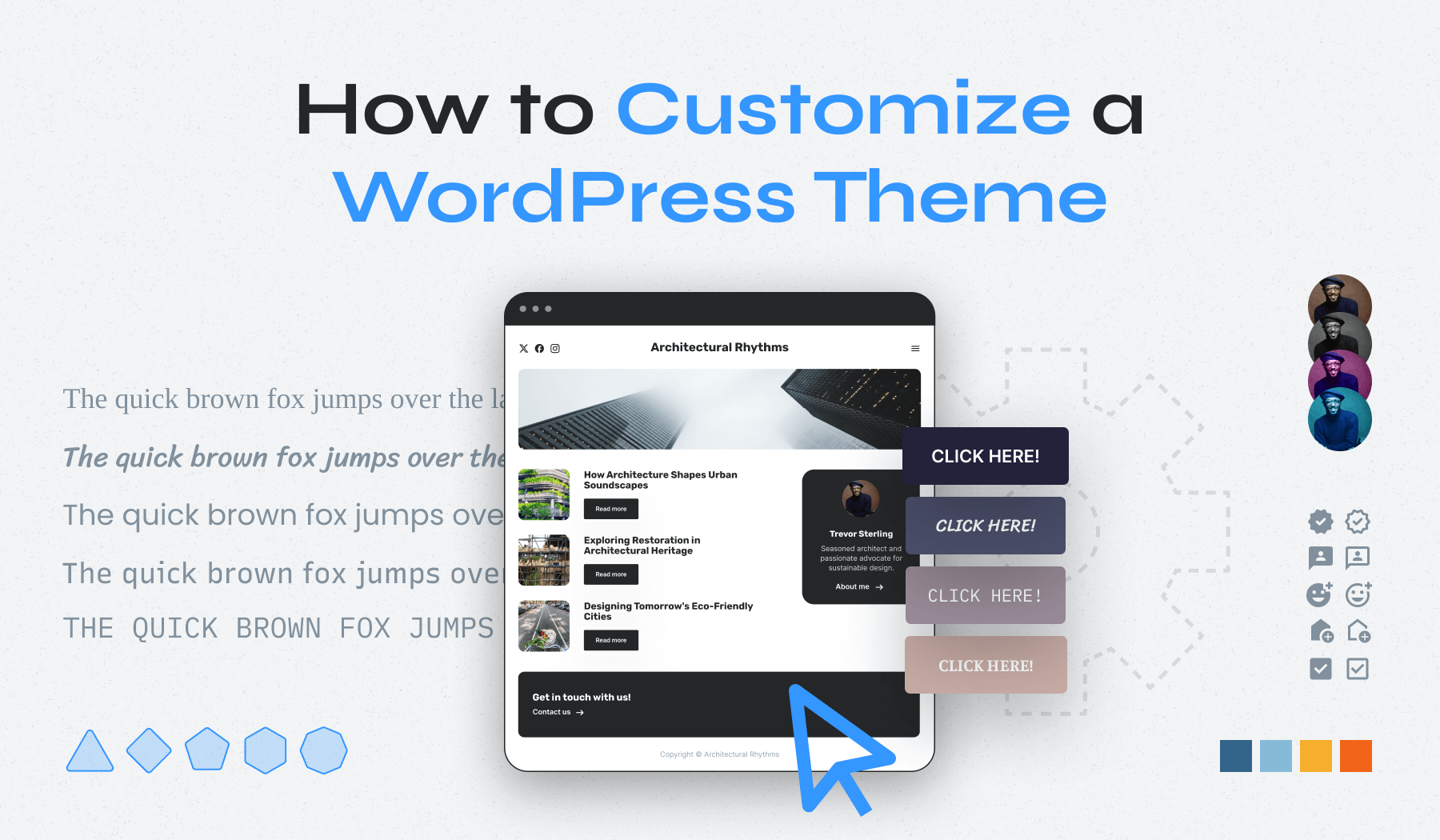
Select the right colors for the theme. Choose fonts that match your style. Adjust the layout to fit your needs. Use the customizer tool to make changes. Preview them before saving.
Permalinks help users find pages. Set your links correctly. Go to the settings menu. Choose permalink structure. Save changes to update links. This helps in better navigation.
Testing The New Site
Ensure every button works. Click links to test them. Forms should send data. The menu must open and close smoothly. Look at images. They should appear correctly. Text must be readable. Check the site on phones. It must fit the screen. Try different browsers. Each one should show the site well. Listen for sounds. Videos should play fine.
Check loading speed. Pages must load quickly. Slow pages upset users. Look for errors. Avoid broken links. Test theme on various devices. It should look good everywhere. Watch for glitches. Fix bugs at once. Ensure updates are easy. Themes need regular updates. Security is key. Protect user data strongly. Check for any leaks.
Troubleshooting Common Issues
Cloning a custom WordPress theme involves copying its files and settings to another site. Check file permissions and database configurations to prevent errors. Ensure both websites have compatible plugins and WordPress versions for a smooth transition.
Resolve Import Errors
Import errors can be a headache. These errors happen when files fail to upload. Always check the file size. Ensure it matches the server’s limit. Files too big won’t upload. Also, verify the file format. The correct format is crucial. Some servers only accept specific types. Another tip is to check the internet connection. A slow connection might cause issues. Refresh the page and try again. Sometimes, restarting the process helps. It’s simple but effective.
Fix Broken Links
Broken links are a common problem. They frustrate users. First, identify the broken links. Use a link checker tool. These tools find broken links fast. Once identified, fix them right away. Correct the URL if it’s wrong. Always double-check your changes. Sometimes, links break due to changes in URLs. Update them to the new address. Regularly check for broken links. They can pop up anytime.
Optimizing The Cloned Site
Cloning a custom WordPress theme to another site involves careful steps to ensure seamless integration. Start by exporting your theme files and importing them into the new site’s WordPress directory. Adjust settings to match the original design and optimize for performance.
Enhance Site Speed
Slow sites make visitors leave fast. Speed matters a lot. Use lightweight images. They load quicker. Choose good hosting. It helps speed up your site. Minify CSS and JavaScript. This reduces file size. Less size means faster load. Use caching plugins. They store data for easy access. Limit plugins. Too many slow your site. Keep your site simple. It works better and faster.
Implement Seo Strategies
SEO helps your site be found. Use keywords in titles and content. This improves your site’s search rank. Meta tags are important. They tell search engines about your site. Alt text for images helps too. It describes images for search engines. Link building is good. Links to your site make it more popular. Mobile optimization is key. Many people use phones to browse. Make sure your site works well on phones.
Frequently Asked Questions
How Do I Clone A WordPress Theme?
To clone a WordPress theme, you need to copy theme files from the original site. Use FTP or a file manager to download the theme folder. Then, upload it to the new site’s wp-content/themes directory. Activate the theme on your new WordPress site to complete the cloning process.
Can I Clone A Theme Without Plugins?
Yes, you can clone a theme manually using FTP or a file manager. Download the theme folder from the original site. Then, upload it to the new site’s themes directory. Activate the theme from the WordPress dashboard to use it on the new site.
Is Cloning A Theme Legal?
Cloning a theme is legal if you have the rights to use it. Ensure you comply with the theme’s licensing agreements. Always check for copyrights before cloning a theme. It’s best to use themes that are freely distributed or under an open license.
How To Transfer Theme Settings?
To transfer theme settings, use a theme settings export/import tool. Many themes offer built-in options for exporting settings. You can also use plugins like Customizer Export/Import. Export settings from the original site and import them into the new site for identical configurations.
Conclusion
Cloning a custom WordPress theme is straightforward with these steps. First, back up your files to avoid loss. Next, export and import your theme settings. This keeps your design consistent. Always test on a staging site before going live. Avoid potential issues by checking plugin compatibility.
Secure your site with regular updates. These practices ensure a smooth transition. Now, you can easily clone themes to enhance your site. Remember, practice makes perfect. Soon, you’ll handle this process with ease. Enjoy the benefits of a consistent web presence.
Happy cloning!


