
Are you feeling overwhelmed by your cluttered WordPress dashboard? Is your website weighed down by unnecessary themes, leaving you frustrated and your site slower than you’d like?
You’re not alone. Many WordPress users face the same challenge. Clearing out excess themes isn’t just about tidying up—it’s about boosting your website’s performance, enhancing security, and improving user experience. Imagine a WordPress dashboard that’s sleek, efficient, and tailored just for you.
In this guide, we’ll show you the simple steps to declutter your WordPress theme library, giving your site a fresh start and making your digital life a whole lot easier. Are you ready to transform your website? Let’s dive in.
Reasons To Remove A WordPress Theme
Old themes can slow down your website. They might not have the latest security updates. This can make your site easy to hack. Removing them can improve performance and load times. Faster sites make users happy.
Some themes take up a lot of space. This can limit your server storage. Extra themes can also cause conflicts with plugins. Fewer themes mean fewer problems. It makes managing your site easier.
Testing new themes becomes simpler with fewer options. Removing old themes keeps your dashboard clean. It helps you stay organized. An organized dashboard saves time and effort.
Backup Your Website
Backups keep your site safe. They save your work. If something goes wrong, you can restore it easily. Websites can break. They can be hacked. Backups help fix these problems. Protect your hard work. Always keep a backup.
Several ways to back up your site. Use plugins like UpdraftPlus or BackupBuddy. They are easy. Another way is using your web host. Many hosts offer backup services. Check your hosting plan. You can also manually save your files. Download them to your computer. Keep a copy of your database too. These methods keep your site secure. Choose one and follow it regularly.
Access The WordPress Dashboard
First, visit the WordPress website. Use your browser. Click the login button. Enter your username. Enter your password. Be careful with the details. Click the login button again. Now you are in the dashboard.
Type your website’s URL in the browser. Add “/wp-admin” at the end. Press the enter key. This is the login page. Enter your details. Click the login button. You are now logged in.
On the left menu, find “Appearance”. It is easy to spot. Click on it once. It will open a list. Find “Themes” in the list. Click “Themes”. Now you can see all your themes. Choose the theme you want to change.

Credit: themelooks.com
Identify The Active Theme
The active theme is the one you see on your website. It gives your site its look and feel. Inactive themes are not in use. They just sit in your theme folder. Keeping too many inactive themes can slow your site. It’s best to remove them.
Go to your WordPress dashboard. Click on “Appearance.” Then select “Themes.” Your active theme will be labeled. It’s at the top. You will see a “Customize” button. This helps you know which theme is live.
Deactivate And Switch Themes
Selecting a New Theme can be simple. Go to your WordPress dashboard. Click on “Appearance” and then “Themes.” You will see many themes to choose from. Pick one you like. Click “Install” and then “Activate.” Your new theme is now ready. It changes the look of your site. Your posts and pages stay the same.
Activating a Default Theme is easy too. Sometimes, themes can cause problems. A default theme can fix these issues. Go to “Appearance” in your dashboard. Find themes like “Twenty Twenty-One.” Click “Activate.” Your site may look different. But it should work better now. Always check your site after changing themes.
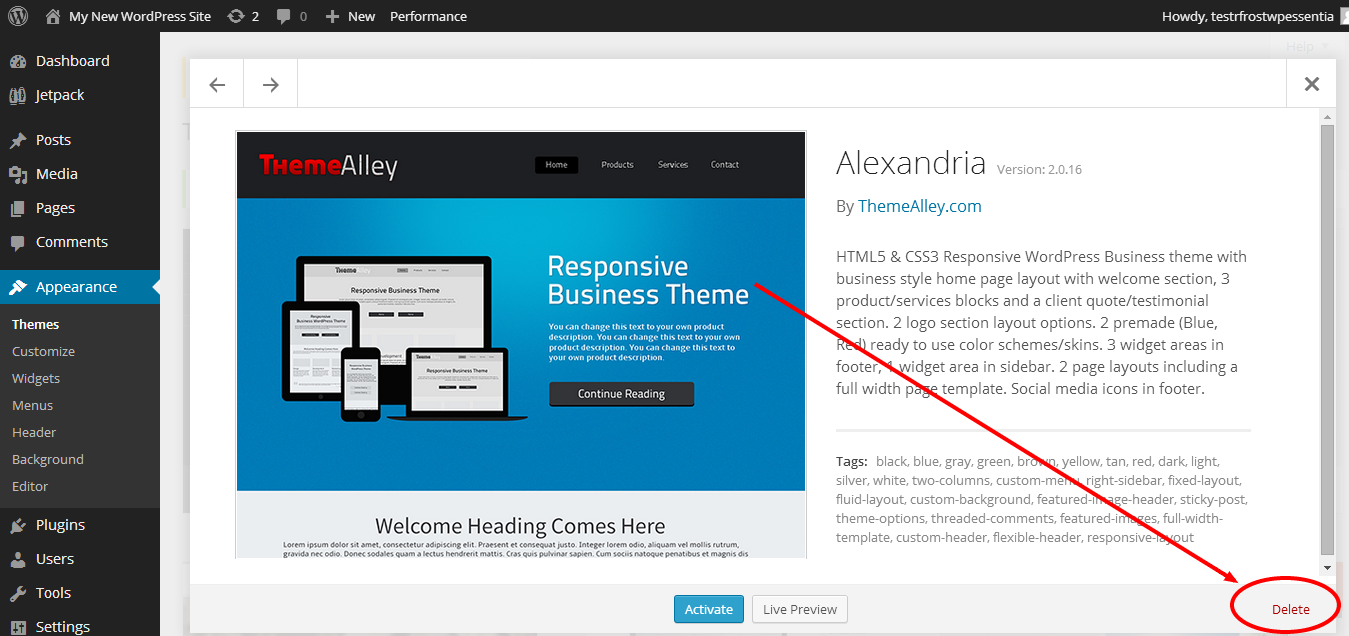
Credit: www.domain.com
Delete The Old Theme
Steps to Remove from Dashboard: Go to the WordPress dashboard. Click on Appearance in the menu. Select Themes. Find the theme you want to delete. Click on Theme Details. A button will appear, click Delete. Confirm the deletion. The theme will be removed from your site.
Using FTP for Theme Removal: Connect to your server using FTP. Navigate to the wp-content folder. Open the themes folder. Find the theme’s folder you want to remove. Right-click and select Delete. This will remove the theme files. Refresh your WordPress dashboard. The theme should be gone.
Potential Issues And Solutions
Many face issues with WordPress themes. Themes can slow down sites. They may conflict with plugins. Some themes are hard to customize. Security issues can arise from outdated themes. Users may see broken layouts or missing elements. It’s crucial to choose themes wisely. Good themes improve site performance. Always read reviews before selecting.
Start by checking theme updates. Ensure the theme is compatible. Disable plugins one by one. This helps find conflicts. Use a staging site for testing. Backup your site regularly. Test your site in different browsers. Look for error messages in the dashboard. Contact theme support if needed. Clear your browser cache often. Reset theme settings carefully. Use child themes to make changes. Always keep WordPress updated.
Verify The Changes
After changing your WordPress theme, it’s important to check your site. Make sure every feature works as expected. Test all links and buttons. See if they lead to the right pages. Look at the navigation menu. It should guide users smoothly. Check if your contact form sends messages properly. Load different pages on the site. Ensure they display without errors. A broken page can frustrate visitors.
Inspect images across the site. They should appear clearly. No missing or misaligned pictures. Review text formatting. Look for any strange font sizes or colors. Ensure headings and paragraphs are consistent. Check videos and audio files. They should play without issues. Scan for broken elements. These can harm your site’s appearance. Use tools to spot any hidden problems. Fixing them keeps your site attractive and user-friendly.
Optimize Your Site Post-removal
Clearing the cache is important. It makes your site faster. Start by going to your caching plugin. Click on “Clear Cache”. This removes old files. Your site will load faster. Check the site speed after this. It should be better. If you don’t have a caching plugin, install one. It helps keep your site quick and clean. Regularly clear cache for best results. Your visitors will have a better experience.
Optimizing the database keeps your site smooth. Use plugins like WP-Optimize. They clean up old data. This makes your site lighter. Remove unnecessary files from the database. This improves speed. Check database tables regularly. Keep them tidy. A clean database helps your site run better. Back up your database before changes. Safety first!

Credit: www.wpbeginner.com
Frequently Asked Questions
How Do I Delete A WordPress Theme?
To delete a WordPress theme, go to the dashboard and select “Appearance. ” Click on “Themes” and activate another theme. Then, click on the theme you want to delete and choose “Delete. ” Confirm your choice to remove it completely from your site.
Can I Clear Unused WordPress Themes Safely?
Yes, you can clear unused WordPress themes safely. Ensure a different theme is active before deleting. Navigate to “Appearance,” select “Themes,” and delete the inactive ones. This helps optimize site performance and reduce potential security risks.
What Happens If I Remove A WordPress Theme?
Removing a WordPress theme does not delete your site content. Your posts, pages, and media files remain intact. However, theme-specific settings and customizations may be lost. Always back up your site before making changes to avoid unwanted data loss.
Is It Necessary To Clear Old WordPress Themes?
Clearing old WordPress themes is necessary for better site performance and security. Unused themes can pose security risks and clutter your dashboard. Regularly removing them ensures an organized and efficient website environment, minimizing potential vulnerabilities.
Conclusion
Clearing out your WordPress theme can boost site performance. It reduces clutter, enhancing user experience. Keep themes updated for security reasons. Regularly check for unused themes. Remove them to free up space. This practice simplifies site management. A clean theme means faster loading times.
Visitors enjoy smoother navigation. It’s crucial for better SEO rankings. Engage users with streamlined content. They’ll return more often. Follow these steps for a tidy WordPress site. Enjoy a more efficient website today. Make your site shine with simplicity.


