
Are you tired of your WordPress site lagging or not displaying updates as expected? If you’ve been tinkering with your theme or plugins and aren’t seeing the changes you anticipated, your cache might be the culprit.
Cache can be a powerful tool for speeding up your website, but when it holds onto outdated information, it can become a real headache. Clearing your WordPress theme cache can seem daunting, especially if you’re not a tech whiz. But what if I told you it’s easier than you think?
In this guide, you’ll discover straightforward steps to clear your cache, ensuring your website runs smoothly and accurately reflects your latest updates. Unlock the secrets to a faster, more responsive site and keep your visitors engaged with fresh content. Let’s dive into this must-know process that will optimize your WordPress experience.
Importance Of Clearing Cache
Clearing cache makes your website load faster. It removes old files. New files load quickly. This helps your site run better. A fast site is good for visitors. They can find what they need quickly.
Users enjoy a smooth website. A clear cache helps with this. No one likes waiting long. Faster pages make users happy. They might visit more often. A good user experience is key.
Sometimes, pages do not look right. Clearing cache can fix this. It removes old data. New updates show correctly. This solves display problems. Users can see the latest content.

Credit: cyberchimps.com
Types Of Cache In WordPress
Browser cache saves website data on your computer. This helps pages load faster next time. Images, scripts, and styles are stored by the browser. Clearing browser cache can fix display problems. To clear it, go to your browser settings. Find the option to clear browsing data. Be sure to select cache.
Server cache stores data on the hosting server. It helps websites run faster. Web pages, databases, and files are kept in server cache. Clearing it can solve loading issues. Most hosts offer tools to clear cache. Contact your host if you need help. Clearing server cache often boosts performance.
Plugins add extra cache layers to your site. Popular plugins like WP Super Cache manage cache well. Clearing plugin cache can fix plugin problems. Each plugin has its own cache settings. Visit the plugin settings to clear cache. Regularly clearing plugin cache keeps your site smooth.
Clearing Cache Using WordPress Plugins
Many plugins help clear cache in WordPress. W3 Total Cache and WP Super Cache are popular. WP Rocket is another favorite. These plugins are easy to use. They make websites faster. Faster sites make users happy.
First, log in to your WordPress dashboard. Find the plugins section. Choose the plugin you like. Install it and activate it. Go to the plugin settings. Click on the clear cache button. Your cache is now cleared.
Sometimes cache does not clear. Try these steps if needed. Deactivate and reactivate the plugin. Check for plugin updates. Clear browser cache too. If problems continue, contact plugin support. They can help fix issues.

Credit: totalwptheme.com
Manual Cache Clearing Methods
Clearing cache in WordPress themes can improve website speed. Access your WordPress dashboard, navigate to plugins, and choose ‘Clear Cache’ options. For manual methods, delete cache files directly from server directories to ensure fresh content delivery.
Accessing Hosting Dashboard
Open your hosting provider’s website. Use your username and password to log in. Look for the cache management option. This is usually in the dashboard. Click on the option to clear the cache. This helps make your site faster.
Using File Manager
Log into your hosting account. Open the File Manager tool. Find the folder called wp-content. Inside, locate the cache folder. Delete all files in this folder. This will remove all cache files.
Clearing Cdn Cache
Log into your CDN service account. Go to the cache settings section. Click on the option to purge cache. This clears cached files from the CDN. Your website will now show the latest changes.
Best Practices For Cache Management
Set a clear schedule for clearing cache. Weekly or monthly is good. Make sure to stick to your plan. A regular routine helps keep your site fresh. It also helps prevent problems before they start. Consistency is key here.
Check site speed often. Use tools like Google PageSpeed to measure. Look for any slowdowns. If pages load slowly, clear cache. Monitor for errors too. Regular checks ensure your site runs smoothly.
Cache helps speed up your site. But too much cache can slow it down. Find a balance. Not too much cache, not too little. Test different settings. See what works best for your site. Adjust until you find the sweet spot.
Common Cache Clearing Challenges
Clearing cache in WordPress themes can be tricky. Some users face issues with outdated content not refreshing. Others struggle with slow website performance due to residual cache files. Understanding the right steps and tools can help manage these challenges effectively.
Identifying Cache Issues
Many users face cache issues with WordPress themes. Pages may not show recent changes. Old data might load instead. This can confuse visitors. Cache issues can slow down site speed. Finding these problems is important. Check if changes are visible. Ensure site speed is normal. Use tools to spot cache problems.
Avoiding Common Mistakes
Avoid common errors when clearing cache. Do not clear browser cache only. This is a frequent mistake. Cache plugins need attention. Users often forget this step. Double-check settings before clearing. Ensure settings match your needs. Wrong settings can cause issues. Be careful with plugin updates. They might reset cache settings.
Ensuring Cache Is Cleared
Make sure the cache is cleared properly. Check if changes appear on the site. Test site speed after clearing. Use cache plugins wisely. Some plugins offer automatic clearing. This is helpful for regular updates. Regular checks are important. Confirm that the cache is clearing. This keeps the site fresh and fast.
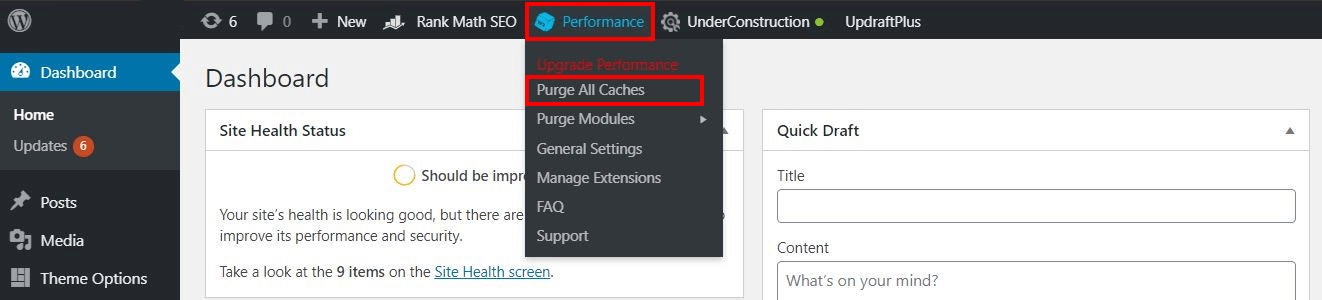
Credit: www.ionos.com
Frequently Asked Questions
Why Should You Clear WordPress Theme Cache?
Clearing the cache helps improve website performance. It removes outdated data and ensures visitors see the latest updates. Regular cache clearing can prevent potential display issues. It also aids in troubleshooting by eliminating stored errors. Overall, it enhances both user experience and site efficiency.
How Often Should Cache Be Cleared In WordPress?
It’s recommended to clear the cache regularly, at least once a month. Frequent updates or changes may require more frequent clearing. This ensures your website displays the latest content. Monitoring website performance can guide you on cache clearing frequency. Regular maintenance helps avoid potential issues.
Can Clearing Cache Improve Website Speed?
Yes, clearing cache can significantly enhance website speed. It removes unnecessary stored data, reducing load times. This ensures that visitors experience faster page loading. A quicker website improves user experience and can boost SEO rankings. Regular cache maintenance is crucial for optimal site performance.
What Tools Help Clear WordPress Cache?
Plugins like W3 Total Cache and WP Super Cache are popular for clearing cache. They offer easy-to-use interfaces and automate cache management. These tools optimize site performance and provide settings for scheduled cache clearing. Using plugins simplifies cache management and enhances your WordPress site’s efficiency.
Conclusion
Clearing your WordPress theme cache improves site performance. It’s a simple task. Regularly clear cache to prevent slowdowns. Faster loading times enhance user experience. This helps keep visitors on your site. Use plugins designed for cache management. They simplify the process.
Stay proactive in maintaining your website. Regular updates and cache clearing go hand in hand. Keep your site running smoothly. Follow these steps and enjoy a faster site. Happy blogging!


