

If you’ve ever made changes to your WordPress site but don’t see those updates right away, chances are your cache is holding onto old versions of your pages. Clearing your WordPress cache is a simple yet powerful step to ensure your visitors see the freshest content and that your site runs smoothly.
In this guide, you’ll learn exactly how to clear cache in WordPress—whether you’re using popular caching plugins, managing through your hosting dashboard, or dealing with browser and CDN caches. Stick with me, and you’ll quickly master the techniques to keep your site fast, up-to-date, and performing at its best.
Let’s dive in!
Credit: www.ionos.com
Why Clear WordPress Cache
WordPress uses different types of cache to speed up your website. Each cache stores data in a unique way. Clearing the right cache keeps your site fresh and running smoothly. Knowing these cache types helps you manage your site better.
Browser Cache
Browser cache saves parts of your website on a visitor’s device. It stores images, scripts, and stylesheets. This helps pages load faster on return visits. Clearing browser cache forces the browser to load new content. Visitors may need to refresh to see updates.
Plugin Cache
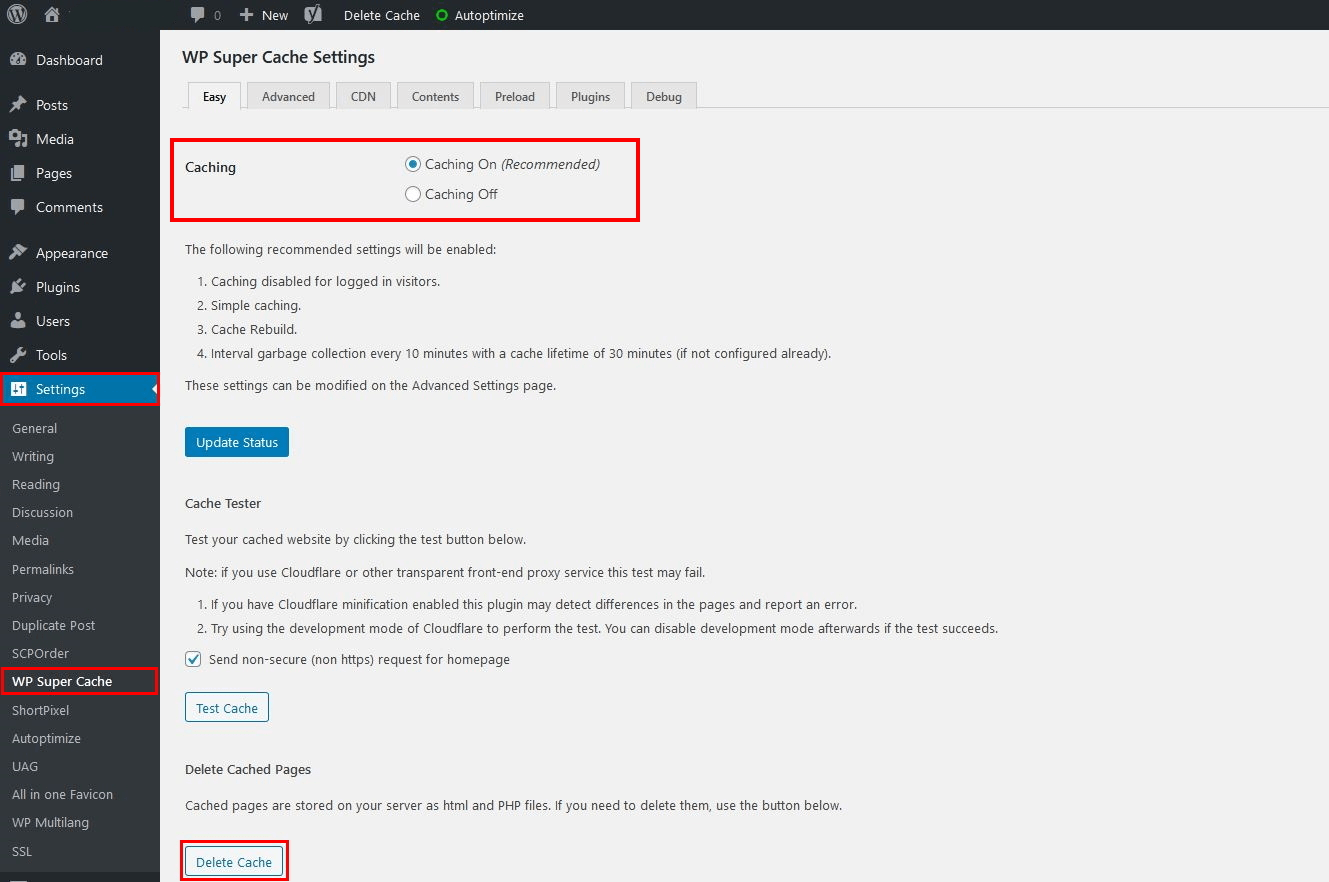
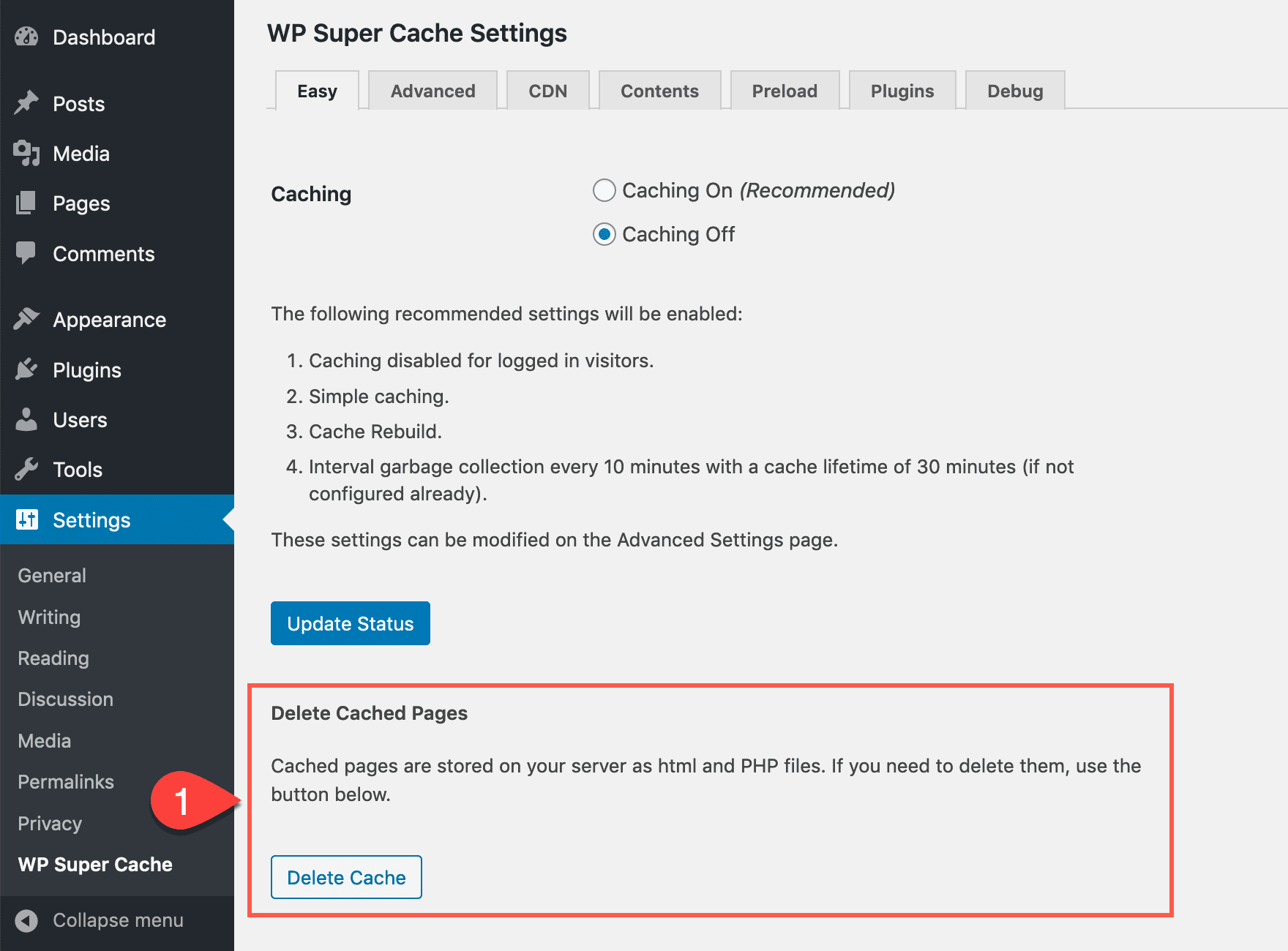
Plugins like WP Super Cache create cached versions of your pages. They reduce server load and speed up page delivery. Plugin cache stores static HTML files of your dynamic site. Clearing this cache updates your site’s content immediately. Most caching plugins have a clear cache button in settings.
Cdn Cache
A Content Delivery Network (CDN) caches your site’s files on servers worldwide. This makes your site load faster for global visitors. CDN cache holds copies of images, scripts, and pages. Clearing CDN cache pushes new content to all CDN servers. It ensures visitors see the latest version of your site.
Hosting Cache
Some web hosts use server-level caching to speed up WordPress. This cache stores pages on the hosting server before sending them to visitors. Hosting cache works behind the scenes without plugins. Clearing hosting cache is done via your hosting control panel. It helps fix display issues and updates site content quickly.
Credit: docs.themeisle.com
Cache Types In WordPress
Clearing cache on WordPress.com improves your site’s performance and shows recent changes. Cached files store a version of your site to load faster. Sometimes, this cache holds old data. Clearing it refreshes your site for visitors.
Performance Settings
Go to your WordPress.com dashboard. Find the Settings menu. Click on Performance. This section controls how caching works on your site. You can manage cache options here. Adjusting settings helps keep your site fast and updated.
Clear All Caches Button
Inside the Performance section, look for the Clear all caches button. Click it to delete all cached files. Wait for a confirmation message. This action forces WordPress.com to load fresh content. Visitors will see the latest version of your site after clearing cache.
Clearing Cache Using Plugins
Manual cache clearing methods help fix display issues and load fresh content. These methods work outside of plugins and give more control. Clearing cache manually solves many common WordPress problems quickly.
This section covers three key manual methods: clearing browser cache, clearing CDN cache, and refreshing WordPress permalinks. Each step is simple and effective for keeping your site updated.
Clear Browser Cache
Your browser stores cached versions of website files. This speeds up loading but can show outdated content. Clearing your browser cache forces it to load fresh files from your site.
To clear cache in Chrome, open the menu and select Settings. Go to Privacy and Security, then Clear Browsing Data. Choose “Cached images and files” and clear data. This refreshes your browser’s stored content.
Clear Cdn Cache
A Content Delivery Network (CDN) stores copies of your site globally. It speeds up delivery but may show old content. Clearing the CDN cache updates all stored copies.
Log into your CDN provider’s dashboard. Find the cache management area and select the option to clear or purge cache. This action clears stored files and forces the CDN to fetch new content.
Refresh WordPress Permalinks
Permalinks control your site’s URL structure. Sometimes, caching issues occur due to permalink settings. Refreshing permalinks clears related cache and fixes broken links.
In your WordPress dashboard, go to Settings > Permalinks. Without changing anything, click “Save Changes.” This refreshes permalink settings and clears cache tied to URLs.
Credit: www.elegantthemes.com
Frequently Asked Questions
How Do I Clear The Cache In WordPress?
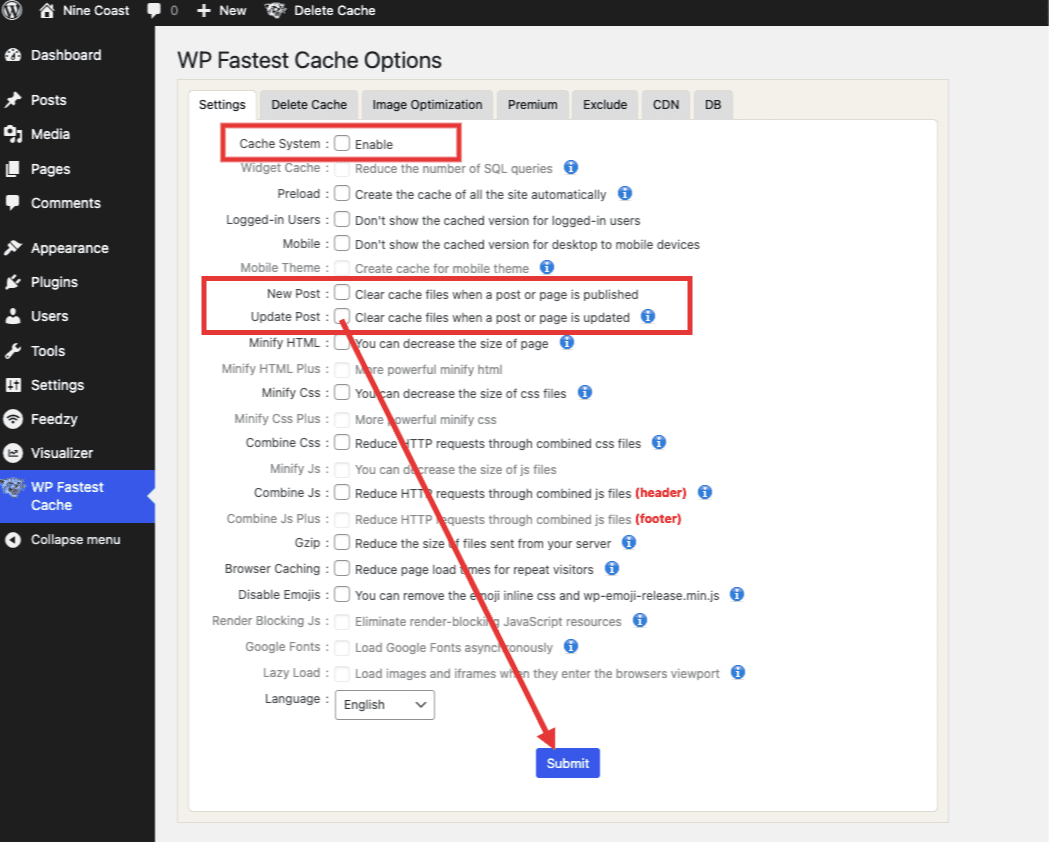
Go to your WordPress dashboard and open your caching plugin settings. Click the “Clear Cache” or “Delete Cache” button. Alternatively, use the performance menu or hosting tools to purge all caches. Clear browser or CDN cache if needed to ensure changes display correctly.
Should I Clear The Cache On WordPress?
Clearing WordPress cache ensures visitors see your latest updates and fixes display issues. Use your caching plugin or hosting tools to clear it regularly.
How Do I Empty Out My Cache?
To empty your cache, open your browser or WordPress plugin settings. Click the clear or delete cache button. For plugins like WP Super Cache or WP Rocket, find and use their specific cache clearing option. Also, clear CDN or browser cache if applicable.
How Do I Clean My WordPress?
To clean your WordPress, clear cache via your caching plugin’s settings, such as WP Super Cache or WP Rocket. Also, refresh permalinks and clear browser and CDN caches for thorough cleaning.
Conclusion
Clearing your WordPress cache keeps your site running smoothly. Regular cache clearing helps show recent updates to visitors. Use your caching plugin’s options to delete stored files quickly. Don’t forget to clear your browser and CDN cache too. These simple steps improve site speed and user experience.
Keep your WordPress site fresh by clearing cache often. It’s an easy task that anyone can do.


