
Are you feeling overwhelmed by the clutter in your WordPress theme? Maybe you’ve added a few too many features, or perhaps your site is just not performing as well as it should.
Clearing out your WordPress theme might be the fresh start you need. Imagine a cleaner, faster website that captures your audience’s attention. You deserve a site that not only looks good but also runs smoothly. This guide will show you how to clear your WordPress theme effectively, step by step.
By the end of it, you’ll feel empowered to take control of your website and make it shine. Let’s dive in and transform your WordPress experience!
Backup Your Website
Backing up your website is very important. It keeps your data safe. If something goes wrong, you can restore it. You won’t lose your hard work. Always keep a recent backup. This ensures safety.
There are many tools for backup. Some are easy to use. Popular ones include UpdraftPlus and BackupBuddy. They help you save files. Both plugins are simple. They offer automatic backups. You can schedule backups too. This makes it easy to keep data safe.

Credit: themeforest.net
Access The WordPress Dashboard
Access the WordPress Dashboard to manage themes effortlessly. Navigate to ‘Appearance’ and select ‘Themes’ to clear unwanted designs. This simple action helps streamline your website’s appearance.
Logging Into WordPress
To access your WordPress dashboard, first open a browser. Enter your website’s URL followed by “/wp-admin”. This takes you to the login page. Here, input your username and password. If you forget them, use the “Lost your password?” link. WordPress will email instructions to reset it. After logging in, you reach the dashboard. This is where you manage your site. You can change themes, add posts, and more.
Navigating The Dashboard
The dashboard is simple. On the left side, find the menu. This menu helps you navigate. Click “Posts” to add or edit articles. Select “Pages” for static content. Themes are under “Appearance”. Click here to change the look of your site. Plugins add features. Find them under “Plugins”. Each option has a purpose. Explore to learn more.
Deactivate Current Theme
Switching to a Default Theme can help solve many issues. Go to your WordPress dashboard. Find the “Appearance” tab. Click on “Themes”. Select a default theme like Twenty Twenty-Three. Click “Activate”. Your site will use this new theme now. Check if problems are gone.
Checking for Theme Conflicts is important. Some themes do not play nice together. They might cause bugs or errors. Try disabling all plugins first. Then, activate each one again, one by one. Watch for problems. If issues come back, a plugin or theme may be the cause.

Credit: totalwptheme.com
Delete Unwanted Themes
Check your WordPress dashboard. Go to Appearance and click on Themes. See all themes listed there. Find the ones you do not use. These are the unused themes. Keep only the active theme you love. Other themes take up space and can slow down your site.
First, click on the theme you want to delete. Next, find the Delete button in the bottom-right corner. Click it. A prompt will ask if you are sure. Confirm by clicking OK. The theme will be removed. Repeat for other unwanted themes. Now your site is cleaner and faster.
Clear Theme Files
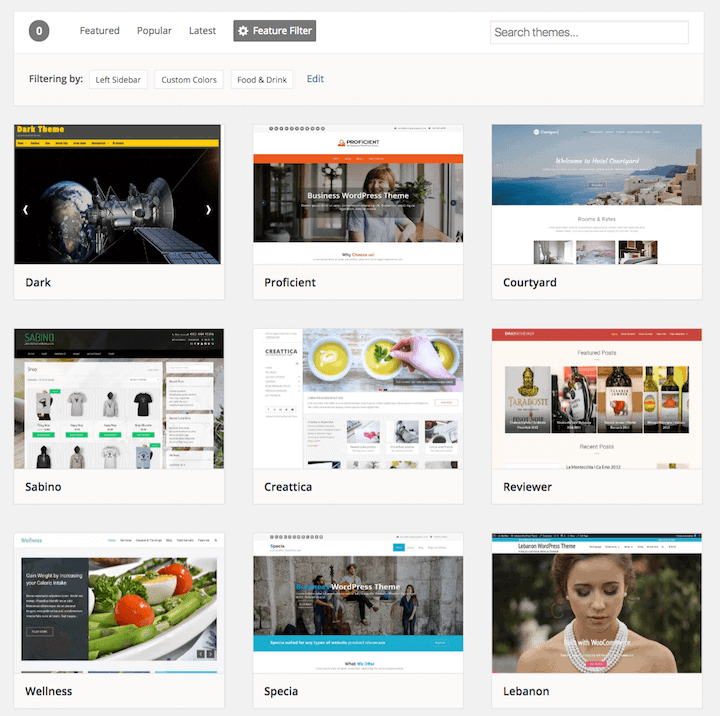
Start by finding the theme folder in your WordPress directory. This folder holds all the theme files. Locate the wp-content/themes directory. Inside, you will see folders for each theme. Choose the theme you want to delete. Right-click on the folder and select delete. This action removes the theme files from your server.
Use an FTP client like FileZilla to access your site files. Connect to your server using your FTP credentials. Navigate to the wp-content/themes directory. Find the theme folder to delete. Right-click on the folder and choose delete. This method is effective for removing theme files safely. Ensure you have a backup before deleting anything. Mistakes can cause issues.
Credit: www.abrightclearweb.com
Clean Database Entries
Old themes leave behind extra data. This can slow your site. Remove theme-related data for a clean database. Look for unused tables and delete them. Check options and clean up old theme settings. Be careful not to delete important data.
Use tools to help clean your database. WP-Optimize is a good choice. It clears old data safely. Another tool is Advanced Database Cleaner. It finds and removes unused data. These tools help keep your site fast. Always back up your database before cleaning.
Verify Theme Removal
After removing a WordPress theme, check for leftover files. These files may cause problems. They might slow down your site. Sometimes, old files hide in your server. Look in the wp-content/themes folder. Make sure no unwanted folders remain. If you find any, delete them safely. Use an FTP client for this task. It is easy and safe.
Ensure your site still works well. Visit different pages on your site. Check the site’s speed. Make sure images load properly. Test forms and links. Everything should work fine. No broken parts should exist. If you find issues, they might be from old files. Use a plugin to find and remove them. Your site should run smoothly.
Check your site’s main functions. Test login pages and contact forms. Ensure they work perfectly. Look at your site’s design. Make sure everything looks right. Use different devices to test. Phones, tablets, and computers all matter. Your site should look good everywhere. Fix any design issues you find. This keeps visitors happy.
Install A New Theme
Finding the right theme is important. Think about your website’s purpose. A blog needs a simple, clean design. An online store should look professional. Check reviews and ratings before choosing. This helps to ensure quality. A good theme should be responsive. It should work on all devices.
First, go to your WordPress dashboard. Click on Appearance and then Themes. You will see a button labeled Add New. Click it. Browse through the themes. Find the one you want. Click Install. Wait for it to download. Once done, click Activate. Your new theme is now live.
Optimize Site Performance
Faster websites make visitors happy. They also help your site rank better. Start by choosing a light theme. Heavy themes slow down your site. Use tools like Google PageSpeed Insights. This tool checks your site’s speed. It tells you how to make your site faster. Use caching plugins. They store data and make pages load quickly. Compress images to reduce their size. Small images load faster. This improves speed.
SEO helps your site appear in search results. Use SEO-friendly themes. These themes improve your site’s visibility. Add relevant keywords to your content. Keywords help search engines understand your site. Use SEO plugins. They guide you in optimizing posts and pages. Write clear titles and descriptions. They attract visitors and improve ranking. Regularly update your content. Fresh content keeps your site relevant. This boosts your SEO.
Frequently Asked Questions
How Do I Uninstall A WordPress Theme?
To uninstall a WordPress theme, go to the admin dashboard. Navigate to “Appearance” > “Themes”. Click on the theme you want to uninstall. Select “Delete” at the bottom-right corner. Confirm the deletion to remove the theme completely.
What Is A WordPress Theme Reset?
A WordPress theme reset restores your theme to its default settings. It removes customizations and widgets. This helps in troubleshooting theme issues. To reset, use plugins like “WP Reset” or manually revert settings.
Can Changing Themes Affect My Site Seo?
Changing themes can impact SEO if the new theme alters site structure. Ensure the new theme is SEO optimized. Check for mobile-friendliness and fast loading times. Preserve meta tags and URLs to maintain SEO rankings.
How Do I Safely Test A New Theme?
To test a new theme safely, use a staging site. Duplicate your site to a subdomain or local server. Apply the new theme and check functionality. Ensure content display and plugins work seamlessly before updating the live site.
Conclusion
Clearing a WordPress theme is simple and effective. Follow the steps to ensure success. Start by backing up your site. This protects your content. Next, deactivate plugins one by one. Check your site after each deactivation. Choose a lightweight theme.
This boosts your site’s speed. Regularly update your WordPress and themes. This keeps your site secure. Clean your database for better performance. Don’t forget to optimize images. Smaller images load faster. These practices enhance your site’s functionality. Stay informed and enjoy a smoother WordPress experience.
Always aim for simplicity and efficiency.


