
Have you ever installed a new WordPress theme only to be overwhelmed by the sheer amount of sample content cluttering your site? You’re not alone.
While these sample posts, pages, and images are meant to showcase the theme’s potential, they often end up creating chaos instead. This clutter can make your website look unprofessional and confuse your visitors. But don’t worry—cleaning up this imported content is easier than you think.
Imagine having a sleek, organized site that reflects your unique style and message. Sounds appealing, right? By learning how to efficiently tidy up this mess, you’ll not only declutter your digital space but also boost your site’s performance and user experience. Stick with us, and we’ll guide you through the process step-by-step, ensuring you turn that chaos into clarity.
Identify Unnecessary Content
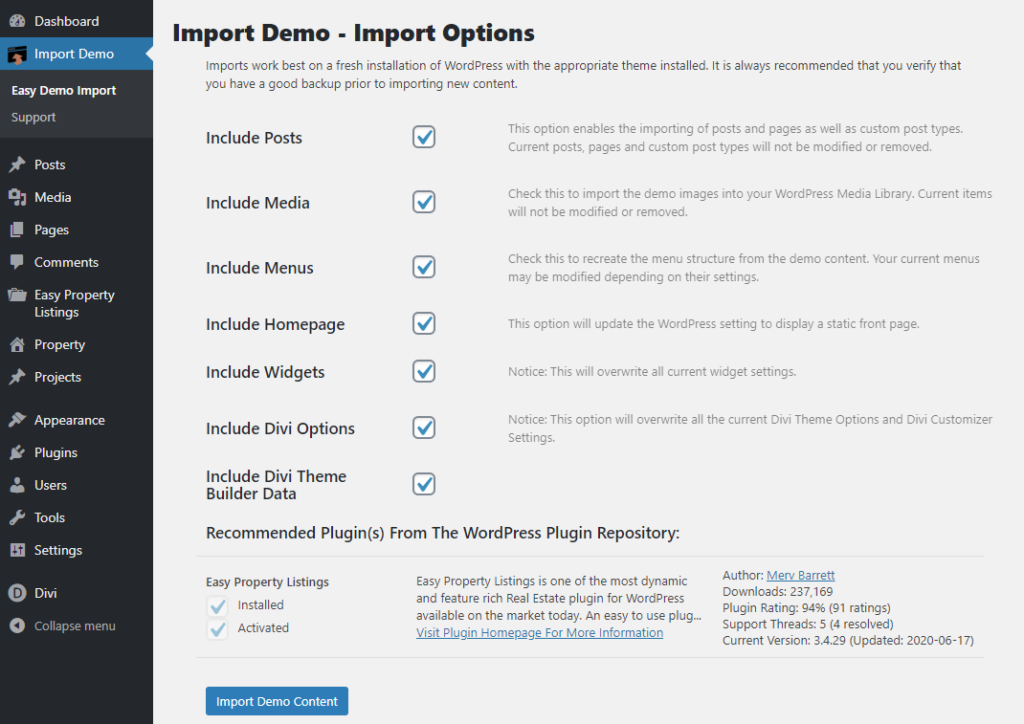
Sample pages often have extra text. Check each page for irrelevant details. Many pages are just for show. You may find duplicate content too. Delete them if they are not useful. It keeps your site clean. Also, it improves site speed.
Sample posts are often generic. They may not fit your site. Look for posts that don’t match your theme. Remove posts with no value. Keep only what helps your readers. A clean post section is better for visitors.
Media files take up space. Unused images and videos are not needed. Review all media files. Get rid of what you do not use. This saves storage space. It also makes your site faster. Keep media organized for easy access.
Credit: diviextended.com
Remove Unwanted Pages
Imported themes often come with sample pages. These pages can clutter your site. Find these pages in your WordPress dashboard. Click on Pages. Here, you will see all your pages listed. Look for titles like “Sample Page” or “Demo Page”.
Click on the title to open the page. On the right side, find the Move to Trash link. Click this link to delete the page. Once deleted, the page goes to the trash. This helps keep your site organized and clean.
Deleted pages stay in the trash. You should empty this trash regularly. Go to the Pages section. Click on Trash. Here, you can see all trashed pages. Select pages you want to remove forever. Click on Empty Trash. This action will permanently delete them.
Keeping the trash empty saves space. It helps maintain a tidy WordPress site. Regularly check the trash to ensure it remains empty. This practice helps in managing your site efficiently.
Delete Unneeded Posts
Identify sample posts by going to your WordPress dashboard. Look for posts labeled “Sample” or “Demo.” These are usually the ones added by the theme. You can also use the post date to find them. Most sample posts are published on the same day. Check for posts with similar titles like “Hello World” or “Sample Page.”
Once you find these posts, it’s time to clear post trash. Go to the “Posts” section in your dashboard. Select the posts you don’t need. Click on “Bulk Actions” and choose “Move to Trash.” This helps keep your site clean. After moving them to trash, empty the trash to remove them forever. This frees up space and improves site speed. Always check the trash before emptying. Make sure no important posts are there.
Clean Media Library
Streamline your WordPress media library by removing unnecessary imported theme content. Begin by identifying duplicate files and unused images cluttering your library. Use plugins designed for cleanup to efficiently organize and delete unwanted media, ensuring a tidy and optimized WordPress environment.
Remove Sample Images
Start by deleting sample images that came with the theme. Go to the media library. Check for images you don’t need. Click on each image. Then press the delete button. This will free up space on your site.
Optimize Remaining Media
Keep the images you need. Make sure they are optimized. Use smaller file sizes for faster loading. Tools like TinyPNG can help. Smaller images keep your site fast. Also, check image names. They should be descriptive and simple. This helps with SEO.
Update Menus And Widgets
Start by selecting the Appearance tab. Locate the Menus option. Look for any sample content. You might see pages like About or Contact. Click on the menu name to edit. Remove unwanted pages. Add your pages. Arrange them neatly. Check the preview to see changes. Save your work. Your menu should look clean now.
Go to the Widgets section in the dashboard. You will see different areas. Focus on the Sidebar. Sample themes often add extra widgets. Remove the ones you don’t need. Drag and drop needed widgets. Add a text widget for notes. Use the image widget for pictures. Check the site to see changes. Save your updates. Now your sidebar looks neat.
Credit: avada.com
Check Theme Settings
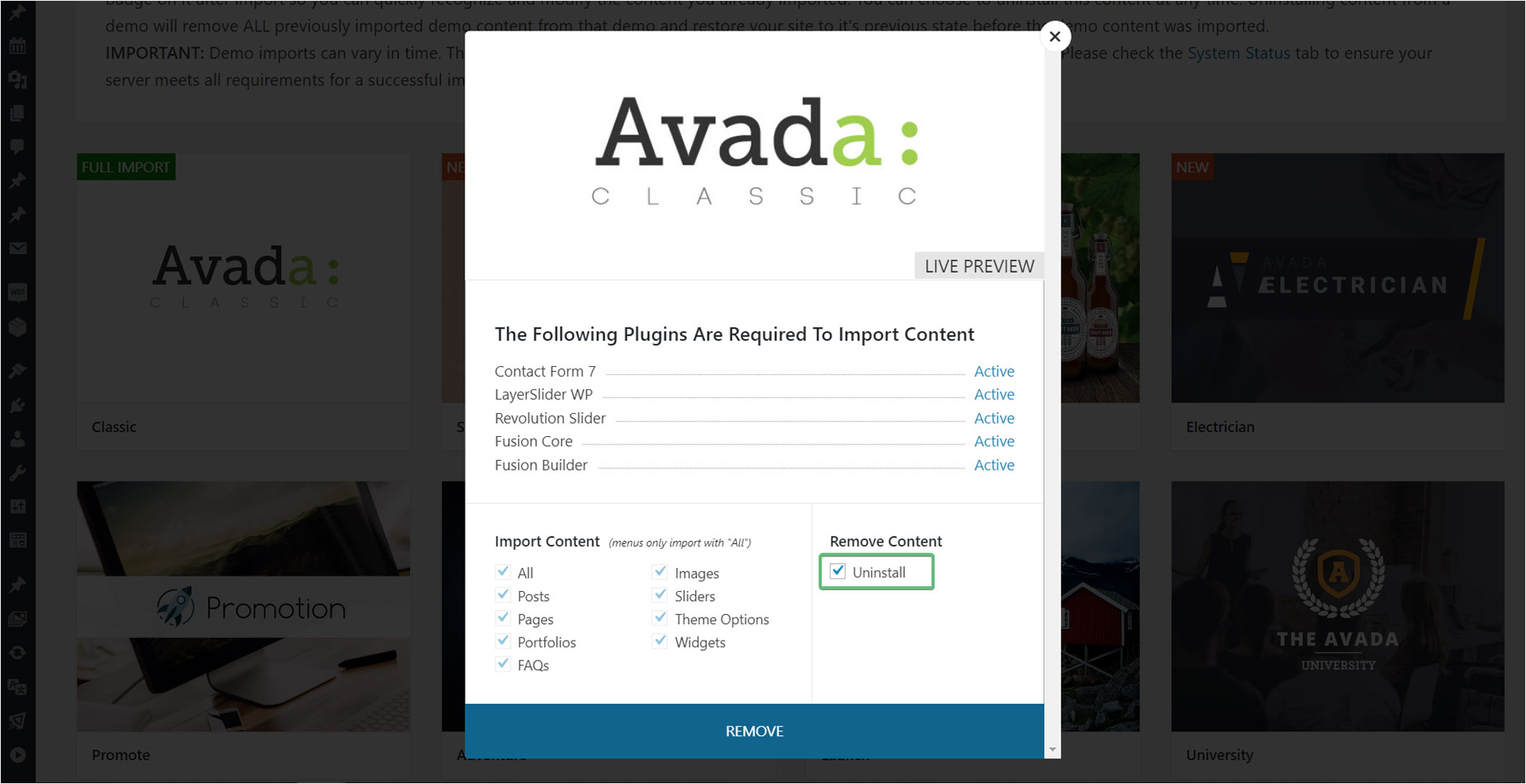
Open your WordPress dashboard. Locate the theme settings. Look for imported content. Check the available options. Ensure all settings fit your needs. Adjust them if needed. Delete any unwanted content. Make sure your website looks clean.
Visit the customization section. Choose the right colors. Select fonts that are easy to read. Change the background if necessary. Modify the layout. Make it user-friendly. Your site should be welcoming. Ensure everything matches your style.
Verify Plugin Configurations
Too many plugins slow down your site. First, find plugins you do not need. Next, go to the plugin page. Click on the “Deactivate” button. This will stop the plugin. Now, your site runs faster. Be careful. Do not deactivate important plugins. Check each plugin before you deactivate it.
Keeping plugins updated is important. First, go to the plugin page. Look for any update notifications. Click “Update Now” for each plugin. Updated plugins work better. They also keep your site safe. Always update plugins when you see a new version.
Test Website Functionality
Ensure Page Load Speed: Fast page speed is crucial. Slow pages turn away visitors. Use tools like Google PageSpeed Insights. They help you check speed. Optimize images to load faster. Compress them without losing quality. Minimize CSS and JavaScript files. This reduces load time. Choose a reliable hosting provider. A good host ensures quick loading.
Check Mobile Responsiveness: Many users browse on phones. Make sure your site looks good on all devices. Test on various screen sizes. Ensure text is readable. Images should fit the screen. Navigation must be easy. Use responsive design techniques. They help adjust layout automatically. This keeps users happy and engaged.
Credit: www.wpzoom.com
Frequently Asked Questions
How To Remove Demo Content In WordPress?
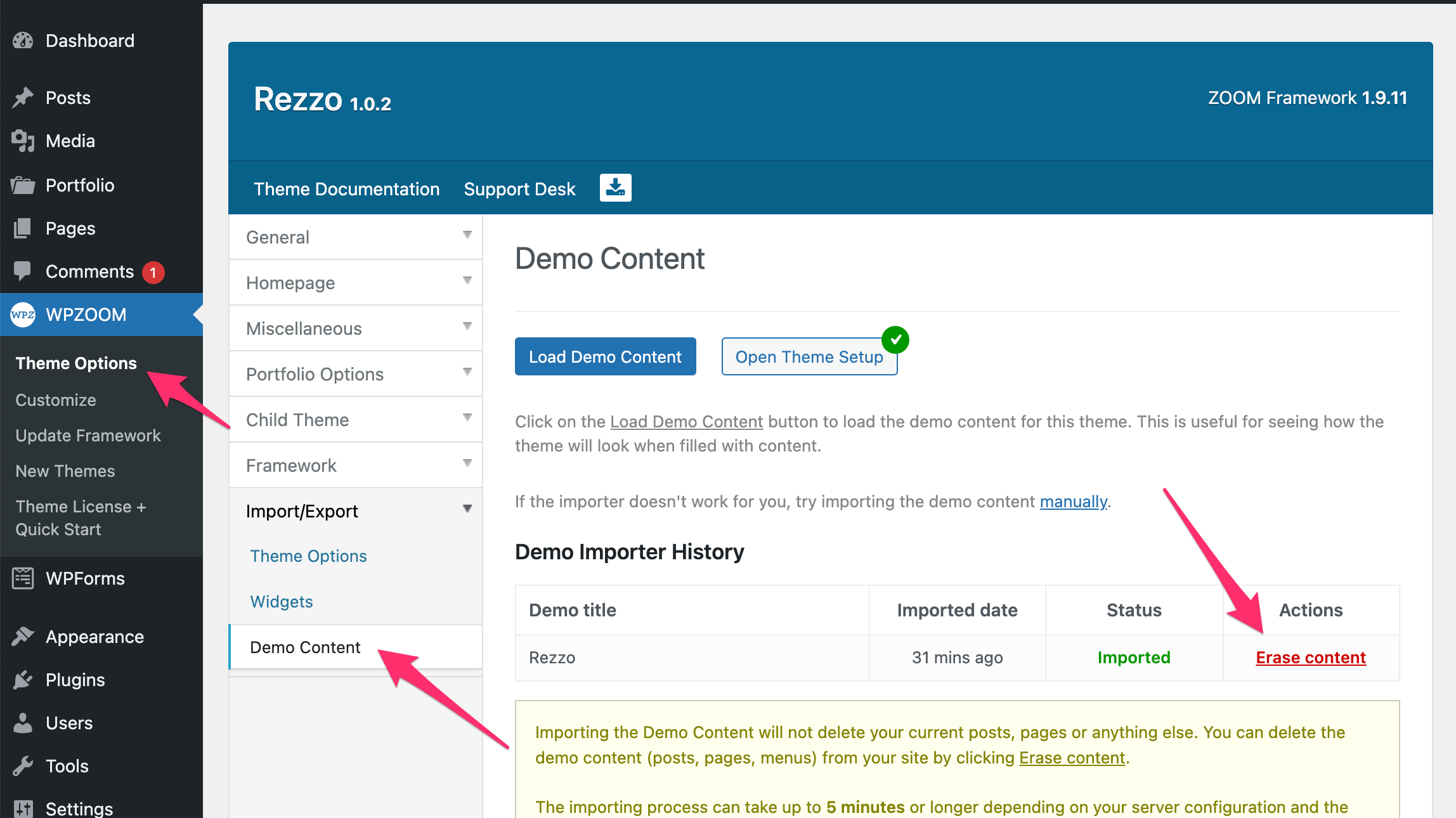
To remove demo content in WordPress, navigate to the ‘Posts’ or ‘Pages’ section. Select and delete unwanted items individually. Utilize plugins like WP Reset for a thorough cleanup. Remember to backup your site before making changes to avoid accidental data loss.
Is Deleting Sample Content Safe?
Yes, deleting sample content is generally safe. Ensure you backup your site beforehand. This prevents accidental data loss. Use WordPress tools to safely remove content without affecting essential site functionality.
What Plugins Help Clean Imported Content?
Plugins like WP Reset and Advanced Database Cleaner are ideal. They help remove unwanted content efficiently. These plugins simplify the process, offering safe deletion options. Always backup your site before using plugins.
How Do I Identify Sample Content?
Sample content is usually pre-installed with themes. It often includes placeholder text and images. Review your site’s posts, pages, and media library. Identify and remove items that don’t fit your brand or purpose.
Conclusion
Cleaning up imported WordPress theme content is straightforward. First, identify unnecessary elements. Delete sample posts and pages promptly. Customize menus and widgets to suit your site. Adjust settings for a cohesive look. Replace placeholder images with your own. Ensure links point to the correct pages.
Regularly update content for relevance. Keep your site organized. A clean site enhances user experience. It helps in search engine ranking too. Practice consistency in updates. Your site will stay fresh and engaging. Follow these steps for a neat WordPress setup.


