
Feeling overwhelmed by the clutter of imported demo theme content on your WordPress site? You’re not alone.
Many WordPress users face this challenge after installing a new theme. You want your website to reflect your vision, but instead, it’s filled with irrelevant images, text, and layouts. This clutter can confuse your visitors and slow down your site.
But here’s the good news: cleaning up this demo content is easier than you think. Imagine transforming your website into a sleek, personalized space that perfectly represents your brand. In this guide, you’ll discover simple steps to tidy up your WordPress site, creating an inviting and professional online presence. Ready to take control of your website and captivate your audience? Let’s dive in!
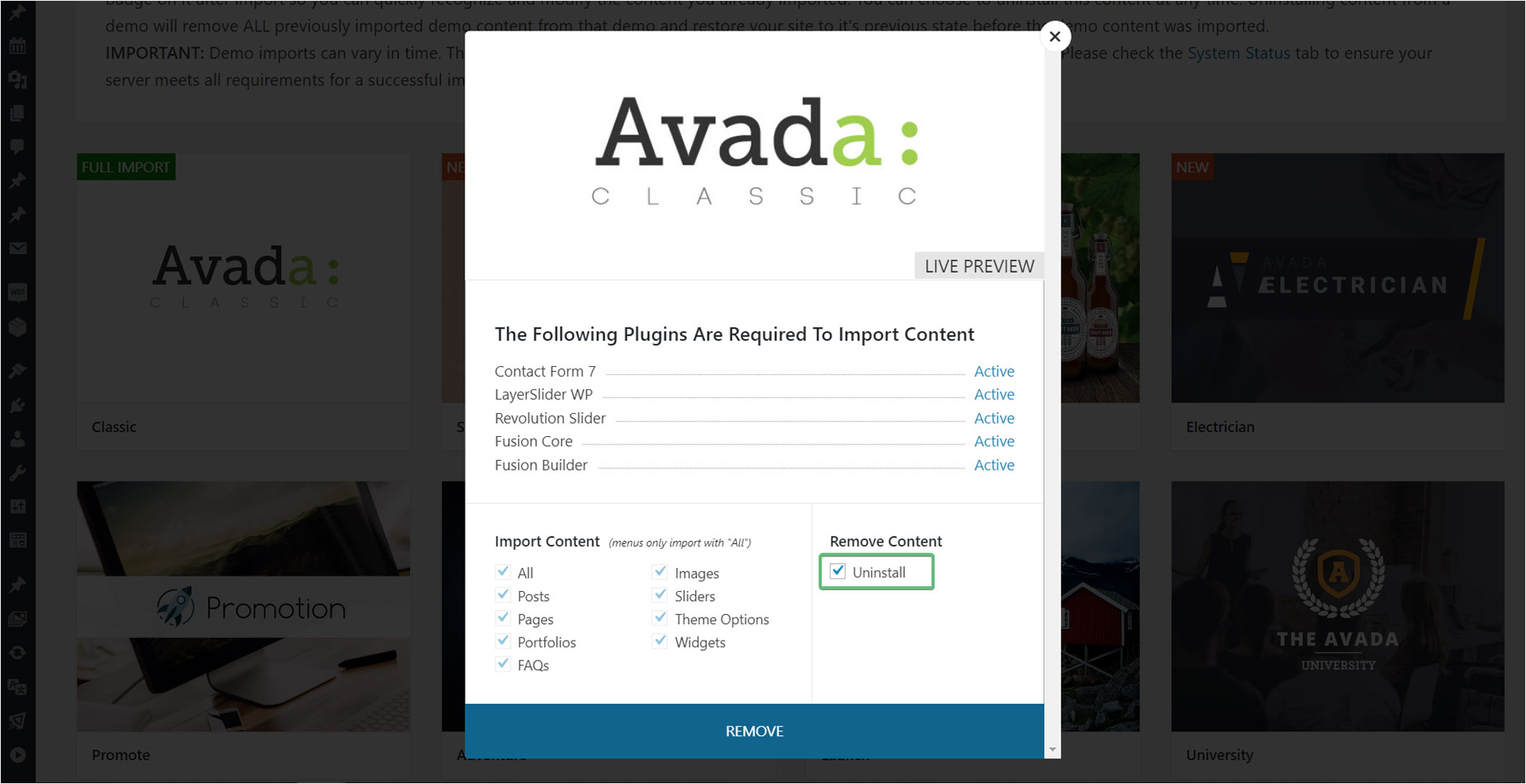
Credit: avada.com
Why Clean Up Demo Content
Demo content can make your site look messy. It is filled with unnecessary text and images. These items slow down your site. Visitors may get confused. They might leave your site quickly. This is not good for your site traffic.
Cleaning demo content helps your site run faster. It makes it look tidy and professional. It also helps in keeping your content original. This is important for search engines. They prefer unique content. Removing demo content is a simple step. It improves your site’s performance.
Preparing For Cleanup
Before starting, always create a backup of your site. Use reliable tools like UpdraftPlus or Duplicator. This ensures you have a copy if something goes wrong. A backup saves your site data. You can restore it easily. This step is crucial for safety.
Identify the unwanted content in your site. Check for extra pages, posts, and images. These are often included with theme demos. Make a list of what you don’t need. Focus on menus, widgets, and sidebars. They can clutter your site. Organize the list clearly. This helps in removing them later.
Removing Unnecessary Pages
Start by opening your WordPress dashboard. Go to the Pages section. Here, you will see a list of all your pages. Look for pages with names like “Sample Page,” “Demo,” or “Test.” These are usually the demo pages. Make a note of these pages. This will help in the next step.
Go back to the Pages section in your dashboard. Select the demo pages from your list. Click on the “Trash” option. This will move the pages to the Trash folder. To permanently delete, go to the Trash folder. Select the pages again. Click “Delete Permanently.” Now, your site is cleaner and more organized.
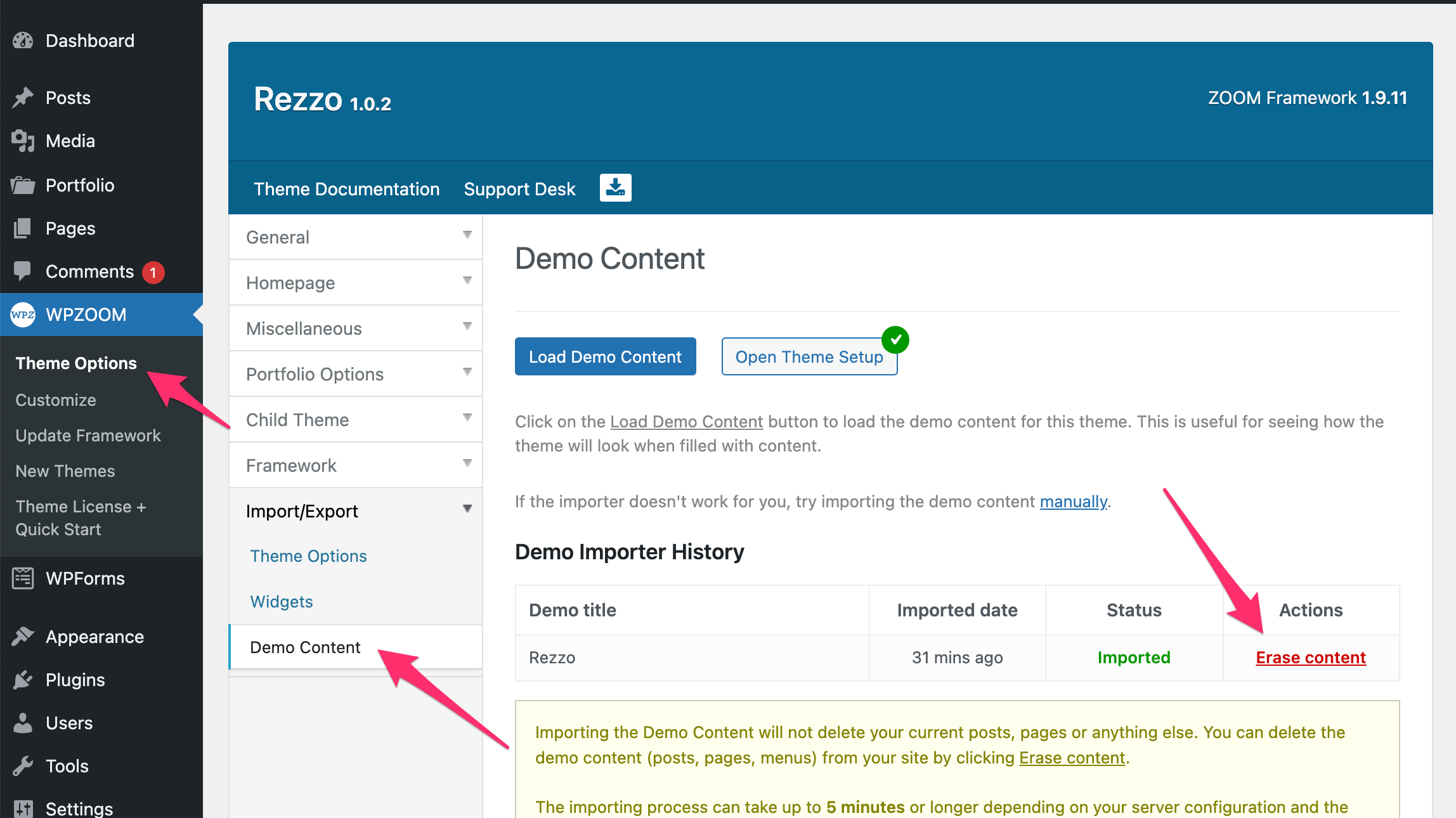
Credit: www.wpzoom.com
Cleaning Up Posts
Open your WordPress dashboard. Look for the “Posts” section. Click on “All Posts.” Here, you will see all your posts. Demo posts often have titles like “Sample Post” or “Hello World.” They might not match your site’s content. Check the publish date. Demo posts usually have older dates.
Decide what to do with each demo post. You can remove them if they are not needed. Click on the “Trash” link to delete. Or, you can archive them. This keeps them for later. To archive, use a plugin like “Simple History.” Archiving helps if you think you might need them again.
Managing Media Files
Review Uploaded Media first. Check all images and videos. Make sure they are necessary. Some media might be duplicates. Remove duplicate files. This saves space. It also makes your site faster.
Delete Unused Media files. Find files not used in posts. These files slow down your site. Go to the media library. Look for files with no links. Delete them. This keeps your site clean. It also improves speed.
Adjusting Menus And Widgets
Start by finding the Appearance section in your dashboard. Click on Menus. You will see a list of menus. Choose the menu you want to change. Add or remove items by dragging them. Use simple names for easy reading. Save your changes by clicking the Save Menu button. Always check your website to see the new menu.
Go to the Appearance section again. Click on Widgets. Here, you can see different widget areas. Drag new widgets into these areas. Remove any widgets you don’t need. You can also rearrange them. Remember to click Save after making changes. Check your site to see how the widgets look.
Optimizing Database
Streamline your WordPress by cleaning imported demo theme content. Remove unnecessary posts, pages, and media files. This reduces clutter and improves database performance. Deleting unused plugins and themes can also enhance site speed and efficiency.
Use Cleanup Plugins
Install a cleanup plugin to remove unwanted data. These plugins delete unused themes and plugins. They also clean up post revisions and drafts. This reduces the database size and improves speed. Some popular plugins are WP-Sweep and WP-Optimize. Always back up your data before using any plugin. It prevents data loss if something goes wrong. A clean database keeps your site running smoothly.
Manual Database Optimization
Manual optimization involves using phpMyAdmin. Access your database through your hosting panel. Use the Optimize Table feature to clean up tables. This removes overhead and makes the database faster. Be careful when making changes manually. Mistakes can cause data loss or site issues. Always back up the database first. A well-optimized database means a faster and more efficient site.

Credit: harutheme.com
Testing Site Functionality
Page load speed is very important. Slow pages can upset visitors. Use tools like Google PageSpeed Insights to check speed. Fast pages keep people happy. Make sure images are small. Large images slow down pages. Use a good hosting service. This helps speed.
All links must work well. Broken links make users sad. Check every link. Make sure they go to the right place. Navigation should be easy. Users like simple menus. Clear paths help them find things. Test every menu item. This ensures a smooth experience. Always fix broken links quickly.
Frequently Asked Questions
How Do I Remove Demo Content From WordPress?
To remove demo content, access your WordPress dashboard and navigate to ‘Posts’, ‘Pages’, and ‘Media’. Delete unwanted content manually. Alternatively, use plugins like WP Reset or Advanced WordPress Reset to automate the process. Always back up your site before making changes to avoid accidental data loss.
Can Plugins Help Clean Up Demo Content?
Yes, plugins can help efficiently clean up demo content. Tools like WP Reset or Advanced WordPress Reset automate the removal process. They restore your WordPress site to its original state, removing demo posts, pages, and media. Always ensure to back up your website before using these plugins.
What Is The Safest Way To Delete Demo Pages?
The safest way is to delete demo pages manually via the WordPress dashboard. Navigate to ‘Pages’, select unwanted pages, and click ‘Delete’. This ensures control over what is removed. Back up your site beforehand to prevent accidental loss of valuable content during cleanup.
Should I Back Up My Site Before Cleanup?
Yes, always back up your site before cleaning up demo content. Backing up prevents data loss and ensures recovery if mistakes occur during the process. Use plugins like UpdraftPlus or BackupBuddy for efficient backups, protecting your site’s integrity and content.
Conclusion
Cleaning up imported WordPress demo content is straightforward. Follow simple steps. Improve website performance. Enhance user experience. Start by identifying unnecessary elements. Remove redundant pages and posts. Organize your media library. Optimize your database for faster load times. Regular maintenance keeps your site tidy.
Always back up data before making changes. This saves you headaches later. Keep learning about WordPress features. This helps you manage content effectively. A clean website attracts more visitors. Happy users return often. Enjoy a streamlined WordPress site today!


