
Are you looking to customize your WordPress site without the risk of losing your changes with every update? Creating a child theme might just be the perfect solution for you.
Imagine having the freedom to tweak your website’s design and functionality while keeping the original theme intact. Not only will this safeguard your customizations, but it also opens up a world of creative possibilities. In this guide, you’ll discover how to easily set up a child theme in WordPress, empowering you to make your site truly unique.
Stick around to learn step-by-step how you can enhance your website effortlessly and effectively.
Credit: elementor.com
What Is A Child Theme?
A child theme is like a baby theme. It follows a main or parent theme. It has its own look and style. Yet, it uses the parent theme’s functions. It is safe to make changes to it. The main theme stays safe.
Making changes to a parent theme can be risky. Updates can remove your changes. A child theme keeps your changes safe. It works even when the parent theme updates. This way, your website looks just how you like it.

Credit: meancreative.com
Benefits Of Using Child Themes
Child themes keep your main theme safe. You can change styles and add features. Your changes stay even with updates. No need to worry about losing work. Easy to use for beginners. You learn while doing. It helps you understand WordPress better.
Child themes allow customization without fear. You do not break the original theme. It is like having a safety net. Flexibility is key. You decide what your site looks like. Make it unique.
Child themes help in testing new ideas. Try new designs safely. Change colors, fonts, or layouts. Your main theme stays intact. It is a smart way to experiment.
Setting Up Your Development Environment
Using the right tools makes work easy. Choose a good code editor like Visual Studio Code. It helps you write and edit code. Another good option is Sublime Text. Both are easy to use. They highlight errors too. You also need a browser. Chrome and Firefox are good choices. They help you test your theme.
First, download WordPress from the official site. Then, install it on your computer. Use tools like XAMPP or MAMP. These tools create a local server. This server runs WordPress locally. Make sure your WordPress works well. Check the dashboard to see if it loads. You are now ready to build a child theme.
Creating A Child Theme Directory
Choose a name for your child theme. Keep it simple and clear. The name should relate to the parent theme. Use lowercase letters and dashes. No spaces allowed. For example, if your parent theme is “OceanWP,” name your child theme “oceanwp-child.”
Create a new folder for your child theme. Place it in the wp-content/themes directory. Inside this folder, add a style.css file. Also, add a functions.php file. These files are important. They make your child theme work. You can add more files later if needed.
Adding A Stylesheet
Begin by creating a new folder for your child theme. Inside this folder, make a file named style.css. This file will store all your custom styles. Copy the template information from the parent theme into this new file. Add your own styles below this information. This way, your child theme can have a unique look.
Enqueue your stylesheet using a function in your child theme’s functions.php file. Use the wp_enqueue_style() function to load your stylesheet. This makes sure your styles are applied properly. Add a hook to execute this function. This step helps your child theme work as expected.
Credit: www.cloudways.com
Customizing The Functions File
The functions.php file is important. It adds special features to your child theme. Start by creating a new file. Name it functions.php. Place it in your child theme folder. This file can hold custom code. It will not change your parent theme. Use it to add new functions. You can also modify existing ones. Always remember to save your changes.
Sometimes, you need to change the parent theme’s functions. Use the functions.php file in your child theme. First, check the parent theme’s functions. Identify the one you want to change. Copy that function to your functions.php file. Change the code as needed. This way, your changes stay safe during updates. Remember, only override functions if necessary.
Modifying Templates
Creating a child theme in WordPress lets you safely modify templates without altering the original theme files. This approach preserves your customizations even when the parent theme updates. Start by creating a new folder in the themes directory, then include a style.
css and functions. php file.
Template Hierarchy
Understanding template hierarchy is key in WordPress. Templates decide how pages look. Each type of page has its own template. Posts, pages, and archives all have unique templates. WordPress checks this hierarchy. It picks the right template for each page. Start with the most specific template. Move to more general ones if needed. This helps in customizing your site. It makes the design fit your needs. Keeping this hierarchy in mind is crucial. It ensures your changes apply correctly.
Copying Template Files
Start by copying template files from the parent theme. Select the file you want to change. Make a copy in the child theme folder. You can now edit this copy. Changes will not affect the parent theme. This keeps the original template safe. It allows custom changes in the child theme. Always check if the copied file is correct. Test your changes to ensure they work. This method helps in safe modifications. You can enhance your site without risks.
Testing Your Child Theme
Checking Compatibility is important for your child theme. Activate your child theme in WordPress. Look at how your website appears. Check if the design matches the parent theme. Make sure all features work well. Test different pages and posts. Check if the menu and widgets work. Use different devices. Try mobile and desktop. Your site should look good everywhere. Fix any problems you see.
Troubleshooting Common Issues can be easy. Sometimes, styles do not load. Check if you linked the right files. Another issue is missing functions. Make sure your functions.php file is correct. Check for errors in code. Use the browser’s developer tools. These tools help find mistakes. If something breaks, check your backup. Backups can save time and effort. Always keep a backup before changes.
Best Practices For Child Themes
Keeping your WordPress themes updated is very important. Updates fix bugs and add new features. Your child theme should be compatible with the latest version. Always test updates on a staging site first. This helps catch any issues early. Regularly check for parent theme updates. Update the child theme to match any changes. This ensures everything runs smoothly.
Documenting changes is like keeping a diary. Write down what you change in the theme. This helps if you need to fix something later. Good documentation can save time and headaches. Use comments in your code to explain changes. Comments help you and others understand the code. Keep a separate file for detailed notes. This makes finding information easy and quick.
Frequently Asked Questions
What Is A Child Theme In WordPress?
A child theme in WordPress is a sub-theme that inherits the functionality of another theme, called the parent theme. It allows you to modify or add features without altering the parent theme’s files. This ensures your customizations remain intact even after updating the parent theme.
Why Create A Child Theme For WordPress?
Creating a child theme helps preserve your customizations during updates. It allows you to safely tweak design and functionality without touching the core files. This ensures your site stays updated with the latest parent theme improvements, maintaining security and compatibility.
How Do I Install A Child Theme?
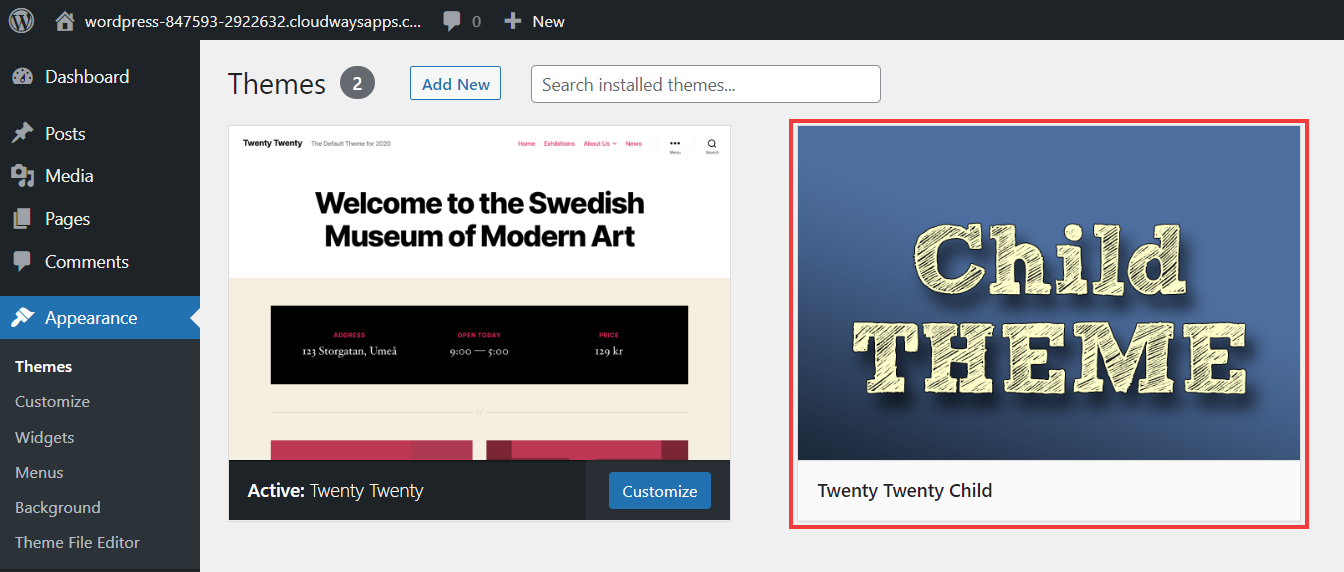
To install a child theme, first create a new theme folder in your WordPress directory. Add a style. css and functions. php file. Include the necessary header information in style. css. Then, activate your child theme via the WordPress dashboard under Appearance > Themes.
Can I Customize A Child Theme Easily?
Yes, customizing a child theme is straightforward. You can override parent theme styles or add new functionality by editing style. css and functions. php. This allows you to make design changes or add features without affecting the parent theme’s code.
Conclusion
Creating a child theme in WordPress is straightforward. It ensures your main theme stays intact. You can customize without worry of losing changes. Start by creating a new folder in your theme directory. Add a style. css file. Link it to the parent theme.
Use functions. php to enqueue styles. Test your child theme thoroughly. Make sure everything works as expected. Your site stays unique and functional. This process is ideal for those wanting control. Remember to back up your site regularly. Enjoy designing with confidence and creativity.
Happy theming!


