
Have you ever stumbled upon a beautifully designed WordPress site and wondered what theme it uses? You’re not alone.
Knowing how to check a WordPress theme from the page source can unveil the secrets behind stunning web designs and inspire your next project. Imagine having the ability to decode the design elements you admire, tailoring your site to match or even surpass them.
This guide is crafted to equip you with the skills to easily identify the WordPress theme of any site you visit. Dive in to unlock the potential of transforming your online presence with the design insights you gather.
Credit: wpcode.com
Accessing Page Source
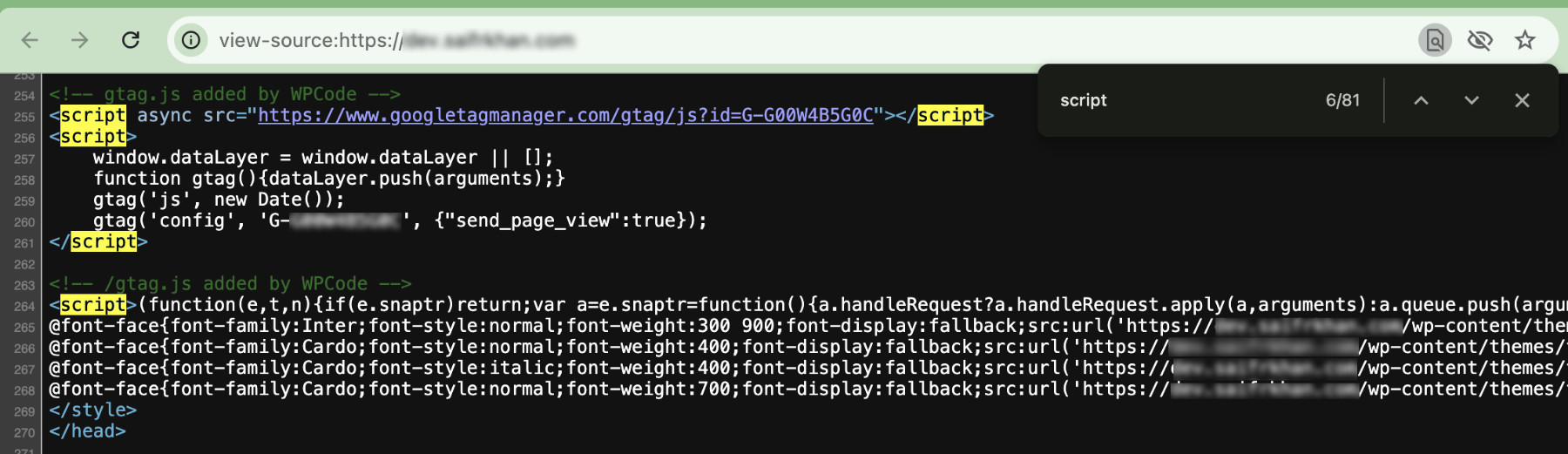
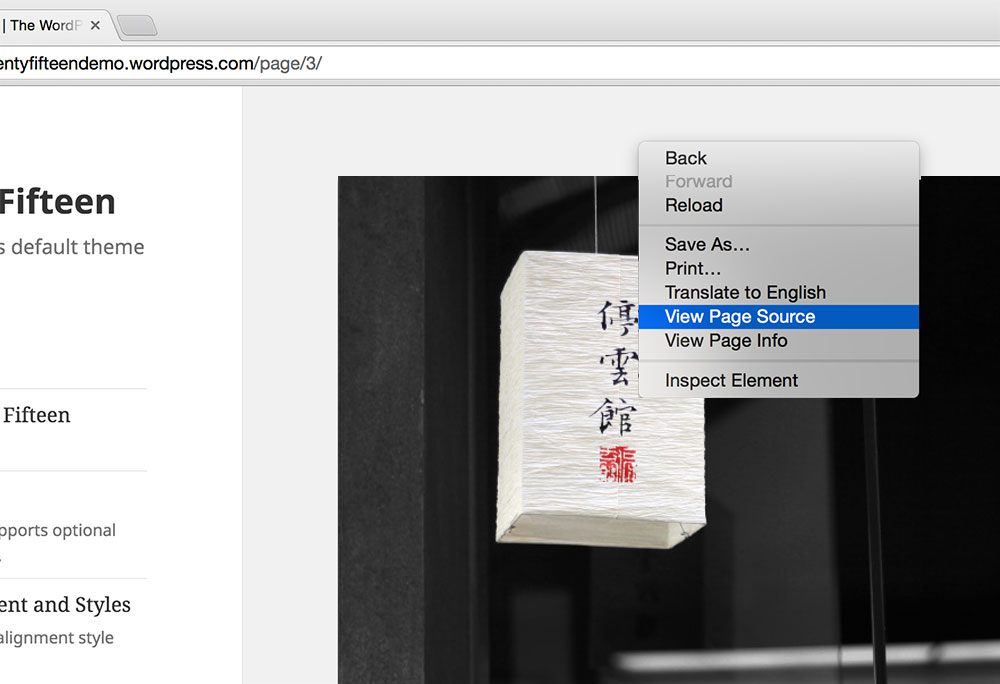
Open your browser. Visit the website you want to check. Right-click on the page. A menu will appear. Click on “View Page Source” or “Inspect”. A new window will open. This is the page source.
Look for the word “theme”. Press “Ctrl + F” for Find. Type “theme” in the search box. You might see the theme’s name. Sometimes, it’s near a folder called “wp-content/themes”.
If you see “style.css”, click on it. It often has the theme’s name. Reading these lines can help. This is how you check a WordPress theme.
Credit: winningwp.com
Identifying The Theme
Find the CSS files in the page source. Right-click on the page. Select “View Page Source” or “Inspect”. Look for links ending in .css. These files help style the page. They often contain theme info.
Locate the theme name in the CSS files. Search for theme or style in the file. The name often appears near the top. The theme name tells you the design. It helps you understand the website’s look.
Using Browser Developer Tools
Open your browser. Right-click on the webpage. Select “Inspect” from the menu. This opens the Developer Tools. You will see a panel. It shows HTML, CSS, and other codes. Focus on the “Elements” tab. This tab is very important. It shows the code structure.
Look for the theme information. Check the header section. Theme details are often here. Search for “theme-name” or “style.css”. These keywords help find the theme. Click on elements to see more details. You can learn a lot here. The theme name might be hidden. Be patient and explore. You can find theme information easily.

Credit: www.wpbeginner.com
Utilizing Online Tools
Many online tools help find WordPress themes. Some tools are free, while others need payment. It’s important to choose reliable tools. Reading reviews helps make a good choice. Seek tools with positive feedback from users. A reliable tool provides accurate information about themes. Look for ones that update regularly. This ensures they work well with new WordPress versions. Always prioritize accuracy and security.
After using a tool, results will show the theme. These results include the theme’s name and version. Check if the theme is up-to-date. Outdated themes may cause problems. Some tools also give details about plugins. This helps understand the site’s setup better. Always verify if the theme information matches the website. Cross-checking ensures you have the right details. This process helps in making informed decisions.
Verifying Theme Authenticity
Spotting the right theme is important. First, open the page source. Look for “wp-content/themes” in the code. This shows the theme name. Compare it with the theme you have installed. Make sure they match.
Visit the theme’s official site. Check the version and updates. Ensure the theme is active and supported. Read user reviews for extra safety. Trust only the official source. This helps verify the theme’s authenticity. Avoid themes from unknown sites.
Troubleshooting Common Issues
Inspect the page source to identify the WordPress theme used on a website. Right-click on the page and select “View Page Source. ” Look for “wp-content/themes” in the code to find the theme name.
Handling Custom Themes
Custom themes can be tricky. They often hide important details. Use browser tools to check them. Right-click on the page and select “View Page Source”. Find CSS files linked in the HTML. Look for names or directories that suggest custom work. Sometimes, themes use strange naming. This can confuse the search. Try searching for common words like “theme” or “style”. If you see no familiar names, it might be a custom theme.
Addressing Hidden Information
Hidden information is not always visible. It may be hidden in scripts. Scripts can hold key theme data. Check for JavaScript files. These files often manage appearance settings. Look for lines that mention theme details. You might find clues to the theme’s setup. Sometimes, information is buried deep. You need patience to find it. Practice helps you get faster at finding these details.
Frequently Asked Questions
How To Identify A WordPress Theme From Source Code?
To identify a WordPress theme, inspect the page’s source code. Look for “wp-content/themes” in the code. The folder name following this path usually indicates the theme’s name. This method is straightforward and quick, giving you insights into the theme used on a website.
Can I Find Theme Details Using Browser Tools?
Yes, browser tools like Chrome’s Developer Tools can help. Right-click the webpage, select “Inspect,” and go to the “Sources” tab. Search for “wp-content/themes” to find the theme name. This method is efficient and provides accurate theme information.
Are There Plugins To Detect WordPress Themes?
Yes, plugins like “Theme Detector” can identify themes. These plugins scan websites and reveal theme details. They are easy to use and provide quick results. Using a plugin is a user-friendly method for discovering WordPress themes on any website.
Why Check A Website’s WordPress Theme?
Checking a WordPress theme helps understand a site’s design framework. It can inspire design ideas for your own site. Knowing the theme also assists in identifying if a site uses a premium or custom theme. This information is valuable for web developers and designers.
Conclusion
Discovering a WordPress theme from page source is straightforward. It helps identify design elements. A few clicks and you can view the theme’s name. Knowing the theme aids in learning website aesthetics. Makes it easy to replicate appealing designs. This process is quick and insightful.
Ideal for those curious about web design. It enhances your understanding of WordPress themes. Perfect for beginners exploring new website features. Remember to check page source regularly. It’s a handy skill for web enthusiasts. Start exploring themes and boost your web knowledge today!


