
Have you ever stumbled upon a beautifully designed WordPress site and thought, “I wish I knew which theme this is”? You’re not alone.
Discovering the theme behind a stunning website can be a game-changer for your own projects. It can save you countless hours of searching and testing. In this guide, you’ll uncover simple methods to identify WordPress themes with ease. Imagine the thrill of having that perfect look for your site! By the end of this article, you’ll be equipped with the tools to unveil the mystery of any WordPress theme.
Ready to boost your website’s aesthetics and functionality? Let’s dive in!
Identifying WordPress Themes
Spotting a WordPress theme can be fun. Use the right-click method first. On a web page, right-click and select ‘View Page Source’. A new tab will open. Press Ctrl + F and type “wp-content/themes/”. You will see the theme name after the slash. Sometimes, it may be hard to find. In such cases, use online tools. What WordPress Theme is That is a popular tool. Just enter the website URL. It shows the theme name and details. These methods work well for most sites. Remember, some themes are custom-made. Custom themes may not show up easily.
Use Online Tools
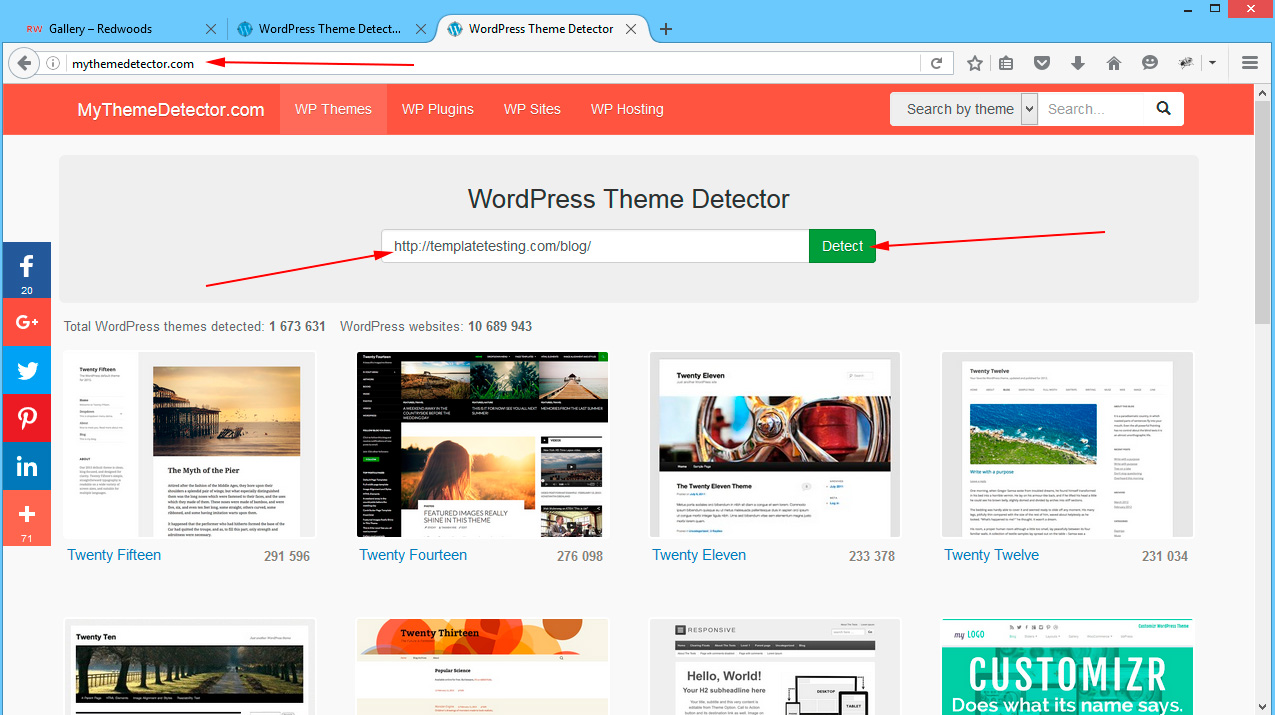
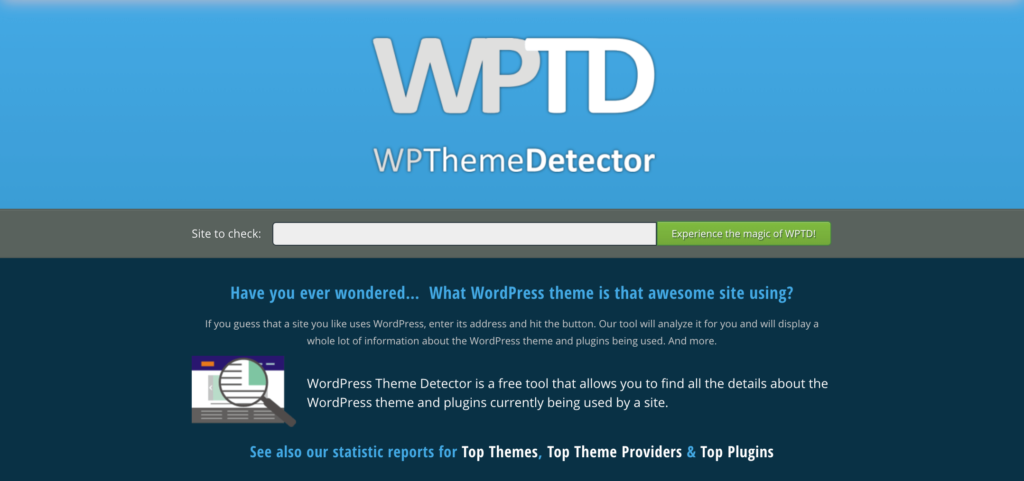
Finding a WordPress theme can be easy with theme detector websites. These tools tell you the theme of a website. Just enter the site URL and click. They scan the site and show theme details. Some sites also show plugin info. WP Theme Detector and WhatWPThemeIsThat are popular choices. They offer quick results. No need to download anything. Kids can use them easily. Theme detectors are simple and helpful.
Browser extensions can reveal WordPress themes. Install them on your browser. Then visit any site you like. Click the extension icon. It shows the theme name. Some extensions show plugin info too. They work fast. They are easy to use for kids. Wappalyzer is a well-known extension. It provides theme and plugin details. Browser extensions make theme checking easy.
Inspecting Website Code
Right-click on a webpage. Choose “View Page Source” or “Inspect”. A new window will show code. This is the website’s HTML. You can find the theme name here. Look for lines that say “wp-content/themes”. This part tells us about the theme. Sometimes, the theme name is in a CSS file. It might look like “theme-name/style.css”. The name is usually in the URL path.
The theme name can help you a lot. It tells you the design style. It shows the website’s unique look. Knowing the theme helps in website building. It gives ideas for your own site. Checking themes is fun and easy. Anyone can do it. Just follow these steps.
Credit: www.templatemonster.com
Explore Css And Html
Find the stylesheet file by viewing the web page source. Right-click on the page and choose “Inspect” or “View Page Source”. Look for a link ending with .css. This is the stylesheet file. It contains theme styles. Check the file path for theme names. Sometimes, the theme name is part of the path. This gives clues about the theme used.
Use the search function in your browser. Press Ctrl + F (or Command + F on Mac). Search for “theme” in the page source. Look for words or links that hint at the theme name. Theme names may appear in comments or code. These references help identify the theme. Keep an eye out for any theme-specific tags.
WordPress Backend Access
Accessing the WordPress backend reveals the active theme details. Navigate to “Appearance” and then “Themes” for a quick check. This section displays the current theme and offers options for exploration.
Dashboard Theme Settings
Accessing the WordPress dashboard is the first step. Log in using your credentials. Once inside, look for Appearance in the menu. Click on it. A drop-down will appear. Select Theme to view settings. Here, you can find the theme name. It shows active theme details. You may see theme versions too. Check if the theme has custom settings. Sometimes, themes offer unique options. These settings can be found here.
Theme Editor
The theme editor is a powerful tool. Access it from the dashboard. Click on Appearance again. Choose Theme Editor. It opens code files of the theme. Look for style.css file. This file contains theme information. Check the top lines of the file. You will find the theme name and author. Sometimes, themes have extra information. This includes tags and descriptions. Reading these can help understand the theme better.
Using Developer Tools
Right-click on the webpage. Choose “Inspect” from the menu. A box with code appears. This is the developer tools panel. Look for the “Elements” tab. This shows the page’s HTML. Find lines with “wp-content/themes”. These lines show the theme’s name. You can see it in the URL path. This is a quick way to know the theme used.
Open the developer tools again. Click on the “Network” tab. Refresh the page to load data. Search for “style.css” in the list. Click on it. The theme’s name is inside this file. Look for the “Theme Name” line. It tells you the theme. This is another way to find out which theme is used.
Ask Website Owner
Contacting the website owner is a good way to know the theme. They might share the theme details with you. Look for a contact page or email address. Send a polite message asking about the theme. Some owners are happy to tell you. Others might ignore your request.
Try using social media if email fails. Many website owners have social profiles. Send a message on platforms like Facebook or Twitter. Explain why you want to know the theme. Keep messages short and friendly. Respect their privacy.
Remember, not all owners will reply. Some prefer to keep their theme secret. Always be polite and understanding in your approach.

Credit: wpmudev.com
Credit: torquemag.io
Frequently Asked Questions
How Can I Identify A WordPress Theme?
To identify a WordPress theme, inspect the website’s source code. Look for the theme’s name in the “wp-content/themes” directory. You can also use online tools like WhatTheme or WPThemeDetector for a quick theme check. These methods help you discover the theme used on a site.
Are There Tools To Check WordPress Themes?
Yes, there are tools available to check WordPress themes. Online tools like WhatTheme, WPThemeDetector, and Wappalyzer can help. These tools scan the website’s code and provide theme information quickly. They are user-friendly and efficient, making theme identification easy for everyone.
Can I Find A Theme Without Inspecting Code?
Yes, you can find a theme without inspecting code by using online tools. Tools like WhatTheme and WPThemeDetector provide theme information without needing technical skills. These tools analyze websites and show theme details, making it simple for non-technical users to identify themes.
Is It Legal To Check A WordPress Theme?
Yes, it is legal to check a WordPress theme used on a website. Inspecting a website’s public source code or using online tools is allowed. This process doesn’t involve accessing private data, ensuring compliance with legal standards and ethical guidelines.
Conclusion
Discovering a WordPress theme is simpler than you think. Use browser tools and online services. They reveal theme details quickly. Knowing the theme helps you replicate or improve your site. It provides design inspiration. Understanding the theme can guide your customization efforts.
You gain insights into popular design trends. This knowledge enhances your website building skills. Keep exploring and learning. Your WordPress skills will grow over time. Embrace curiosity in web design. This approach leads to better website experiences. Enjoy creating and refining your site.
Let your creativity shine through your designs.


