
Are you curious about what database your WordPress site is using? Whether you’re troubleshooting an issue or simply want to understand your website better, knowing the database details is crucial.
Imagine having the power to optimize your site’s performance and security with this knowledge. You’ll uncover secrets that can help you enhance your site’s speed and reliability. This article will guide you step-by-step, making the process simple and clear, even if you’re not a tech expert.
Dive in, and unlock the mysteries behind your WordPress database—it’s easier than you think!

Credit: www.interserver.net
Accessing WordPress Files
FTP clients help you access WordPress files easily. Tools like FileZilla or Cyberduck are popular. First, download and install an FTP client. Open the client and enter your website’s FTP credentials. These include the host, username, and password. Once connected, look for the public_html folder. This is where WordPress files live. Inside, find the wp-config.php file. This file contains important information about your database. Open it with a text editor to check details. You will see the database name and login info there.
The cPanel file manager is another way to access files. First, log in to your cPanel account. Look for the File Manager icon and click it. Navigate to the public_html directory. Here, find the wp-config.php file. Click on it and select the option to edit. Inside, you can see the database name and login details. This method is quick and doesn’t need extra software. Always be careful when editing files.
Credit: www.hostinger.com
Locating The Wp-config.php File
WordPress files have a simple structure. At the root, you find important files. The wp-config.php file is one of them. This file holds key settings. It connects WordPress to the database. Look for this file in the main directory. It is not inside folders like wp-content or wp-includes. Recognizing the file location is crucial. It helps in managing your website.
Accessing the wp-config.php file requires a few steps. First, use an FTP client or your hosting panel. Navigate to your website’s root directory. There, you see the file named wp-config.php. This file contains database details. It has the database name, user, and password. Checking these settings confirms which database WordPress uses. Always be careful when editing this file. Mistakes can cause website issues.
Reading Database Information
Open the wp-config.php file in your WordPress folder. This file holds key settings for your site. Look for define('DB_NAME', 'database_name');. The part inside the quotes tells the database name. It is the name your WordPress uses to store data. Always keep this information safe.
The wp-config.php file also shows your database host. Find the line define('DB_HOST', 'localhost');. The part inside the quotes is the database host. It is often ‘localhost’. But sometimes it might be different. Check with your web host for details. Knowing your database host is important. It helps you connect to your data.
Credit: kinsta.com
Using WordPress Dashboard
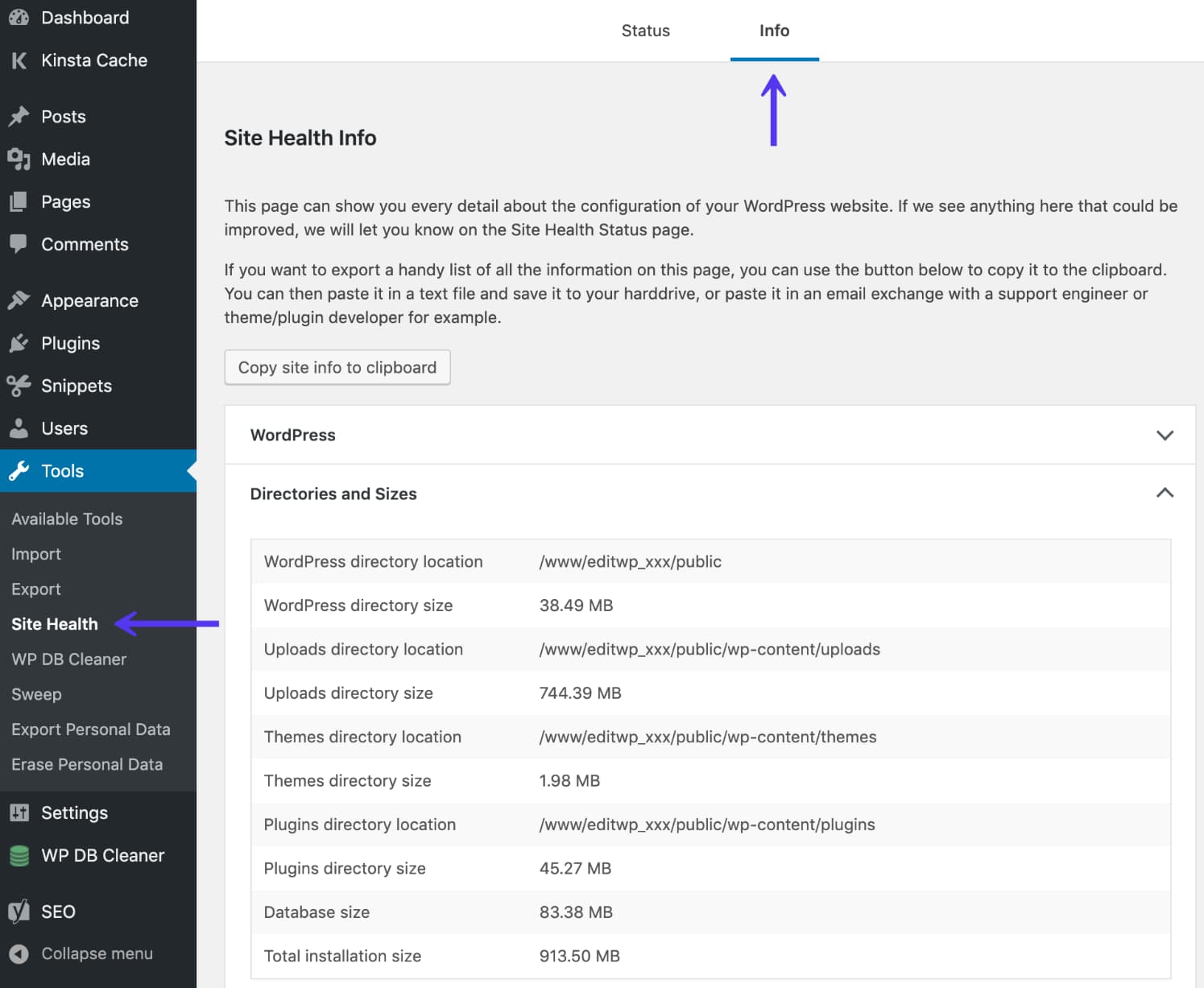
The Site Health Tool is in the WordPress dashboard. It gives important information about your site. Find this tool under the “Tools” menu. Click on “Site Health” to open it. Once there, select the “Info” tab. This tab shows many details about your WordPress setup.
In the “Info” tab, find the “Database” section. This section will show you the database your WordPress uses. You can see the database name and database prefix. It’s a simple way to know your database details. You don’t need special tools. WordPress provides this information directly.
Verifying Database With Phpmyadmin
To find your WordPress database, use phpMyAdmin. Open your hosting control panel. Look for the phpMyAdmin icon. Click it. It opens a new page. You will see a list of databases. Choose your database. It is usually named like your website.
Locate the file named wp-config.php. This file is in your WordPress folder. Open it with a text editor. Look for DB_NAME. This is your database name. Compare it with the names in phpMyAdmin. If they match, you have found the correct database.
Security Considerations
Understanding security considerations is vital for checking which database WordPress uses. Access the wp-config. php file to identify database details. Ensure secure access to this file to protect sensitive information.
Protecting Wp-config.php
The wp-config.php file contains important data. This file is like a key to your site. Keep it safe. Hackers want this file. They can break your site if they get it. Change file permissions to make it safe. Only you should edit it. Store it one level above the root directory if possible. This makes it harder for bad people to find it.
Using Secure Connections
Always use HTTPS for your website. It keeps data private and safe. Secure connections protect users from bad people. Users feel safe on a secure site. A safe site can stop data theft. Always update your SSL certificate. Keep it valid and strong. A valid certificate builds trust. Trust is important for users and search engines.
Frequently Asked Questions
How Do I Find My WordPress Database Name?
To find your WordPress database name, access your website’s root directory using FTP. Locate the `wp-config. php` file and open it. Search for the line that starts with `define(‘DB_NAME’,` to see your database name. This method ensures you accurately identify the database used by WordPress.
Can I Change My WordPress Database?
Yes, you can change your WordPress database. Edit the `wp-config. php` file to update the database name, username, and password. Ensure your new database is correctly set up in your hosting account. Always back up your database before making any changes to prevent data loss.
Why Is It Important To Know My Database?
Knowing your database is crucial for troubleshooting, backups, and migrations. It helps you manage your site’s data effectively. Understanding your database ensures you can optimize performance and security. This knowledge is vital for making informed decisions about your WordPress site management.
What Tools Help Check WordPress Database Details?
Tools like phpMyAdmin and cPanel assist in checking WordPress database details. They provide a user-friendly interface to access and manage your database. These tools allow you to view, edit, and back up your database easily. They’re essential for maintaining your WordPress site’s database efficiently.
Conclusion
Checking your WordPress database is easy. Follow the steps above carefully. You’ll find the database name and details quickly. Understanding your database helps with site management. It keeps your website running smoothly. Regular checks ensure everything is up-to-date. This prevents issues and improves performance.
If problems arise, knowing your database can help. It simplifies troubleshooting. Try these tips today. Stay informed about your site’s technical aspects. This knowledge can be valuable in the long run. Remember, a well-managed database supports a successful website. Keep exploring WordPress tools for better control.


