
Have you ever stumbled upon a beautifully designed website and wondered what WordPress theme it uses? You’re not alone.
Discovering the theme behind a website can unlock a treasure trove of design inspiration for your own projects. But how do you uncover this secret without breaking a sweat? You’ll learn simple, effective ways to check a website’s WordPress theme.
Imagine having the power to enhance your website’s look and feel by tapping into the brilliance of successful designs. Read on, and let your creativity soar as you uncover the secrets hidden in your favorite WordPress sites.
Why Identify A Website’s Theme
Knowing a website’s theme can be very helpful. It tells what design and features the site uses. This can inspire your own website. You can learn about the layout and style choices. Themes can show how certain functions are set up. This helps in making your site better.
Understanding themes is useful for developers. It makes it easy to give clients a look they want. Themes can also show what is trending. This helps keep your website up-to-date. Knowing the theme helps in troubleshooting issues. You can find solutions faster. It also helps in learning about the theme’s compatibility with plugins.

Credit: themeforest.net
Common Methods To Discover Themes
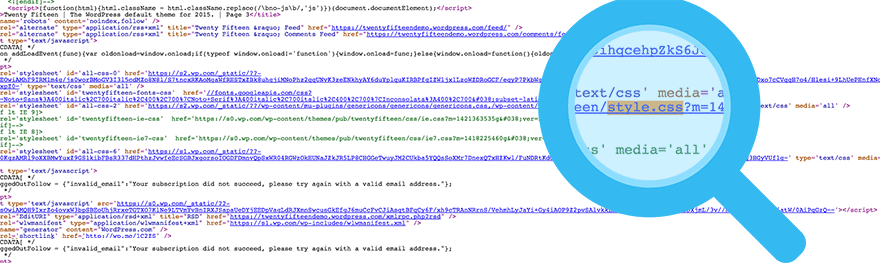
Finding out which WordPress theme a website uses can be easy. The first way is to use online tools. These tools quickly show the theme name. Another way is to check the source code of the website. Right-click on the page and select “View Page Source.” Look for “wp-content/themes” in the code. This shows the theme folder name. If the theme name is not clear, try using the browser inspector. Press F12 or right-click and select “Inspect.” Search for clues under “Stylesheets” or “Scripts.” Sometimes, theme names are listed there.
Using Browser Developer Tools
Find the theme name by using browser developer tools. Right-click on the webpage and select “Inspect”. This opens a panel with HTML and CSS details. Look at the HTML section first. Search for keywords like “theme” or “style.css”. These often tell the theme name.
Theme names are sometimes hidden in source code. Use the search function within the developer tools. Press Ctrl + F to open the search box. Type theme-related words like “WordPress”. This helps you find theme names faster.

Credit: wptavern.com
Online Theme Detection Tools
Many tools help find a website’s WordPress theme. WPThemeDetector is a popular choice. It gives theme details and plugins used. WhatWPThemeIsThat is another tool. It is simple and shows theme and plugin info.
ScanWP is also used by many. It shows the theme and maker. These tools are easy to use. Just enter the website URL to check. They save time and give quick info.
These tools help find theme info fast. They are easy for beginners. Knowing the theme helps in web design ideas. But they have some limits. Not all themes are detected. Custom themes might not show up. Some tools only find popular themes. These tools can’t always find private themes.
They are good for basic info. But they are not perfect. Using these tools is a start. For deep info, more research is needed. It’s important to use many tools to compare results.
Manual Source Code Inspection
WordPress themes have a unique structure. They contain many files. Each file serves a specific purpose. These files work together. They build the website’s look and feel. The main file is style.css. It holds theme details. This includes the theme name. Also, the author and version.
Theme files are easy to spot. They start with index.php. This file is the main template. Other important files include header.php. It controls the top part of the page. Then, footer.php manages the bottom part. functions.php is special. It adds features to the theme. These files help in understanding the theme’s design. They show how the site functions.
Credit: winningwp.com
Identifying Theme By Unique Elements
Some themes use special fonts that stand out. These fonts might not be common. If the website uses a unique font, it can be a clue. Custom icons are also important. They give a website a distinct look. Check the icons and fonts closely. These can hint at the theme used.
Widgets are small tools on a website. Some widgets are unique to certain themes. A theme might have a special calendar widget. Or a unique social media feed. Look for widgets that seem different. These might point to the theme the website uses.
Exploring Child Themes
Parent themes provide the main structure and design. Child themes rely on parent themes. They allow changes without altering the main files. This ensures safe updates.
Parent themes control the main look and feel. Child themes adjust parts of the website. This keeps the original theme intact. Best for beginners and experts alike.
To find changes in a child theme, check the style.css file. This file lists the changes made. Look for the line that says “Template”. It shows the parent theme name.
Explore the functions.php file for extra features. This file might have new code. It helps in understanding modifications. Always back up files before making changes.
Utilizing WordPress Theme Detector Plugins
WordPress theme detector plugins are useful tools. They help find the theme of a website. Start by installing the plugin. Follow easy steps. Go to the WordPress dashboard. Click “Plugins” and then “Add New.” Search for the theme detector plugin. Click “Install Now” and then “Activate.” Using the plugin is simple. Enter the website URL. Click “Detect Theme” and wait. The plugin shows the theme name and details. Some plugins also show active plugins. This helps understand the website better.
Top Recommended Plugins
| Plugin Name | Features |
|---|---|
| WP Theme Detector | Easy to use, shows theme details |
| What WordPress Theme Is That? | Shows theme and plugin info |
| ScanWP | Fast detection, provides theme history |
Ethical Considerations
Always respect the copyright of a theme. Do not copy or use themes without permission. This can lead to legal troubles. Themes are created by people. They put in a lot of work. Always give credit where it is due. Use themes that are free or that you have bought. This is the right thing to do.
Be careful with privacy. Some tools may collect data without asking. Make sure the tools you use are safe. They should not share your data. Always check the privacy policy. This keeps your data safe. Your information is important. Protect it at all times.
Frequently Asked Questions
How Can I Find Out My Site’s Theme?
To check your site’s WordPress theme, use online tools like WP Theme Detector. Alternatively, view the page source and search for “wp-content/themes. ” This reveals the theme folder name, helping identify your site’s theme.
Are There Tools To Identify WordPress Themes?
Yes, several tools can identify WordPress themes. WP Theme Detector, What WordPress Theme Is That, and ScanWP are popular choices. They analyze the site’s code to reveal theme details, making theme identification straightforward.
Can I Change My Site’s WordPress Theme?
Yes, you can change your site’s WordPress theme. Navigate to the WordPress dashboard, then click on “Appearance” and “Themes. ” Choose a new theme from available options or upload one, ensuring compatibility with your site.
Why Is Knowing My Site’s Theme Important?
Knowing your site’s theme is crucial for customization and troubleshooting. It helps in understanding theme features and limitations, ensuring compatibility with plugins. Familiarity with the theme aids in making informed design decisions and maintaining site functionality.
Conclusion
Discovering a website’s WordPress theme is straightforward. Use built-in tools or extensions. These methods provide quick results. Knowing the theme helps in design choices. You can replicate or customize as needed. This makes your site unique. Analyzing themes enhances learning.
It boosts creativity and web development skills. Regularly check themes for updates. This ensures compatibility and security. Stay informed to maintain your site effectively. Engage with online communities for tips. These communities offer valuable insights. Explore themes to inspire future projects.
With practice, identifying themes becomes second nature. Happy exploring and learning!


