
Are you struggling to keep your WordPress site up-to-date but can’t figure out which version of your theme you’re using? You’re not alone!
Knowing your theme version is crucial for ensuring compatibility with plugins and receiving security updates. Imagine the peace of mind you’ll have when your site runs smoothly without any hitches. In this guide, you’ll discover simple steps to check your WordPress theme version, even if you’re not tech-savvy.
Let’s dive in and empower you to take control of your website’s health, so you can focus on what truly matters—delivering great content to your audience.
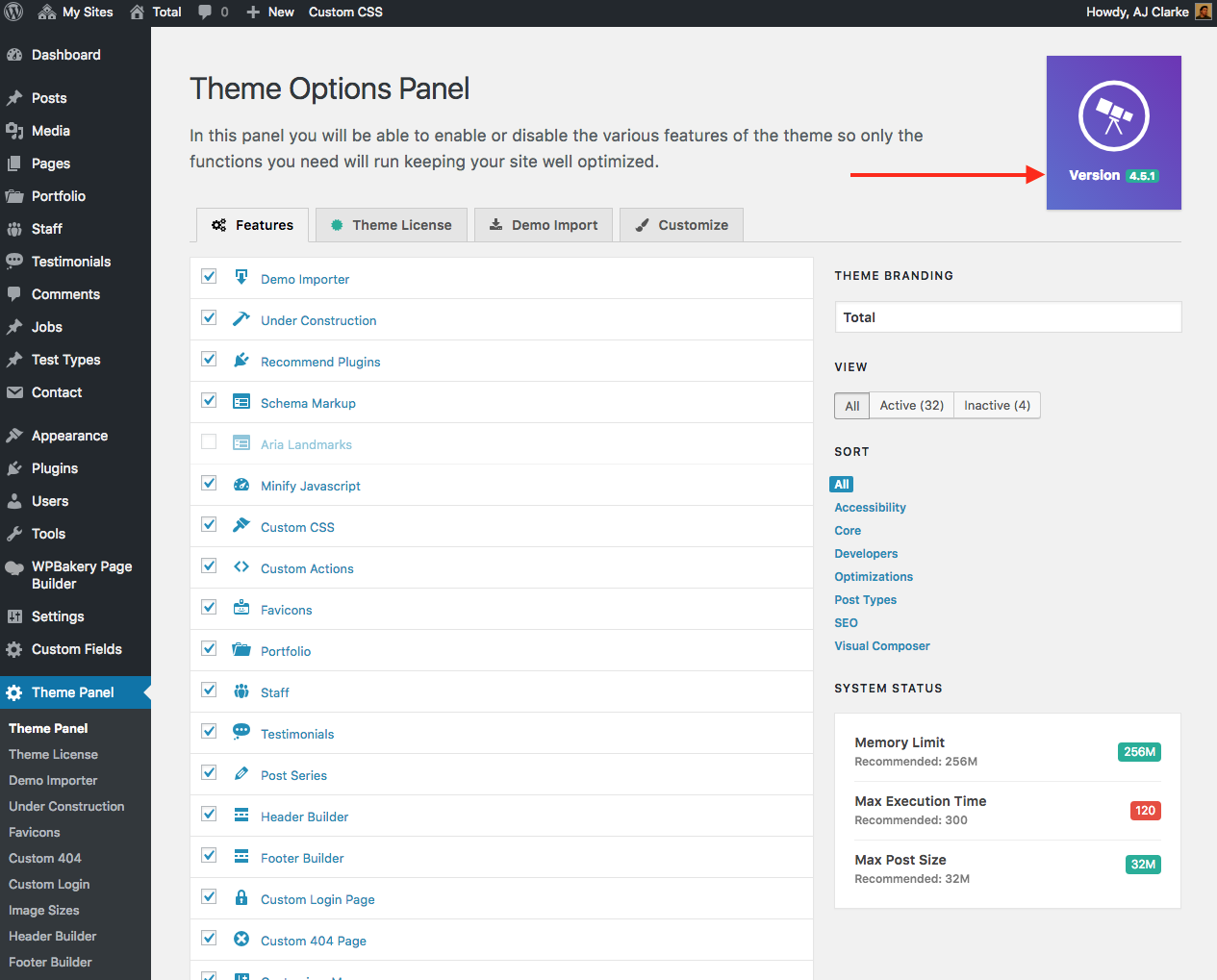
Credit: totalwptheme.com
Importance Of Theme Version
Knowing your theme version is crucial. It helps with compatibility. New features often require updated themes.
Themes change over time. Updates fix bugs and improve security. An outdated theme might not work well.
Developers release updates for a reason. They want themes to be safe and fast. Always keep your theme up to date.
Accessing Theme Details In Dashboard
Open your WordPress dashboard. This is the main area. You can make changes here. Find the Appearance section on the left menu. Click on it. This is where you manage themes. You can change how your site looks from here.
Navigating To Appearance
Look for the Appearance option in the menu. It’s easy to spot. Click it to enter the theme settings. You will see all installed themes. Select the theme you want to check. This will show theme information.
Locating Theme Information
The theme details will be visible. Look at the version number. You can find it in the theme’s description. This tells you the version of the theme. Make sure it is up to date. This helps your site run smoothly.
Using Theme Editor
Discovering the theme version in WordPress is simple. Access the Theme Editor in your WordPress dashboard. Check the style. css file at the top for theme details, including the version number. This quick step helps keep your site updated and secure.
Finding The Style.css File
Open your WordPress dashboard. Go to Appearance and click on Theme Editor. On the right side, you will see a list of files. Look for the style.css file. Click on it to open. At the top of this file, you will see theme details. The theme version is listed there. It is usually next to the word Version. Make sure to not change anything in the file. If you do, the theme might not work.

Credit: docs.themeisle.com
Checking Theme Version Via Ftp
Use an FTP client like FileZilla to connect. Enter your server details. These are host, username, and password. Click connect. Wait for the connection to establish. You will see your website files.
Find the wp-content folder. Double-click to open. Inside, locate the themes folder. Open it to see all your themes. Click on the active theme folder. This is where you will find the files.
Look for a file named style.css. Right-click and open it. Search for the Theme Version line. Here, you can see the version number. Write it down for future reference.
Third-party Plugins For Version Check
Plugins help check theme versions in WordPress. Some plugins are popular for theme management. Theme Check is a helpful plugin. It checks your theme for errors. WP Theme Detector shows your theme’s version. It also shows other theme details.
Popular Plugins For Theme Management
Below is a list of popular plugins:
- Theme Check – Checks theme for issues.
- WP Theme Detector – Detects theme version.
- Theme Authenticity Checker – Finds hidden code.
Steps To Install And Use
Go to your WordPress dashboard. Click on ‘Plugins’. Search for your chosen plugin. Click ‘Install’ and then ‘Activate’. Go to the plugin settings. Check your theme version there.
Benefits Of Knowing Your Theme Version
Knowing your theme version helps in making sure your site runs smoothly. Plugins and themes need to work together. If they don’t, your site might break. Updates often fix bugs and improve performance. Using the right version prevents unexpected issues. It helps keep your website secure and fast. So, always check your theme version. It is a small step, but very important.
Themes add new features with updates. These features can make your site look and work better. Having the latest version means you have the newest tools. This can help your site stand out. Older versions might miss out on these new tools. Stay updated to use all the features your theme offers. This keeps your site fresh and engaging for visitors.
Troubleshooting Version Issues
To check the theme version in WordPress, navigate to the dashboard. Click on “Appearance” and then “Themes. ” Hover over the active theme and select “Theme Details” to view the version number. This helps in troubleshooting version issues effectively.
Common Problems
WordPress themes can have issues. These issues can affect site performance. A common problem is outdated themes. Outdated themes may not work well with new plugins. Sometimes, themes don’t show the latest features. This can limit your site’s functionality. Another problem is compatibility. Themes may not be compatible with WordPress updates. They can cause errors or slow down your site.
Solutions And Tips
Checking your theme version is easy. Go to your WordPress dashboard. Click on “Appearance,” then “Themes.” Here, you can see your current theme version. If it’s outdated, update it. Always back up your site before updates. This prevents data loss. Keep an eye on compatibility. Read theme reviews for issues. Regular updates help keep your site running smoothly. Use child themes for custom changes. They protect your original theme. This way, your site stays safe and fast.

Credit: totalwptheme.com
Frequently Asked Questions
How Can I Find My WordPress Theme Version?
To find your WordPress theme version, navigate to the Appearance section in your dashboard. Select Themes and click on Theme Details. The version number is usually displayed alongside other theme information. Alternatively, you can check the style. css file in your theme folder.
Why Is Theme Version Important In WordPress?
Knowing your theme version is crucial for compatibility and security. Theme updates often include bug fixes, security patches, and new features. Keeping your theme updated ensures optimal performance and security for your WordPress site.
Can I Check Theme Version Without Logging In?
Yes, you can check the theme version without logging in by accessing the theme’s style. css file via FTP. Open the file and locate the version number in the header section. This method requires FTP access to your website’s server.
What If My WordPress Theme Doesn’t Show Version?
If your theme doesn’t display a version, check the style. css file manually. Open the file using FTP or a file manager. The version number is typically in the header section. If it’s missing, you may need to contact the theme developer for more information.
Conclusion
Knowing your WordPress theme version is crucial. It helps keep your site secure. Regular updates ensure better performance. You avoid potential issues with outdated themes. Checking your theme version takes only a few minutes. Use the dashboard or theme files for quick access.
Stay informed about changes. Your website stays reliable and fast. This boosts user experience and satisfaction. It’s worth the effort for peace of mind. Remember to check regularly. Simple steps lead to a smoother online journey. Keep your WordPress site up-to-date.
Happy blogging!


