
Is your WordPress blog in need of a fresh look? Changing your blog theme is one of the simplest ways to give your site a new vibe.
A new theme can enhance your site’s appearance, improve functionality, and even boost engagement. But, if you’re worried about the technical side of things, don’t be. Switching themes is easier than you might think, and you’re about to discover exactly how to do it.
Imagine your blog capturing more attention, keeping visitors engaged longer, and reflecting your unique style. Ready to transform your blog into something you truly love? Let’s dive in and explore how you can effortlessly change your blog theme on WordPress.

Credit: bloggingexplorer.com
Choosing The Right Theme
Your blog’s purpose is very important. It helps in picking the right theme. A food blog may need a theme with recipe features. A travel blog might need a photo gallery. Think about what your blog needs. This will guide your choice.
Everyone has different design tastes. Some like bright colors. Others prefer simple looks. Choose a theme that matches your style. Make sure it fits your blog’s topic. This helps attract the right audience.
A theme should work on all devices. Check if it is responsive. Test it on phones and tablets. Also, ensure compatibility with your WordPress version. This avoids errors later.
Backing Up Your Current Theme
Backup plugins are very important. They save your theme files. Pick a good plugin. Install it on your site. Run the backup. This saves everything. You can restore it later.
Exporting content is easy. Go to your dashboard. Click on tools. Select export. Choose what to export. Click download. This saves your posts and pages. Keep it safe.
Widgets are useful. They show important stuff. Write down their settings. Save these settings. Use them later. This helps after changing themes.
Installing A New Theme
First, open your browser. Type in your website address. Add “/wp-admin” at the end. Hit enter. You will see the login page. Enter your username and password. Click login. Now, you are in the WordPress dashboard.
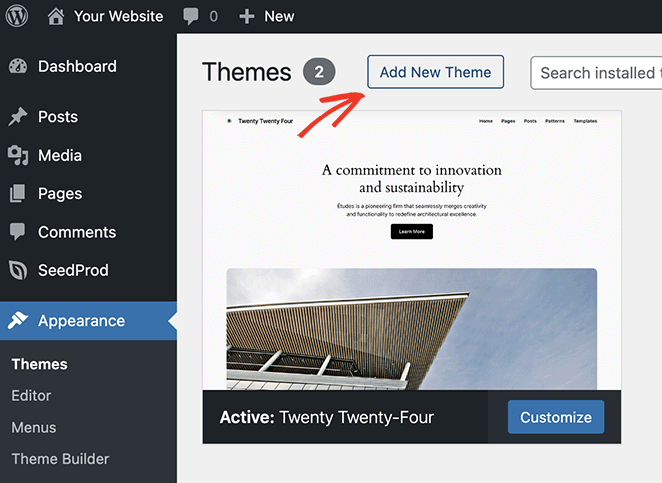
Look at the left menu. Find “Appearance”. Click on it. A drop-down menu appears. Click “Themes”. You are now in the themes section. Here, you see your active theme. You also see other available themes.
Want a new theme? Click “Add New” at the top. Then click “Upload Theme”. Choose the theme file from your computer. Make sure it is a .zip file. Click “Install Now”. Wait a few seconds. Click “Activate” to use the theme. Your new theme is now live!
Credit: www.seedprod.com
Activating The New Theme
Previewing the Theme is a fun step. It lets you see your blog’s new look. Before making it live, check if everything fits well. Sometimes, the theme might look different from what you expected. That’s why previewing is important. It helps you avoid surprises later.
Customizing Theme Settings can make your blog unique. Adjust the colors, fonts, and layout to match your style. Themes often come with many options. Explore them. See what works best. Customization makes your blog feel like yours.
Activating and Saving Changes is the last step. After previewing and customizing, it’s time to activate. Click the “Activate” button. Don’t forget to save changes. This makes sure your hard work is not lost. Now, your blog has a fresh, new look!
Customizing Your Theme
Explore the process of changing your blog theme on WordPress with ease. Access the dashboard, navigate to “Appearance,” and select “Themes. ” Pick your favorite design and click “Activate” to transform your blog’s look instantly. Enjoy a fresh style with just a few clicks.
Adjusting Colors And Fonts
Change the look of your blog by adjusting colors and fonts. Go to the theme settings. Choose colors that match your style. Pick fonts that are easy to read. Make sure the text stands out. These changes make your blog unique. They help your readers enjoy your content.
Configuring Widgets
Widgets are small tools. They add features to your blog. You can find them in the theme options. Add widgets like a search bar or recent posts. Place them in the sidebar or footer. This makes your blog more useful. Widgets help visitors navigate your blog better.
Setting Up Menus
Menus guide your readers. They show where to find things. Create menus by going to the menu settings. Add pages like Home, About, and Contact. Arrange them in order. Easy menus help readers find what they need. They keep your blog organized.
Testing Your New Theme
Check for broken links on your blog. Click every link. Make sure all links work. Broken links can frustrate readers. Use a link checker tool. Fix any broken links you find. This helps keep your blog neat.
Ensure your blog is mobile compatible. Open your blog on a phone. See how it looks. Everything should fit the screen. Text should be easy to read. Images should adjust to screen size. Use responsive design settings. This makes your blog user-friendly.
Verify your blog’s loading speed. A slow blog can annoy visitors. Use speed test tools. Check how fast pages load. Improve speed by reducing image sizes. Use faster hosting services. Remove unnecessary plugins. This will help your blog load quickly.
Troubleshooting Common Issues
Resolving Plugin Conflicts can be tricky. Deactivate all plugins first. Then, activate them one by one. This helps find the problematic one. Some plugins don’t work well together. Check plugin support forums. Many users share fixes there. Always keep plugins updated. Updated plugins have fewer issues.
Fixing Display Errors is important. Sometimes, themes don’t load right. Clear your browser cache first. This often fixes minor issues. If not, check theme settings. Some settings might be wrong. Use the WordPress Customizer to adjust them. If the problem continues, contact theme support. They can help with bigger issues.
Restoring from Backup is a lifesaver. Always have a recent backup. Use plugins like UpdraftPlus. They make backups easy. If your theme breaks, restore the backup. Go to your backup plugin. Select the backup you need. Click restore. Your site should return to normal.

Credit: www.theblogstarter.com
Frequently Asked Questions
How Do I Change A Theme In WordPress?
To change your theme, log in to WordPress, go to the dashboard, select ‘Appearance’, then ‘Themes’. Browse available themes or upload a new one. Click ‘Activate’ to apply your chosen theme. Always preview before activating to ensure it matches your vision and functionality needs.
Can I Customize My WordPress Theme?
Yes, you can customize your WordPress theme. Navigate to ‘Appearance’ and then ‘Customize’. Here, you can modify colors, fonts, and layouts. Some themes offer more customization options than others. Utilize widgets and plugins for additional functionalities to enhance your blog’s appearance.
Will Changing Themes Affect My Content?
No, changing themes won’t affect your content. Your posts, pages, and media remain intact. However, your layout, widgets, and some theme-specific settings may change. Always back up your site before switching themes to safeguard your settings and customize the new theme accordingly.
Do I Need Coding Skills To Change Themes?
No, you don’t need coding skills to change themes. WordPress provides an intuitive interface for theme management. Most themes offer user-friendly customization options. However, basic CSS knowledge can be helpful for advanced customizations. Utilize WordPress forums and resources for guidance and support.
Conclusion
Changing your blog theme on WordPress is simple and rewarding. A new theme can enhance your site’s look and user experience. Follow the steps shared to update your theme smoothly. Always choose a theme compatible with your content. Check for mobile responsiveness and speed.
Backup your blog before making changes. This ensures safety and easy recovery. Experiment with different themes to find the perfect fit. Your blog deserves a fresh and attractive appearance. Start exploring new themes today and elevate your WordPress site.


