
Are you ready to give your WordPress.org site a fresh, new look? Changing your theme is one of the easiest ways to transform your website’s appearance and feel.
Whether you want to improve aesthetics, enhance functionality, or simply try something new, knowing how to change your WordPress. org theme can make a significant difference. But diving into the theme-changing process might seem intimidating. Don’t worry; you’re not alone.
This guide will walk you through each step, ensuring you can switch your theme effortlessly and without any hiccups. Ready to discover how to revamp your site and captivate your audience with a stunning new design? Let’s get started!
Credit: wpbakery.com
Choosing The Right Theme
Picking a theme needs care. First, check the theme’s design. Does it fit your blog’s style? Next, look at the theme’s speed. Fast themes load quickly. They make users happy. Also, ensure the theme is responsive. This means it looks good on all devices. Review if the theme supports plugins you need. Some themes work better with many plugins. Consider the cost. Some themes are free, others cost money. Support is key too. If a theme has good support, problems get fixed faster. Lastly, check the ratings. High-rated themes are usually good.
There are many places to find themes. WordPress.org is a top choice. They have many free themes. ThemeForest offers both free and paid themes. The themes there are usually high quality. Elegant Themes is another option. They offer a theme called Divi. It’s very popular. StudioPress provides themes for bloggers and businesses. Their themes are well-coded. MyThemeShop has themes with great designs. They also focus on speed. TemplateMonster is a good choice for unique themes. They offer many styles.
Backing Up Your Site
Backups keep your site safe. They protect against data loss. Hackers can attack. Mistakes can happen. Updates may fail. A backup is your safety net. It helps restore your site. Peace of mind is priceless. Regular backups are smart. They save time and stress.
Many tools help with backups. Some are free. Others cost money. Popular plugins include UpdraftPlus, BackupBuddy, and BackWPup. They are easy to use. They offer different features. Choose one that fits your needs. Some store data in the cloud. Others save to your computer. Always check your backup files. Make sure they work.
Installing A New Theme
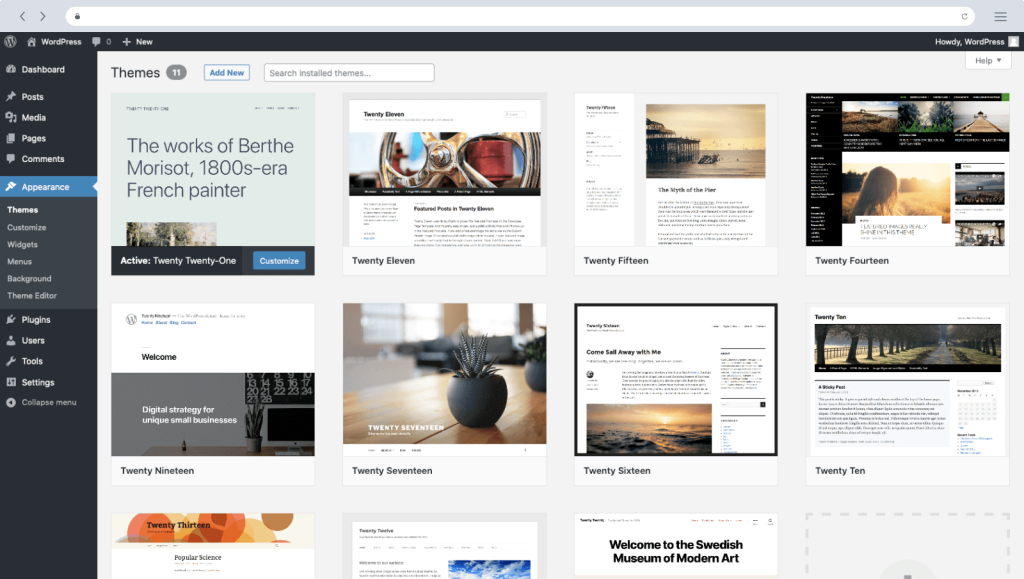
Access the WordPress dashboard first. Click on “Appearance” and then “Themes”. This opens the theme directory. Here, you see many options. Use the search bar for specific themes. Choose a theme you like. Click “Install” to start the process. Wait a few seconds. Finally, click “Activate” to apply the theme.
Have a theme file ready on your computer. It should be a .zip file. Go to the dashboard and click “Appearance”. Then select “Themes” and click “Add New”. Choose the “Upload Theme” button. Click “Choose File” to find your theme file. Select the file and click “Install Now”. Wait for it to upload. Finally, click “Activate” to use your new theme.

Credit: make.wordpress.org
Customizing Your Theme
The WordPress Customizer is a powerful tool. It helps you change your theme’s look. You can change colors, fonts, and more. Find the Customizer in your WordPress dashboard. Click on Appearance, then Customize. A new window will pop up. On the left, you will see options. On the right, a live preview. Adjust settings until you like what you see. Save your changes when done. Your site will look great!
Sometimes, you need to edit theme files. This gives more control. Always create a child theme first. This protects your changes. Use a program like FTP to access files. Find the functions.php or style.css file. Make small changes. Be careful! One wrong change can break your site. Save changes and check your site. If it looks good, you’ve done it right!
Testing The New Theme
Make sure the new theme works with your plugins. Some themes may not fit well with certain plugins. This can break parts of your site. Always check if your theme is compatible with your current setup. You can do this by visiting the theme page. Look for any notes on compatibility issues.
It’s also wise to check if your site loads well. Slow loading times can push visitors away. Use tools like PageSpeed Insights to test speed. Ensure your theme is optimized for performance.
Look at how your site appears with the new theme. Make sure it doesn’t look strange or off. Check the homepage and other important pages. See if images and text are in the right place.
Also, ensure the color scheme is pleasing. The theme should match your brand colors. Adjust settings if needed. Keep your site looking professional and neat.

Credit: make.wordpress.org
Troubleshooting Common Issues
Changing a WordPress. org theme can sometimes lead to issues. Common problems include broken layouts and missing widgets. Resolve these by checking theme compatibility and updating plugins.
Resolving Theme Conflicts
Theme conflicts can break your site. Always check for plugin issues first. Disable all plugins one by one. See if the problem goes away. If it does, activate plugins one by one. This helps find the bad plugin. Update it or find a new one. Sometimes, two themes clash. Use only one active theme. Check if both are trying to change the same thing. This can cause trouble. Switching themes might help.
Fixing Design Problems
Design problems can ruin your site look. Often, it’s a CSS error. Check the style sheet for mistakes. Fix the wrong code. Refresh the page to see changes. Sometimes, images don’t show up. Make sure the image link is correct. Broken links can mess up the page. Use the link checker tool to find them. Then fix or remove bad links. Keep design neat and simple. This makes it easy to fix issues.
Maintaining Your Theme
Always keep your WordPress theme updated. Updates fix bugs and add new features. They also improve security and performance. Check for updates often. Use the WordPress dashboard to update. It is easy and fast.
Check your theme’s performance often. Use tools to see how fast it loads. A slow theme can hurt your site. Users may leave if pages take long to load. Optimize images and reduce plugins to speed up your site. Always aim for fast loading times. Good performance keeps your visitors happy.
Frequently Asked Questions
How Do I Change A WordPress.org Theme?
To change a theme, go to your WordPress dashboard. Click on ‘Appearance’, then ‘Themes’. Browse or search for a new theme. Once you find one, click ‘Activate’. Your site will instantly switch to the new theme. Always check theme compatibility and backup your site before changing.
Can I Change My Theme Without Losing Content?
Yes, changing themes won’t affect your content. Your posts, pages, and settings remain intact. However, some theme-specific features might disappear. Always preview a theme before activating. This ensures your site looks as expected. Backup your site before making changes for added security.
What Should I Consider Before Changing Themes?
Consider your site’s purpose and design goals. Ensure the theme is responsive and supports plugins you use. Check reviews and ratings for reliability. Make sure it’s updated regularly. Preview the theme to see its layout and features. Compatibility with your site’s content is crucial.
How Do I Preview A WordPress Theme?
To preview a theme, go to ‘Appearance’ > ‘Themes’ in your dashboard. Hover over a theme and click ‘Live Preview’. This shows how your site will look with the new theme. You can adjust settings before activating. Ensure the theme matches your site’s style and functionality needs.
Conclusion
Changing your WordPress theme is simple. Follow the steps outlined here. Explore different themes to find your perfect fit. Each theme offers unique designs and features. Always back up your site before making changes. This ensures your data stays safe.
Check compatibility with plugins to avoid issues. Customize your theme to match your brand. Small changes can enhance your site’s look. WordPress themes help express your style. Keep your content engaging and user-friendly. With the right theme, your site can shine.
Enjoy your new look and improved user experience. Keep learning and experimenting with WordPress.


