
Are you tired of how your WordPress.com site looks and feel like it’s time for a fresh new look? Changing your theme can completely transform your website and make it more engaging for your visitors.
Whether you’re a blogger, a business owner, or just someone looking to spice up your personal site, switching to a new theme can make all the difference. In this guide, you’ll discover just how easy it is to change your WordPress.
com theme. You’ll be guided step-by-step, ensuring a smooth transition without losing your precious content. Dive in and see how a simple theme change can elevate your site’s appearance and enhance user experience. Your audience deserves the best, and with the right theme, you can deliver just that. Keep reading to unlock the secrets of a stunning website makeover!
Choosing The Right Theme
Every blog is unique. First, think about what your blog is about. Is it a travel blog or a cooking blog? The theme should match your blog’s purpose. This makes it look nice. Also, know your audience. Who reads your blog? Kids or adults? Pick a theme they will like. Check if you need special features. Some themes have photo galleries. Others may have online stores. Think about what your readers want. This helps in choosing the best theme.
WordPress.com has many themes. Some are free, while others cost money. Visit the theme library. Look through the options there. Use filters to find what you need. You can sort by color, layout, and style. Preview the themes before you choose. This shows how your blog will look. A good theme should be easy to use. It should also work on phones and tablets. Choose wisely for the best experience.
Accessing Theme Settings
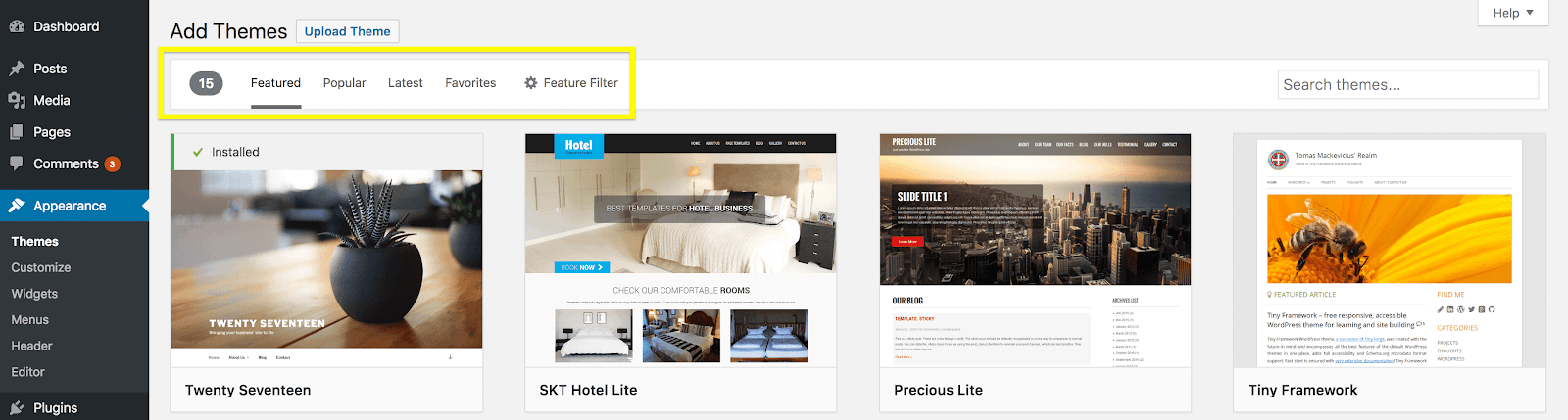
First, you must log into your WordPress.com account. Then, find the dashboard on your screen. Look for the sidebar. This sidebar has many options. Click on Appearance. This will open a new page. Here, you can see themes you can use. You can change how your site looks. Pick a theme that you like.
Once in the Appearance section, the Theme Menu will show. This menu helps you change your theme. You can view and choose different themes here. Each theme has unique features. Read theme details for more info. Some themes may cost money. Others are free. Make sure to choose a theme that fits your site. You can preview themes before applying them. This way, you know how your site will look.
Previewing Themes
Using the Live Preview Feature helps you choose a theme. Click on a theme you like. Then, use the live preview to see how it looks. This way, you can check if it suits your style. Try different layouts and colors. Make sure it fits your content. You can explore many themes without changing your site. This feature makes it easy. No changes are permanent until you say so. Take your time. Find the perfect match for your needs.
Comparing Different Themes is also important. Each theme has unique features. Some are for blogs. Others are for shops. Compare them side by side. Look at the design, colors, and layout options. See which one fits your goals. Does it have the features you need? Check for customization options. You want a theme that you can tweak. Make sure it is mobile-friendly. Most visitors use phones. Choose the theme that works best for you.
Installing A New Theme
To install a new theme, first log into your WordPress.com account. Navigate to the Dashboard, then click on Appearance. Here, you’ll see the Themes option. Browse through the available themes. Choose one that you like best. Click the Install button to start the installation. It only takes a moment. Once installed, you can preview how it looks on your site.
Activating The Chosen Theme
After installation, it’s time to activate your new theme. Go back to the Themes section in your Dashboard. Find the theme you installed. Click the Activate button. This will make it live on your site. Check your site to see the new look. Adjust settings if needed.
Managing Theme Updates
Themes need updates to stay secure and fast. Regular updates add new features too. To update, go to the Themes section. Look for an Update button next to your theme. Click it to start the update process. Always back up your site before updating. This keeps your data safe.
Customizing Your Theme
Open the customizer tool. It helps you see changes live. Find it in the dashboard. Click on “Customize”. You can adjust theme settings here. Changes show instantly. Easy for beginners to use.
Colors and fonts change the look. Choose colors that match your style. Fonts set the mood. Bold fonts look strong. Light fonts feel gentle. Click “Colors” to start. Try different options. Preview before saving.
Widgets add new features. Menus help people navigate. Click “Widgets” to add tools. Choose what you need. Click “Menus” to set paths. Make sure they are easy to find. Keep it simple. People like simple sites.

Credit: jetpack.com
Testing Your New Theme
Mobile phones are everywhere. Your website must look good on phones. Open your site on a phone or tablet. Check if everything fits the screen well. No text should be cut off. Pictures should not be too big or too small. Menus should be easy to use. If you need to scroll sideways, something is wrong. Ask someone else to look at your site on their phone. Different people use different phones. Make sure the site works well on all of them.
Plugins are like special tools for your website. They help your site do more things. Check if your theme works with important plugins. Look at plugins that help with SEO or add contact forms. Sometimes themes and plugins do not work well together. Go to the plugin settings and see if everything looks right. If something breaks, you may need a different theme or plugin. Test plugins one by one. This way, you find out which ones work best.
Troubleshooting Common Issues
Changing a WordPress. com theme can be confusing. Troubleshoot by checking theme compatibility and clearing browser cache. Make sure to update your browser for a smooth theme change experience.
Resolving Display Problems
Sometimes, themes don’t show right on WordPress.com. This could be due to plugin conflicts or outdated browsers. Start by clearing your browser cache. This can fix simple display errors. Next, check for plugin issues. Disable plugins one by one. Observe if the display improves after disabling each plugin. If the problem persists, update your browser. Ensure it’s the latest version. If none of these steps work, contact WordPress support for help. They can guide you in fixing display issues.
Restoring Previous Themes
Want to go back to your old theme? Start by accessing your theme settings. Look for the theme you want to restore. Click on it to activate. Your previous settings will be restored. If you had custom settings, they might not return. You may need to reapply them manually. Always keep a backup of your theme settings. This ensures you can easily restore them if needed.

Credit: www.templatemonster.com
Enhancing Site Performance
Pick a theme that loads fast. It helps your site run smoothly. Go to the theme settings. Change the color and font. Make sure they are easy to read. Use a simple design. It makes the site look clean. Avoid too many features. They can slow down your site. Check mobile settings. Your site should work on all devices.
Use plugins to make your site faster. Caching plugins store parts of your site. This helps it load quicker. Image optimization tools are important. They make images smaller without losing quality. This saves space. Security plugins protect your site from threats. These tools keep your site safe and fast. Always update plugins. Old versions can slow your site.
Credit: wpengine.com
Frequently Asked Questions
How Do I Change My WordPress.com Theme?
To change your WordPress. com theme, log in to your dashboard. Navigate to “Appearance” > “Themes. ” Browse available themes and click “Activate” on your desired theme. Customization options will appear under the “Customize” section. Ensure your theme is compatible with your site’s needs before activating.
Can I Preview A Theme Before Applying It?
Yes, you can preview a theme before applying it. In the “Themes” section of your dashboard, click “Live Preview” on any theme. This allows you to see how your site will look without making changes. If satisfied, click “Activate” to apply the theme.
Are All WordPress.com Themes Free?
Not all WordPress. com themes are free. Many themes are available at no cost, but premium themes often require purchase. Premium themes offer advanced features and customization options. You can filter themes by price in the “Themes” section to find suitable options for your site.
How Can I Customize My WordPress Theme?
You can customize your WordPress theme using the “Customize” feature. Access it through your dashboard under “Appearance. ” Options include changing colors, fonts, and layouts. Widgets and menus can also be adjusted. Some themes offer more customization than others, depending on their design.
Conclusion
Changing your WordPress. com theme is easy and fun. A new look can refresh your site. First, explore the theme options available. Choose one that suits your style and needs. Follow the steps to activate it. Remember, a good theme enhances user experience.
It helps your content shine. Don’t rush the process. Take time to find the perfect fit. Experiment with different options. Always preview before finalizing the change. This way, your site remains visually appealing and user-friendly. Enjoy the creative process and watch your site transform!


