
Ever found yourself staring at your WordPress site, wishing for a fresh look? Changing themes can breathe new life into your website, making it more appealing to your visitors.
If you’re using Softaculous, you’re already one step ahead in the game. This powerful tool simplifies the process, making theme changes a breeze. Imagine transforming your site’s appearance without breaking a sweat. In this guide, you’ll discover just how easy it is to switch WordPress themes using Softaculous.
Ready to give your website the makeover it deserves? Let’s dive in and unlock the secrets to a seamless transition. Keep reading to ensure your website not only looks stunning but also retains its functionality and charm.
Choosing The Right Theme
Picking a theme for your website is fun. But it’s also important. First, think about your website’s purpose. Is it a blog or a shop? Next, check if the theme is mobile-friendly. Many people use phones to browse. Fast loading is also crucial. No one likes slow websites. Look for easy-to-read fonts. Good fonts make reading easy. Lastly, ensure it works with your plugins. Compatibility is key.
Many websites offer WordPress themes. ThemeForest is a popular choice. They have many designs. Another is WordPress.org. They offer free themes. Elegant Themes is known for its stylish options. StudioPress offers themes with strong coding. Lastly, TemplateMonster offers a variety. Each source has unique themes. Explore and choose wisely.
Accessing Softaculous Dashboard
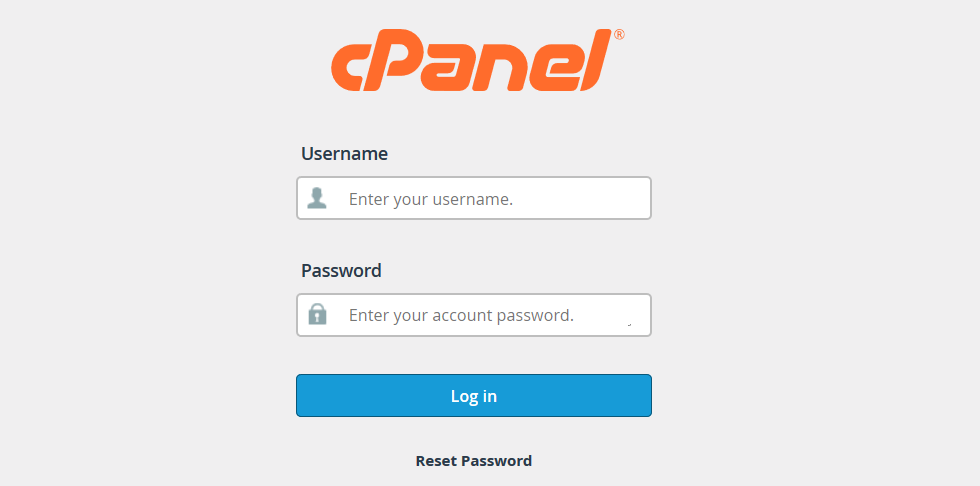
Begin by logging into your cPanel. This is where all your website files live. Find the cPanel login page and enter your username and password. Check your email for these details if you don’t have them. Once logged in, you’ll see a dashboard with many icons. Don’t worry, you’ll only need a few of them. Look for the Softaculous icon. It’s usually under the “Software” section.
Softaculous is a tool that installs software for you. Click on the Softaculous icon in your cPanel. This opens the Softaculous dashboard. Here, you can manage your website applications. Find the section for WordPress. Softaculous helps you change themes easily. Just follow the steps in the dashboard. It’s quick and simple. Make sure to save any changes.
Locating Installed Applications
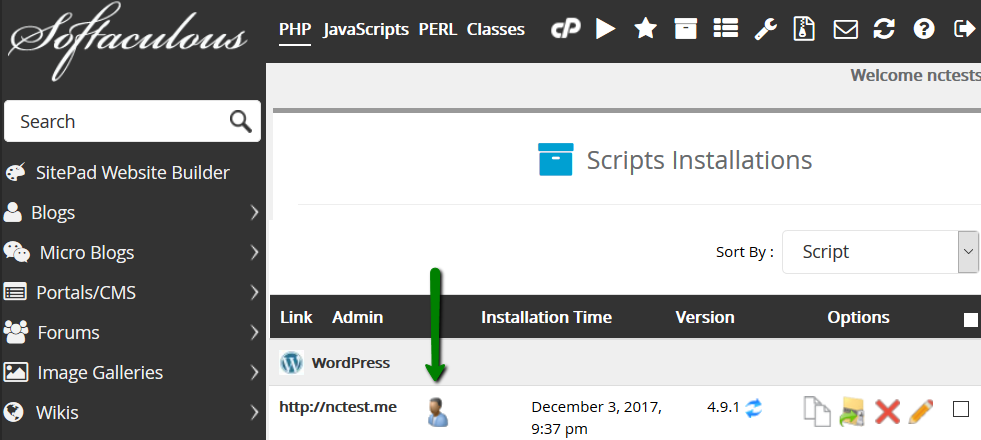
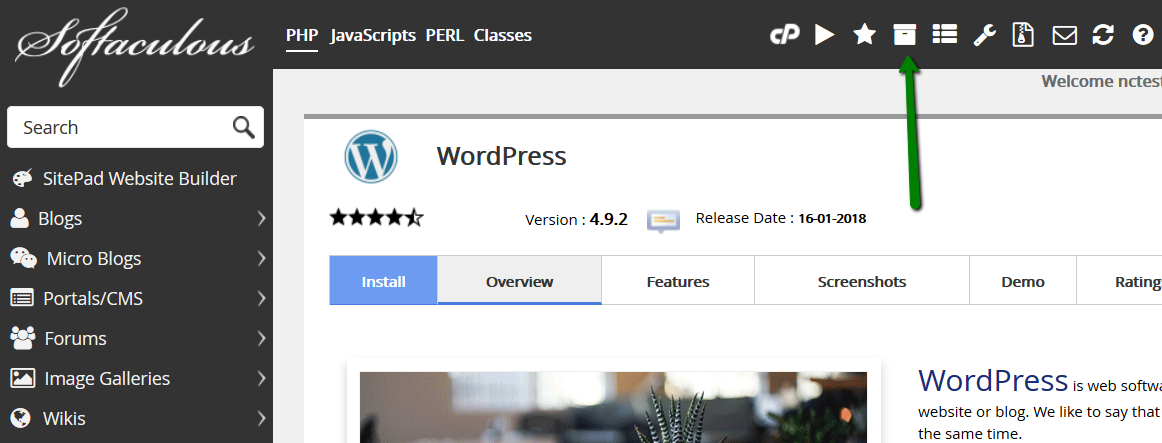
First, find the Softaculous icon in your hosting panel. Click on it. You’ll see many apps. Locate the Installed Applications tab. Click on it to view the list. Here, you can see your WordPress installation. It shows the version and the installation URL. This is your starting point.
Finding Your WordPress Installation
Look at the list under Installed Applications. Find WordPress. Check the details. You will see the installation path. Note the URL. This tells you where WordPress is installed. Remember this for later steps.
Accessing WordPress Admin Panel
Type your WordPress URL in a browser. Add /wp-admin at the end. Press enter. The login page appears. Enter your username and password. You are now in the admin panel. Here, you can change themes easily. Explore the options available.
Credit: www.namecheap.com
Exploring WordPress Theme Options
WordPress offers a wide range of themes. These change the look of your site. Start by going to the theme section in your dashboard. Here, you will find many options. Each theme has a different style. Some are simple, while others are more colorful. Pick one that matches your taste. You can also filter themes by categories. This makes it easy to find what you like. Remember, a good theme helps your site look nice.
Before choosing, you can preview themes. This shows how your site will look. Click on the theme you like. Then, select the “Live Preview” button. This helps you see changes without making them live. Check the layout and colors. Make sure they fit your needs. If you like it, you can install it. If not, try another one. Previewing helps you decide better.
Installing A New Theme
It’s easy to upload a theme. First, find the theme you like. Download it to your computer. Go to your WordPress dashboard. Click on Appearance. Then, choose Themes. Click on Add New. Next, click Upload Theme. Select the theme file you downloaded. Click Install Now. Wait for the upload. Once done, click Activate. Your new theme is ready to use. Enjoy your fresh look!
The theme directory has many options. Access it from your WordPress dashboard. Click on Appearance. Select Themes. Click Add New. Browse the themes available. Filter by features or popularity. Pick a theme you like. Click Install. Wait for the process to complete. Finally, click Activate. Your site now has a new style. Explore the settings for customization!
Activating The Selected Theme
First, log into your WordPress dashboard. Navigate to the “Appearance” menu. Click on “Themes”. You will see a list of available themes. Choose the theme you want. Click “Activate” to apply it. The theme will change immediately.
Applying The New Theme
After activation, check your website. Make sure the new look is good. Some themes might need adjustments. You can do this from the “Customize” option. Change colors, fonts, or layouts as needed.
Checking For Compatibility
Ensure the theme works well on all devices. Check if images and text are clear. Use a tool to test for mobile-friendliness. Some themes may need plugin updates. Keep your plugins up-to-date for best results.
Customizing Your Theme
The WordPress Customizer helps you change your site easily. You can adjust colors, fonts, and more. See changes live as you make them. This tool is simple to use. First, open the Customizer from your dashboard. Choose Appearance, then click Customize. Use the menu on the left to explore options. Each change updates in real-time on the right. Play with different settings to find your style. Save changes when you are happy. This keeps your site looking great and fresh.
Widgets add extra features to your site. They can show recent posts or social media links. To add widgets, go to the Customizer. Choose Widgets from the menu. Pick the area where you want them. Click Add a Widget and select from the list. Menus help visitors find pages easily. To create a menu, click Menus in the Customizer. Add pages and arrange them. Make sure to save your work. Widgets and menus help organize your site well.
Testing The New Theme
Discover the process of changing WordPress themes using Softaculous. Easily navigate the user-friendly interface to explore and test new themes. Updating your site’s look can be done with just a few clicks, enhancing your website’s appearance effortlessly.
Checking Site Appearance
Changing a theme can change your site’s look. Make sure everything looks good. Check the header, footer, and sidebar. Ensure your text is easy to read. Images should fit well on the screen. Make sure your colors are pleasing. They should not hurt the eyes. If you see anything wrong, you might need to edit your theme.
Ensuring Functionality
All parts of your site must work well. Click on links to see if they work. Make sure your menu is easy to use. Check forms to see if they send data. Look at the site’s speed. It should load quickly. Test on different devices. Phones, tablets, and computers must show the site properly. Fix any problems you find.
Backing Up Your Theme Settings
Switching WordPress themes using Softaculous is simple. First, back up your theme settings to ensure safety. This prevents data loss and keeps your website intact while exploring new designs.
Using Backup Plugins
Backup plugins help to save your theme settings. They are easy to use. First, choose a popular plugin like UpdraftPlus. Install it on your WordPress site. Once installed, open the plugin settings. Select the option to backup your theme settings. Click “Backup Now” to start. The plugin will save everything safely. Now your settings are secure.
Exporting Theme Settings
Exporting theme settings is another method. Many themes have an export option. Go to your theme settings page. Look for “Export” or “Backup” options. Click to download the settings file. Save the file on your computer. This file contains your theme settings. You can import it later if needed. This ensures you don’t lose your customizations.
Credit: www.namecheap.com
Credit: www.namecheap.com
Frequently Asked Questions
How Do I Install A WordPress Theme On Softaculous?
To install a WordPress theme via Softaculous, log into your cPanel and navigate to Softaculous. Select WordPress, then choose “Install. ” During installation, pick your desired theme from the available options. This makes setting up your WordPress site with the right theme quick and easy.
Can I Change Themes Without Losing Data?
Yes, you can change WordPress themes without losing data. Switching themes doesn’t affect your posts, pages, or settings. However, some customizations may require adjustments. Always back up your site before making changes to avoid any mishaps or data loss.
Are Free Themes Available On Softaculous?
Yes, Softaculous offers free WordPress themes. During the installation process, you can browse and select free themes. These themes provide a cost-effective way to customize your site. Explore the options to find a theme that suits your style and functionality needs.
How To Preview A Theme Before Changing?
To preview a theme in WordPress, go to the “Appearance” section in your dashboard. Select “Themes” and click on “Live Preview” for the desired theme. This feature allows you to see how your website will look with the new theme before making any changes.
Conclusion
Changing WordPress themes on Softaculous is simple and quick. Follow the steps carefully. Choose a theme that matches your site’s purpose. Preview before you apply changes. It ensures the new look fits your needs. Remember, a theme impacts user experience and site appeal.
Regular updates keep your site fresh and secure. Don’t rush the process; take your time. Explore different themes to find the best fit. This guide helps make the transition smooth. Enjoy your new WordPress theme and improved site appearance. Engage your audience effectively with the right design.


