
Are you ready to give your WordPress site a fresh new look? Changing your WordPress theme through cPanel might seem like a daunting task, but it’s easier than you think.
Imagine having the power to transform your website’s appearance in just a few clicks, without the fear of losing your precious content. In this guide, you’ll discover step-by-step how to seamlessly switch themes using cPanel, ensuring a smooth transition that captivates your audience.
Stay with us as we unveil the secrets to a hassle-free theme change, boosting your site’s appeal and keeping your visitors engaged. Your website deserves this upgrade, and you deserve the confidence to make it happen.
Accessing Cpanel
Begin by entering your cPanel URL in the browser’s address bar. The URL usually looks like yourdomain.com/cpanel. Enter your username and password to log in. These details are sent by your hosting provider. Make sure they are correct. The login page should load quickly. If not, check your internet connection.
Once inside cPanel, find the File Manager icon. It’s usually in the Files section. Click on it to open. File Manager helps you see all your website files. It’s important for changing themes. Open the public_html folder. This folder holds your WordPress files. Check if all files are visible. Now you’re ready to change themes.
Navigating File Manager
File Manager is a useful tool in cPanel. It helps you manage your website’s files easily. First, open the File Manager from your cPanel dashboard. Look for the Public_HTML directory. This directory contains all the files for your website. Click on it to open.
Opening The Public_html Directory
Inside the Public_HTML directory, find the folder named wp-content. This folder holds all WordPress themes and plugins. Click to open the wp-content folder. Here, you can see the themes folder. You can change your theme by uploading new files. Ensure the new theme is in the correct format.
Finding The WordPress Content Folder
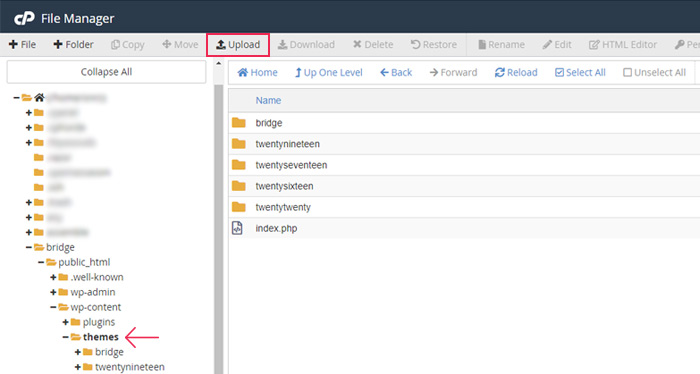
Within the wp-content, locate the themes folder. This folder has all your active and inactive themes. To change a theme, upload your new theme files here. Make sure your theme files are complete. Check the theme folder structure. Proper structure is key for theme functionality.
Changing Themes Manually
Easily change WordPress themes in cPanel by accessing the File Manager. Navigate to the “wp-content/themes” directory, then rename the active theme folder. This prompts WordPress to switch to a different default theme.
Locating The Themes Folder
Find the themes folder in your Cpanel. Access the file manager. Open the public_html directory. Locate the wp-content folder. Inside, see the themes folder. This folder holds all your themes. You will make changes here. Be careful. Wrong edits can break your site.
Uploading A New Theme
Upload your new theme to the themes folder. Use the upload option. Select your theme file. It should be in .zip format. After uploading, extract the file. Ensure it creates a new folder. This folder should contain theme files. Double-check your upload. Mistakes can cause errors.
Activating The Theme Via Database
Activate your theme using the database. Access phpMyAdmin from your Cpanel. Select your WordPress database. Look for the wp_options table. Find the template and stylesheet rows. Change their values to your new theme name. Save your changes. Your new theme is now active.

Credit: www.youtube.com
Using Phpmyadmin For Theme Activation
Switching WordPress themes through cPanel involves using phpMyAdmin to access your database. Navigate to the ‘wp_options’ table, locate the ‘template’ and ‘stylesheet’ rows, and replace their values with your new theme’s name. This method is handy when you can’t access the WordPress dashboard.
Accessing Phpmyadmin
First, log into your cPanel account. Look for the phpMyAdmin icon and click on it. This tool helps you manage your WordPress database.
Inside phpMyAdmin, find your WordPress database. The name usually matches your website name. If unsure, check your wp-config.php file for database details.
Editing The Theme In Database
Click on the wp_options table. This table stores your website’s settings. Look for the template and stylesheet rows. These rows control your current theme.
Click Edit next to the template row. Change the value to your new theme’s folder name. Do the same for the stylesheet row. Press Go to save changes. Your new theme should now be active.
Verifying Theme Change
After changing your WordPress theme in Cpanel, it’s important to ensure everything looks right. Check the website appearance
The website should look fresh. Check the homepage first. Make sure images load correctly. Look at the text alignment. It should be neat. Visit different pages on your site. Each page should appear correctly. If anything is missing, check your theme settings. They might need adjusting.
Sometimes, themes don’t work perfectly. Some features might not appear. A plugin could be causing problems. Try disabling plugins one by one. Refresh the site after each change. Check for updates to your theme. An update can fix problems. If issues continue, contact your theme support. They can help solve difficult problems.
Checking The Website Appearance
Troubleshooting Common Issues
Restoring Previous Theme
Changing WordPress themes in Cpanel is easy. Access your Cpanel, navigate to the File Manager, and find your WordPress directory. Restore the previous theme by renaming the current theme’s folder, reverting it back to the original theme’s folder name. This restores your website’s look quickly and efficiently.
Locating The Backup
Finding the theme backup is crucial. First, log into your cPanel account. Navigate to the File Manager. The backup is usually in the public_html directory. Look for a folder named backup or similar. Check the date to ensure it’s the correct backup. If you find the folder, open it. Inside, there should be files related to your old theme. Make sure everything is there. If you can’t find it, contact support for help.
Reverting Changes In Cpanel
Reverting changes is simple. Open the File Manager in cPanel. Navigate to the public_html directory. Find your current theme folder. Rename it for safety. Next, locate the backup folder you found earlier. Copy its contents. Paste them into the theme directory. Refresh the website to see changes. If it doesn’t work, try clearing the browser cache. Always keep a backup before making changes. This prevents loss of important files.
Tips For Choosing Themes
Selecting the perfect theme can boost your site’s appeal. Access cPanel, navigate to the File Manager, and locate your WordPress themes folder. Upload your chosen theme, then activate it through the WordPress dashboard for a fresh look.
Evaluating Theme Features
Look at the features of each theme. Some themes have extra tools. These tools make your site better. Check for a responsive design. This means your site looks good on phones and computers. Customizable options are important. They let you change colors and fonts. SEO-friendly themes help your site rank higher. Speed is also key. Fast themes make users happy. Choose themes with good reviews. They show other users like them.
Ensuring Compatibility
Make sure the theme works with your plugins. Some themes might not support all plugins. Check the theme’s updates. Themes that get updates often are better. They stay safe and work well. Browser compatibility matters too. Your site should look nice on Chrome, Firefox, and Safari. Test the theme on different browsers. This ensures it looks good everywhere.

Credit: www.hostitsmart.com
Credit: qodeinteractive.com
Frequently Asked Questions
How Do I Access Cpanel For WordPress?
To access cPanel for WordPress, log into your hosting provider’s account. Navigate to the dashboard and find the cPanel link. Click on it to open cPanel, where you can manage WordPress themes and other settings. Ensure you have the correct login credentials.
Can I Change Themes In Cpanel Easily?
Yes, changing themes in cPanel is straightforward. First, access your cPanel account. Locate the ‘File Manager’ and open the ‘wp-content’ directory. Then, navigate to the ‘themes’ folder. Upload your new theme and activate it through your WordPress admin dashboard.
What Are The Risks Of Theme Changes?
Changing themes can affect your site’s appearance and functionality. Some widgets or plugins might not be compatible with the new theme. Always back up your site before making changes to prevent data loss or layout issues.
How To Backup Before Changing Themes?
Backing up your site is crucial before changing themes. Use a plugin like UpdraftPlus or access cPanel’s ‘Backup’ feature. Save all files and databases to ensure you can restore your site if something goes wrong during the theme change.
Conclusion
Switching WordPress themes via cPanel is straightforward. Start by logging in. Navigate through the file manager. Locate your theme folder. Modify as needed. Remember to backup your files first. This prevents data loss. Follow each step carefully. Double-check your changes.
Ensure everything displays correctly. Your website should look fresh and professional. A new theme can improve user experience. Take your time. Explore different designs. Choose what fits your brand best. Keep learning. Practice makes perfect. Soon, you’ll be comfortable with theme changes.
Enjoy your refreshed website look!


