
Are you eager to give your WordPress site a fresh new look without the fear of unleashing any mishaps onto your live site? Changing your WordPress theme is a fantastic way to revamp your website’s design and functionality.
However, the thought of making those changes live before you’ve had a chance to perfect them can be daunting. Imagine being able to test and tweak your new theme behind the scenes, ensuring everything is just right before making it public.
This article will guide you through the process of changing your WordPress theme without publishing it live. You’ll learn how to experiment freely, avoid unpleasant surprises, and maintain your site’s professional appearance. Keep reading, and discover how to have the best of both worlds: innovation and security.
Credit: wpdatatables.com
Preparing For The Theme Change
Always backup your site before changes. This keeps your data safe. Use plugins like UpdraftPlus or Duplicator. These tools help in easy backup. Save backups in the cloud or on your computer. This ensures you can restore if needed. A backup is like a safety net.
Pick a theme that suits your needs. Check for responsive design. This makes your site look good on all devices. Read reviews and check ratings. These give insights into how the theme works. Consider the customization options it offers. This will help make your site unique.
Credit: www.seedprod.com
Using A Staging Site
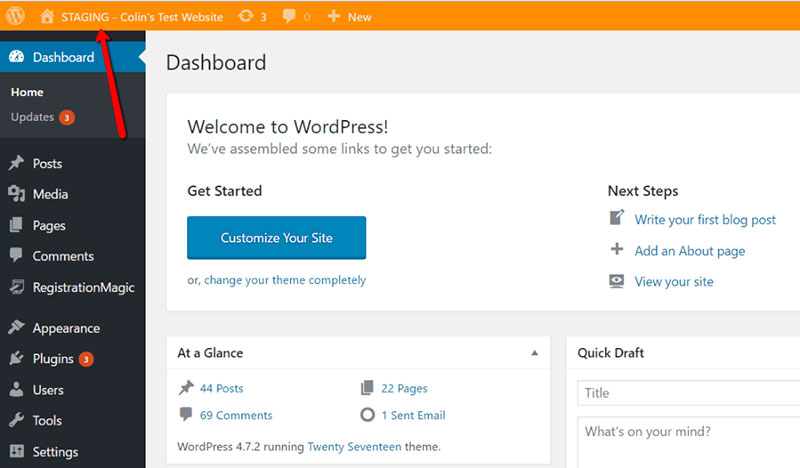
Create a copy of your site. This is called a staging site. It lets you make changes safely. Start by installing a plugin. Many plugins help create staging sites. Choose one that suits you. Follow the plugin steps carefully. Make sure your site is copied correctly. Check the staging site. Ensure it works like the main site. This step is important.
Activate the new theme on the staging site. Look at how it changes things. Check pages and posts. Ensure images look good. Make sure menus work. Test every function. Look for errors and fix them. Make sure everything looks right. This helps avoid problems later. The staging site lets you test safely.
Using Theme Switcha Plugin
First, go to the WordPress dashboard. Click on Plugins in the menu. Then, click on Add New. Type Theme Switcha in the search box. Find the plugin in the results. Click on the Install Now button. Wait a few moments. After installation, click on Activate.
Go to the Theme Switcha settings. You can find it under Settings in the dashboard. Select the theme you want to test. Click on Preview. Check if everything looks good. If not, make necessary changes. This way, you see the theme without making it live.

Credit: jetpack.com
Customizing Your New Theme
Start by checking the new theme’s layout. Ensure it fits your website’s style. Adjust the colors to match your brand. Change fonts to make the text easy to read. Use the theme’s settings to move sections around. Make sure your site looks good on all screens. Always preview changes before saving them. Small tweaks can make a big difference.
Check how your site looks on phones. A mobile-friendly site is very important. Use tools to see how the site appears on different devices. Adjust font sizes if they are too small. Ensure buttons are easy to click. Your site should load fast on mobile. Test all links to ensure they work. A good mobile experience keeps visitors happy.
Testing And Reviewing Changes
Ensure the new theme works with your plugins. Some themes might cause errors. This can break your site. Check if your theme supports the latest WordPress version. Older themes might not work well. They could cause issues. Look for updates from the theme developer. Updated themes are better. They fix known problems.
Test the speed of your site with the new theme. Slow themes can affect user experience. Users might leave your site. Use tools like Google PageSpeed to check speed. Good themes load quickly. Check how your site looks on mobile devices. Responsive themes are important. They ensure your site looks good everywhere. Slow mobile sites lose users.
Finalizing The Theme Change
Changing your WordPress theme needs careful steps. Deploy the new theme on a test site first. Check if everything works well. This avoids problems on your live site. Backup your current theme and data. This keeps your site safe. If anything goes wrong, you can restore it.
Deploy The New Theme
Upload your new theme to WordPress. Go to the WordPress dashboard. Click on Appearance and then Themes. Find the new theme and click Activate. Now, check the site. See if the layout looks right. Also, check if all the links work. Fix any issues you find. This will help before you make the theme live.
Monitor After Publishing
After activating the new theme, keep an eye on your site. Watch for any errors or slow loading times. Ask friends to test your site. They might see problems you missed. Check your analytics too. Look for any drops in traffic. If issues arise, seek help from forums or theme support. This ensures your site runs well.
Frequently Asked Questions
How Can I Preview A WordPress Theme?
You can preview a WordPress theme using the “Live Preview” feature. Navigate to “Appearance” then “Themes” in your dashboard. Click “Live Preview” on the desired theme. This allows you to see how your site will look without activating the theme.
It’s a safe way to test design changes.
Is Changing WordPress Theme Risky?
Changing a WordPress theme can affect your site’s appearance and functionality. Backup your site before making changes. Ensure theme compatibility with existing plugins and content. Use staging sites to test new themes. This minimizes risks and ensures smooth transitions without affecting your live website.
How Do I Safely Change Themes?
Safely change themes by using a staging environment or plugin. Backup your site before any changes. Check theme compatibility with your plugins. Preview the theme to ensure it aligns with your design goals. This process helps avoid potential issues and ensures a smooth transition.
Can I Customize A Theme Before Publishing?
Yes, you can customize a theme before publishing. Use the WordPress Customizer to make changes. Access it via “Appearance” then “Customize. ” Preview changes without affecting your live site. This allows you to tailor the theme to your needs before activation.
Conclusion
Switching your WordPress theme doesn’t have to be stressful. Follow simple steps to preview without publishing. Test changes in a staging environment first. This ensures your live site stays intact. Check compatibility and backup your data. Always save a copy before making changes.
Use plugins to help with the process. They offer extra safety features. Stay calm and take your time. With careful planning, your site will look fresh. And your visitors won’t notice a thing. Enjoy your new theme without any hiccups.
Happy blogging!


