
Imagine this: You’ve finally found the perfect WordPress theme that will make your website shine. But there’s one tiny problem – you’re not ready for the world to see it just yet.
You want to tweak, adjust, and perfect it before making it live. How do you do this without risking the look of your current site? In this guide, you’ll discover exactly how to change your WordPress theme without making it live, ensuring a seamless and stress-free experience.
You’ll learn simple steps that anyone can follow, even if you’re not a tech wizard. By the end of this article, you’ll have the confidence and know-how to experiment with new themes while your current website remains untouched. So, if you want to transform your site privately, keep reading. Your perfect website is just a few clicks away!
Credit: wpdatatables.com
Choosing A New Theme
A new theme must be well-researched. Look for themes with high ratings and many reviews. Positive reviews mean many users like the theme. Check the theme’s features. Does it offer what you need? Make sure the theme is often updated. This keeps it safe and fresh.
Themes should work well with your plugins. Test the theme with all the plugins you use. Compatibility issues can cause problems. A theme that fits well makes your site run smooth. Always ensure your key plugins work with the new theme. This keeps your site functional.
Today, many people browse on phones. A theme should have a responsive design. This means it looks good on all devices. Check how the theme looks on a phone. Does it adjust properly? Your site should be easy to read on any screen size. Responsive design helps reach more users.
Credit: www.seedprod.com
Creating A Staging Environment
A staging site helps test changes safely. Mistakes can happen when changing themes. A staging site prevents errors on the live site. It’s like a practice ground. You can try new looks without risk. It’s safe to experiment here. Visitors won’t see changes until you’re ready.
Setting up a staging site is simple. Many web hosts offer this feature. You can also create it manually. Make a copy of your site. Install it on a subdomain or local server. Then, start making changes on this copy. Always remember to back up your original site. This ensures safety if something goes wrong.
Several plugins make staging easy. WP Staging is a favorite. It creates a clone with one click. Duplicator is another great choice. It helps move sites easily. You can also try All-in-One WP Migration. It’s user-friendly and efficient. Pick the plugin that fits your needs best. They simplify the process greatly.
Installing The New Theme
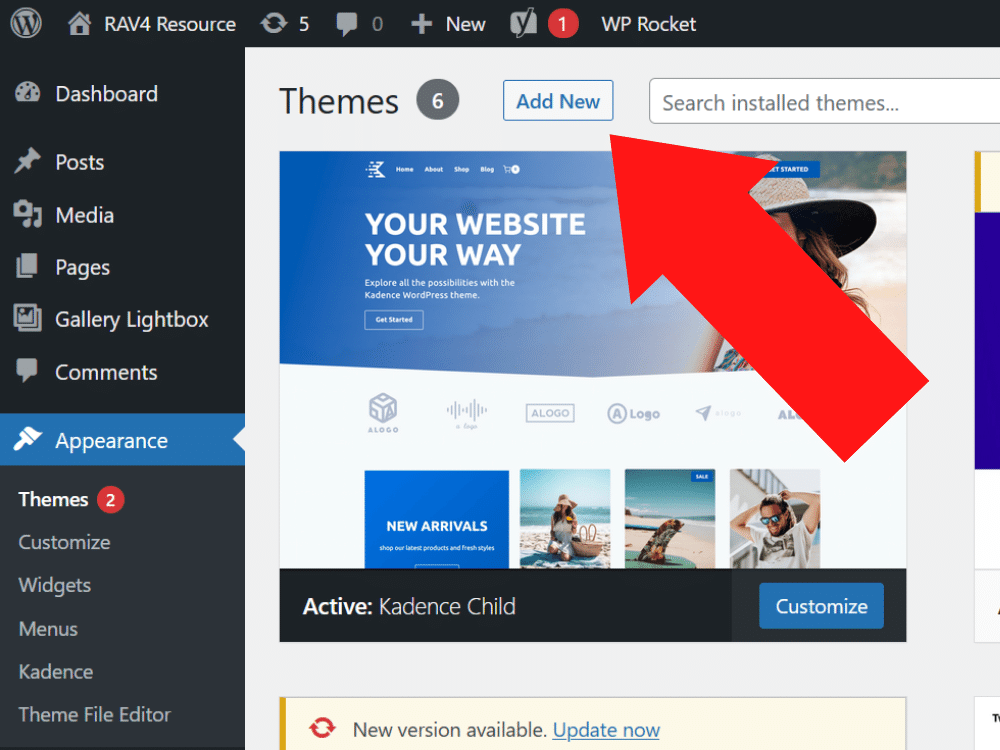
Begin by downloading the new theme files from a trusted source. Next, go to your WordPress dashboard. Click on Appearance and then Themes. Press the Add New button at the top. Choose the Upload Theme option. Select your downloaded theme file. Press Install Now to upload it. Wait for the installation to finish. Your theme files are now on WordPress.
Use a staging site to test your theme. This way, the live site stays unchanged. Install the WP Staging plugin from the dashboard. Create a clone of your site. Once ready, go to the staging site. Activate the new theme there. Check everything works fine. Test all pages and features.
Now, set up your theme. Customize colors, fonts, and logos. Use the Customize option under Appearance. Make sure everything looks good. Add your widgets and menus. Check if plugins work well with the theme. Save changes often. Keep testing until happy with the look.
Customizing The Theme
Start by exploring the theme’s layout options. Change the layout to match your taste. Look at the colors and fonts. Choose ones that fit your style. You can see how changes look in the preview. Make sure everything looks good.
Go to the menu settings. Add or remove menu items as needed. Check how the widgets appear on the site. Move them around if needed. Make sure everything is in the right place. Save changes often.
Test the theme’s features before making it live. Click on different buttons. See how they work. Check if the pages load correctly. Look for any errors or issues. Ensure everything works as expected.
Testing Functionality
Change your WordPress theme safely with a plugin like Theme Switcha. Test designs and layouts before going live. This process helps maintain your site’s appearance and functionality without disruptions.
Checking Site Speed
Site speed is very important. Slow sites annoy users. Use tools like Google PageSpeed Insights. This tool helps you measure speed. Faster sites make users happy. Happy users stay longer. Fast sites rank better in search engines.
Ensuring Mobile Responsiveness
Many people use phones to browse. Ensure your site looks good on phones. Test on different devices. Check how text and images appear. Mobile-friendly sites get more visitors. Responsive design helps your site look nice everywhere.
Verifying Plugin Compatibility
Plugins add features to your site. Ensure new themes work with plugins. Check each plugin one by one. Some plugins may not work well with new themes. Fix any problems early. Compatible plugins ensure smooth site operation.
Backup And Preparation
Always backup your current site before changing themes. Use plugins like UpdraftPlus or Duplicator. Store backups in a safe place. This helps you recover your site if needed. Backups are like a safety net. They protect your hard work.
Check theme compatibility with plugins. Ensure new theme supports your site’s features. Set up a staging site for testing. This way, changes won’t affect the live site. Explore the theme’s settings and options. This helps you understand its features.
Inform your team about the upcoming changes. Share the timeline for theme updates. Ensure everyone is ready for the switch. This helps avoid confusion. Team members should know their roles. Collaboration makes the process smooth.
Switching Themes Safely
Final checks are key before making a theme live. Check your content display. Make sure pictures and text look right. Test all plugins. They must work with your new theme. Preview your site. See how it looks with the new theme. This helps catch errors early. Backup your site. You need a copy of your site before changes. It saves you if things go wrong. Double check everything. A careful check makes your site safe.
Monitoring post-launch is very important. Watch for errors. Check links and buttons. They should work well. Visitors might find errors you missed. Listen to them. Fix problems fast. A quick fix keeps visitors happy. Updates are needed. Keep themes and plugins updated. Updates fix bugs and improve safety.
Troubleshooting common issues can save time. Errors happen, but you can fix them. Blank pages might appear. Check plugins and settings. Slow speed is a problem. Optimize images and reduce plugins. Layout issues can confuse visitors. Adjust settings to fix layout. Errors should not scare you. Solve them step by step.
Credit: wpcharger.io
Frequently Asked Questions
How To Preview A WordPress Theme Safely?
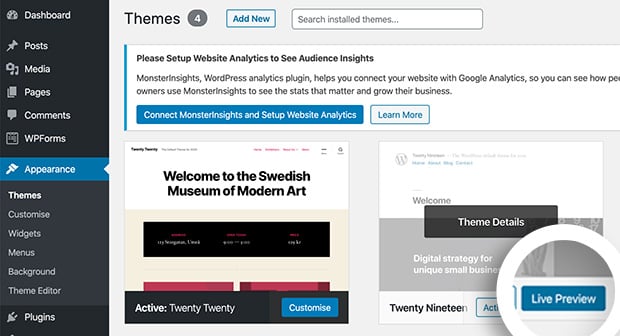
You can use the WordPress Customizer to preview a theme safely. It allows you to view changes without making them live. This tool ensures you can explore new themes, adjust settings, and decide on layout changes without affecting your site’s current appearance or functionality.
Can I Test A Theme Without Activating It?
Yes, you can test a theme without activating it using plugins like Theme Test Drive or WP Staging. These plugins create a staging environment to test themes and changes without affecting your live site. They help you explore new designs and functionalities risk-free.
What Is The Safest Way To Change A WordPress Theme?
The safest way is to use a staging site. It duplicates your site, allowing you to test changes without impacting your live site. By using a staging environment, you can ensure compatibility, design accuracy, and plugin functionality before making the new theme live.
How To Switch Themes Without Downtime?
To switch themes without downtime, use a staging site or maintenance mode plugin. These tools keep your site accessible while you work on changes. They ensure visitors experience minimal disruption, helping you transition seamlessly to a new theme without affecting user experience.
Conclusion
Changing a WordPress theme without going live is simple. Follow the steps carefully. Use the staging site for testing. This ensures no disruption to your live site. Always back up your site before any changes. This prevents data loss. Practice makes perfect.
So, try these steps confidently. Your website’s look will improve without any downtime. Happy theming!


