
Have you ever wanted to give your WordPress site a fresh look without risking the loss of your precious data? Changing a WordPress theme can feel like walking a tightrope.
On one hand, there’s the allure of a new, eye-catching design. On the other, there’s the fear of losing your hard-earned content and settings. But what if there was a way to switch themes seamlessly, without any hiccups? In this guide, you’ll discover the step-by-step process to change your WordPress theme without losing data.
You’ll learn how to safely transition to a new design while keeping all your content intact. Imagine having a website that looks stunning and still retains all its valuable information. That’s exactly what we’ll help you achieve. So, if you’re ready to transform your website while ensuring everything stays just the way you like it, keep reading. Your perfect website is just a few clicks away.
Importance Of Theme Change
Changing your WordPress theme is a big step. It can affect your website’s look and feel. A new theme might bring a fresh style. This can attract more visitors. But be careful. It’s important to keep all your data safe. A theme change should not delete your posts or pages. Always back up your website before making changes.
Some themes offer better performance. They can make your site faster. This can help with search engine rankings. A faster site keeps users happy. They will stay longer and explore more pages. Choose a theme that suits your brand. It should match your site’s goals and content.

Credit: www.youtube.com
Preparing For Theme Change
Backing up your website is crucial. It protects your data. Use a plugin for backups. Choose a reliable backup plugin. Save your files and database. Store them safely. Cloud storage is a good choice. Local storage works too. Make sure backups are complete. Test them before proceeding. This ensures no data loss.
Check your current theme thoroughly. Note down its features. What functions does it have? Are there custom settings? Identify any special plugins in use. Make a list. Understand your theme’s impact on your site. Does it affect speed? Does it change layout? Knowing this helps in the transition. Ensure you can replicate these features in the new theme.
Choosing A New Theme
Pick a theme that matches your site’s style. Think about your site’s purpose and audience. Does the theme have the features you need? A good theme should be easy to use. It should load fast and look nice on phones. Check if it allows you to change colors and fonts. This helps your site look unique.
Ensure the theme works with your WordPress version. Check if it supports your plugins and widgets. This keeps your site running well. Look for reviews and ratings. They tell you if others like the theme. Update WordPress before adding a new theme. This helps avoid issues.

Credit: colibriwp.com
Testing Your New Theme
Switching your WordPress theme can be simple and safe. First, back up your data to prevent any loss. Then, activate the new theme and check all settings. Make sure everything looks good and functions well. This ensures a smooth transition without losing important content or data.
Set Up A Staging Site
Always make changes in a safe place first. A staging site is a copy of your real site. It lets you test things without harm. To create it, use a plugin or your hosting service. This way, your main site stays safe. After setting up, switch to the new theme here. Check if everything works fine. Look at the layout and features. Does your site look as expected? If yes, then your new theme is good to go.
Verify Theme Features
Check if the theme has all needed features. Look at the menu, sidebar, and widgets. Are they in the right place? Test the contact form and other important parts. Make sure they work well. Don’t forget to check the mobile view. Your site should look nice on phones and tablets too. If all features work, then you can switch themes on your main site.
Installing The New Theme
First, go to your WordPress dashboard. Click on Appearance and then Themes. Next, hit the Add New button at the top. Choose Upload Theme if you have a theme file. Select the .zip file from your computer. Click on the Install Now button. Wait for a few seconds. The theme will upload and install.
After installing, you will see an Activate button. Click it to make the theme live. Your site will now use this new theme. Check if everything looks good. If not, you can switch back. Go to the Themes section again. Choose your old theme and click Activate.
Preserving Website Data
Widgets and menus store important information. Before changing themes, backup your data. This will keep your website safe. Navigate to the Appearance section. Look for Widgets and Menus options. Write down the structure and settings. Once you switch themes, recreate them using your notes. This keeps your site looking the same. Double-check everything is correct.
SEO settings are important for your site. They help people find you. Save your SEO data before changing themes. Use plugins like Yoast or All in One SEO. These tools help export your settings. After changing themes, import your saved settings. This keeps your site visible. Regularly check your SEO after the switch. Ensure all settings are in place.
Customizing The New Theme
Always check the new theme settings carefully. Look for options to change fonts, colors, and layouts. Use the theme’s customizer to adjust settings. Keep your site looking fresh and clean. Some themes have preset options. Explore them. See if they fit your needs. Make sure each setting helps your site. Try different combinations to find the best look.
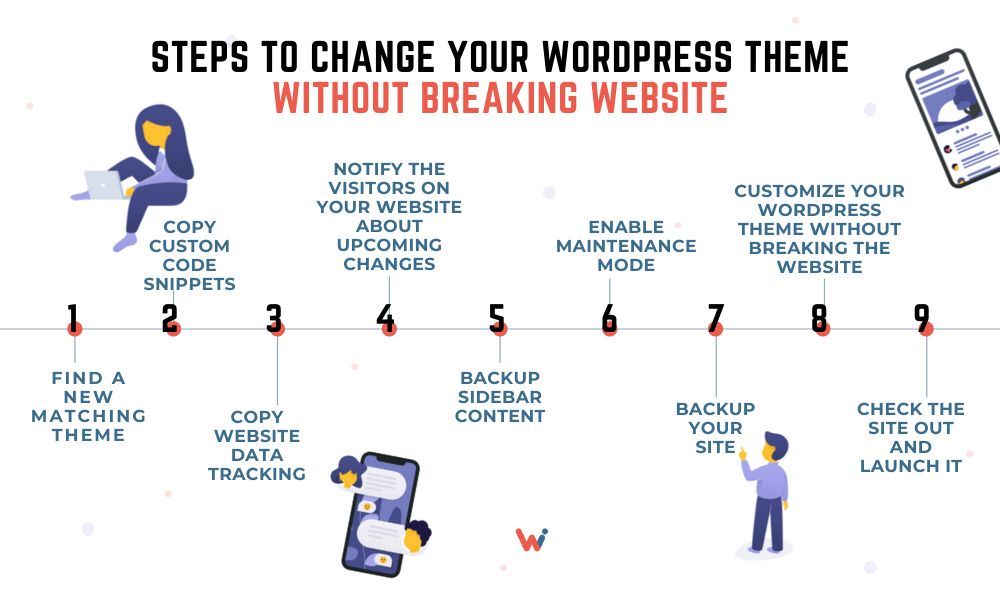
Custom CSS helps in making changes. It is simple to add. Go to Appearance and then click on Customize. Find the Additional CSS section. Paste your CSS code there. Make small changes at first. Check your site after each change. Make sure it looks good. Keep your CSS code organized. This makes it easy to find and change later. Your site should look the way you want.
Credit: wishdesk.com
Testing After Theme Change
Check Site Functionality is crucial. Visit each page on your site. Ensure all links work. Test forms and buttons. Make sure images display correctly. Verify that plugins are active. Check for any missing content. Ensure comments are visible. Look for any broken elements. A thorough check helps avoid issues.
Ensure Mobile Responsiveness is also important. View your site on a phone. Check if text is readable. Make sure images fit the screen. Test navigation menus. Ensure buttons are easy to click. Check if forms work on mobile. A responsive site keeps visitors happy. It also improves your SEO.
Common Issues And Solutions
Changing a WordPress theme can lead to data loss if not done carefully. Backup your site before starting. Use a child theme to keep customizations intact. Test the new theme on a staging site to ensure everything works smoothly.
Fix Layout Problems
Changing a WordPress theme can break your layout. This happens because new themes have different styles. To fix this, first, check the theme settings. Adjust the settings to match your old theme. Next, use the customizer to tweak colors and fonts. If widgets move, drag them back to the right spot. Always preview changes before saving. This helps avoid surprises. If problems continue, consider using a child theme. It lets you keep changes safe. This way, your layout stays nice.
Resolve Plugin Conflicts
Sometimes, plugins don’t play well with new themes. This can cause errors. First, deactivate all plugins. Then, activate them one by one. Watch for issues as you go. If a plugin causes trouble, look for alternatives. Some plugins may need updates. Always keep them updated for better performance. Also, check plugin compatibility with your theme. If you find a conflict, contact plugin support. They might offer solutions. Ensure your site stays smooth and problem-free.
Finalizing The Transition
Switching your WordPress theme smoothly involves careful planning. Start by backing up your site to protect data. Install the new theme on a test site to ensure compatibility and functionality.
Review Site Performance
Check if the new theme works smoothly. Look at the loading speed. Make sure pages load fast. A slow site can annoy visitors. Check mobile performance too. Mobile users are important. Use tools to test the speed. Google PageSpeed Insights is helpful. It gives you a score. Aim for a high score. Fix any problems you find. This helps keep your site visitors happy.
Announce The Change
Tell visitors about the new theme. Write a short post. Share it on social media. Let them know why you changed it. Explain benefits like better design. Invite feedback from users. They can help spot issues. Make it easy for them to share thoughts. Good communication builds trust. Keep them informed on updates. This makes them feel valued.
Frequently Asked Questions
How To Change WordPress Theme Safely?
To change your WordPress theme safely, first backup your data using plugins like UpdraftPlus. Then, preview the new theme to ensure compatibility. Finally, switch themes through the Appearance menu in your WordPress dashboard. This process helps prevent data loss and ensures your site remains functional.
Will Changing Themes Affect My Site’s Data?
Changing themes generally doesn’t affect your site’s data, but some settings may change. Content like posts, pages, and media remain intact. However, widget settings, customizations, and theme-specific features might need reconfiguration. Always back up your site before switching themes to prevent unexpected issues.
Can I Preview A WordPress Theme Before Changing?
Yes, you can preview a WordPress theme before changing it. Use the live preview feature in the WordPress dashboard under Appearance > Themes. This lets you see how the new theme will look and function without affecting your live site, ensuring compatibility with your existing content.
How To Backup WordPress Site Before Theme Change?
Backup your WordPress site before changing themes using plugins like UpdraftPlus or BackupBuddy. These plugins create complete site backups, including your database, files, and settings. Store backups in secure locations like cloud services or external drives to ensure easy recovery if needed.
Conclusion
Changing your WordPress theme safely is possible. Careful planning preserves your data. Always back up your site before starting. This ensures your content remains intact. Choose a theme compatible with your plugins. Test your site thoroughly after switching themes. Check for broken links and missing images.
Adjust settings as needed to match the new design. Patience is key in this process. Practice makes perfect with WordPress changes. Your website can look fresh without risking data. Keep these steps in mind for a smooth transition. Happy blogging!


