
Imagine giving your website a fresh, new look without disrupting your visitors’ experience. Changing your WordPress theme while your site is live might sound daunting, but it doesn’t have to be.
In fact, it can be a seamless process that breathes new life into your online presence. Whether you’re looking to boost your site’s performance, improve aesthetics, or simply try something new, this guide is for you. You’ll learn the steps to ensure a smooth transition, avoid common pitfalls, and keep your audience engaged.
Ready to give your site the makeover it deserves? Let’s dive in and explore how you can change your WordPress theme without missing a beat.
Preparing For The Theme Change
Switching a WordPress theme on a live site requires careful planning to avoid disruptions. Backup your site and test the new theme in a staging environment. Ensure compatibility with plugins and check for broken links before the theme goes live.
Backup Your Website
Always backup your website before changing themes. This is very important. You can use plugins like UpdraftPlus or BackupBuddy. These tools save your site’s data. A backup protects you if something goes wrong. It keeps your content safe and secure. Save the backup on your computer. Or use cloud storage like Google Drive. Ensure your backup is recent. This way, you don’t lose new data.
Choose A Reliable Theme
Pick a theme from the WordPress directory. It’s safe and checked for bugs. Look for themes with good ratings. Check user reviews. This helps you see if the theme is good. Avoid themes with low ratings. They might cause problems. Choose a theme that fits your site’s needs. Make sure it supports important plugins. This keeps your site working well.

Credit: learn.wordpress.org
Testing The New Theme
Creating a staging environment is important. It helps you test the new theme safely. Your live site stays untouched. Use plugins like WP Staging or Duplicator. These tools make copies of your site. Always ensure your staging site is private. This keeps your tests hidden from visitors.
Ensure your plugins work with the new theme. Some themes may not support every plugin. Check each plugin one by one. Use the staging site for this. If a plugin fails, search for alternatives. Keep your site secure and functional. Regular checks help avoid problems later.
Installing The New Theme
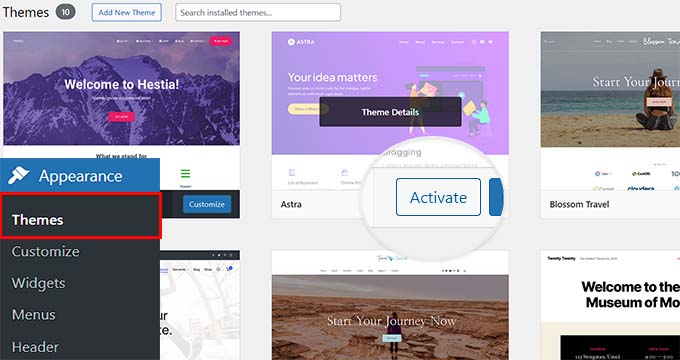
Start by logging into your WordPress Dashboard. Go to Appearance and then click on Themes. Press the Add New button at the top. You will see the Upload Theme option. Click it. Select the theme file from your computer. Ensure it is a .zip file. Hit Install Now to upload it.
Wait a few seconds. You will see a success message once the upload is complete. Your theme is now ready to use. Make sure you have a backup of your current theme. It ensures no data is lost.
After installation, find the new theme under Appearance and Themes. Click on Activate to set it live. Check your site to see the new look. Ensure all settings and widgets are working fine. If something looks off, revisit the theme settings. Make adjustments if needed. Always keep your site visitors in mind. They should have a smooth experience.
Credit: www.wpzoom.com
Customizing The New Theme
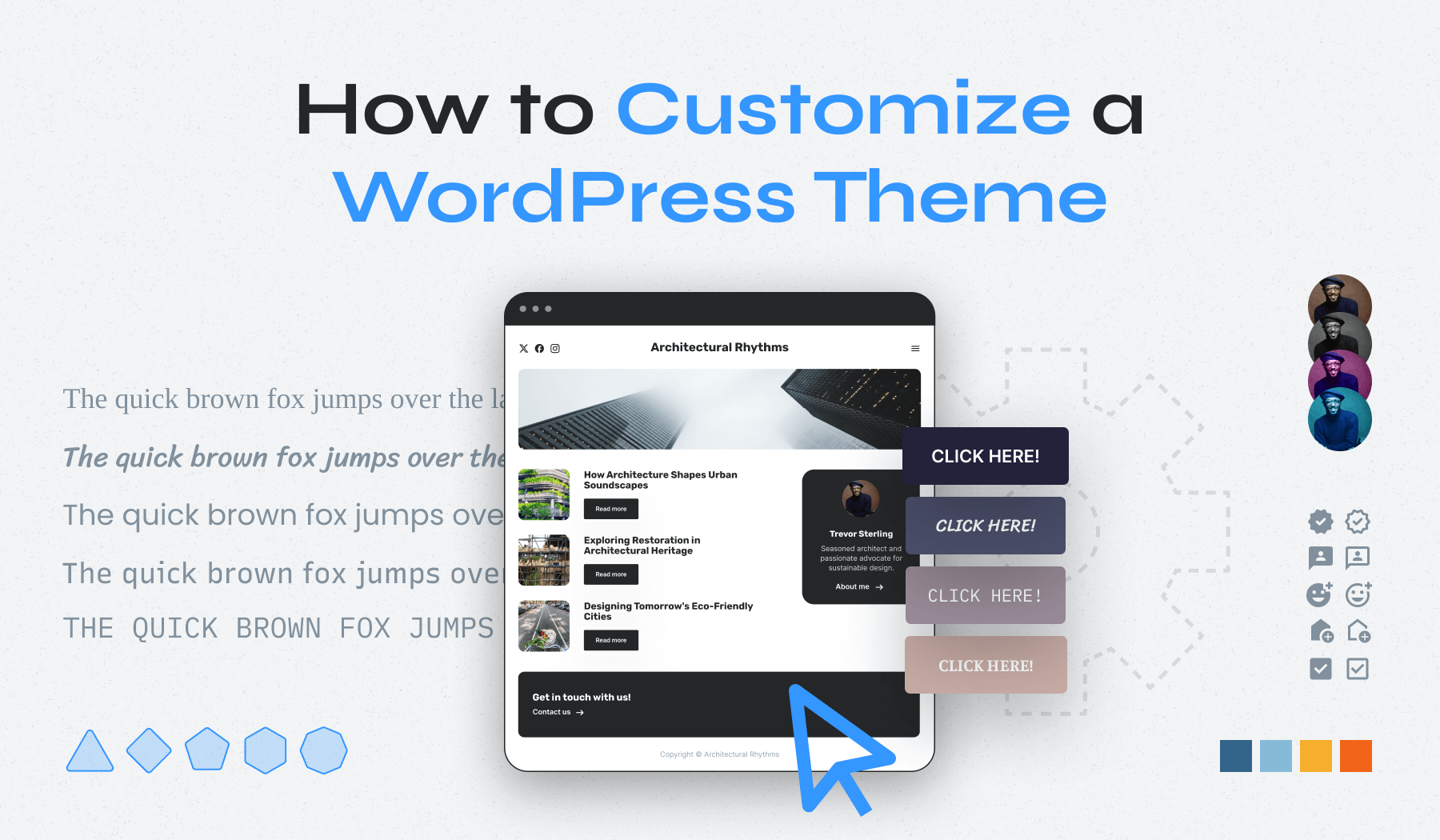
Choose a layout that fits your style. Make sure it looks good on all devices. This means checking it on phones, tablets, and computers. Customize colors to match your brand. Use simple and matching colors. Add widgets to make your site useful. Widgets can show weather, news, or social media feeds. It’s important to keep the design clean. A clean design helps people find what they need fast.
Site navigation helps users find pages. It should be easy to use. Add links to important pages like Home, About, and Contact. Use short names for menu items. This makes the menu clear. Test the navigation links. Make sure all links work. Broken links can confuse visitors. Keep the menu simple. Too many links can be confusing.
Ensuring Site Functionality
Testing site performance is very important when changing themes. Start by checking loading speed. Slow sites can annoy visitors. Use tools like Google PageSpeed Insights. It helps to find issues. Look at your site on different devices. Test desktops, tablets, and phones. Check all browsers too. Ensure everything looks good. Check fonts and colors. Make sure they are easy to read. Fix any problems quickly. Keep your site running smoothly.
Fixing broken links helps users find what they need. Broken links can frustrate visitors. Use tools like Broken Link Checker. It finds errors fast. Fix links that lead nowhere. Update URLs if needed. Check menus and footers. Ensure all links work well. Look at blog posts and pages. Fix any broken connections. Make your site easy to explore. Happy visitors stay longer. They return often.
Launching The Updated Site
Check every page on your site. Make sure they look right. Look for broken links. They can upset visitors. Test all buttons and forms. They must work. Ensure your new theme fits your brand. Images should load fast. Nobody likes waiting.
Do a quick review of the site speed. Fast sites keep users happy. Scan for any spelling errors. Your content must look professional. Have someone else check too. A fresh pair of eyes can find hidden mistakes.
Tell your audience about the change. Use your blog or social media. Explain why you changed the theme. Share any new features. This helps build trust. It shows you care about their experience.
Encourage feedback. Feedback can help you improve. It makes users feel valued. Answer any questions. This helps keep your audience engaged. Keep communication clear and friendly.
Credit: www.wpbeginner.com
Frequently Asked Questions
How Do I Safely Change My WordPress Theme?
To safely change your WordPress theme, back up your site first. Use a staging environment to test the new theme. Check compatibility with plugins and widgets. Make sure your new theme is responsive and SEO-friendly before making it live.
Will Changing Themes Affect My Site’s Seo?
Changing themes can affect your site’s SEO. Ensure your new theme is SEO-optimized. Check for clean code, fast loading times, and responsive design. Preserve your site’s structure, meta tags, and permalinks to maintain SEO rankings.
Can I Preview A New WordPress Theme?
Yes, you can preview a new WordPress theme before activating it. Use the built-in WordPress Customizer. Navigate to Appearance > Themes, select your desired theme, and click “Live Preview” to see changes.
How Do I Keep My Site Looking Consistent?
To keep your site consistent, choose a theme with similar design elements. Match fonts, colors, and layout with your previous theme. Update widgets and plugins to fit the new design seamlessly.
Conclusion
Changing your WordPress theme while live is simple. Follow a step-by-step plan. Test your new theme in a safe environment first. Avoid changes during peak traffic times. Keep backups of your site. This prevents data loss. Choose a theme that matches your brand.
Consider user experience. Prioritize fast loading times. Ensure mobile responsiveness. Regularly update your themes and plugins. This boosts security. With careful planning, your site will stay smooth. Your visitors will enjoy the new look. Your website’s success depends on smart theme choices.
Make the switch confidently and enjoy the results.


