
Have you ever found yourself overwhelmed by the endless customization options on your WordPress site? Sometimes, the easiest way to clear the clutter and start fresh is to switch back to the default theme.
Whether your current theme is causing issues or you simply crave a clean slate, changing to the default WordPress theme can be a quick and effective solution. This guide will walk you through the simple steps to reset your theme, helping you regain control and clarity on your site.
With just a few clicks, you can eliminate unnecessary distractions and refocus on what truly matters—your content. Ready to give your website a refreshing reset? Let’s dive in and make the switch effortlessly.
Credit: www.wpzoom.com
Accessing WordPress Dashboard
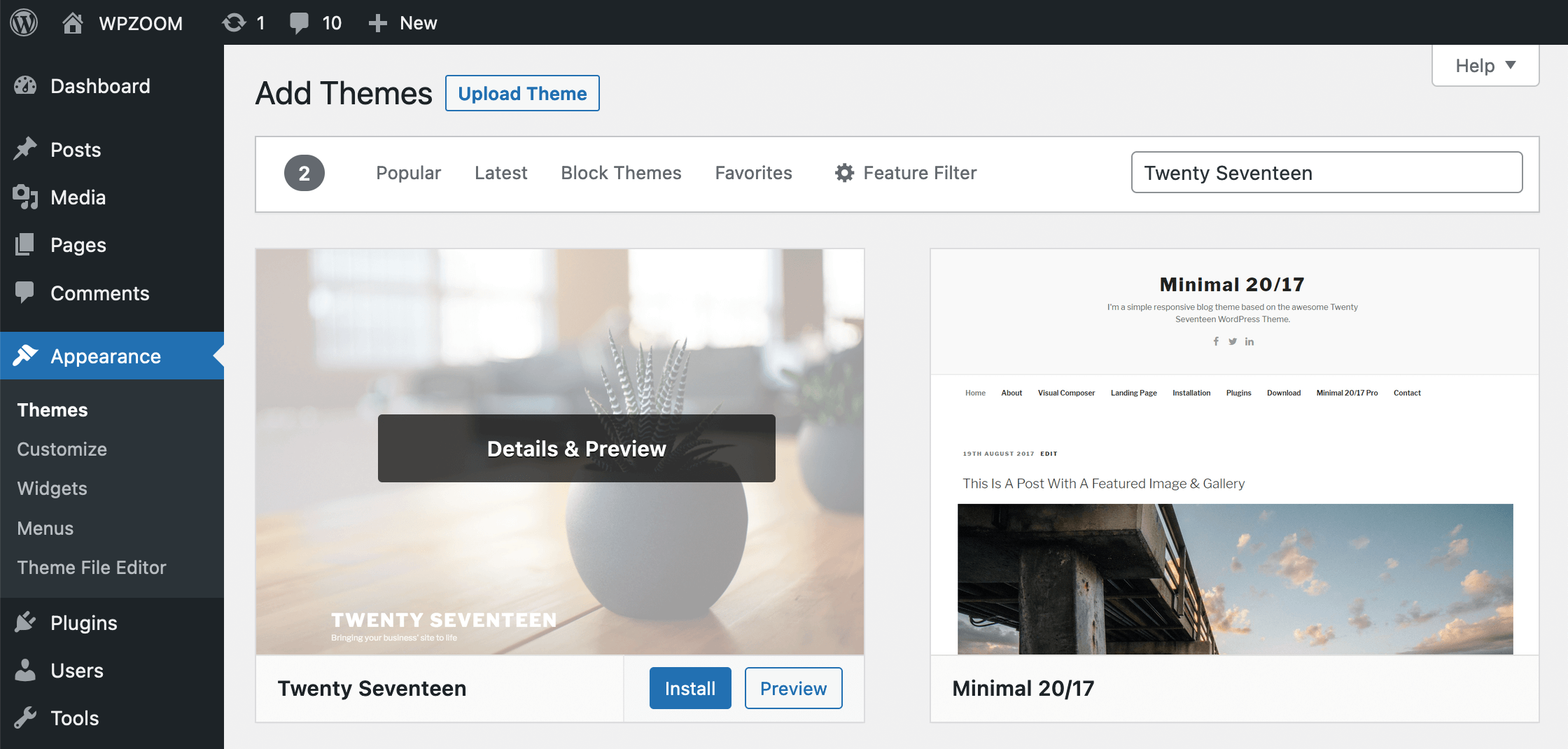
Start by logging into your WordPress account. Use your username and password. The dashboard is the first screen you see. It’s like the control center of your site. Here, you can manage all parts of your website. From the dashboard, you can change settings. You can also add new posts. To change your theme, find the Appearance tab. It’s on the left side. Click on it to see more options. Choose Themes from the list. This will show you all available themes. Ready to select the default theme? Just look for the theme named “Twenty Twenty-Three” or similar. Click on it to activate. Now, your site uses the default theme. Easy and quick!

Credit: docs.themeisle.com
Navigating To Appearance
First, find the dashboard on your WordPress site. Look for the menu on the left. Click on Appearance. It opens a new page.
Inside Appearance, you will see options. Choose Themes. Themes show a list. The active one is usually first.
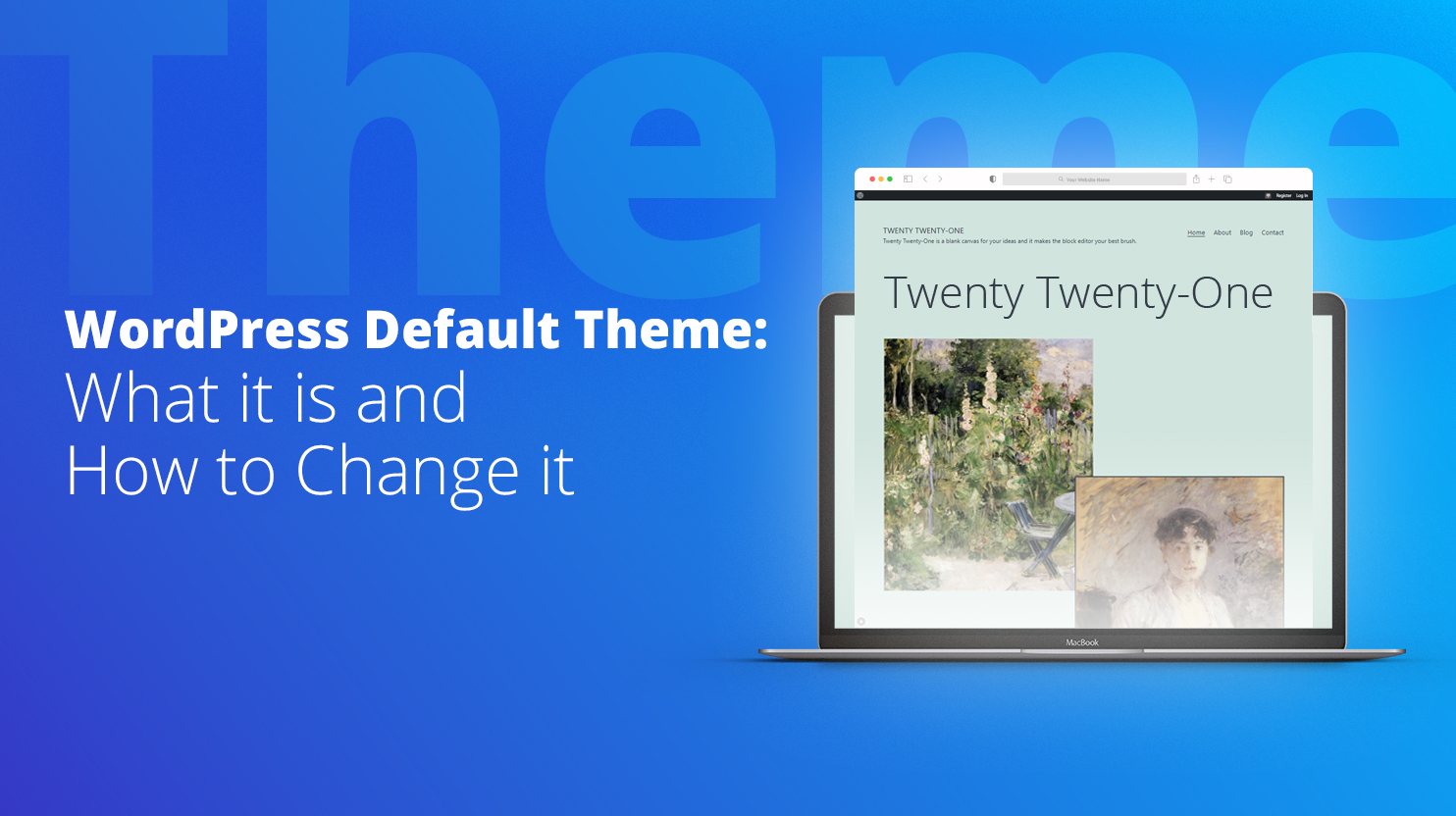
Find the default theme. It might be called “Twenty Twenty-One” or similar. Click on it. This will take you to its page.
Activate the theme by clicking the Activate button. Your site changes to the default look. You did it!
Selecting Themes
Changing a WordPress theme to default is simple. Go to the dashboard, select “Appearance,” then “Themes. ” Activate the default theme. This resets your site to a clean slate, keeping content intact.
Choosing The Right Theme
Picking a theme is fun. Themes change how your site looks. They make your site special. To choose a theme, go to your WordPress dashboard. Click on Appearance and then on Themes. Here, you will see many themes. Some are free, others are not. To make your site look like others, choose the default theme.
Click Activate to use it. This is easy and fast. Your site will now have a fresh look. The default theme is simple. It works well for most sites. Your visitors will enjoy the new look. Always remember to save your changes.
Activating Default Theme
Open your WordPress dashboard. Find the Appearance menu on the left. Click on Themes. You will see a list of themes. Look for the default theme. It might be named Twenty Twenty-Three or similar.
Hover over the default theme. A button will appear. It will say Activate. Click on it. The theme will now be active. Your website will have the default look. Check your site to see the changes.
Customizing Default Theme Settings
Change the site title and tagline easily. Go to the dashboard. Click on Appearance. Select Customize. You will see Site Identity options. Enter your title and tagline. Save changes to update the site. Your site identity is now set.
Choose your favorite colors. Pick fonts that suit your style. Navigate to Appearance. Click on Customize. Find Colors & Fonts. Select your choices. Preview the changes before saving. Your site will look unique.
Arrange menus and widgets to your liking. Go to Appearance. Click on Customize. Look for Menus and Widgets options. Drag items to reorder menus. Add widgets for extra features. Save to keep your settings. Your site navigation is ready.
Credit: 10web.io
Verifying Theme Changes
Check your site after changing the theme. Does everything look okay? Visit your homepage and other pages. Look at all sections. Images should show correctly. Text should be easy to read. Nothing should be out of place.
Go to the admin panel. Make sure the theme is active. Sometimes it does not activate. You can see this in the dashboard. If not active, try again.
Ask a friend to check your site. They might see problems you missed. Use a different device to look at your site. A phone, tablet, or computer can show different views.
Troubleshooting Common Issues
Changing your WordPress theme to default is a simple fix for common website issues. Navigate to the “Appearance” section in the dashboard. Click “Themes” and activate the default option to resolve conflicts.
Dealing With Missing Themes
Finding your theme missing can be worrisome. First, check if the theme is installed. Go to your WordPress dashboard. Click on “Appearance,” then “Themes.” If it’s not there, download it again. Use the official WordPress theme directory. This ensures it’s safe and compatible. After downloading, upload it to your site. Activate it through the dashboard. Always keep a backup before making changes. This helps if things go wrong.
Resolving Activation Errors
Activation errors happen for many reasons. Maybe the theme is incompatible with your WordPress version. Check your WordPress version first. Update it if needed. Sometimes, plugin conflicts cause issues. Deactivate all plugins. Then, activate the theme again. If it works, reactivate plugins one by one. This helps find the problematic plugin. Always ensure your theme is updated to the latest version.
Restoring Previous Settings
Changing themes can alter site settings. This may affect your site’s appearance. To restore settings, use a backup. Always create a backup before changing themes. This allows you to revert easily. Some themes have built-in settings. Check the theme’s settings panel. Sometimes, manual adjustments are necessary. Compare your site with the backup. Adjust elements to restore the previous look.
Tips For Maintaining Theme Integrity
Changing themes can be fun. But it needs care. Theme integrity is important. Keep your site running smoothly. Always backup your site before changing. This saves your work. Use a child theme for changes. Child themes keep the main theme safe. Check theme compatibility. This ensures all plugins work well. Keep your design consistent. It helps visitors feel comfy.
Do not forget to test your site. Ensure everything works fine. Check for broken links. Fix them quickly. Monitor site speed. A fast site is loved by all. Follow these tips. Keep your site neat.
Frequently Asked Questions
How Do I Reset My WordPress Theme?
To reset your WordPress theme, navigate to the Appearance section in your dashboard. Select Themes, then choose the default theme. Click Activate to switch back. Ensure you back up your current theme settings before changing, as this action might alter your site’s appearance significantly.
Can I Switch Themes Without Losing Content?
Yes, switching themes won’t affect your site content. However, some theme-specific settings might change. It’s advisable to preview the default theme first. Always back up your website data to ensure a smooth transition. Verify plugin compatibility to avoid any functionality issues post-switch.
Why Return To A Default WordPress Theme?
Returning to a default WordPress theme ensures stability and compatibility. Default themes are thoroughly tested by WordPress developers. They receive regular updates for security and performance improvements. This switch can also simplify troubleshooting if you face issues with custom themes.
Will Changing Themes Affect Site Speed?
Changing to a default theme might improve site speed. Default themes are optimized for faster loading times. They have fewer customizations, which can enhance performance. Always test your site speed after switching to identify any improvements or issues that may arise.
Conclusion
Changing your WordPress theme to default is straightforward. It can simplify your site. Restore original settings with ease. Ensure a clean slate. No complex steps needed. Just follow the guide. Your website can return to its default look. This process is quick and helps avoid clutter.
Feel confident switching back anytime. Keep your site fresh and organized. You now know how to reset your theme. Make your WordPress experience smooth and hassle-free. Enjoy a neat and tidy site. Simplify your web management effortlessly. Now your theme is back to basics.


