
Are you looking to switch your WordPress theme to Arabic but not sure where to start? You’re in the right place.
Changing your WordPress theme to accommodate the Arabic language can significantly enhance your website’s appeal and accessibility for Arabic-speaking audiences. Imagine the potential growth in your audience reach and engagement when your website speaks directly to this vibrant community! You’ll discover a straightforward guide to transforming your WordPress theme to Arabic, ensuring your site looks professional and functions smoothly.
Let’s dive in and unlock the full potential of your website.
Preparing For Theme Change
Always make a backup before changing your theme. This keeps your data safe. Use plugins like UpdraftPlus or BackWPup. These tools are easy to use. Just follow the steps they show. Save your backup files in a safe place. You can use a cloud service. Or an external hard drive. This way, you will have a copy of everything. Just in case something goes wrong. You can restore your site anytime.
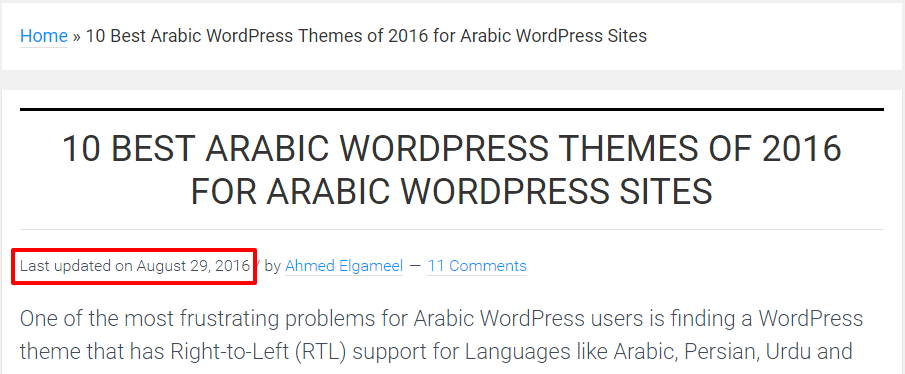
Make sure your new theme is compatible with Arabic. Check if it supports RTL (Right to Left) languages. This is important for Arabic text. Some themes may not support RTL. Look for themes that are translation-ready. This means they can work with other languages. Test the theme on a demo site. This helps you see how it looks in Arabic. Check if plugins work well too. This step ensures everything looks good.
Selecting An Arabic-compatible Theme
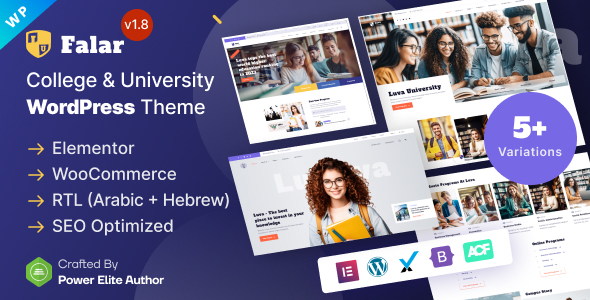
Many themes support Arabic language. Choose a theme that fits your needs. Look for themes with built-in Arabic support. Some themes have special features for Arabic users.
Consider RTL Support. Arabic reads from right to left. Make sure your theme supports RTL. This ensures your site looks good in Arabic. Test the theme before you decide. See if it shows text correctly. Check if images align well.
Explore different themes. Try free and paid ones. Read reviews from other users. Consider their feedback. Some themes are more popular for Arabic sites. Choose one that is easy to use and customize.
Installing The New Theme
Access WordPress Dashboard by entering your login details. After logging in, you will see the dashboard. It is the main area to manage your website. Look for the Appearance option on the left side. Click on it. This will open a new menu. Choose Themes from this menu. You will see the current theme and other available themes.
To upload and activate a new theme, click on the Add New button at the top. You can search for a theme or upload one from your computer. To upload, click the Upload Theme button. Then, choose the theme file from your computer. Click on Install Now and wait for the process to finish. After it installs, click Activate to make it your new theme. Your WordPress site now has a new look.
Credit: wp-me.com
Configuring Theme Settings
Choose a theme that supports RTL (Right-to-Left) languages. This helps your site look right in Arabic. Go to your theme settings. Find the RTL option and turn it on. Check how the text looks. Make sure everything is in the right place. Adjust page width if needed. You can also change margins and padding. This helps the content fit well.
Arabic needs special fonts. Choose a font that supports Arabic letters. This makes the text easy to read. Go to the fonts section in settings. Pick a font from the list. Change the size to fit your style. For colors, pick ones that match your site’s theme. Make sure the text color is easy to see. This helps people read your content better.
Translating Content To Arabic
Translation plugins help convert your site to Arabic. Choose plugins that support Arabic. They must be easy to use. WPML and Polylang are popular choices. These plugins offer automatic translation. This saves time. Always check the translated text. Ensure it makes sense. Update your plugin regularly. This keeps translations accurate.
Manual translation is important. Focus on key pages. Home page and Contact page need extra attention. Use simple words. This helps non-native speakers. Always test translations. Ask a native speaker to review. This ensures quality. Use translation tools for help. Google Translate can be useful. But don’t rely on it fully. Accurate translations improve user experience.
Testing And Final Adjustments
Switching to an Arabic WordPress theme involves testing and making final adjustments. Ensure all elements display correctly in Arabic script. Check for proper alignment and readability to enhance user experience.
Check Site Functionality
Ensure that all links work well. Verify that buttons respond quickly. Check if the menu is easy to use. Make sure the forms submit correctly. Test the search bar for quick results. Try opening different pages. Ensure images load fast. Check that videos play smoothly. Make sure the site does not crash.
Review Mobile Responsiveness
Open the site on a mobile phone. Check if the layout looks good. Ensure text is easy to read. Verify that buttons are big enough. Make sure images fit well. Test scrolling for smooth movement. Check if the menu opens without issues. Ensure the site loads fast. Confirm that the content adjusts to screen size.
Maintaining Your Arabic Site
Changing your WordPress theme to Arabic enhances user experience for Arabic-speaking visitors. Start by selecting an Arabic-compatible theme. Customize language settings in the WordPress dashboard for seamless integration.
Update Themes And Plugins
Always keep your WordPress themes and plugins updated. This ensures your site stays secure. Regular updates fix bugs and improve performance. Check for updates weekly. Use the WordPress dashboard for this. It’s simple and quick.
Monitor Site Performance
Ensure your site runs smoothly. Slow sites lose visitors. Use tools to check site speed. Google PageSpeed Insights is a good choice. Analyze load times and make improvements. Consider optimizing images and using a caching plugin. This helps your site load faster.
Credit: nicepage.com
Credit: themeforest.net
Frequently Asked Questions
How Do I Change WordPress Theme Language?
To change your WordPress theme to Arabic, go to your WordPress dashboard. Navigate to Settings > General. Under the ‘Site Language’ option, select Arabic from the dropdown menu. Save your changes. Your theme will now display in Arabic, provided it supports the language.
Can I Use Any WordPress Theme In Arabic?
Not all themes support Arabic. Choose a theme that is RTL (right-to-left) compatible. Check the theme’s documentation or contact the developer to confirm Arabic language support. This ensures proper display and functionality for Arabic users.
How To Ensure Rtl Support In WordPress Themes?
To ensure RTL support, look for themes labeled as RTL-compatible. You can also test the theme by switching your site’s language to Arabic. If the layout adjusts correctly, it supports RTL. Theme documentation often mentions RTL compatibility explicitly.
Do I Need Plugins For Arabic WordPress Themes?
You might need plugins for complete Arabic support. Plugins like WPML or Polylang can help translate content. They enable multilingual capabilities, ensuring your content is accurately displayed in Arabic, enhancing user experience and SEO performance.
Conclusion
Changing your WordPress theme to Arabic is quite straightforward. Start by accessing your WordPress dashboard. Choose a theme that supports Arabic. Install and activate it. Make sure your site displays correctly in Arabic. Check menus and widgets. Adjust any settings if needed.
This process enhances your website’s appeal. It also makes it accessible to Arabic-speaking visitors. Remember to test your site on different devices. Ensure everything looks and functions well. This change can help you reach a wider audience. Now, enjoy your WordPress site in Arabic!


