
Are you feeling stuck with your current WordPress theme? Maybe it’s not quite capturing the vibe you want, or perhaps you’re itching for a fresh look.
You’re not alone! Many WordPress users find themselves wanting to swap themes for something more aligned with their vision. But what if you can’t change your theme the usual way, perhaps due to a glitch or limited access? Don’t worry, there’s another path you can take—changing your WordPress theme through FTP.
Imagine having the power to transform your website’s appearance, even when traditional methods fail. By using FTP, you unlock a secret door to alter your site’s design with ease. In this guide, you’ll discover step-by-step instructions to change your WordPress theme through FTP, ensuring your website shines exactly how you envision. Stick with us, and you’ll master this technique, making theme changes a breeze. Get ready to dive in and take control of your WordPress site!
Preparing For Theme Change
Always make a backup before changing themes. This saves your work. Use a plugin or do it manually. Save your backup files in a safe place. You can use a cloud service like Google Drive. This keeps your site secure from any data loss.
Find a theme that fits your website’s style. Check its features and reviews. Make sure the theme is responsive. This means it works well on phones and tablets. Look at the demo version. This helps you see how it looks. Choose a theme that is easy to use and customize.
Accessing WordPress Files Via Ftp
Switching a WordPress theme via FTP involves accessing your website files directly. First, connect to your server using an FTP client. Then, navigate to the ‘wp-content/themes’ directory. Upload the new theme folder here, and activate it through your WordPress dashboard.
This method ensures a smooth transition.
Select An Ftp Client
Choosing the right FTP client is important. Some popular options are FileZilla and Cyberduck. These clients are free. They are easy to use. Make sure to download the client from its official site. This keeps your computer safe. Install the FTP client on your computer. Follow the steps given by the client. Now you are ready to connect.
Connect To Your Server
Open your FTP client. Find the connect button or option. You need your server details. This includes your hostname, username, and password. Enter these details in the client. Click connect. The client will link to your server. You will see your WordPress files. You can now change your theme. Make sure to follow steps carefully.
Locating The Themes Folder
Access your website’s files through FTP. You need an FTP client for this. Once connected, find the root directory. Look for a folder named wp-content. This folder holds important files. Inside, you will see different folders. Each has a purpose.
Open the wp-content folder. Search for the themes directory. This is where WordPress stores its themes. Each theme has its own folder. Themes are organized neatly here. You can see theme names as folder names. Pick the right theme folder for changes.
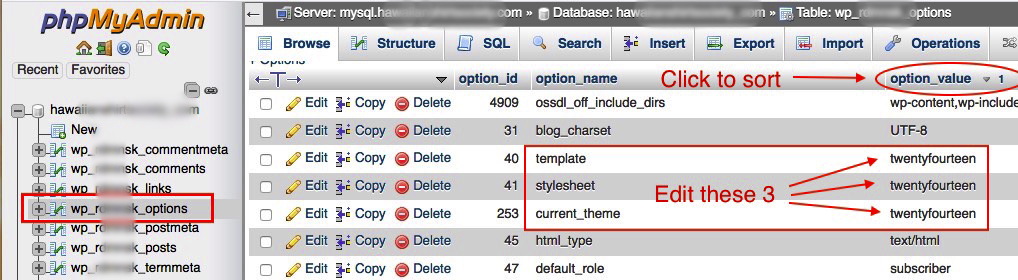
Credit: www.nathanson.org
Uploading The New Theme
First, find a theme you like. Make sure it is safe and works well. Download the theme files to your computer. They usually come in a .zip format. Unzip the files so you can see the folder inside. You need this folder to upload later. Keep these files ready for the next step.
Open your FTP client like FileZilla. Connect to your website server. Use your FTP username and password. Go to the wp-content/themes directory. This is where all theme files live. Drag the unzipped theme folder from your computer. Drop it into the themes folder on the server. Wait until the transfer completes. Now, the new theme is on your server.
Activating The New Theme
Accessing the WordPress Dashboard is easy. First, log into your WordPress site. Use your username and password. Once logged in, find the dashboard. The dashboard helps you manage your site. Look for the appearance section. It’s on the left side of the screen. Click on it. You will see themes. Here, you can choose a new theme.
Switch to New Theme by clicking on the theme you want. You will see an option to activate. Click on activate. Your new theme is ready. The site looks different now. You can customize it. Change colors and fonts if you want. Make sure everything works well. Check your pages and posts. Your site should look good. If something is wrong, fix it. Themes make your site unique.

Credit: www.webfulcreations.com
Troubleshooting Common Issues
Changing a WordPress theme through FTP can fix many issues. First, connect to your site using an FTP client. Then, navigate to the themes folder and upload the new theme.
Resolve Connection Problems
Changing a WordPress theme through FTP can be tricky. Sometimes, connection problems occur. Always check your internet connection first. Make sure your FTP client is configured correctly. Double-check your username and password. This helps to access your server. If problems persist, contact your hosting provider. They can assist with server issues. Always ensure your FTP client is up-to-date. Outdated clients can cause errors. Try restarting your computer or router. Sometimes, this simple step resolves connection problems.
Fix Broken Layouts
Broken layouts can appear after changing a theme. Clear your browser cache first. This often fixes layout issues. If the layout is still broken, check your theme’s CSS files. Sometimes, they need adjustments. Look for missing or incorrect code. Visit your site’s theme settings. Ensure everything is configured properly. Check for plugin conflicts. Some plugins might not work well with the new theme. Disable plugins one by one to find the culprit. Always backup your site before making changes. This helps to restore your site if needed.
Final Checks And Adjustments
Explore your website. Check if everything works as expected. Ensure pages load quickly. Test links on the site. Verify if images appear correctly. Confirm contact forms send messages. Make sure plugins work well. Check if the theme looks good. Ensure your site is mobile-friendly. Review your website on different devices. Use a browser to test.
Access your theme settings. Adjust colors if needed. Change fonts if they look odd. Check widget placement. Ensure menus are easy to find. Set up the homepage. Update header and footer details. Customize your theme to match your brand. Review settings for SEO. Enable any caching options available. Check for any theme updates. Make your site look its best.
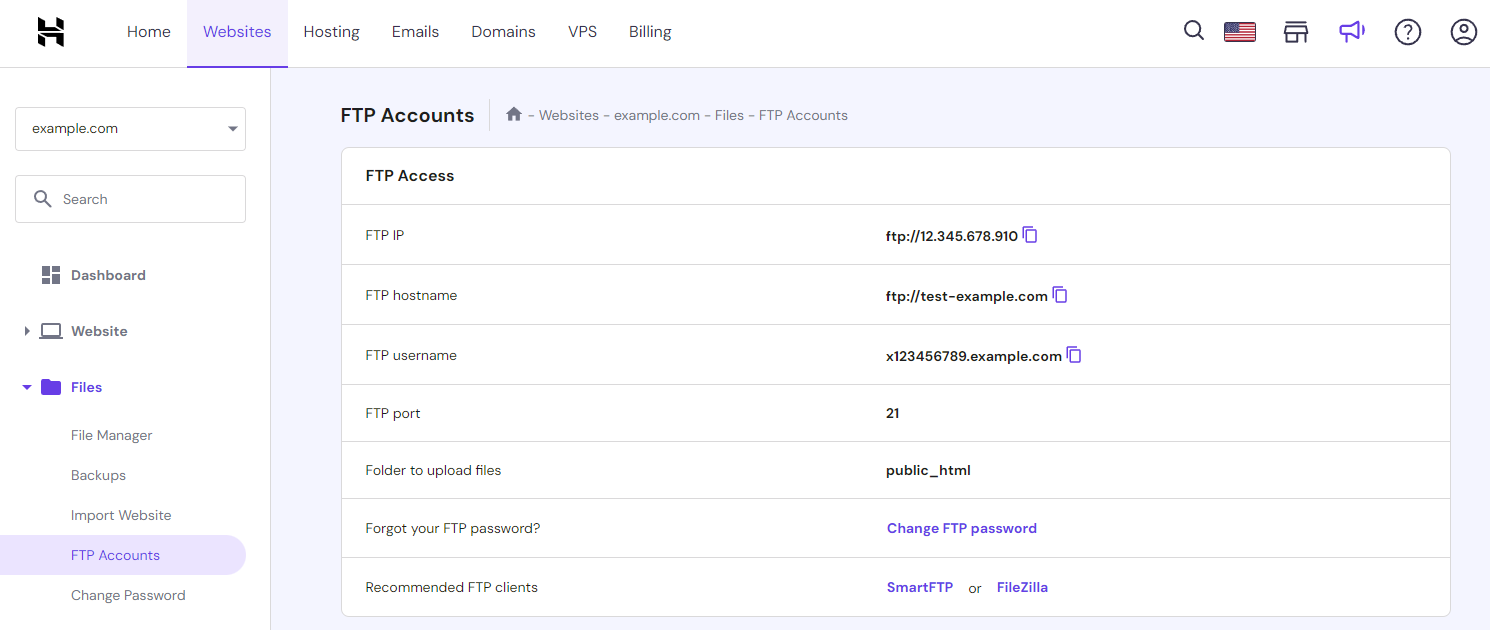
Credit: www.hostinger.com
Frequently Asked Questions
How Do I Access Ftp For WordPress?
To access FTP for WordPress, you’ll need an FTP client like FileZilla. Enter your site’s FTP credentials, including hostname, username, and password. Once connected, navigate to the “wp-content” folder to locate your themes. This method is crucial for direct file management, especially during theme changes.
Can I Change Themes Without WordPress Login?
Yes, you can change themes without logging into WordPress by using FTP. Access your FTP client, navigate to “wp-content/themes,” and upload or delete theme files as needed. This approach is useful if you’re locked out of your WordPress admin panel or facing login issues.
What Files Are Needed To Change Themes Via Ftp?
To change themes via FTP, you need the theme’s files. Upload the entire theme folder to “wp-content/themes” on your server. Ensure all files are intact, including style. css, functions. php, and other necessary templates. This ensures your theme works correctly without missing functionalities.
How Do I Backup My Theme Before Changing?
Before changing your theme, backup your current one via FTP. Navigate to “wp-content/themes,” and download the theme folder to your local device. This ensures you can restore it if needed. Backing up is crucial for preserving customizations and avoiding data loss.
Conclusion
Switching your WordPress theme via FTP is straightforward. It ensures control and flexibility. You avoid dashboard issues. Just follow the steps carefully. Remember to back up your site first. This prevents data loss. With FTP, changes happen smoothly. No need for technical skills.
Practice makes perfect. Explore different themes confidently. Keep your website fresh and engaging. Always test your changes. Ensure everything works as expected. Your website deserves the best look. Now, you’re ready to update with ease. Enjoy your new theme!


