
Are you feeling like your WordPress site isn’t quite hitting the mark? Maybe the theme size isn’t fitting your vision or your brand’s needs.
Adjusting the size of your WordPress theme can make all the difference, transforming your site from just okay to absolutely stunning. Imagine your website with a layout that’s perfectly aligned, images that pop, and text that’s easy to read. This isn’t just about aesthetics; it’s about creating an experience that resonates with your visitors.
If you’ve ever wondered how to tweak your theme size without getting tangled up in code, you’re in the right place. Dive into this guide where you’ll discover simple steps to resize your WordPress theme and enhance your site’s appeal and functionality. Get ready to unlock your website’s potential and give your audience exactly what they’re looking for.
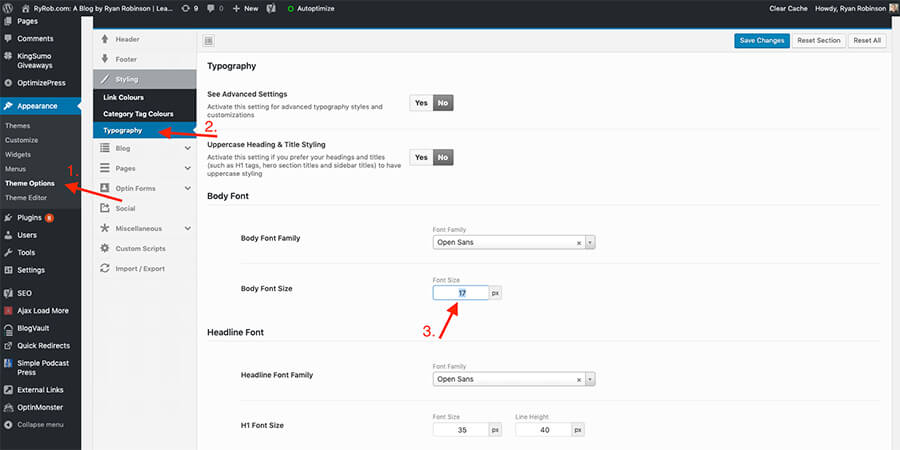
Credit: www.ryrob.com
Choosing The Right Theme
Picking a WordPress theme is fun but needs care. Always check the design and style. Make sure it matches your site’s goal. A good theme should load fast. Speed keeps visitors happy. Look for a theme that fits your content. It should show text and images well.
Mobile-friendly themes are a must. Many people use phones to browse. Also, ensure the theme is SEO-friendly. This helps people find your site. Themes should allow easy changes. Customizing is important.
The theme must work with your plugins. Plugins add features to your site. Check if the theme supports them. Some themes may not update often. Regular updates are important. They keep your site safe. Before buying, read reviews. See what other users say.

Credit: cyberchimps.com
Accessing The Theme Editor
Start by logging into your WordPress dashboard. This is where you find everything. Look for the Appearance tab. It is usually on the left side. Click on it. A menu drops down. Locate the Theme Editor option. Click on it. This opens up the editor.
Inside the Theme Editor, you see many files. These files control your theme. Find the style.css file. It is important. It controls the look of your theme. Click on it to open. Here, you can change sizes. Adjust the numbers to make things bigger or smaller. Always save your changes. You see the difference on your site.
Modifying Css For Size Adjustments
CSS is a style sheet language. It describes how HTML elements should look. It controls colors, fonts, and layout. CSS can change the size of your theme. You must find the right CSS file first. It is often called style.css.
CSS selectors target HTML elements. They apply styles to them. You must choose the right selector for size changes. Common selectors include body, header, and footer. Inspect your site with browser tools. This helps find the correct selectors. Look for size properties like width and height. Adjust them to change your theme size.
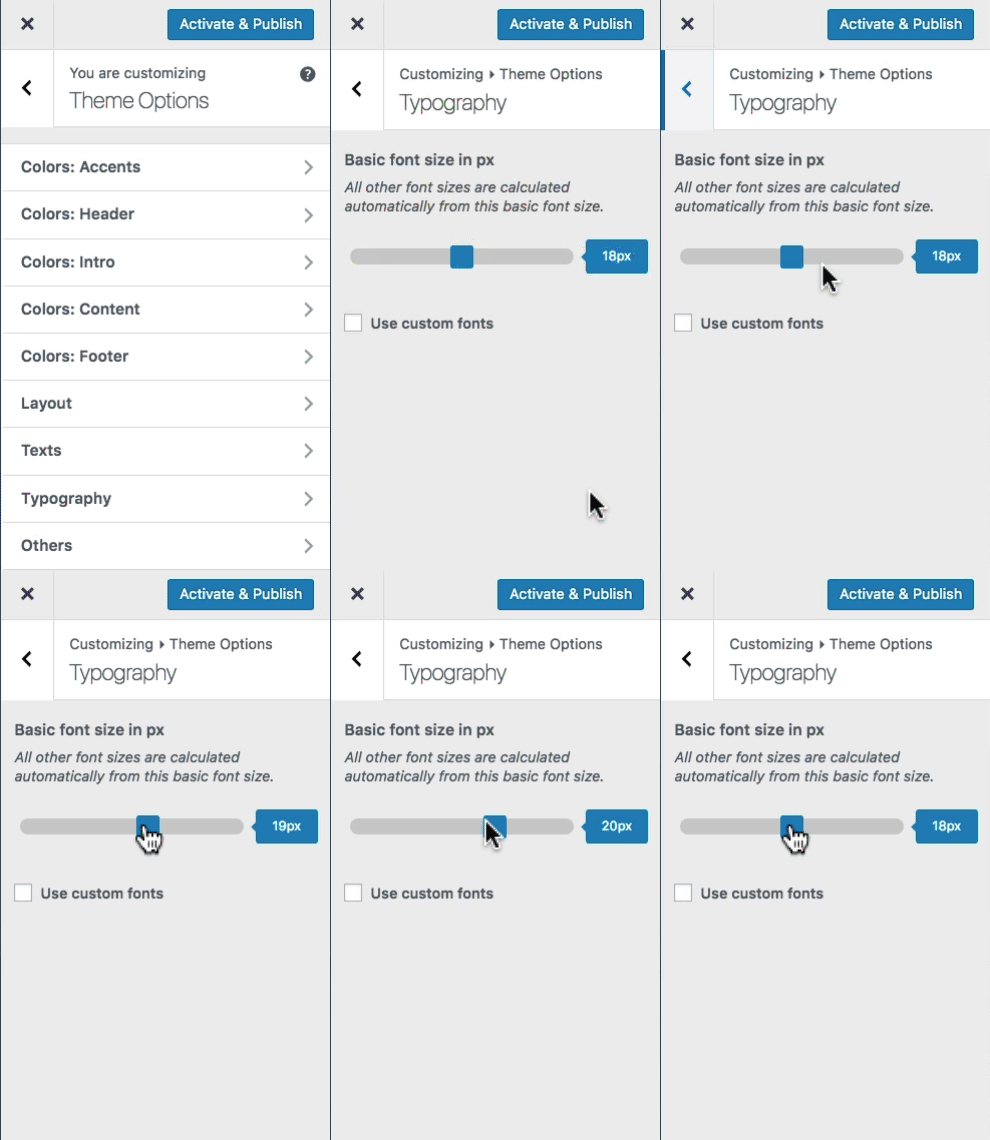
Credit: escapecreative.io
Using Customizer For Size Changes
The Customizer in WordPress is a useful tool. It helps you change theme size. First, open the Customizer from the dashboard. Look for the “Appearance” section. Inside, find the “Customize” option. Click it to open the Customizer.
Next, explore the Customizer options. You can change the layout and dimensions. Find the “Layout” settings. Here, adjust the width and height. Make sure to preview changes. This helps see how the site will look.
To adjust the layout, select layout options. Choose the width you like. Change the height if needed. Use the sliders for easy changes. Watch the preview as you adjust.
Remember to save changes. Click the “Publish” button. This keeps your new settings. Check your site to see the updates. Adjust more if needed. Keep the design neat and clear.
Implementing Responsive Design
Responsive design is very important. It makes websites look good on all devices. To ensure mobile compatibility, themes should adjust to different screen sizes. This means using flexible grids and images. CSS media queries can help. They change styles based on device width. Mobile users should have a smooth experience. Easy to read. Easy to navigate.
Testing on different devices is crucial. It checks if the theme looks good everywhere. Use tools like Google Mobile-Friendly Test. This tool helps identify issues. Also, test on actual devices. Phones, tablets, and desktops. Ensure all features work well. Buttons must be clickable. Text readable. Images should load quickly.
Utilizing Plugins For Size Control
Plugins can help change your WordPress theme size. They make things easy. You don’t need coding skills. Many plugins are available for this task. They are easy to use. Install them from the WordPress dashboard. Activate them to start.
There are several popular plugins. Customizer Theme Options is one. It helps in changing theme size. Elementor is another. It lets you adjust sizes with ease. WPBakery Page Builder is also good. It offers lots of size options. All these plugins are simple to use. They provide visual controls. This helps to see changes instantly.
Integrating plugins is simple. First, find a compatible plugin. Then, download and install it. Next, activate the plugin. Follow the instructions given by the plugin. Make sure your theme supports the plugin. Check theme settings for this. Sometimes, plugins need updates. Keep them updated for best results.
Troubleshooting Common Issues
Themes can sometimes cause display problems. Fonts might look too big or small. Images might not fit the screen. First, check the theme settings. Adjust the font size. Try changing the image size. Use the WordPress customizer tool. It helps fix many issues. If problems stay, try a different theme. Some themes work better than others.
Theme conflicts happen often. Plugins might not work well with some themes. This can cause layout problems. Check for any plugin updates. Sometimes updates fix these problems. Disable one plugin at a time. See if the problem goes away. This helps find the cause. If conflicts remain, contact the theme developer. They can offer solutions.
Best Practices For Theme Customization
Adjusting the size of a WordPress theme enhances user experience. Start by accessing the theme’s CSS files through the WordPress customizer. Modify elements like width and height according to your preferences. Always preview changes on different devices to ensure responsiveness.
Maintaining Design Consistency
Keeping a consistent design is very important. It makes your site look good. Use colors that match well. Fonts should be easy to read. Stick to the same style across pages. This helps visitors feel comfortable. They will find your site friendly and easy to use. Changing too much can confuse people. Make small changes at a time. Check how they look and feel.
Documenting Changes
It’s smart to write down each change you make. This helps you remember what you did. Use a notebook or digital note app. Record the date and detail of changes. This is helpful if you need to fix something later. It also shows you how your site grows over time. Keeping track makes future edits easier. You will feel organized and in control.
Frequently Asked Questions
How Can I Adjust WordPress Theme Size?
To adjust your WordPress theme size, navigate to the customizer under Appearance. Look for layout options or CSS adjustments. You can change dimensions like width and height to fit your needs.
Is It Possible To Resize WordPress Themes?
Yes, resizing WordPress themes is possible. Use the theme customizer or modify the CSS code. Ensure to backup your site before making changes to avoid issues.
Do All Themes Support Size Changes?
Not all themes support size changes directly. Some themes offer built-in customization options, while others require CSS modifications. Check your theme documentation for guidance on resizing.
What Tools Help In Changing Theme Size?
Use the WordPress customizer or plugins like Custom CSS Manager. These tools allow easy modifications to theme dimensions. Always preview changes before saving to ensure your design looks good.
Conclusion
Changing WordPress theme size is simple with a few steps. Start by accessing your theme settings. Adjust width and height as needed. Preview changes to ensure they look right. Save your settings once satisfied. Customize fonts and images for a better fit.
Always back up your site before making changes. This protects your content. Experiment with different settings. Find the look you love. Remember, small tweaks can greatly enhance your site. With practice, you’ll gain confidence. Your site will reflect your unique style.
Happy customizing!


