
Are you feeling stuck with the current look of your WordPress site? Changing the theme picture could be the perfect solution to refresh your website’s appearance and capture the attention of your visitors.
Imagine the impact of a new, eye-catching image that not only represents your brand but also enhances your site’s aesthetics. By the end of this guide, you’ll know exactly how to change your WordPress theme picture with ease and confidence.
You don’t have to be a tech wizard to give your site a fresh look. Ready to transform your website’s vibe? Let’s dive in and unlock the secrets to a stunning visual upgrade that keeps your audience engaged and wanting more.
Choosing The Right Theme
Start by thinking about what your website needs. Do you want a photo gallery or a blog? Do you sell products online? Different themes offer different features. Pick a theme that matches your goals.
There are many themes to choose from. Some are free, while others cost money. Look at the theme’s rating and reviews. This helps you know if it’s good. Try the live demo to see how it looks.
Check if the theme is easy to use. Make sure it works well on phones and computers. A good theme is fast and doesn’t slow down your website. Choose wisely!
Installing A New Theme
First, log in to your WordPress account. The dashboard is the main page. You will see all your options here. It is simple to find what you need. Focus on the left side menu.
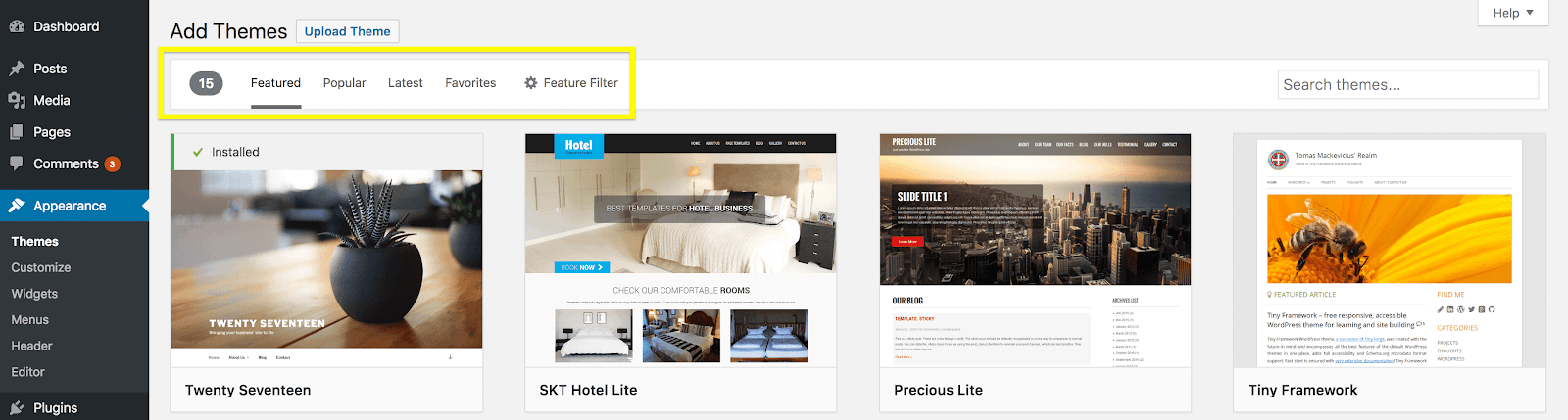
On the left menu, find Appearance. Click on it, then select Themes. This section shows all available themes. Look for the option to add new theme. It is usually at the top.
Click the Add New button. You can search for themes or upload one. To upload, click Upload Theme. Then, choose your theme file. Finally, click Install Now. Your new theme will be ready soon.
Activating Your Theme
First, open your WordPress dashboard. Then, go to Appearance and click on Themes. Here, you see all available themes. To preview a theme, hover over it and click Live Preview. This shows how your site looks with that theme. You can check colors, fonts, and layouts. Make sure it fits your style. If you like it, you can activate it next.
To set the theme, go back to the Themes page. Hover over the chosen theme. Click on the Activate button. Your site now uses this theme. Visit your site to see changes. If you don’t like it, you can switch back. Go back to the themes list and choose another one.
Customizing Theme Design
Click on Appearance in your dashboard. Then select Customize. Here, you can change many theme features. Look for the Background Image option. Click to upload a new picture. Save your changes when done.
The WordPress Customizer helps with colors and fonts too. Choose Colors to see options. Pick a new color for your theme. For fonts, go to Typography. Select a font style you like. Always remember to save changes.
Want more control? Use Custom CSS. This option is also in the Customizer. Enter your CSS code here. This changes how your site looks. CSS can be tricky. Double-check your code before saving.
Changing The Header Image
First, find the customize button in the WordPress dashboard. Click it to open the theme settings. Look for the Header Image section. It is usually on the left. This section lets you change the picture easily. Make sure to select the right option.
Click the upload button to add a new image. Choose a picture from your computer. Make sure the image is clear and suitable for your site. After selecting, click upload again. Your new image will appear on the header. Ensure it fits the theme style.
Check the image size after uploading. Use the crop tool if needed. Adjust the image to fit the header space. Make sure it looks nice and neat. Avoid very large images. They can slow down your site.

Credit: jetpack.com
Updating The Background Image
First, log into your WordPress dashboard. Find the Appearance section on the left menu. Click on Customize. This will open the Customizer where you can change many settings. Look for the Background Image option. Click on it to see current background settings. You can now make changes here.
Click on Add New Image. A window will appear showing your Media Library. You can pick an image from here or upload a new one. To upload, click on Upload Files. Choose an image from your computer. Make sure the image is of good quality. It should also match your website style. After uploading, click Select and Crop. Adjust the image size as needed. Finally, click Publish to save changes. Your new background will now show on your website.
Managing Theme Widgets
Changing the picture in a WordPress theme widget is straightforward. Access the widget section from the dashboard. Select the widget containing the picture, upload a new image, and save changes.
Adding And Removing Widgets
Widgets help make your website look nice. They can be things like a calendar or a search bar. To add a widget, go to the dashboard. Then, find the “Appearance” section. Click on “Widgets”. You will see a list of available widgets. Drag a widget to your sidebar or footer. To remove a widget, just drag it back. It’s easy and fun.
Configuring Widget Settings
Each widget can be customized. Click on the widget to see its settings. You can change the title or content. Some widgets have more options. Like colors or links. After making changes, click “Save”. Your changes will appear on the site. Always check your site after saving. Make sure it looks good.

Credit: www.templatemonster.com
Saving And Publishing Changes
After changing your theme picture, save your work. Click on the “Save” button. This keeps your changes safe. Next, click “Publish.” This shows your changes to everyone. It’s easy and quick. Remember to check everything first. Make sure the picture looks good. Check the size and colors. Make sure it matches the theme. Saving and publishing is important. It makes your site look fresh. Don’t forget this step. It helps your site look neat.
Reviewing Changes
Take a moment to review your changes. Look at the picture on the site. Does it fit the theme? Check the alignment. Is it centered? Check the picture’s resolution. Is it clear and sharp? Look at the website on different devices. Check on a phone and a computer. Ensure the picture looks good everywhere. Review carefully. This step is crucial for a great site.
Finalizing Theme Adjustments
Final touches make your website shine. Adjust the picture if needed. Change the size or position. Experiment with different images. Choose the one that looks best. Check the theme settings. Ensure everything is correct. Make final adjustments. Preview your site before publishing. Look at the overall design. Does everything match and look nice? Final adjustments help your site look professional. They make a big difference.
Troubleshooting Common Issues
Sometimes, themes don’t work well together. This is called compatibility problems. It can stop your site from looking right. Check if your theme needs updates. New updates can fix many problems. If issues persist, try switching to a default theme. This will help you find out if the issue is with your theme or something else. Always remember to backup your site before making changes.
Images might not show up correctly. This can be due to theme settings. First, check the image size settings. Ensure they match the theme’s recommended sizes. If images still don’t display, check your media library. Make sure the images are uploaded correctly. Also, check for any broken links in image URLs. Fixing these can help display images properly.
Credit: wpengine.com
Frequently Asked Questions
How Do I Change My WordPress Theme Picture?
To change your WordPress theme picture, navigate to your dashboard. Click on ‘Appearance’ and then ‘Customize. ‘ Find the section for ‘Header’ or ‘Background Image. ‘ Upload or select a new image from your media library. Save your changes to update the theme picture.
Can I Use Any Image As A Theme Picture?
Yes, you can use any image as your theme picture. Ensure the image is high-quality and fits your site’s design. Optimize the image for web use to improve site speed. Check your theme’s recommended dimensions to ensure the image displays correctly.
Why Is My Theme Picture Not Changing?
If your theme picture isn’t changing, clear your browser cache. Ensure the image meets your theme’s requirements. Double-check the image upload process in the ‘Customize’ section. Contact theme support if issues persist, as some themes may have specific settings.
Does Changing The Theme Picture Affect Seo?
Changing the theme picture can impact SEO if it affects site speed or user experience. Optimize images for faster loading times. Ensure the image is relevant to your content. Properly tag and name images to maintain or improve SEO rankings.
Conclusion
Changing your WordPress theme picture is simple. Follow the steps above carefully. It enhances your site’s visual appeal. A fresh image can create a strong first impression. Keep your images relevant and high-quality. Your website will look more professional. Regular updates keep your site engaging.
Experiment with different images. See what works best for your audience. Monitor feedback and adjust accordingly. A well-chosen picture can boost user engagement. It’s a small change with big impact. Make sure your site reflects your brand’s message. Happy updating!


