
Are you feeling stuck with your current WordPress theme on GoDaddy? Imagine giving your website a fresh new look that captivates your visitors and reflects your brand’s true identity.
Changing your WordPress theme can seem daunting, especially if you’re not a tech wizard. But don’t worry, it’s simpler than you think! In this guide, you’ll discover step-by-step instructions to seamlessly switch your theme on GoDaddy, making your site not only visually stunning but also more efficient.
Before you know it, you’ll be attracting more visitors and engaging them like never before. So, are you ready to transform your website into something spectacular? Let’s dive in!
Credit: www.godaddy.com
Accessing The Godaddy Dashboard
First, go to the Godaddy website. Log into your account. Use your username and password. Next, find the My Products section. This section holds your products. Click on it. You will see a list of your sites. Choose the WordPress site you want. You will then see an option to Manage your site. Click on Manage. This takes you to the hosting dashboard. Here, you can make changes to your site.
Make sure your internet connection is stable. This prevents errors. Ensure your login details are correct. Double-check before entering them. It’s important to keep your site secure. Remember to log out once done.

Credit: www.godaddy.com
Navigating To WordPress Settings
First, log into your Godaddy account. Find the WordPress section. Click it. This opens the WordPress dashboard. Look for Appearance on the left menu. Click on it.
Now, you see a list of themes. Choose one you like. Click Activate to set it. Your site will now have this theme.
Want to try another theme? Click Add New. Browse through many options. Pick one and click Install. Then, click Activate to use the new theme.
Remember to check if the theme matches your site style. Themes change the look of your site. Always preview before activating.
Selecting A New Theme
WordPress offers many themes. Each theme has a different look. You can find themes for blogs, shops, or portfolios. Some themes are free. Others might cost money. Free themes are great to start with. They have basic features. Paid themes offer more options. They can make your site unique. Before choosing, think about your site’s purpose. This helps in picking the right theme.
The search box helps you find themes fast. Type what you need. Use keywords like “blog” or “business”. The search shows themes that match. You can filter themes by features. Choose options like layout or color. This makes finding the perfect theme easier. Always check theme ratings and reviews. Happy users mean a good theme. Try different searches to see more results.
Installing The Chosen Theme
Go to your WordPress dashboard. Click on Appearance and then Themes. Next, click the Add New button. Search for the theme you like. Click Install to add the theme. After installation, click Activate. Your new theme is now live on your site.
First, download the theme as a .zip file on your computer. Go to your WordPress dashboard. Click on Appearance and then Themes. Click the Add New button. Now, click Upload Theme. Choose your .zip file and click Install Now. After it uploads, click Activate. Your custom theme is now active.
Activating The New Theme
First, go to the WordPress dashboard. Click on Appearance. Choose Themes.
You will see many themes. Find the one you want. Click on Activate.
The new theme will be live. Check your site. Make sure it looks nice.
If you don’t like it, you can change it. Pick another theme. Activate it again.
Customizing The Theme
Changing your WordPress theme on GoDaddy is simple. Access your dashboard, navigate to Appearance, and select Themes. Choose a new theme that suits your style and activate it with one click. Customize further to match your brand. Enjoy a fresh look effortlessly!
Using The WordPress Customizer
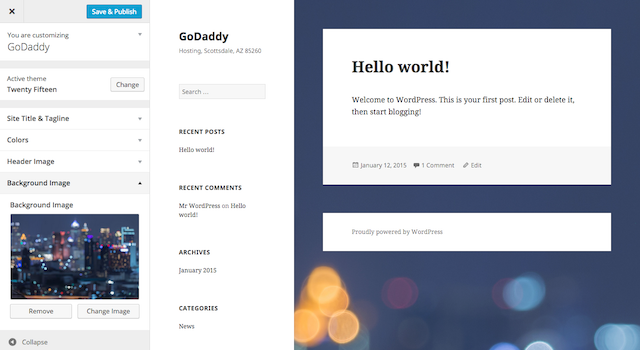
The WordPress Customizer is a great tool. It helps you change your theme easily. First, go to your WordPress dashboard. Click on “Appearance” and then “Customize”. Now, you see many options. These options let you change colors and fonts. You can also change layouts.
Adjusting these settings is easy. Just click on the option you want. Then, make your changes. Watch the preview on the right side. It shows you how your site looks. If you are happy, click “Save”. Now, your changes are live. It’s that simple!
Adjusting Theme Settings
Every theme has different settings. Some themes let you add a logo. Others let you change the header image. You can also add widgets. Widgets are small tools. They show on your site, like a clock or calendar.
To adjust these settings, go back to the Customizer. Look for the “Widgets” or “Header” option. Click to explore more choices. Have fun with your new theme!
Testing The New Theme
Check if the website works well. Click on buttons and links. Make sure they open correctly. Look at images and text. Are they showing right? Use different devices. See if the site looks good on each one. Try a phone, tablet, and computer. The site should be easy to read. It should load quickly too.
Check forms and comments. Do they work fine? Try sending a message. See if it arrives in your inbox. Look at the navigation menu. Make sure it leads you to the right pages. Test the search bar. It should find things easily. Look for broken links and fix them.
Plugins can break the site. Use a few plugins at a time. Check if they work well with the theme. Look for errors or missing features. Update plugins if needed. Find alternatives if they cause problems. Compatibility is important for a smooth website.
Troubleshooting Common Issues
Changing a WordPress theme on GoDaddy is straightforward. Start by logging into your WordPress dashboard. Navigate to ‘Appearance’ and select ‘Themes’ to explore available options. Ensure your chosen theme is compatible with your site’s plugins for smooth functionality.
Resolving Theme Conflicts
Changing your WordPress theme on Godaddy can cause conflicts. Sometimes, new themes may not work well. This can cause your site to look broken. To fix this, try disabling plugins. Some plugins may not like the new theme. If the site still looks bad, switch back to the old theme. This helps find the problem. Always update themes and plugins. This keeps them working together well. If trouble continues, ask for help. Godaddy support can assist with theme issues. They have experts ready to help you.
Restoring Previous Themes
Sometimes, the new theme may not meet your needs. It’s easy to go back to the old theme. First, open the WordPress dashboard. Then, find the “Appearance” menu. Click on “Themes.” Look for your old theme. Click “Activate” to restore it. Your site will look like before. Always keep a backup of your site. Backups help if something goes wrong. Godaddy offers backup services. Use them to protect your work.
Credit: www.godaddy.com
Frequently Asked Questions
How Do I Change My WordPress Theme?
To change your WordPress theme on GoDaddy, log into your WordPress dashboard. Navigate to “Appearance” and select “Themes. ” Browse available themes, click “Activate” on your chosen theme. Ensure compatibility with plugins to avoid issues.
Can I Preview A Theme Before Changing?
Yes, you can preview a theme before activating it. In the “Themes” section, hover over a theme and click “Live Preview. ” This allows you to see how it looks with your content without making it live.
What Happens To My Content After Changing Themes?
Your content remains intact when changing themes. Themes affect design and layout, not the core content. However, some widgets or custom features may need reconfiguration after activation.
Are All Themes Compatible With Godaddy Hosting?
Most WordPress themes are compatible with GoDaddy hosting. However, ensure the theme is regularly updated and supported. Check reviews and compatibility notes for potential issues.
Conclusion
Changing your WordPress theme on GoDaddy is easy. Follow the steps carefully. Choose a theme that suits your needs. Always preview before activating. This ensures your site looks as expected. Keep your site’s goals in mind. Check compatibility with plugins.
Regular updates maintain security and functionality. Ask for help if needed. GoDaddy support is available. Remember to back up your site first. This prevents loss of data. Enjoy the new look of your website. Keep exploring more themes. Make your website unique and engaging.
Happy blogging!


