
Are you looking to give your WordPress site a fresh look by updating your theme logo? Changing your WordPress theme logo is one of the simplest ways to make a significant impact on your site’s appearance.
Whether you’re rebranding, launching a new product, or just wanting a change, updating your logo can breathe new life into your website. But, you might be wondering, “How do I actually change it without messing things up? ” Don’t worry; you’re not alone! In this guide, we’ll walk you through the straightforward steps to switch out your logo like a pro.
By the end of this article, you’ll be equipped with the know-how to confidently change your WordPress theme logo and impress your visitors with your site’s new look. Let’s dive in and transform your website together!

Credit: gretathemes.com
Accessing The WordPress Dashboard
First, open your web browser. Type your website’s URL. Add /wp-admin at the end. Press enter. The login page will appear. Enter your username. Enter your password too. Click the login button. You will now see the WordPress dashboard.
The dashboard is like a control room. Here, you can change many things. Find the menu on the left. Look for the Appearance option. Click it. A list will drop down. Click on Customize. The customize page will open. Here, you can change your website’s look.
Locating The Theme Customizer
The Theme Customizer is easy to find. First, go to your WordPress dashboard. Look for the Appearance tab. Click on it. A menu will appear. Choose Customize. This opens the Theme Customizer.
The Theme Customizer lets you change many things. You can change colors, fonts, and logos. The menu on the left shows options. Look for the Site Identity option. Click on it. Here, you can change your logo.
Upload your new logo. You can preview changes right away. Make sure your logo looks good. If everything is fine, click Publish. Your new logo is live now.
Navigating To Site Identity
To start, log into your WordPress dashboard. Look for the menu on the left. Find and click on “Appearance”. Next, select “Customize”. A new screen will open. It shows many options. Choose “Site Identity”. This is where you can change your logo.
You will see a box labeled “Logo”. Click on it. You can now upload a new image. Pick a picture from your computer. Ensure it’s the right size. After uploading, click “Publish” to save changes. Your new logo will show up on your site. Make sure it looks good.
If you need to change it again, follow the same steps. It’s easy and quick. Enjoy your new site look!
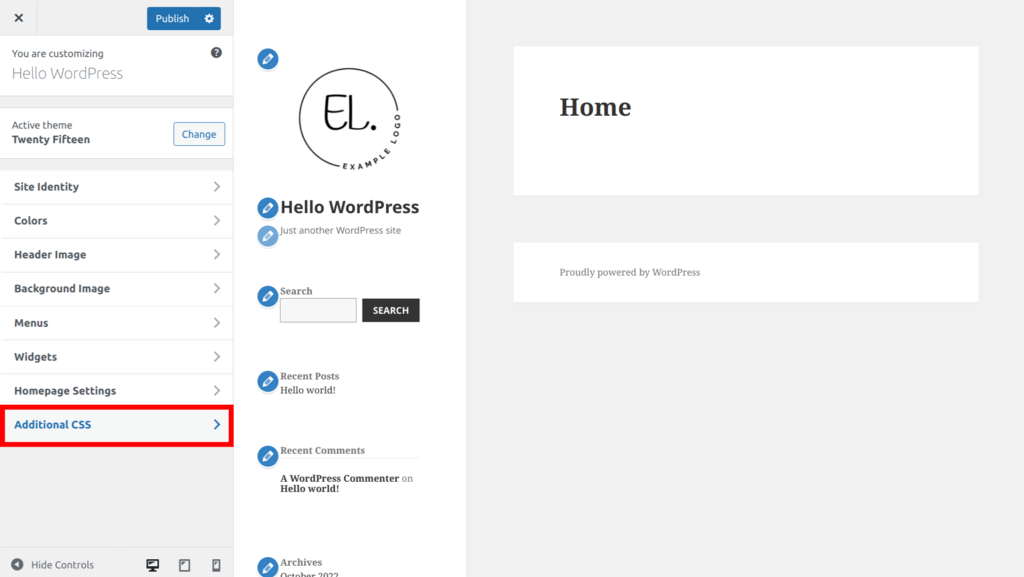
Credit: www.hostinger.com
Uploading A New Logo
The logo is the face of your website. It needs to fit well and look clear. A good size is between 100 to 300 pixels wide. This size works for most websites. Check your theme’s settings for a perfect fit. Always save your logo in JPEG or PNG format. This keeps the image quality high.
A logo should load fast. Smaller file sizes help with this. Compress your logo using free online tools. This keeps the quality good and the file small. Use a transparent background if needed. This looks neat on different themes. These steps make your logo look great and load quickly.
Replacing The Existing Logo
Start by logging into your WordPress dashboard. Click on Appearance in the left menu. Find the Customize option. Look for the Site Identity section. Here, you can change your logo. Click on the Select Logo button. Choose a logo from your media library. You can also upload a new logo. Adjust the size if needed. Check the preview to see how it looks. Once satisfied, click on Publish. Your new logo is now live on your site. It’s easy and quick to do. Remember, a good logo helps your site stand out. Make sure it represents your brand well.
Saving And Publishing Changes
First, click on the “Save Changes” button. This button saves your edits. Always save your work to avoid losing changes. After saving, find the “Publish” button. Click it to make your logo live. This step shows your new logo to everyone.
Remember, saving and publishing are different. Saving keeps your changes safe. Publishing shows your changes to everyone. If you want to keep changes private, save but don’t publish yet.
Always check your logo after publishing. Make sure it looks right on the site. If something is wrong, go back and edit. Then save and publish again. This ensures your site looks good to visitors.
Troubleshooting Common Issues
Sometimes, the logo might not show on the site. Check if the logo file is uploaded correctly. Ensure the image format is supported, like JPEG or PNG. Verify if the theme supports custom logos. Look at the theme settings to confirm the logo is enabled. Clear the browser cache to see changes.
The logo might appear too big or small. Adjust the logo size in the theme settings. Use a logo that fits recommended dimensions. Check the CSS file for size restrictions. Resize the logo image using photo editing tools. Upload the adjusted logo again.
The logo might look different on mobile devices. Test the site on a phone or tablet. Ensure the theme is responsive. Check mobile settings in the theme options. Add custom CSS to fix display issues. Update the theme if it is outdated.
Customizing Logo With Css
Use CSS to move your logo around the page. Change its position using the position property. Options include absolute, relative, or fixed. Set the top, bottom, left, or right values to adjust. Experiment with these values to find the best spot. A small change can make a big difference. Look at how your logo sits with other elements.
Adjust the size of your logo with CSS. Use the width and height properties. Try different sizes to see what fits best. Keep the logo clear and not blurry. Make sure it looks good on all devices. Test on a phone and a computer. This ensures your website looks great for everyone.
Restoring Default Settings
Sometimes, you need to restore default settings in WordPress. This can help fix problems. First, go to the WordPress dashboard. Click on Appearance, then click on Customize. Look for the Site Identity section. Here, you can find the option to change the logo. Select Remove to delete the current logo. This will restore the default WordPress logo.
Remember, changes might take a few seconds. Refresh the page if you can’t see the new logo. It’s always good to check your site after making changes. This way, you make sure everything looks right. If something is wrong, try again or seek help.
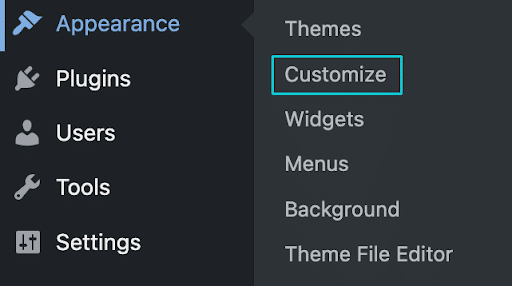
Credit: wpengine.com
Frequently Asked Questions
How Can I Change My Theme Logo In WordPress?
To change your theme logo, go to your WordPress dashboard. Navigate to Appearance > Customize. Look for the “Site Identity” section. Here, you can upload a new logo. Save your changes, and your new logo will be displayed.
Why Is My WordPress Logo Not Updating?
If your logo isn’t updating, it might be due to caching. Clear your browser cache or use a caching plugin to refresh your site. Ensure your logo is uploaded correctly in the customizer. Check your theme documentation for specific instructions.
Can I Use Any Image As A WordPress Logo?
Yes, you can use any image as your logo, but it should be clear and appropriately sized. Most themes recommend a specific size for optimal display. Ensure your image is high quality and represents your brand effectively.
Do All WordPress Themes Support Logo Changes?
Most WordPress themes support logo changes, but some might have limitations. Check your theme documentation for details. If your theme doesn’t support logo changes, consider using a child theme or contacting the theme developer for assistance.
Conclusion
Changing your WordPress theme logo is simple. Just follow clear steps. Access your WordPress dashboard. Navigate to the theme settings. Upload your new logo file. Save the changes. Refresh your website to see your new logo. This enhances your site’s look and feel.
Your brand identity shines through. Regular updates keep your site fresh. Users appreciate a consistent brand image. A professional logo makes your site memorable. Keep experimenting with designs. Find what suits your brand best. Happy designing and enjoy your refreshed website look!


