
Navigating the intricacies of your WordPress site can be daunting, especially when it comes to changing your theme through cPanel on Bluehost. Maybe you’re ready to give your website a fresh, new look or perhaps your current theme isn’t quite meeting your needs.
Whatever the reason, it’s essential to know how to make these changes smoothly and efficiently. Imagine having the perfect theme that not only enhances your site’s aesthetics but also boosts its functionality. This guide is here to help you achieve just that.
By the end of this article, you’ll have the confidence and know-how to change your WordPress theme using cPanel on Bluehost, ensuring your website stands out. So, let’s dive in and transform your website into something truly remarkable!

Credit: www.bluehost.com
Accessing Cpanel
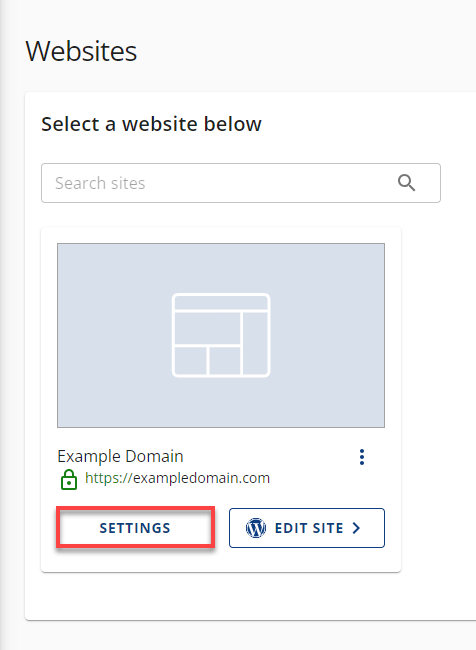
First, open your web browser. Go to the Bluehost login page. Enter your username and password. Click the login button. This will take you to your account dashboard. Make sure your details are correct. This step is crucial for access.
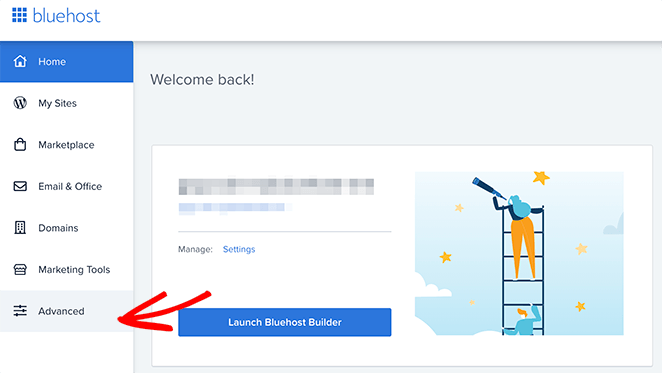
Look for the Advanced tab in the dashboard. Click on it. This will open the Cpanel interface. Here, you can manage your website. The Cpanel is user-friendly. You will see many icons. Find the one that says Themes. This is where you change your theme.
Locating File Manager
File Manager is your tool to see all website files. Every file has a place. This is called the file structure. Think of it like a big library. Each book has a spot on the shelf. If files are not in the right spot, things get messy.
Files help the site work. PHP files are important. They make WordPress run. CSS files change how your site looks. Images make your site pretty. Knowing where each file lives is key. It helps when you change a theme.
The WordPress directory is like the heart of your site. It holds all important files. wp-content folder is part of this. Inside, you find themes and plugins. Another folder is wp-admin. It helps you manage the site.
Look for the public_html folder. This is where you start. Inside, find the WordPress directory. This is your main workspace. Changing themes happens here. Always check the directory before making changes.
Changing The Theme
First, log in to your cPanel account on Bluehost. Find the File Manager icon. Click on it. Now, locate the public_html folder. Open it. Then, find the wp-content folder. Inside, you will see the themes folder. Click to open it. This is where all your themes are stored.
Download a new theme from a trusted source. Ensure it’s in a .zip format. In the themes folder, look for the Upload button. Click it. Choose your new theme’s zip file. Wait for the upload to finish. Then, extract the file in the themes folder. The new theme will appear among other themes.
Log in to your WordPress dashboard. Go to Appearance and then Themes. Find your new theme. Click on Activate. Now your website uses the new theme. Check your site to see the changes. Make sure everything looks good. Adjust settings if needed.
Credit: www.bluehost.com
Troubleshooting Common Issues
Changing a WordPress theme via Bluehost’s cPanel is straightforward. First, log in to cPanel and access the File Manager. Navigate to the wp-content/themes directory, upload your new theme, then activate it in the WordPress dashboard.
Dealing With Theme Compatibility
Themes may not always fit well with your current settings. This happens if the theme has old code. Check for updates from the theme maker. Update the theme if possible. If the theme is too old, consider a new one. Always back up your site first. This helps in case things go wrong.
Fixing Broken Themes
Sometimes, a theme can break your site. You might see a blank page. Or some parts of the site might not work. Go to your cPanel and access the file manager. Find the themes folder. Rename the current theme folder. This forces WordPress to use a default theme. Check if the site works now.
Restoring Previous Theme
If a new theme fails, go back to the old one. In cPanel, open the file manager. Locate the wp-content folder. Open the themes folder. Rename the new theme folder. Change the old theme folder back to its original name. This should bring back your previous theme. Always keep a backup for safety.
Tips For Choosing A Theme
Good design makes a website look nice. It attracts visitors. Functionality is how well a theme works. Choose a theme that is both pretty and useful. Many themes offer different features. Pick what fits your needs best. Don’t choose a theme just because it looks cool. Make sure it has what you need.
A responsive theme works on all devices. Phones, tablets, and computers. Everyone uses different devices. A responsive theme is important. Check if the theme looks good on a phone. Try it on a computer too. Make sure it adjusts well. Visitors will leave if the site looks bad. Responsiveness keeps them happy.
SEO helps people find your website. Themes must be SEO-friendly. Some themes have built-in SEO tools. Choose a theme that helps search engines find your site. Look for fast themes. Speed is important for SEO. A slow theme can hurt your ranking. SEO-friendly themes attract more visitors.
Credit: www.seedprod.com
Frequently Asked Questions
How Do I Access Cpanel In Bluehost?
To access cPanel in Bluehost, log into your Bluehost account. Navigate to the “Advanced” tab in the sidebar. Here, you’ll find the option to open cPanel. Simply click on it to access your cPanel dashboard and manage your WordPress themes and other settings.
Can I Change WordPress Themes Via Cpanel?
Yes, you can change WordPress themes via cPanel. Access the File Manager in cPanel. Navigate to the ‘wp-content/themes’ directory. Upload your new theme here and activate it from your WordPress dashboard. This method allows you to change themes even if you can’t access WordPress directly.
What Should I Do Before Changing A Theme?
Before changing a theme, back up your website. Use Bluehost’s backup feature or a WordPress plugin. This ensures you can restore your site if anything goes wrong. Additionally, preview the new theme to ensure it’s compatible with your existing content and plugins, minimizing potential issues.
How Can I Preview A Theme Before Changing It?
To preview a theme, go to your WordPress dashboard. Navigate to “Appearance” and click on “Themes. ” Hover over the theme you want to preview and click “Live Preview. ” This feature allows you to see how your site will look without activating the theme, helping you make an informed decision.
Conclusion
Changing your WordPress theme in Cpanel Bluehost is simple. Follow the steps carefully. Begin by accessing your Bluehost account. Navigate to Cpanel. Locate the “File Manager” option. Select the appropriate theme folder. Upload or delete themes as needed. Ensure compatibility with WordPress versions.
Keep backups of your existing themes. This prevents data loss. Test your new theme thoroughly. Make adjustments for better site performance. Remember, a fresh theme can enhance your site’s appearance. Enjoy the new look and functionality. With practice, theme changes become second nature.
Happy blogging!


