
Have you ever visited your WordPress site and felt that your header image no longer reflects your brand or the vibe you wish to convey? If so, you’re not alone.
A fresh header image can significantly alter the first impression your site makes, potentially increasing user engagement and enhancing your site’s visual appeal. Changing your WordPress theme header image might sound intimidating, but it’s easier than you think—and you’re about to learn how.
Imagine this: your website is like a blank canvas, and the header image is the masterpiece that catches everyone’s eye. By updating your header image, you can breathe new life into your site, ensuring it resonates with your audience and aligns with your goals. Whether you’re a blogging newbie or an experienced WordPress user, mastering this simple tweak could be the key to capturing and holding your visitors’ attention. Ready to give your website a facelift? Keep reading to discover how you can effortlessly change your WordPress theme header image and make your site stand out from the crowd.
Credit: www.wpzoom.com
Choosing A New Header Image
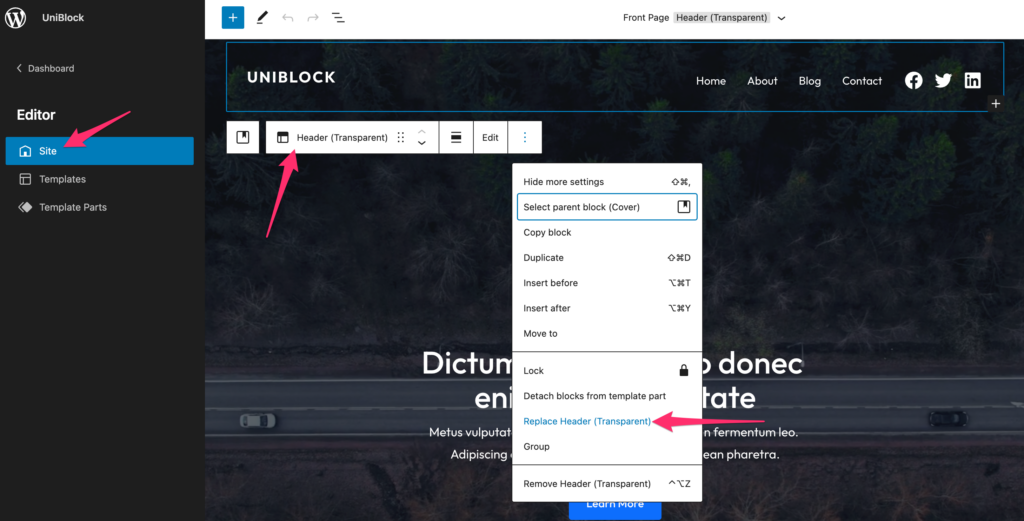
Pick an image that fits well. Image dimensions matter a lot. Wide images look good on most sites. Check your theme’s recommended size. Avoid images that are too tall. They might cover important text. Stick to the suggested dimensions for the best fit.
High-quality images make your site look better. Crisp images attract visitors. Blurry images look unprofessional. Use images that are clear and bright. A good image can make your site stand out. Always choose the best quality you can find.
Credit: quadlayers.com
Accessing Theme Customizer
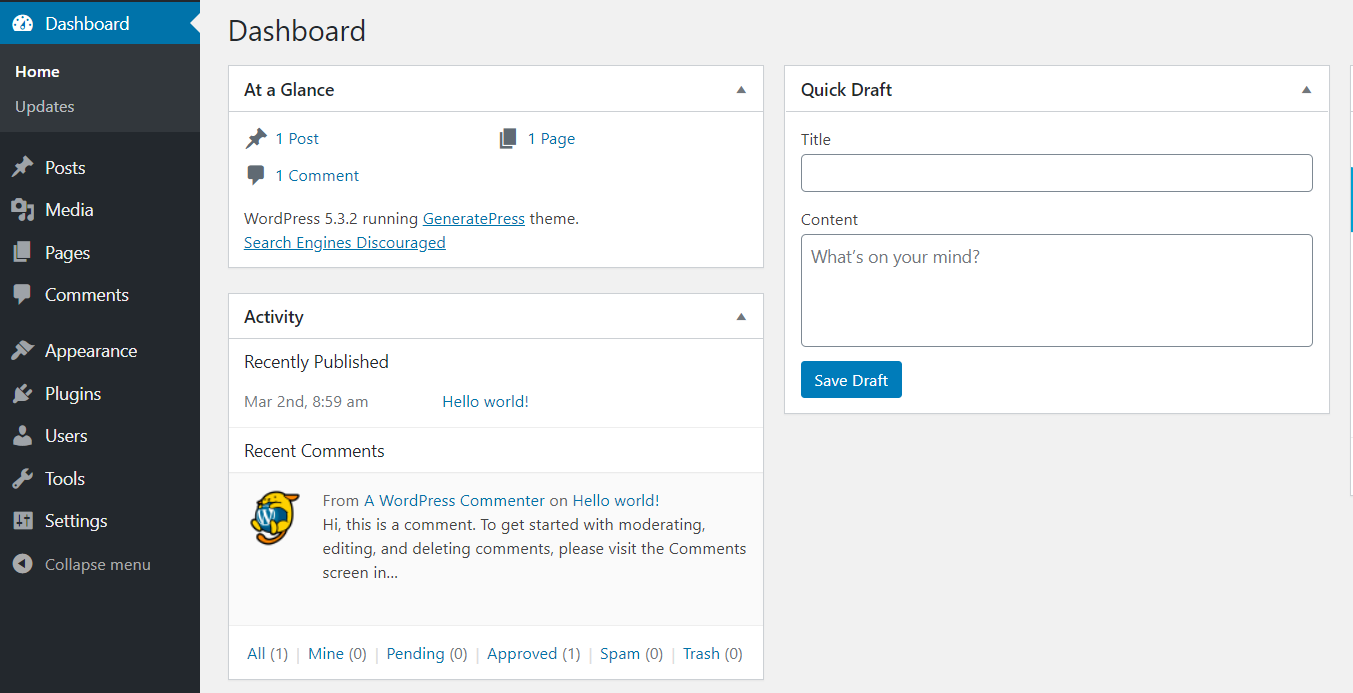
First, find the Appearance menu in your WordPress dashboard. Click on it. This will show several options. Choose Customize. This opens the Customizer interface. Here, you can change many things. Look for Header options. It might be named Header Image. Click on it to start changing your header image.
The Customizer interface is easy. You will see a live preview of your site. Look for the Header Image section. Click on it to expand. You can upload a new image here. Or, choose from existing images. Make sure your image fits well. It should not be too large or small. Click Save when done. Your new header image is now live.
Locating Header Image Settings
To change the header image in WordPress, start by going to your dashboard. Click on Appearance in the left menu. There you will find Theme options. This is where you can make changes.
Identify Header Options
Look for header settings under theme options. Some themes have this directly visible. Others might need you to explore a bit. You might see a tab named Header or Customize. This is where you will find header options.
Explore Header Image Section
Click on the header section. Here, you can upload a new image. Choose a picture that fits well. Some themes give you image size limits. Keep this in mind while choosing. Save your changes after uploading. Your new header image will now show up.
Uploading A New Image
Upload from Media Library: First, open your WordPress dashboard. Click on the “Appearance” tab. Then, choose “Customize.” Find the “Header Image” option. Click “Add New Image.” Select “Media Library.” Here, you will see your images. Pick an image you like. Click “Choose and Crop.” Adjust your image size. Save your changes.
Add from Computer: Go to the “Header Image” section. Click “Add New Image.” Pick “Upload Files.” Click “Select Files” to browse your computer. Find the image you want. Click “Open.” The image uploads. Once uploaded, click “Choose and Crop.” Adjust the image as needed. Save your changes. Your new header is ready.
Adjusting Image Appearance
Changing the header image is easy. Positioning it perfectly is important. Center the image for balance. Align it to the left or right for style. You can also crop it. Cropping removes unwanted parts. Focus on the main subject. This makes the image look better. Use WordPress tools. They help you crop easily. Preview changes before saving. This ensures the image fits well. Happy adjusting!
Saving And Publishing Changes
Change your WordPress theme header image by accessing the theme customizer. Save changes to update your website. Always ensure to publish updates for them to appear live on your site.
Save Customizer Settings
Click the save button to keep changes. Look for a floppy disk icon. Your new header image is now set. Ensure you have selected the right image. Check the preview before saving.
Publish Updated Header
Click the publish button to make your header live. This button is usually blue. Your changes will now show on your site. Refresh your site to see the updated header. Ensure visitors see the new design. Confirm the header looks good on all devices.
Troubleshooting Common Issues
Changing your WordPress theme header image can be tricky. First, go to the WordPress dashboard and click on “Appearance. ” Then select “Customize” and find “Header Image. ” Upload your desired image and save changes. Ensure the image fits well to avoid display issues.
Image Not Displaying
Ensure the image file is in the correct format. Common formats are JPG or PNG. Check the file size as well. A very large file may not load. Ensure your internet is stable. Sometimes a slow connection causes delays. Refresh the page after checking these factors. If the image still doesn’t display, clear the browser cache. This can solve many display issues.
Reverting To Previous Image
Go to the theme customization panel. Look for the header image section. Select the previous image from the media library. Click on it and then hit the save button. This will apply the previous image again. Ensure you see the confirmation message. Refresh your webpage to see the change. If it doesn’t work, try clearing the browser cache. This helps in updating the changes.
Credit: www.elegantthemes.com
Frequently Asked Questions
How Do I Change The Header Image In WordPress?
To change your WordPress theme header image, go to your WordPress dashboard. Navigate to Appearance > Customize. From there, select the Header Image option. You can upload a new image or choose from your media library. Save your changes to update the header image on your site.
Can I Use Any Image Size For The Header?
Using the recommended image size ensures proper display. Check your theme’s documentation for the ideal dimensions. Most themes suggest a specific size for the best fit. Uploading an image that matches these dimensions will ensure it looks great on your site.
Why Isn’t My Header Image Updating?
If your header image isn’t updating, try clearing your browser cache. This often resolves display issues. Also, ensure you’ve saved changes in the WordPress Customizer. If the problem persists, check for plugin conflicts or consult your theme’s support forum for assistance.
Can I Have Different Header Images For Each Page?
Some WordPress themes support different header images for each page. Check your theme’s documentation or settings. If not, you can use plugins like Unique Headers. These plugins allow setting unique header images for individual pages or posts easily.
Conclusion
Changing your WordPress theme header image is simple. Follow the steps outlined. First, access your WordPress dashboard. Then, navigate to the “Appearance” section. Select “Customize” and find “Header Image. ” Upload your desired image. Remember, choose an image that fits well.
It should enhance your site’s look. A good header image attracts visitors. It also reflects your brand. Regularly update your image for freshness. Keep experimenting with different designs. This ensures your site stays appealing. Enjoy customizing your WordPress site with ease!


