
Are you ready to give your WordPress site a fresh new look? Changing your theme can breathe new life into your website, making it more appealing to visitors and better aligned with your brand.
If you’re using GoDaddy as your hosting provider, you might be wondering how to seamlessly switch themes without breaking a sweat. You’re in the right place! In this guide, we’ll walk you through the straightforward process of changing your WordPress theme on GoDaddy.
You’ll discover how easy it is to transform your site’s appearance in just a few clicks, and we’ll also share some insider tips to ensure a smooth transition. Stick around, and by the end of this article, you’ll be ready to revamp your website with confidence and ease. Don’t miss out on the chance to make your site shine!

Credit: www.youtube.com
Choosing The Right Theme
Start by thinking about what you want. Do you need a simple blog or a fancy store? Knowing your needs helps pick the right theme. Make a list of must-have features. This list will guide your choice.
Check out different themes online. Godaddy offers many options. Some are free, others cost money. Look for themes that fit your list. Test a few to see how they look. Find the one you like best.
Look for themes with helpful features. Responsive design is important. This means the theme works on phones and tablets. SEO-friendly themes help people find your site. Easy customization is a plus. Pick a theme that can grow with your site.
Credit: www.godaddy.com
Accessing Godaddy Account
Visit the GoDaddy website and click on the login button. Enter your username and password. Click the “Sign In” button. You will see your account dashboard. Make sure your information is correct.
Find the My Products section in your GoDaddy account. Click on it. Locate the WordPress option and click “Manage”. This opens your WordPress dashboard. You can view all your settings here. Check the menu on the left. It helps you find themes and plugins easily.
Backing Up Your Website
Backups are like a safety net for your website. They protect your data. If something goes wrong, you can restore it. Backups save time and effort. Mistakes happen, but backups can fix them. Without a backup, data loss can be a big problem. So, always keep a recent backup ready.
Important data can be lost easily. A backup keeps your data safe. If a hacker attacks, you won’t lose everything. Also, updates can sometimes break things. A backup helps you go back to the last good version. It’s like an undo button for your website.
| Plugin/Tool | Features |
|---|---|
| UpdraftPlus | Easy backup and restore, cloud storage options |
| BackupBuddy | Complete backups, malware scan |
| Jetpack | Real-time backups, security features |
Installing A New Theme
First, log into your WordPress dashboard. Find the Appearance option on the menu. Click on Themes to access the directory. You will see many themes. Look through them to find one you like. You can use the search bar too.
To upload a theme, download a theme ZIP file first. Go back to the Themes page. Click the Add New button. Then, press Upload Theme. Choose your downloaded ZIP file. Click Install Now. Wait a few seconds.
After installation, you must activate the theme. On the Themes page, find your new theme. Click on Activate. Your website now has a fresh look. Check your site to see the changes. Ensure everything works fine.
Customizing The Theme
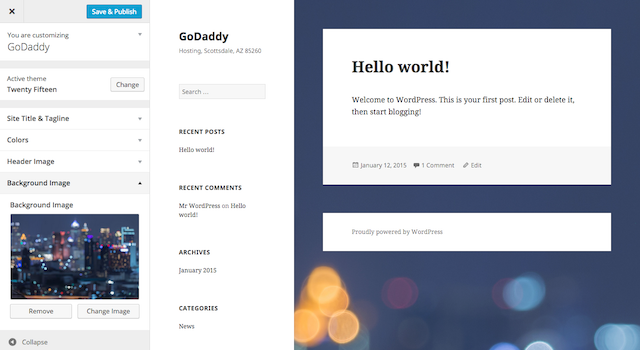
Open the WordPress Customizer. It helps you see changes live. You can change the site title and colors. Try different fonts and see what fits. Move around widgets to different areas. Save changes when you like them.
Themes have special settings. Look for the theme options menu. Change the layout or header style. Some themes let you choose a background image. Make sure you check what each option does. Keep settings simple and neat.
CSS helps change how things look. Add your custom CSS to make tweaks. You can change the font size or colors. Make sure to test your CSS changes. You can always remove them if they don’t look right. Be careful not to add too much CSS.
Testing Your Website
Checking for errors is key after changing a WordPress theme on GoDaddy. Begin by reviewing all pages to ensure content displays correctly. Missing images or broken links can confuse visitors. Use tools like W3C Validator for checking HTML errors. These help in identifying coding issues quickly. Errors can affect user experience and SEO negatively.
Ensuring mobile responsiveness is crucial. Many people browse on mobile devices today. Check if your site looks good on phones and tablets. Resize the browser window to simulate mobile devices. Google’s Mobile-Friendly Test tool is useful here. Responsive design improves visitor satisfaction and engagement. It impacts search engine rankings positively.
Testing website speed is important. Slow sites can frustrate users. Use tools like GTmetrix or Google PageSpeed Insights. These tools show loading times and suggest improvements. Faster websites keep visitors happy and increase visit duration. Speed affects user experience and search engine optimization.
Troubleshooting Common Issues
Changing a WordPress theme on GoDaddy often raises common issues. Start by navigating to your WordPress dashboard, select “Appearance,” then “Themes. ” Activate your chosen theme, ensuring compatibility and updates to prevent functionality problems.
Theme Compatibility Problems
Changing themes might cause compatibility problems. Some themes may not work well with your site. Before changing, check the theme details. Make sure it suits your WordPress version. Use the preview option to see how it looks. This helps in spotting issues early.
Fixing Layout Issues
Layouts can break after a theme change. You might see misaligned images or messed up text. Use the customizer tool to fix these. Adjust the margins and padding. Check the mobile view too. Make sure it looks good on phones and tablets.
Resolving Plugin Conflicts
Plugins may not work with new themes. This can cause site crashes. Disable all plugins first. Then, activate them one by one. Check for errors after each one. Find which plugin causes trouble. You might need a plugin update or an alternative.

Credit: www.godaddy.com
Frequently Asked Questions
How To Find Themes On Godaddy?
To find themes on GoDaddy, log into your account and navigate to the WordPress dashboard. Click on ‘Appearance’, then ‘Themes’. You can browse available themes or search for specific ones using the search bar. Ensure the theme is compatible with your version of WordPress.
Can I Preview WordPress Themes?
Yes, you can preview WordPress themes before applying them. In the WordPress dashboard, under ‘Appearance’, click ‘Themes’. Hover over a theme and select ‘Live Preview’ to see how it looks. This helps you assess its compatibility with your site’s content and design.
How To Install A WordPress Theme?
To install a WordPress theme, go to the dashboard and click ‘Appearance’, then ‘Themes’. Choose ‘Add New’ to browse available themes or upload a zipped theme file. Click ‘Install’ followed by ‘Activate’ to apply the theme to your website.
Is Changing Themes Safe For My Site?
Changing themes can affect your site’s appearance but is generally safe. Backup your site before changing themes to prevent data loss. Some theme features may differ, so review settings post-change. Ensure compatibility with plugins and WordPress version for a smooth transition.
Conclusion
Changing a WordPress theme on GoDaddy is simple. Follow the steps outlined above to ensure a smooth transition. Themes can refresh your site’s look. Make sure to choose a theme that fits your content. Always preview before making changes live.
This helps catch any issues early. Back up your site regularly to prevent data loss. Keep your site updated for better performance. Experiment with different themes to find the best match. Enjoy customizing your site with ease. Happy blogging and designing!


