
Are you tired of the same old font on your WordPress website? Changing fonts can instantly refresh the look of your site, making it more engaging for your visitors.
With the right font, you can elevate your brand’s personality and make your content more readable. But how do you go about changing fonts on your WordPress theme without feeling overwhelmed? You’re not alone—many WordPress users like you are eager to make this simple yet powerful change.
In this guide, we’ll walk you through the easy steps to customize your site’s fonts, ensuring a sleek and professional appearance that captures your audience’s attention. Stay with us, and discover how effortless it can be to transform your website’s typography and enhance your online presence.
Credit: wpdatatables.com
Choosing The Right Font
Fonts must fit well with your theme. Some fonts may not look good. Always check if the font style matches your design. A well-matched font makes your site look better. Avoid fonts that are hard to read. Your visitors should find text easy to read. Check on different devices. The font should work on phones and computers. This keeps your site looking good everywhere. Testing is important. Always test before making changes live.
Easy-to-read fonts keep visitors on your site. Simple fonts are best for long texts. Avoid fancy fonts for main text. Fancy fonts work well for headings only. Short sentences help people read faster. Use a clear font size, at least 16px. This size is easy for most people to read. Good spacing between lines helps too. It makes reading comfortable. Test with different people to see if they find it easy.
Your font should match your brand style. Consistent fonts make your site look professional. Brand colors should work with your font color. This creates a uniform look. Keep using the same font across all pages. Changes in font can confuse visitors. A consistent look builds trust. Avoid too many different fonts. One or two fonts are usually enough. This keeps your site clean and neat.
Credit: www.elegantthemes.com
Accessing Theme Customizer
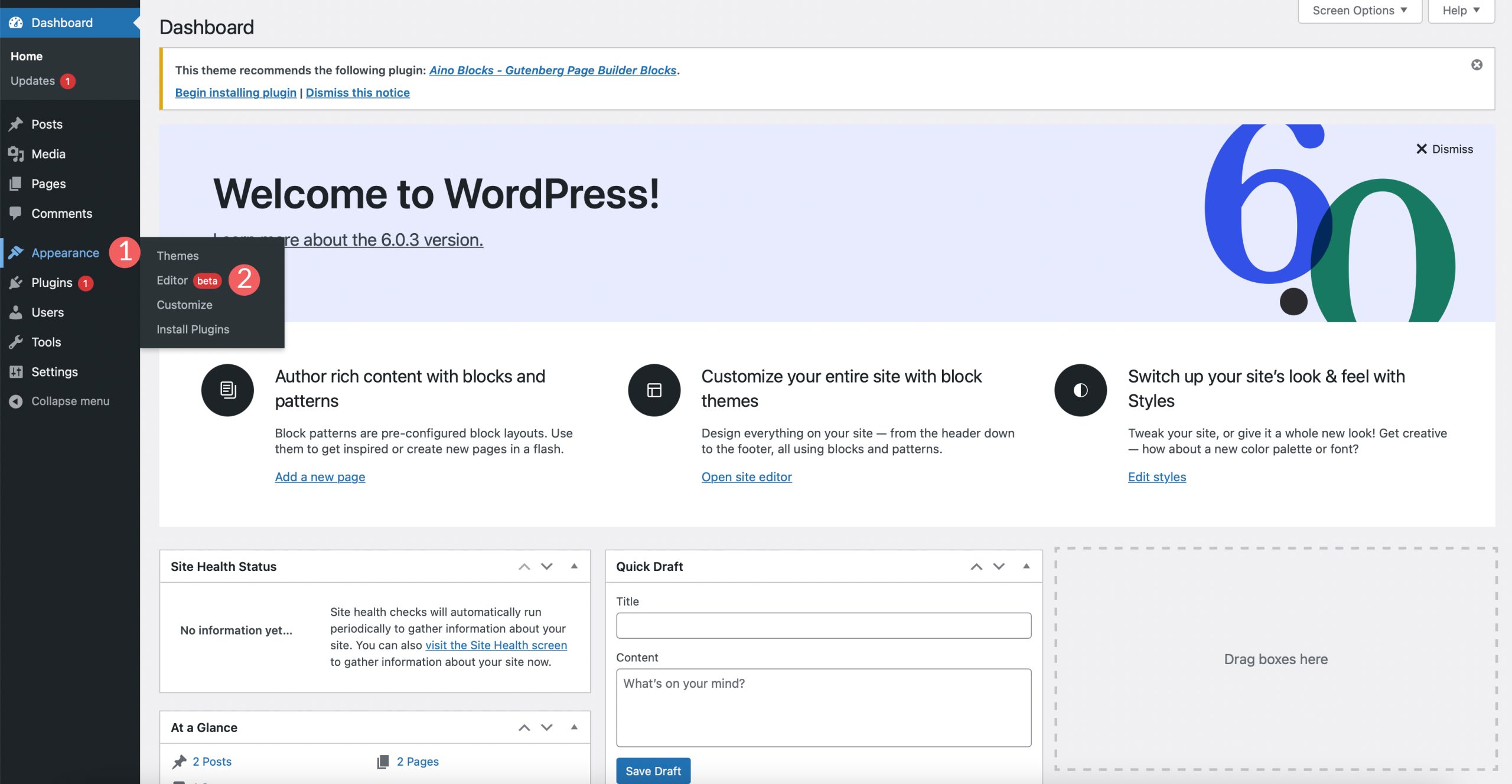
To change fonts, first access the Theme Customizer. Find it in the WordPress dashboard. Look for the “Appearance” tab. Click on “Customize”. This opens the Customizer screen. The Customizer lets you change site look. You can adjust colors, fonts, and more.
Find “Typography” settings in the Customizer. Look on the left side. Click on “Typography” to see font options. You can choose from many fonts. Change font style and size. Make text bold or italic. Preview changes on the right side. This helps you see how it looks.
Using Custom Css
Custom CSS changes how your site looks. It lets you make unique designs. Add custom CSS in WordPress by going to the Appearance menu. Then select Customize. Look for the Additional CSS option. Here, you can enter your CSS code. This will change your site’s style. Make sure to save your changes.
Specific elements need special CSS rules. You can target headers, paragraphs, or buttons. Use CSS selectors like h1 or .class-name. These help change fonts or colors. For example, h1 {font-family: Arial;} changes the font of all headings. This makes your site look better.
Installing Font Plugins
To change fonts, install a font plugin. These plugins help you add new fonts. It’s simple and fast. You’ll find many plugins in the WordPress store. Most are free. Some offer extra features for a fee. Choose one that fits your needs. Always check the reviews before installing. This ensures the plugin works well. Remember, a good plugin makes font changes easy.
There are several popular font plugins. Easy Google Fonts is a favorite. It lets you use Google fonts easily. FontPress is another good choice. It offers many font options. Typekit Fonts for WordPress provides Typekit font access. Each plugin has unique features. Compare them to find the best one for you. Always look for user-friendly plugins. This saves time and effort.
After installing, configure the plugin. Go to the settings page. Choose the fonts you like. Adjust the size and color. Make sure the fonts fit your theme. This improves your site’s look. Always preview changes before saving. This helps avoid mistakes. If unsure, consult the plugin’s guide. It will have helpful tips. Enjoy your new fonts!
Using Google Fonts
Google Fonts offer an easy way to customize your WordPress theme. Access the theme customizer, then select Google Fonts from available options. Choose your desired font style, apply changes, and refresh to see the new look. This simple process enhances your site’s design effortlessly.
Selecting Google Fonts
Google Fonts offers many styles. Choose a font that suits your theme. Visit the Google Fonts website. Browse the options. Look for a font that matches your design. Use the filter tool to narrow down choices. Pick a font that enhances readability. Copy the font’s URL or CSS code for later use.
Integrating With WordPress
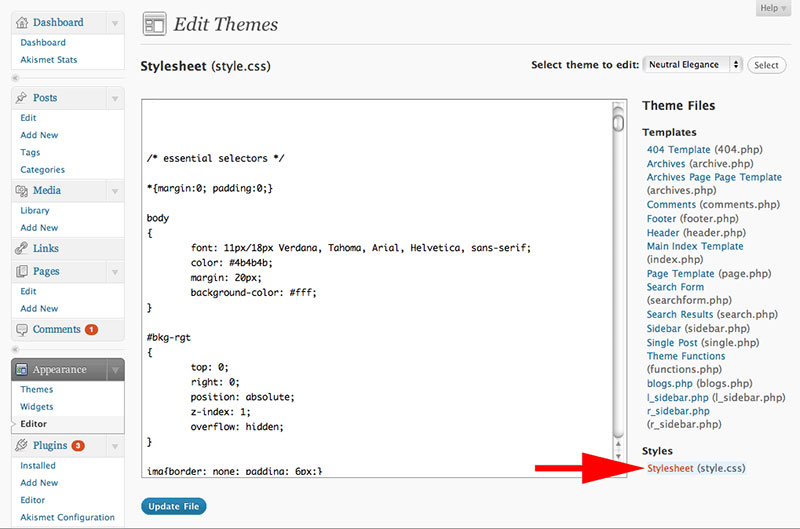
Adding Google Fonts to WordPress is simple. Access your WordPress dashboard. Go to “Appearance” then “Theme Editor.” Find the “style.css” file. Paste the font code you copied. Save the changes. Sometimes, themes have font options. Check your theme settings. Select the Google Font if available. Always preview changes before publishing. Make sure the new font looks good on all devices.
Testing Font Changes
Before finalizing, always preview your font changes. This helps you see how your website will look. Check different pages to ensure consistency. Fonts should be easy to read. Look at headings and paragraph text. Ensure they match your style. Previewing helps you catch mistakes early. It saves time and effort. Make sure everything looks neat and professional.
Websites appear differently in various browsers. Test your font changes on popular browsers. These include Chrome, Firefox, and Safari. Each browser may render fonts differently. Ensure your text looks good everywhere. Consistency is key for a professional look. Check mobile browsers too. Many users browse on phones and tablets. Your fonts should be clear on all devices.
Troubleshooting Font Issues
Changing WordPress theme fonts can solve display problems. First, access the WordPress dashboard. Then, navigate to the Appearance section. Select Customize and find Typography options. Choose your desired font from the available list. Save the changes to see the update on your site.
Common Issues
Fonts might not load properly on your site. This can happen due to various reasons. Sometimes, themes have missing font files. Broken links can cause fonts not to appear. Incorrect CSS codes might also be the culprit. Another common issue is font size looking different. This can happen across different browsers. Fonts can look smaller or larger than expected.
Resolving Plugin Conflicts
Plugins can sometimes conflict with theme fonts. This can cause fonts to break or not display. Disable all plugins first. Then, check if the font issue is resolved. Enable plugins one by one. Check fonts after each activation. Identify which plugin causes the problem. Some plugins affect CSS or JavaScript files. These can interfere with theme fonts. Update or replace problematic plugins. This often solves the issue.

Credit: wordpress.com
Frequently Asked Questions
How Do I Change Fonts In WordPress Themes?
To change fonts in WordPress, access the theme customizer. Navigate to Appearance > Customize > Typography. From there, select your preferred fonts. Some themes may require additional plugins for more font options. Always preview changes before saving to ensure the new font complements your site’s design.
Can I Use Google Fonts In WordPress?
Yes, you can use Google Fonts in WordPress. Install a plugin like Easy Google Fonts. This plugin allows integration with your theme customizer. Once installed, you can select and apply any Google Font to your theme. Always verify font compatibility with your theme for optimal display.
Are Font Changes Reversible In WordPress?
Yes, font changes in WordPress are reversible. You can easily revert back to your previous font settings. Simply access the theme customizer and select the original font. If you used a plugin, deselect the new fonts to restore defaults. Always preview changes before finalizing them.
Do All Themes Support Font Changes?
Not all themes support direct font changes. Some may require custom CSS or additional plugins. Check your theme documentation for font customization options. Alternatively, consider switching to a more flexible theme. Always ensure that any changes align with your site’s branding and design.
Conclusion
Changing WordPress theme fonts enhances your site’s look. It’s simple and effective. Follow the steps outlined above for best results. Choose fonts that match your brand’s personality. Keep readability in mind. Test different options to find what works. Your site should feel inviting and clear.
A fresh font can make a big difference. Check your theme settings first. Use plugins for extra customization options. Consistency is key across your website. Happy designing! Make your site unique and engaging with the right font choice. It’s a small tweak with a big impact.


